
Playwright Scraping Guide: Run Browser Automation With Proxies


Playwright scraping means using a real browser to open a website, wait for JavaScript to render, interact with page elements, and extract data from the final page state. It is a strong option when a simple HTTP request cannot see the same content that appears in Chrome.
A local Playwright script is enough for testing personal automations or scraping a small public page. Production scraping is harder. Once the workflow needs cloud execution, regional targeting, CAPTCHA handling, browser profiles, recordings, or proxy-backed sessions, the browser itself becomes only one part of the setup.
That is where NodeMaven Scraping Browser fits in. It runs a real Chrome browser on NodeMaven infrastructure, routes the session through NodeMaven proxies, and gives Playwright a CDP URL to connect to. There is no separate browser usage fee: you pay only for the proxy traffic used during the session, instead of spending time and server resources building and maintaining your own browser infrastructure.
Web automation is also getting more infrastructure-heavy. In the Apify State of Web Scraping 2026, 65.8% of scraping professionals said they increased proxy usage, while 58.3% increased proxy spending year over year. For Playwright scraping, that explains why many teams now care about IP reputation, session stability, browser signals, and location consistency before they scale.
This guide explains when to use Playwright, when to use NodeMaven Scraping Browser directly, how to connect Playwright over CDP, and how to choose the right proxy setup for e-commerce scraping, price monitoring, JavaScript-heavy websites, and cloud automation.

Best Playwright Scraping Setup by Workflow
| Workflow | Best starting setup |
| Testing personal scripts locally | Local Playwright |
| Standard React or JavaScript-heavy site | Local Playwright first; move to Scraping Browser if blocks, CAPTCHAs, or cloud deployment issues appear |
| E-commerce product pages | NodeMaven Scraping Browser e-commerce template with residential proxies |
| Price monitoring every 15 minutes | Scraping Browser with a sticky session or saved browser profile |
| Cloud execution or scheduled jobs | NodeMaven Scraping Browser API |
| Search results in parallel | API or HTTP scraper first; use Playwright only where rendering is required |
| Cloudflare-protected pages | Scraping Browser with Extra Stealth, CAPTCHA Solver, and Cloudflare Web Bot Auth where applicable |
| No-code workflow | NodeMaven AI Prompt or ready-made templates |
| AI or RAG data pipeline | Structured JSON output from Scraping Browser |
In this article, “Playwright with proxies” can mean two setups. You can configure proxies manually in a local Playwright script, or you can use NodeMaven Scraping Browser, where the browser environment, proxy routing, CAPTCHA handling, Live Browser, and debugging tools are already managed.
What Is Playwright Scraping?
Playwright is a browser automation framework. It can control Chromium, Firefox, and WebKit, click buttons, fill forms, scroll pages, wait for elements, take screenshots, and extract data from the rendered DOM.
For scraping, Playwright is usually chosen when the page depends on browser behaviour.
A basic scraper downloads HTML. A Playwright scraper opens the page like a browser, runs the scripts, waits for the interface to load, and then extracts the data.
That makes Playwright a good fit for:
- React, Vue, Angular, and other JavaScript-heavy pages
- product pages with dynamic prices or stock
- search pages with filters and infinite scroll
- workflows that require clicks, forms, or pagination
- screenshots and visual checks
- pages where location, cookies, or session state affect the result
If you are new to scraping, start with simpler targets first. NodeMaven’s Python web scraping guide covers the basic flow before you move into browser automation. Also check our guide on Playwright MCP.
Why Connect Playwright to NodeMaven Scraping Browser?
You do not have to connect Playwright for every scraping task. If a dashboard template or AI Prompt gives you the data you need, stay inside NodeMaven Scraping Browser. You can choose a use-case template, run the browser, watch the Live Browser, check the console, and export structured results without writing a full script.
Connect Playwright when the scraper needs to become part of your own system. For example, your backend may need to pull URLs from a database, run scraping jobs on a schedule, send JSON into an internal dashboard, or pass fresh web data into an AI/RAG pipeline.
Use the dashboard for fast testing:
- run an e-commerce, B2B enrichment, real estate, or price monitoring template
- write a no-code AI Prompt
- watch the page in Live Browser
- check console output and structured results
- download a screenshot, HTML file, or quick export
Use Playwright with Scraping Browser for production control:
- run the scraper from your backend
- schedule jobs with cron, queues, or workers
- scrape many URLs from your own database
- reuse existing Playwright code
- send extracted JSON into your app, dashboard, or AI pipeline
- control navigation, waits, clicks, screenshots, and validation in code
In short, NodeMaven Scraping Browser runs the cloud browser environment, including proxies, anti-detection settings, CAPTCHA solving, Live Browser, and session recordings. Playwright controls that browser from your code when templates or AI Prompt are no longer enough.
Check our guide on how to use Scraping Browser if you don’t need to connect it to your system and want to start scraping quickly.
Local Playwright vs NodeMaven Scraping Browser
Local Playwright gives you full control on your own machine. It is the right place to learn, build selectors, test waits, and confirm that the workflow works.
The problems usually start when the same scraper moves to a VPS, CI worker, or production server. The browser now runs from a cloud IP. The target may return different content, more CAPTCHAs, slower responses, or block pages that never appeared during local testing.
| Setup | What You Manage | Better For |
| Local Playwright | browser install, local IP, scripts, selectors | learning, small tests, personal automation |
| Playwright on your VPS | server, browser dependencies, proxy setup, logs, scaling | teams with DevOps capacity |
| NodeMaven Scraping Browser | cloud browser, proxy routing, anti-detection settings, Live Browser, recordings | production scraping, regional checks, debugging, scheduled jobs |
NodeMaven launches the browser first. Playwright connects to that running browser with chromium.connectOverCDP(cdpUrl). This means your script still controls the page, but the browser runs inside NodeMaven’s managed environment.
How to Connect Playwright to NodeMaven Scraping Browser
To connect Playwright to NodeMaven Scraping Browser, you need two values from your NodeMaven dashboard:
- Scraping Browser API token from the Scraping Browser Overview page
- Proxy password from your NodeMaven proxy credentials
The API token authorizes the browser session request. The proxy password lets NodeMaven route the browser through the selected proxy setup.
Step 1: Copy Your Scraping Browser API Token
Open the NodeMaven dashboard and go to Scraping Browser → Overview. In the Browser API block, copy your API token.
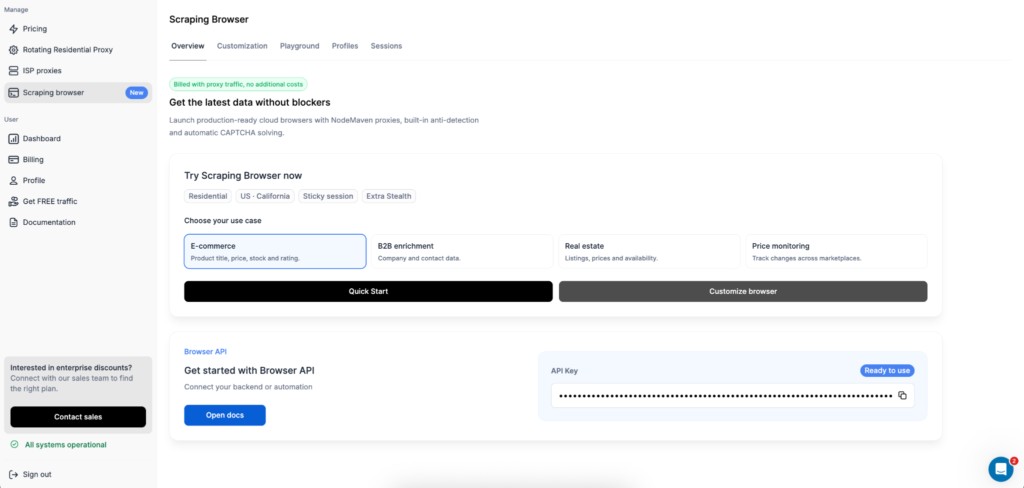
Keep this token private. It works like a password for creating and managing browser sessions.
In API requests, the token is passed as a bearer token:
Step 2: Copy Your Proxy Password
Next, copy the proxy password from your NodeMaven proxy credentials.
You will use this value in the proxy_password field when creating a Scraping Browser session.
Step 3: Install Playwright Core
Install playwright-core in your project:
Use playwright-core because NodeMaven already runs the Chrome browser in the cloud. Your script only needs to connect to that browser.
Step 4: Create a Browser Session
Create a browser session through the Scraping Browser API.
The response includes a session ID, status, and CDP URL.
Copy the cdp_url. This is the browser connection link Playwright will use.
Step 5: Connect Playwright Over CDP
Now connect Playwright to the running NodeMaven browser session.
The main difference from local Playwright is the browser launch line.
Local Playwright usually starts like this:
With NodeMaven Scraping Browser, the browser is already running in the cloud:
Step 6: Extract Data From the Page
After Playwright connects, write selectors the same way you would in a normal Playwright scraper.
Always validate the result before saving it. A browser can load successfully and still return a CAPTCHA page, empty grid, wrong regional page, or login screen.
Example: Scrape an E-Commerce Page With Playwright
E-commerce pages are a natural Playwright scraping use case because product data often depends on JavaScript, cookies, location, stock rules, and shipping settings.
A typical workflow looks like this:
- Open a search or category page.
- Wait for product cards.
- Extract titles, prices, ratings, stock text, and URLs.
- Save a screenshot for debugging.
- Return structured JSON.
Replace the selectors with the ones from your target website. For Amazon-style workflows, inspect the exact page and region before scaling because layout, price blocks, delivery messages, and sponsored placements can vary.
For related workflows, see NodeMaven’s guides on price scraping, how to scrape Amazon, and building an Amazon price tracker with Python.
Do You Need Proxies for Playwright Scraping?
You do not always need proxies for Playwright scraping.
If you are testing a personal script locally, opening a small public page, or automating your own website, your normal connection may be enough.
Proxies become part of the setup when the workflow depends on:
- regional prices, listings, search results, or availability
- repeated scraping from the same website
- cloud execution from a VPS or CI worker
- browser profiles that need a stable location
- parallel scraping jobs
- public websites that inspect IP reputation
For public data collection, web scraping proxies help keep the network layer consistent. A local script may work from your home connection, then fail from cloud infrastructure because the target treats datacenter routes differently.
For many Playwright scraping jobs, residential proxies are the first option to test because they route traffic through consumer network ranges. For independent page requests, rotating residential proxies can distribute requests across different IPs.
The important part is matching the proxy behaviour to the scraping flow. Do not rotate aggressively during a session that depends on cookies, carts, pagination, location settings, or login state.
Best Proxy Setup for Playwright Scraping
Public E-Commerce Pages
For public product pages, category pages, and availability checks, start with residential proxies and a stable region.
If the website changes content by location, select the target country, region, city, or ZIP code before launching the browser session. This helps the scraper collect the same page version a real user in that area would see.
For product research across many unrelated URLs, rotation can work. For a category page, pagination flow, or shopping session, use a sticky session so the website does not see a different IP halfway through the journey.
Price Monitoring Every 15 Minutes
Price monitoring needs consistency more than heavy rotation.
If you check the same product every 15 minutes, random IP changes can create confusing results. The page may show a different delivery location, currency, shipping option, or availability message.
Use a sticky session or a saved browser profile. Store the region, source URL, timestamp, price, stock text, and screenshot path with each run. If the price changes, you can check whether the page itself changed or the scraper collected a different regional version.
Search Results in Parallel
Search result scraping can become expensive with Playwright because every browser session loads many resources.
If the target offers an API or returns usable static HTML, start there. Use Playwright only for pages where browser rendering is required.
When browser rendering is required, keep sessions short, block unnecessary resources where allowed, and avoid running more browsers than the workflow can pay for. NodeMaven’s traffic analytics can help you see which domains consume proxy traffic.
Cloudflare-Protected Pages
Some websites use Cloudflare or other anti-bot systems. For allowed workflows, NodeMaven Scraping Browser can run sessions with Extra Stealth, CAPTCHA Solver, and Cloudflare Web Bot Auth for participating websites.
This setup can improve reliability on supported flows, but no browser or proxy configuration guarantees access to every website. If the target blocks automation, review the website rules, reduce request frequency, check the page manually in Live Browser, and confirm that the scraper is collecting permitted public data.
Mobile-Like Workflows
Use mobile proxies when the target behaves differently for mobile carrier traffic or when you need mobile-specific checks.
For normal desktop scraping, residential proxies or sticky sessions are usually easier to manage. Mobile proxies make more sense for mobile-first platforms, app testing, ad verification, or cases where carrier-network traffic is part of the workflow.
Browser Profiles for Playwright Scraping
A browser profile saves browser state between sessions. In NodeMaven Scraping Browser, profiles can preserve cookies, local storage, cache, browser history, and authenticated website state.
Use profiles when the workflow needs continuity:
- a logged-in dashboard where automation is allowed
- a regional setting selected on the website
- a repeated price monitoring workflow
- a multi-step form that depends on stored cookies
- a long-running research environment
Each account includes up to 10 browser profiles by default.
A profile is not the same as a session. A session is one browser run with a maximum lifetime. A profile is the saved browser state that can be reused across sessions.
If you delete a profile, the saved browser data is removed. If the target website expires its own login session, the profile cannot keep you logged in forever.
Debugging Playwright Scraping in NodeMaven
Playwright scraping often fails in ways that are hard to diagnose from logs alone. The script may time out, but the real page could be a CAPTCHA, a cookie banner, a blocked region page, a missing selector, or a slow-loading component.
NodeMaven Scraping Browser gives you several ways to inspect the run:
- Live Browser shows the automation as it runs.
- Console output shows script logs and extracted JSON.
- Screenshots help compare successful and failed pages.
- HTML export lets you inspect the actual returned page.
- Session recordings help review completed runs.
- Sessions tab shows active, completed, and failed browser sessions.
Each browser session has a maximum TTL of 30 minutes, and session recordings/debugging data are retained for three days by default.
When a run fails, check the visible page first. If the page is correct, fix selectors or waits. If the page is wrong, check proxy location, profile state, CAPTCHA handling, cookies, and request timing.
Dashboard vs API for Playwright Scraping
Use the Scraping Browser in the dashboard when you are still building the workflow.
The dashboard lets you choose a template, customize the browser environment, write an AI prompt, edit Playwright or Puppeteer scripts, watch the Live Browser, inspect console output, and review structured results.
Use the API when the workflow is ready to run from your own system.
The API is the right path for:
- scheduled jobs
- backend scraping pipelines
- queues and crawlers
- repeated monitoring
- AI or RAG data ingestion
- production workflows that need programmatic session control
For scheduled jobs and cloud execution, create the browser session through the API, connect with Playwright over CDP, run the extraction, save the output, and close the session. Your scheduler controls the timing. NodeMaven handles the cloud browser and proxy environment.
Pricing and Limits
Scraping Browser has no separate browser usage fee for eligible NodeMaven users. You pay only for NodeMaven rotating proxy traffic transferred during browser sessions.
Browser runtime, Live Browser, AI prompts, CAPTCHA solving, and session recordings have no separate charge.
Failed or blocked automations still consume any proxy traffic already transferred during the session. Live Browser does not add a separate traffic cost, and recordings are included.
NodeMaven rotating residential and mobile proxy plans start from $2.20/GB. New users can also start with 750 MB of residential and mobile proxy traffic for $3.50, which is enough to test a small Playwright scraping workflow before scaling.
Users can monitor traffic in Dashboard → Breakdown by domain → Scraping Browser. There is currently no configurable traffic cap for a single session, but active sessions can be terminated manually at any time.
| Limit | Included by default |
| Browser profiles | Up to 10 |
| Active browser sessions | Up to 50 at the same time |
| Maximum session TTL | 30 minutes |
| Recording retention | 3 days |
If your workflow needs higher limits or longer-running sessions, contact NodeMaven support with the use case.
Playwright Scraping Checklist Before Scaling
Before running a large Playwright scraper, test the workflow in stages.
Start locally or in Playground with one URL. Confirm the page renders, the selectors work, and the output contains the expected fields. Then test with the target proxy location and session settings.
For production runs, keep these checks in place:
- save the source URL, timestamp, region, and extracted JSON
- detect CAPTCHA, login, access-denied, and empty pages
- store screenshots for failed runs
- use sticky sessions when cookies or location settings affect the page
- rotate only when each request is independent
- monitor proxy traffic by domain
- compare local and cloud behavior before scaling
- terminate stuck sessions instead of letting them burn traffic
For AI and RAG pipelines, validate the JSON before sending it downstream. Bad scraped data can quietly become bad model context.
Conclusion
Playwright is a strong scraping tool when the website needs a real browser. It can render JavaScript, click through page flows, wait for dynamic elements, and extract data from the same page state a user sees.
For small local tests, plain Playwright is enough. For production workflows, NodeMaven Scraping Browser reduces the work around browser infrastructure, proxy routing, location settings, CAPTCHA handling, profiles, logs, screenshots, and recordings.
Use the dashboard when you want templates, AI Prompt, Live Browser, and quick testing. Connect Playwright over CDP when the workflow needs to run from your backend, scheduler, queue, or data pipeline.


