
Playwright MCP: How It Works, Setup, and Use Cases



Playwright MCP is quickly becoming popular tool in AI powered browser automation. It gives an AI agent, like the one running inside Codex, Claude Code, or Cursor, a standardized way to open a browser, click around a page, fill out forms, and read back what happened.
This guide covers what Playwright MCP actually is, how to install it, how to connect it to different AI clients, and what it is useful for. It also includes a hands-on Codex integration test.
What is Playwright MCP?
MCP stands for Model Context Protocol. It is an open standard that lets AI models talk to external tools in a consistent way, instead of every tool needing its own custom integration.
Playwright MCP is a Model Context Protocol server, maintained by Microsoft, that provides browser automation capabilities using Playwright. In plain terms, the playwright MCP server acts as a bridge between an AI agent and a real browser controlled by Playwright.
The architecture looks like this:
AI agent → MCP → Playwright → Browser → Website
The AI agent (running in Codex, Claude Code, Cursor, or another MCP client) sends a request through MCP. The Playwright MCP server translates that request into a Playwright command, which then controls a real Chromium, Firefox, or WebKit browser and interacts with the target website.
However, Playwright MCP does not replace Playwright. Playwright is still the underlying automation engine doing the actual clicking, typing, and navigating. Playwright MCP simply gives an AI agent a structured, standardized way to call Playwright’s capabilities without a developer having to write a script for every single action in advance.
According to the official microsoft/playwright-mcp repository, the server is built to be fast and lightweight because it uses Playwright’s accessibility tree rather than pixel-based screenshots, and it is LLM friendly since it operates on structured data instead of requiring a vision model.
How does Playwright MCP work?
The workflow looks like this:
- The user gives the AI agent a browser task in plain language, for example “open this page and tell me the price of the first product”.
- The AI agent decides which browser action is required to move toward that goal.
- The MCP client calls the Playwright MCP server with that action.
- Playwright performs the action in a real browser: navigating, clicking, typing, or reading content.
- The browser state is returned to the AI agent, usually as a structured accessibility snapshot rather than a screenshot.
- The agent reviews that state and decides what to do next, repeating the loop until the task is complete.
Instead of sending the model a picture of the page and asking it to guess where a button is, Playwright MCP can return a structured, text-based snapshot of the page’s accessibility tree: roles, labels, and element references. This is useful to an LLM, because structured text is cheaper to process, and less prone to the kind of misclicks that happen when a model has to interpret pixels. The official documentation also supports an opt in “vision” capability for coordinate based interactions when that is genuinely needed.
Playwright vs Playwright MCP
Traditional Playwright is a developer-controlled automation framework. Playwright MCP allows an AI agent to use Playwright through a standardized protocol instead of a hand written script.
| Aspect | Playwright | Playwright MCP |
| Who uses it | Developers writing test or automation scripts | AI agents inside MCP clients like Codex, Claude Code, Cursor |
| How actions are defined | Explicit code, written in advance | Decided step by step by the AI agent at runtime |
| Coding requirement | Requires writing and maintaining scripts | Requires configuring an MCP server, not writing browser code |
| AI involvement | None, unless you add it yourself | Central to how the tool operates |
| Determinism | High, the same script runs the same way every time | Lower, depends on the model’s decisions each run |
| Speed | Fast, no reasoning overhead per step | Slower, each step involves a model decision |
| Typical use case | Repeatable test suites, large scale scraping pipelines | Exploratory automation, ad hoc tasks, self healing tests |
The key distinction: Playwright is about executing a known plan reliably. Playwright MCP is about letting an agent figure out the plan as it goes.

Need proxies for browser automation? Get NodeMaven proxies from $3.50 with 750MB of bandwidth
How to install Playwright MCP
Prerequisites
According to the current official documentation, Playwright MCP requires Node.js 20 or newer, plus a supported MCP client such as VS Code, Cursor, Windsurf, Claude Desktop, Claude Code, Codex, Goose, Grok, or Junie.
Install the Playwright MCP server
The standard configuration works with most MCP clients:
This tells the client to run the Playwright MCP server on demand using npx, so there is no separate install step for most setups. The server downloads and manages the browser binaries it needs automatically.
Configure Playwright MCP
The server supports a range of command line arguments and a JSON configuration file for more control. Some of the more commonly used options:
| Option | What it does |
| –browser | Choose chrome, firefox, webkit, or msedge |
| –headless | Run without a visible browser window (headed by default) |
| –isolated | Keep the browser profile in memory instead of saving it to disk |
| –device | Emulate a specific device, for example “iPhone 15” |
| –proxy-server | Route browser traffic through a proxy |
| –caps | Enable optional capabilities such as vision, pdf, or devtools |
A minimal config file example, saved as config.json and loaded with –config path/to/config.json, might set browser.isolated to true and specify a viewport under contextOptions. The full schema, including network allow lists and console log levels, is documented in the official repository.
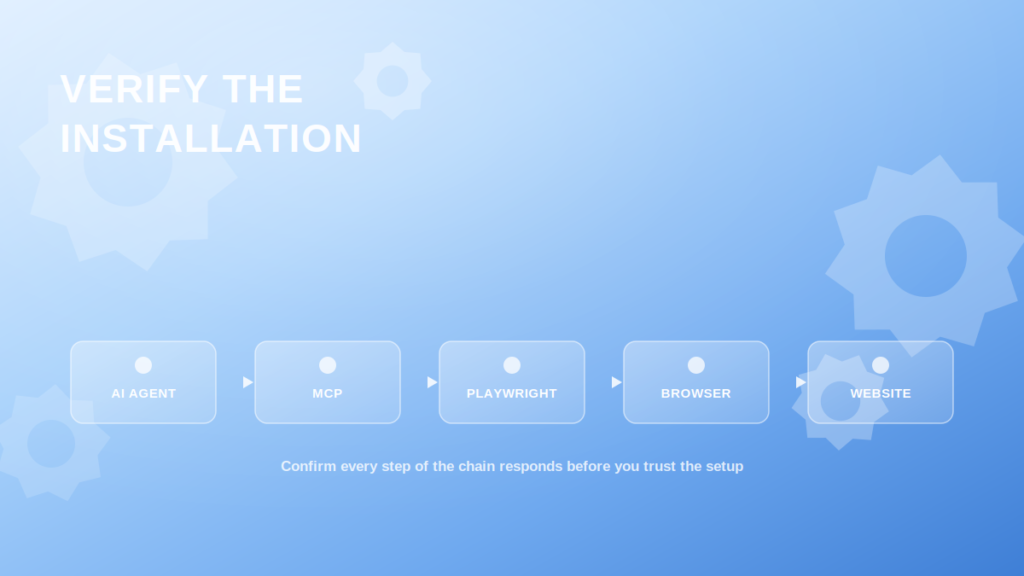
Verify the installation
Once the server is connected, ask your AI client to perform a simple task, such as opening Playwright’s own TodoMVC demo page and adding a to do item.
A successful installation should result in the agent navigating to the page, reading back a structured snapshot of the page content, and confirming that the item was added, without you writing a line of Playwright code yourself.
Playwright MCP with Codex: hands-on test
This is practical part of this article. We tested Codex integration directly, so the results reflect an actual run rather than documentation alone.
Connecting Playwright MCP to Codex
According to the current Codex MCP documentation referenced in the official Playwright MCP repository, there are two supported ways to connect.
The first is through the Codex CLI directly:
The second is by editing the Codex configuration file at ~/.codex/config.toml and adding:
For our test, we used VS Code, Node.js, and the Codex CLI. Playwright MCP was connected to Codex through the Codex CLI.
Before starting, we checked the Node.js version:
Our test environment returned:
We then installed the Codex CLI:
After installation, we verified the version:
The test environment returned:
We then added Playwright MCP to Codex with:
Codex confirmed the installation with:
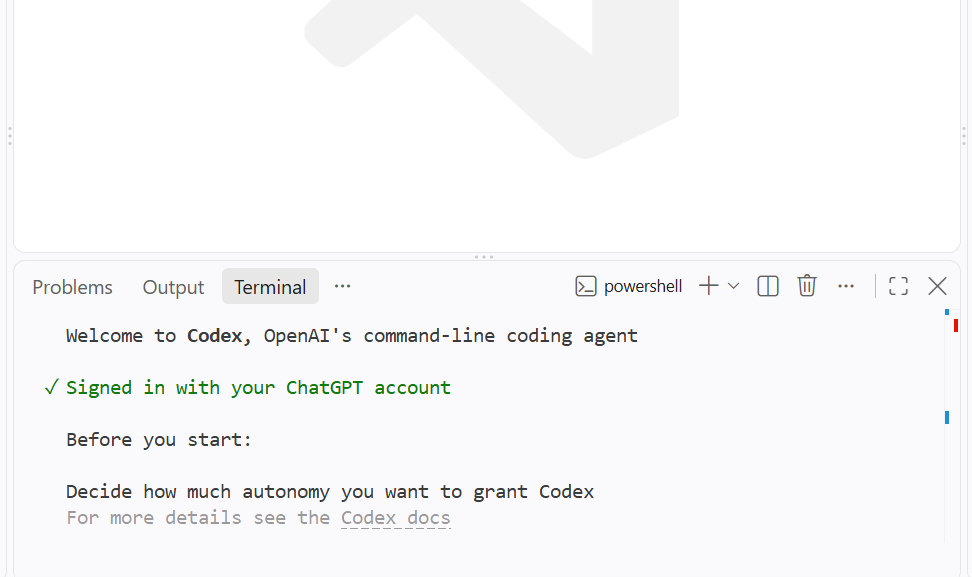
We started Codex with:
After launching, Codex showed the welcome screen and confirmed that we were signed in.
Verifying the MCP connection
To check that Codex could actually see Playwright MCP, we ran:
The MCP list showed a playwright server with browser tools including:
- browser_navigate
- browser_snapshot
- browser_click
- browser_fill_form
- browser_type
- browser_take_screenshot
- browser_navigate_back
- browser_wait_for
and others.
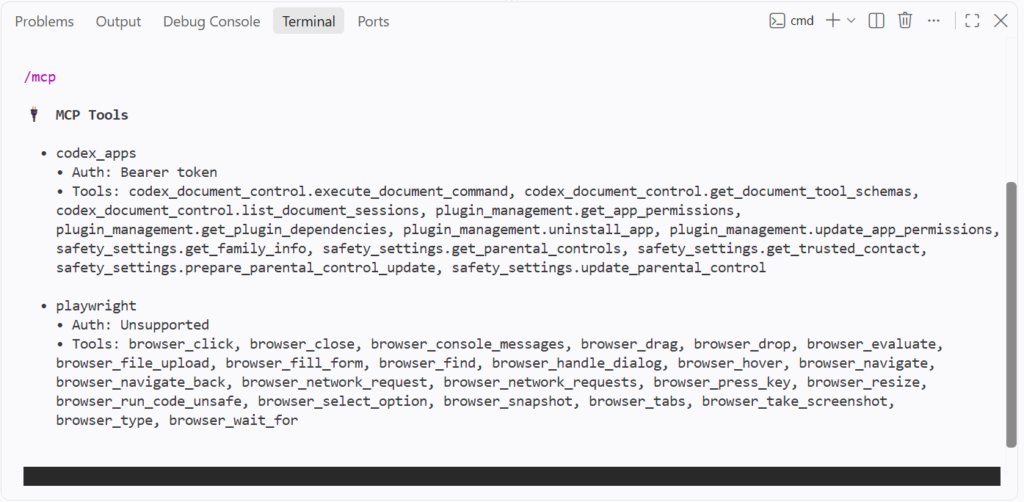
This confirmed that Playwright MCP was not only configured but available to Codex as an active MCP server.
Running the first browser task
We started with a simple navigation and page-inspection test using the public The Internet demo website.
The prompt was:
Codex called browser_navigate and then browser_snapshot.
It successfully opened the page and identified the available demo sections, including A/B Testing, Checkboxes, Form Authentication, File Upload, Frames, JavaScript Alerts, and many others.
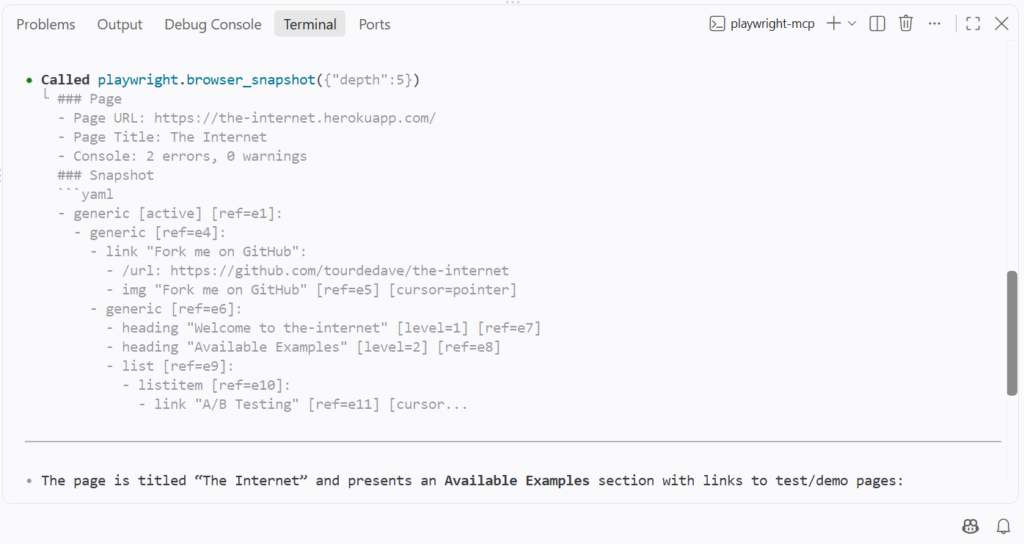
The first navigation and inspection test was successful.
Testing element interaction
Next, we asked Codex to find and click the Checkboxes link:
Codex used browser_click to find the link by its accessible name and then called browser_snapshot to inspect the resulting page.
It correctly reported:
- URL: https://the-internet.herokuapp.com/checkboxes
- 2 checkboxes
- Checkbox 1: unchecked
- Checkbox 2: checked
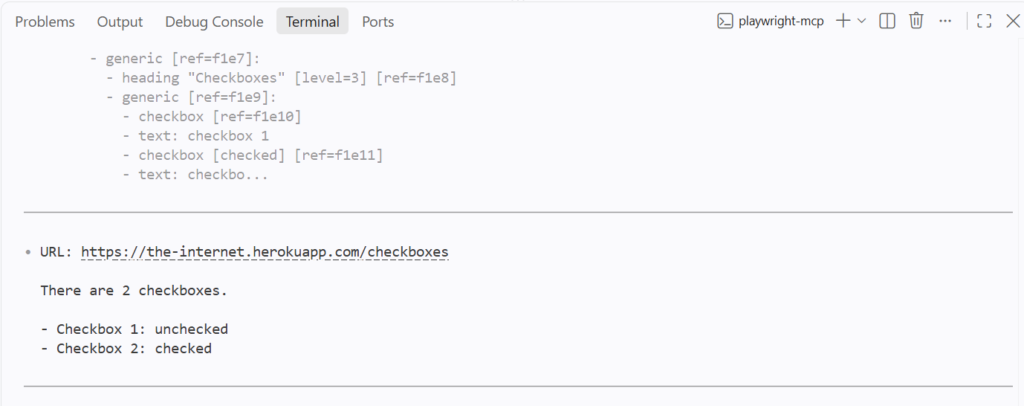
This test confirmed that Codex could identify an element from the page, interact with it, and extract information from the resulting state.
Testing form filling
We then tested form interaction separately to make sure Codex actually used a Playwright form-filling tool.
We navigated to:
https://the-internet.herokuapp.com/login
and asked Codex to fill the form without submitting it:
This time, the trace explicitly showed:
Called playwright.browser_fill_form
Codex filled both fields with the requested values and confirmed that the Login button had not been clicked.
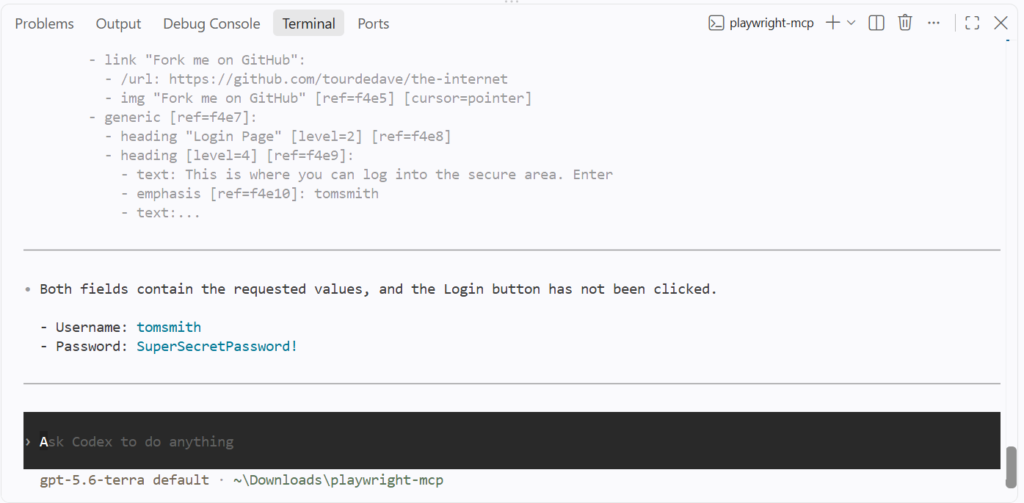
This gave us a confirmation that Playwright MCP can handle form filling through Codex.
Testing a complete login workflow
We also tested the login workflow itself.
Codex navigated to the login page, inspected it, and interacted with the Login button. The resulting page was:
https://the-internet.herokuapp.com/secure
The page contained the message:
You logged into a secure area!

Codex correctly reported that the login was successful.
Test results
| Test | Result |
| MCP connection | Success ✅ |
| Open page | Success ✅ |
| Page inspection | Success ✅ |
| Navigate between pages | Success ✅ |
| Click element | Success ✅ |
| Fill form | Success ✅ |
| Extract data | Success ✅ |
| Login workflow | Success ✅ |
What worked and what did not
The integration worked without major configuration issues. Codex successfully connected to Playwright MCP and handled navigation, page inspection, clicks, form filling, data extraction, and the login workflow.
The main limitation was agent behavior rather than a Playwright MCP failure. In one login test, Codex skipped the requested form-filling step and went directly to clicking Login. A separate, more explicit prompt correctly triggered browser_fill_form.
This highlights the main difference from traditional Playwright: with a Playwright script, every browser action is explicitly controlled, while with Codex and MCP, the agent decides which tools and actions to use.
Overall, Playwright MCP worked well with Codex for common browser automation and testing tasks. The natural-language interface makes browser interaction easier without writing Playwright code, but traditional Playwright remains a better choice when a workflow requires fully deterministic control over every action.
Playwright MCP with Claude Code
This section is based on the current official documentation, but following the same rules as Codex integration presented above.
According to the official microsoft/playwright-mcp repository, adding Playwright MCP to Claude Code is a single CLI command:
This registers the Playwright MCP server with Claude Code using the standard npx @playwright/mcp@latest command, the same underlying package used by every other client. Once connected, a Claude Code user could ask the agent to do something like “go to our staging site, log in with the test account, and confirm the dashboard loads”, and the agent would use the registered Playwright MCP tools to carry out each step and report back what it found.
Playwright’s official documentation is the main source for the current Claude Code configuration, and it is worth checking there directly before setting this up, since MCP client instructions can change as tooling matures.
Playwright MCP with Cursor and other AI tools
Playwright MCP With Cursor
Cursor supports a one click install button linked directly from the official repository, or a manual setup: go to Cursor Settings → MCP → Add new MCP Server, name it, select the command type, and use npx @playwright/mcp@latest as the command. Cursor also enforces a 60-character limit for the combined server and tool name.
Playwright MCP with VS Code
VS Code supports installing Playwright MCP directly from the command line:
After installation, the server becomes available to the GitHub Copilot agent inside VS Code. VS Code Insiders has its own install link as well.
Other MCP clients
The official documentation confirms support for several other clients using the same standard configuration, including Claude Desktop, Windsurf, Cline, GitHub Copilot CLI, Amp, Gemini CLI, Goose, Grok, Junie, Kiro, LM Studio, opencode, Qodo Gen, and Warp. Configuration details vary slightly by client (some use a CLI command, others a JSON or TOML file), so it is worth checking the exact syntax for your client.
Playwright MCP use cases
- AI Powered web testing
An agent can navigate through a real user flow, such as signing up or checking out, and flag anything that breaks or behaves unexpectedly, without a tester having to script every possible path in advance.
- Browser automation
Repetitive browser workflows, like checking a dashboard every morning or downloading a report from an internal tool, can be described in plain language instead of maintained as a fragile script.
- Web research
An agent can open multiple pages, follow links, and pull together information across sources, which is useful for competitive research or gathering context before a task.
- Web scraping
Playwright MCP can interact with dynamic, JavaScript heavy pages the way a real user would.
- Form filling and data entry
Repetitive data entry, such as submitting the same form with different values across many records, is a natural fit for an agent using browser_fill_form.
- Website debugging
When a bug report is vague, an agent can reproduce the reported steps in a real browser and capture a snapshot or screenshot of what actually happens, which helps narrow down the cause faster than reading a description alone.
Playwright MCP for web scraping
Playwright MCP becomes useful for scraping when a page requires real interaction. That includes JavaScript rendered content, interactive elements, multi-step navigation, forms that gate content behind a submission, and session-based workflows where a login has to persist across pages.
AI driven browser automation is not always the right tool for high volume scraping. Each step involves a model decision, which adds latency and cost. For a job that needs to run the same way thousands of times a day, a traditional Playwright script or a dedicated scraping system is usually more predictable and more efficient.
Playwright MCP fits best where the task varies enough that a fixed script would need constant maintenance.
Using Playwright MCP with proxies
Once a browser is in the loop, proxies become relevant in the same way they would for any Playwright script. The architecture extends:
AI agent → Playwright MCP → Playwright → Proxy → Website
Proxies matter here for many reasons. Geographic testing often requires seeing a page the way a user in a specific country or city would. Localized content, like pricing or search results, can differ by region. Distributed browser workflows benefit from spreading requests across different IPs.
Playwright MCP’s own configuration supports a –proxy-server argument, so a proxy can be set at the same level as browser choice or headless mode, which makes it straightforward to point an agent’s browser sessions through residential, mobile, or ISP proxies depending on the task. NodeMaven’s Playwright proxy integration guide covers the equivalent setup for standard Playwright scripts, and the same authentication pattern (server, username, password) carries over here.
NodeMaven for browser automation workflows
NodeMaven provides residential, mobile, and ISP proxy infrastructure that pairs with Playwright and Playwright MCP based workflows.
The residential proxy network covers 190+ countries with a 95% clean IP rate, ZIP level geo-targeting, and sticky sessions that can hold for up to 24 hours.
For teams that want a managed alternative to running headless browsers locally, NodeMaven’s scraping browser is a cloud-based browser that already integrates with Playwright, Puppeteer, and Selenium and handles proxy rotation and fingerprinting on its own.
Limitations of Playwright MCP
Playwright MCP is a useful tool, but it is not automatically the best fit for every browser automation task.
- AI agents can make incorrect decisions, especially on unfamiliar page layouts
- MCP introduces additional overhead compared to a direct Playwright call, since every step involves a model round trip
- Traditional Playwright scripts are faster and more deterministic for workflows that do not change
- Authentication flows can be difficult for an agent to complete reliably
- CAPTCHAs can still block automation, whether it is driven by a script or an AI agent
- Large scale scraping generally needs dedicated infrastructure rather than an AI agent making decisions one step at a time.
Playwright MCP vs traditional browser automation
| Aspect | Playwright MCP | Traditional Playwright | Selenium |
| AI control | Full, agent decides each step | None by default | None by default |
| Determinism | Lower | High | High |
| Performance | Slower per step | Fast | Slower than Playwright, faster than agent driven MCP |
| Ease of experimentation | High, no code required to try a new task | Requires writing a script | Requires writing a script |
| Repeatability | Depends on the agent’s decisions | Very high | Very high |
| Best use case | Exploratory tasks, research, self healing tests | Deterministic test suites, high volume automation | Legacy test suites, WebDriver based environments |
Alternatives to Playwright MCP
A few directions worth considering:
- Direct Playwright scripts
For a well-defined, repeatable task, a script written once will almost always be faster and cheaper to run than an agent deciding each step live.
- Playwright CLI with Skills
The official Playwright MCP repository itself points coding agents toward a CLI plus Skills approach as a more token efficient alternative for high throughput coding agents, since it avoids loading large tool schemas and accessibility trees into the model’s context on every step.
- Other browser automation MCP servers
Several exist, including community- and Apify-hosted variants, each with different tradeoffs around transport, hosting, and tool coverage.
- Browser APIs and agent specific browser tools
Some AI coding tools and platforms expose their own lighter weight browser tools that skip the general purpose MCP layer entirely.
Conclusion
Playwright MCP connects AI agents to real browser automation through Playwright, using a standardized protocol instead of a hand written script for every action.
It is useful for testing, research, repetitive browser tasks, and interacting with dynamic websites. Codex, Claude Code, Cursor, VS Code, and a growing list of other MCP clients can all connect to it, though the exact setup steps differ slightly by client.
Traditional Playwright scripts remain the better choice for deterministic, high-volume workflows. For AI powered browser workflows that also need external IP infrastructure, proxies can be added as another layer underneath the browser itself.


