
Web Scraping vs API: How to Extract JSON Data With Python



If a website already loads data through a JSON endpoint, calling that endpoint is often faster than scraping HTML or running Selenium. You get structured data directly from the source the page uses, without waiting for a browser to render every button, card, script, image, and popup.
HTML scraping and browser scraping still have their place. Some websites put the data directly in the page source. Others require clicks, scrolling, forms, or a rendered browser. But on many dynamic websites, the cleanest route starts in the browser’s Network tab.
The modern web gives scrapers a reason to check that path early. The HTTP Archive Web Almanac JavaScript chapter reported that median JavaScript payloads reached 558 KB on mobile and 613 KB on desktop in 2024. Many pages now load the first HTML shell, then fetch the actual data through background requests.
For example, imagine you are trying to scrape a hotel booking engine. The classic HTML method returns empty containers. Selenium can render the rooms, but every page is slow and errors appear during pagination. If the room prices, dates, names, and availability come from a background JSON request, you can collect that data straight from the endpoint.
This guide shows how to inspect a page, find the API request, test it in Postman, convert it to Python, handle pagination, and save the results to CSV.

Use NodeMaven residential proxies, sticky sessions, geo-targeting, and Scraping Browser for tougher JavaScript-heavy pages. Start with 750 MB for $3.50.
Quick answer: should you use web scraping or an API?
Use API scraping when the page loads clean JSON through Fetch/XHR and the endpoint can be requested safely.
Try HTML scraping when the data is already present in the page source.
Use browser scraping when the workflow needs JavaScript rendering, clicks, scrolling, screenshots, form submissions, or visual debugging.
A frontend endpoint visible in DevTools is not automatically grant permission to reuse it at scale. Check the website’s terms, access rules, and whether an official API exists before building a large scraper.
Web scraping vs API: what is the difference?
Web scraping extracts data from the website page. API scraping sends a request to the endpoint the website uses to load structured data, usually JSON.
| Method | How it works | Best starting point |
| HTML scraping | Downloads page HTML and parses elements | Static pages |
| Browser scraping | Opens the page with Selenium or Playwright | JavaScript-heavy pages, clicks, scrolling |
| API endpoint scraping | Calls the background JSON request directly | Dynamic pages with visible XHR/fetch data |
In a basic web scraping workflow, the scraper downloads HTML and extracts text from selectors. NodeMaven’s Python web scraping guide covers that classic approach with Requests and BeautifulSoup.
API endpoint scraping works differently. The browser loads a page, JavaScript asks the server for data, and the server returns JSON. Instead of scraping the rendered card or table, your Python script sends a similar request and reads the JSON response.
That is why API scraping can be faster and cleaner. The data is already structured before the website turns it into visual elements.
Official APIs vs frontend endpoints
An official API is documented and built for developers. It usually has authentication, rate limits, versioning, response examples, and usage rules.
A frontend endpoint is the request a website’s own interface sends in the background. You can often see it in Chrome DevTools under Fetch/XHR. It may return clean JSON, but it can change without notice and may depend on cookies, tokens, headers, or signed payloads.
Use an official API when it provides the fields and limits you need. Use a frontend endpoint only when access is allowed and the request can be reproduced reliably. Use browser scraping when the endpoint is too hard to reproduce or the workflow depends on the rendered page.
Why API endpoint scraping can be faster than Selenium
A hotel booking engine may show room cards only after JavaScript loads prices and availability from an API. Selenium can wait for the rendered cards, but every run brings browser startup, JavaScript execution, images, CSS, popups, and wait logic.
API endpoint scraping skips that rendered interface when the same data is already available as JSON. Instead of waiting for a browser to display the room card, your script requests the data behind it.
This comes up often in developer discussions. In a Stack Overflow thread about slow Selenium scraping, the answer points to Selenium’s browser overhead and recommends inspecting the Network tab to reproduce the underlying requests with Python.
That approach can reduce:
- long CSS selectors for every field
- waits for rendered elements
- browser crashes
- slow pagination
- messy HTML parsing
- heavy CPU and memory use
But API endpoint scraping is not always the right route. Some endpoints require private authorization, CSRF values, one-time tokens, signed payloads, or strict session validation. Others change without warning because they are built for the website frontend, not for external developers.
If the endpoint is restricted or the workflow needs clicks, screenshots, scrolling, forms, or visual debugging, use browser scraping instead. Playwright and Selenium both open the page, run JavaScript, and work with the rendered result.
For browser-based scraping that needs cloud execution, proxies, CAPTCHA support, Live Browser debugging, and session recordings, NodeMaven Scraping Browser gives you a managed Chrome environment instead of maintaining the browser stack yourself.
If the website offers an official API with the fields and limits you need, start there. It is documented, versioned, and usually easier to maintain than a frontend endpoint found in DevTools.
Use NodeMaven residential proxies, sticky sessions, geo-targeting, and Scraping Browser for tougher JavaScript-heavy pages. Start with 750 MB for $3.50.
Tutorial setup: tools and demo website
You need four things for this tutorial:
- Chrome
- Postman
- Python 3
- Requests
For the demo, use Quotes to Scrape infinite scroll. It is built for scraping practice, loads data dynamically, and exposes a clean JSON endpoint.
You will install Requests inside a virtual environment before running the Python examples. This avoids the externally-managed-environment error that can appear on newer Homebrew Python versions.
Step 1: find the API endpoint in Chrome DevTools
Open Quotes to Scrape infinite scroll in Chrome.
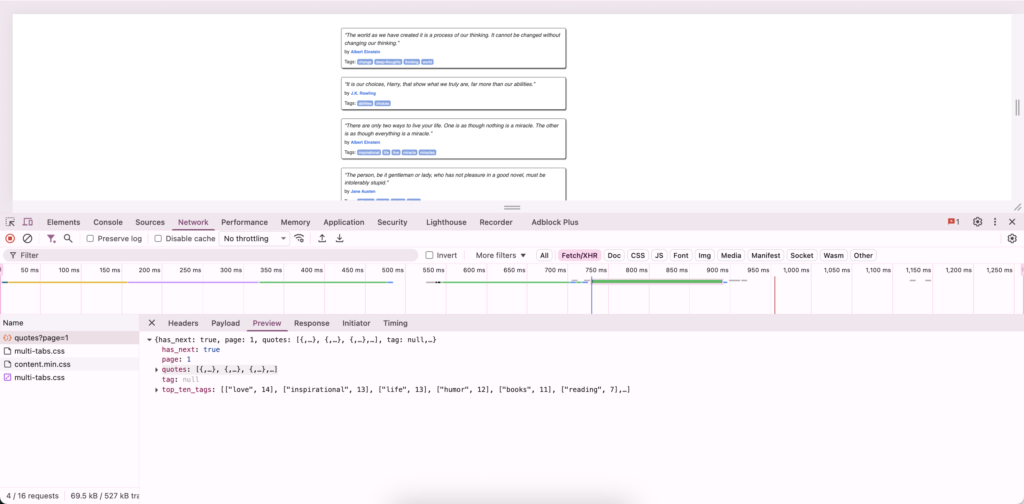
Right-click the page and select Inspect. Open the Network tab, then click Fetch/XHR. Reload the page or scroll until new requests appear.
In the request list, click quotes?page=1. Then open the Preview tab. If you see fields like has_next, page, quotes, and top_ten_tags, you have found the JSON response behind the page.
For this demo, the endpoint is:
The page=1 part controls pagination. Later, the Python script will change that value to collect page 2, page 3, and the rest of the available results.
Chrome’s Network features reference explains how the Network panel shows requests made by the page, including Fetch/XHR requests and response previews.
Step 2: Test the Endpoint in Postman
After you find the request in Chrome DevTools, right-click quotes?page=1 and choose:
Copy > Copy as cURL
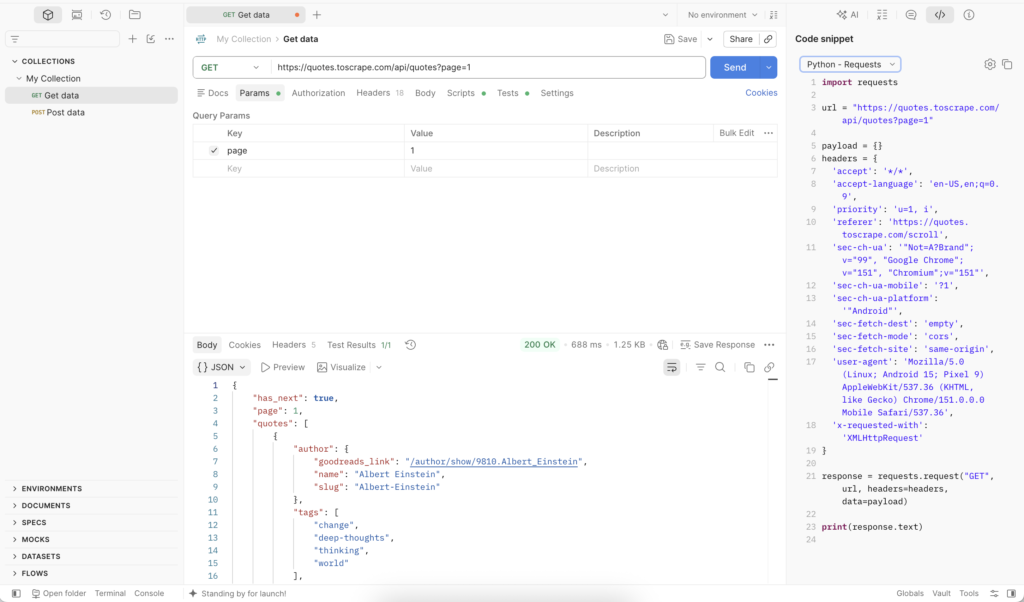
Open Postman and paste the copied cURL into the request URL field. For this demo, Postman extracts the endpoint and shows it as:
Keep the method as GET and click Send.
If the response panel shows 200 OK and JSON fields such as has_next, page, and quotes, the endpoint works outside the browser.
Also check the Params tab. Postman separates page=1 into a query parameter. This is important because the Python script will later change that value to page=2, page=3, and so on.
Now open Postman’s Code snippet panel and choose Python – Requests. Postman will generate Python code for the same request, including the endpoint URL, method, headers, and payload structure.
For real websites, keep this generated code as your starting point. Headers, cookies, tokens, and payload values can decide whether the endpoint works outside the browser.
What to Check Before Moving to Python
Before writing code, review the request in Postman.
Start with the Request URL. This is the endpoint address. Then check the Method, usually GET or POST.
A GET request often stores values in the URL. A POST request may send a separate payload.
Next, inspect the query parameters. In this demo, page=1 controls pagination. On real websites, parameters can control the search term, category, city, date, currency, sort order, offset, or cursor.
For POST requests, open the Payload tab. Booking websites may send values such as destination, checkin, checkout, adults, currency, and page. E-commerce endpoints may use query, category, sort, limit, and offset.
Before moving to Python, check:
- Headers: content type, accept, user agent, and request-specific headers
- Cookies or tokens: session values, CSRF tokens, or authorization values
- Response shape: where the fields you need appear in the JSON
- Pagination fields: values such as page, offset, cursor, has_next, or next
If the Python request fails later, one of these pieces is often missing.
Step 3: Create and Run the First Python Request
Open a code editor, such as VS Code, Cursor, or TextEdit in plain text mode.
Create a new file named:
Paste the Python – Requests code generated by Postman into the file:
Save the file.
Open Terminal and go to the folder where you saved it. For example, if you saved it on Desktop, run:
Create a virtual environment:
Activate it:
Install Requests inside the virtual environment:
Run the script:
If everything works, Terminal will print the JSON response.
At this stage, the goal is simple: confirm that Python can send the same request you tested in Postman.
If you see an error saying the file cannot be found, check the filename. On Mac, TextEdit may save the file as .rtf.
Step 4: Collect All Pages and Save to CSV
Go back to quotes_api_scraper.py.
Now replace the test code with a full scraper. This version keeps the same headers from Postman, changes the page value automatically, and saves the results to quotes.csv.
Save the file and run it again:
You should now see a new file in the same folder:
quotes.csv
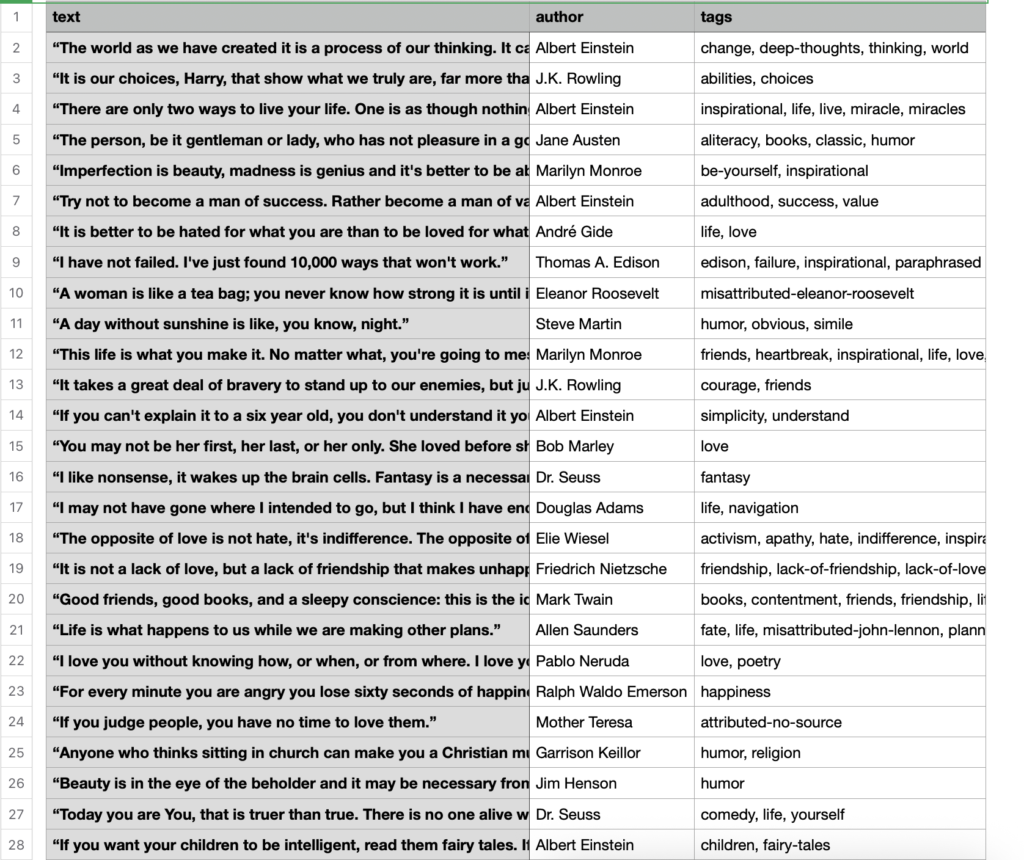
That CSV is the final result of the tutorial. It contains the quote text, author name, and tags from all available pages.
On real websites, keep the Postman-generated headers at first. Once the scraper works, you can remove optional headers one by one and test again.
Why API Scraping Needs Proxies, Stable Sessions, or Geo-Targeting
API endpoint scraping is faster than browser automation, but requests still come from an IP address. At small scale, your normal connection may be enough. At larger scale, repeated endpoint requests can run into rate limits, regional responses, or IP reputation checks.
For independent endpoint requests across many pages, rotating residential proxies help spread traffic across clean consumer IPs. For booking engines, local listings, or price monitoring, sticky sessions help keep the request environment consistent during the job.
Use ISP proxies for recurring monitoring from one stable IP. For Python scripts, NodeMaven’s proxies for Python page covers common configuration patterns. If the endpoint returns local prices, delivery availability, or regional listings, ZIP-level targeting helps tie the dataset to the target location.
For a booking endpoint, prices, taxes, availability, and currency may change by country, city, cookies, and session state. If a scraper switches regions between requests, the CSV can become inconsistent even when the code runs correctly.
Use NodeMaven residential proxies, sticky sessions, geo-targeting, and Scraping Browser for tougher JavaScript-heavy pages. Start with 750 MB for $3.50.
Common problems when scraping API endpoints
The endpoint works in Chrome but fails in Python
This usually means the Python request is missing something the browser sent automatically.
Check headers, cookies, CSRF tokens, authorization values, signed request fields, and the POST payload. Compare the working request in DevTools with the Python request side by side.
A Stack Overflow thread about scraping a dynamic web table shows this pattern clearly. The XHR requests needed a verification token from the page before the API request worked.
The API Returns 401, 403, or 429
A 401 or 403 usually means the endpoint requires authorization, a valid session, or a request signature. Do not force private endpoints.
A 429 means too many requests. Slow down, add retries with backoff, and avoid sending every request from one IP. For larger public-data jobs, rotating residential proxies can spread requests across cleaner consumer IPs, while ISP proxies are better for recurring checks that need one stable address.
The JSON is empty or missing fields
The request may need a date, region, search query, page number, filter, currency, or payload value.
Open the Payload and Query String Parameters tabs in DevTools. Then change one value and send the request again in Postman. This helps you learn which parameter controls which part of the response.
The endpoint changes
Frontend endpoints are not stable contracts. A website can rename a route, change a payload, remove a field, or add a token check without warning.
Add response validation before saving data. If a required field is missing, log the URL, status code, response snippet, and timestamp instead of writing broken rows into the CSV.
If the endpoint depends on clicks, rendered content, private tokens, or constant browser state, switch back to browser scraping. For those cases, NodeMaven Scraping Browser can run a real cloud browser with NodeMaven proxies, CAPTCHA support, Live Browser debugging, and session recordings.
Use NodeMaven residential proxies, sticky sessions, geo-targeting, and Scraping Browser for tougher JavaScript-heavy pages. Start with 750 MB for $3.50.
Conclusion
Before building a Selenium scraper, check the Network tab. If the page already loads data through a JSON endpoint, API scraping can save time and return cleaner output.
Start with one request. Test it in Postman. Convert it to Python. Add pagination. Save the data to CSV. Then check rate limits, region, cookies, session behavior, and proxy quality before scaling the job.
For small tests, your own connection may be fine. For repeated API scraping, local prices, booking results, product availability, or cloud-based Python jobs, clean proxies and stable sessions can prevent a working script from turning into messy data.


