How to use ChatGPT browser to automate vibe coding (step by step guide)


Vibe coding gets slow the moment you’re tab-switching between ChatGPT, docs, and your terminal. ChatGPT Browser fixes that. It researches, writes, and tests code in one window.
This guide skips the theory. You already know what ChatGPT and vibe coding mean. What follows is the exact setup, the prompts, and the workflow for automating coding tasks with ChatGPT Browser today.
By the end, you’ll have a repeatable pipeline: research, generate, debug, test, ship. That’s really what automate coding with ChatGPT means in practice: a chain of prompts that replaces manual busywork. We’ll also cover the browser automation problems that trip up most developers, from CAPTCHAs to session timeouts, and how to keep a workflow running for hours instead of minutes.

Stop login interruptions during AI browser sessions. Start with NodeMaven from $3.50 and get 750 MB of residential and mobile proxy traffic included
Prerequisites
Before you start, have these ready:
- A ChatGPT account with browser or agent mode enabled
- Chrome or Edge (browser agent mode is more stable here)
- VS Code installed locally
- A GitHub repository for your project
- A browser automation tool for chained tasks, like Playwright or Puppeteer
Optional: residential proxies if you’re running long automated sessions
Step 1. Start a new chat with ChatGPT
Open ChatGPT and start a new conversation. If your account includes Agent, select it before you begin. Agent can browse websites, read documentation, and complete multi step tasks.
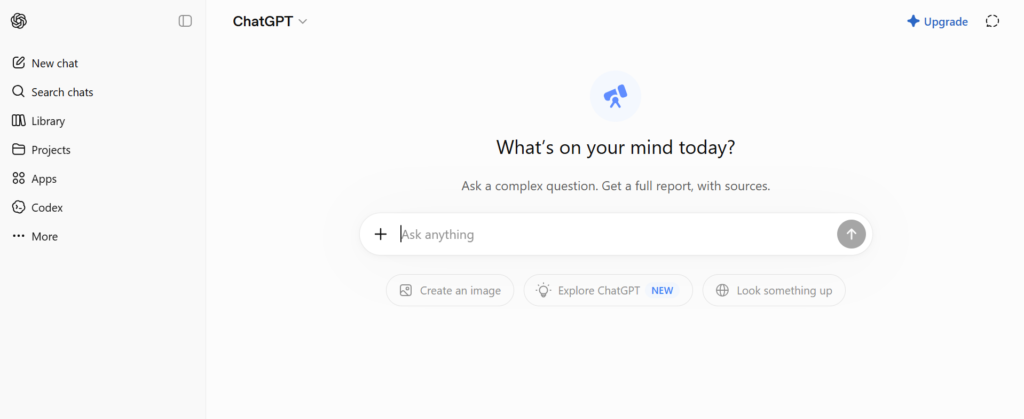
If Agent is not available, use GPT-5 and ask it to research official documentation as part of your prompt. ChatGPT will automatically browse the web when the task requires current information.
Before assigning any coding task, define how ChatGPT should work. A structured prompt helps it verify information before generating code and reduces the risk of using outdated examples.
This simple workflow produces much more reliable results. Instead of relying on outdated knowledge, ChatGPT checks the latest documentation, explains its approach, and then writes code based on current best practices.
Step 2. Give ChatGPT a real development task
Vague prompts produce generic code. Specific prompts produce code that is much closer to production quality. Define your requirements before asking ChatGPT to write anything.
Here’s an example:
This prompt works because it removes ambiguity. Instead of choosing the framework, authentication method, database, and testing library itself, ChatGPT can focus on solving the problem within your constraints.
Every requirement you provide reduces the number of assumptions the model has to make. Fewer assumptions usually lead to fewer revisions later.
For even better results, include additional details such as:
- Python version
- Deployment platform
- Coding standards
- Preferred libraries
- Project structure
- Performance or security requirements
For example:
“Build a FastAPI application for Python 3.13 that will be deployed on AWS ECS. Use SQLAlchemy 2.0, Alembic for migrations, Pydantic v2, and follow a layered architecture”
The more context you provide, the more useful the output becomes. ChatGPT performs best when it acts as an experienced developer following a detailed specification rather than guessing your preferences.
Step 3. Let ChatGPT browse documentation
This is where ChatGPT with web access or Agent provides the most value. Before generating code, it can consult the latest official documentation instead of relying only on previously learned information.
This approach is especially useful for frameworks and libraries that evolve quickly. Authentication, routing, configuration, and deployment patterns often change between major releases, so checking the latest documentation helps reduce unnecessary revisions.
Tip: Ask ChatGPT to include links to the documentation pages or reference the sections it used. Reviewing the source yourself is a quick way to confirm that the generated code follows current best practices.
This is where ChatGPT starts saving real development time. Instead of spending hours on repetitive edits, you can delegate routine tasks while focusing on architecture and problem solving.
Step 4. Automate repetitive coding tasks
The key is to keep each prompt focused on a single task. Asking ChatGPT to rename functions, generate tests, refactor code, and write documentation in one request often produces inconsistent results. Complete one task at a time for the best output.
1. Rename a function
Use this prompt when you need to rename a function without missing references.
2. Fix broken imports
After moving or renaming files, let ChatGPT update your import statements.
3. Generate documentation
Well written documentation makes projects easier to maintain.
4. Generate unit tests
ChatGPT can quickly create a solid starting point for test coverage.
Always review generated tests before adding them to your project. AI-generated tests can miss edge cases or rely on incorrect assumptions.
5. Review a pull request
If you have a pull request or code diff, ask ChatGPT to review it before requesting human feedback.
Summarize a repository
This is useful when you’re joining a new project or exploring an unfamiliar codebase.
Tip
Create a repeatable workflow instead of handling everything in a single prompt. For example:
- Ask ChatGPT to analyze the codebase.
- Refactor one component.
- Update imports.
- Generate documentation.
- Create unit tests.
- Review the final changes.
Breaking work into smaller steps produces more reliable results and makes it easier to verify each change before moving on. Used this way, ChatGPT becomes a practical coding assistant that helps with repetitive development tasks while you stay in control of the final implementation.
Keep your AI coding workflow running with clean residential IPs. Try NodeMaven from $3.50 with 750 MB included
Step 5. Debug code automatically
Stack traces are exactly the kind of input ChatGPT Browser handles well, especially when it can check the library’s GitHub issues for known bugs.
The “rewrite only the affected code” line matters more than it looks. Without it, you’ll get an entire file rewritten when you only needed one function fixed. That makes diffs harder to review and increases the chance of new bugs sneaking in.
Step 6. Build a complete AI coding workflow
Individual prompts are useful. A chained workflow is where the time savings compound.
- Task: define the feature in plain language, with constraints.
- Research: ChatGPT Browser checks current docs and known issues.
- Documentation: it drafts docstrings and a short README section.
- Generate code: it writes the implementation against what it just researched.
- Review: it critiques its own output before you see the final version.
- Testing: it generates unit tests and flags untested branches.
- Deployment: it drafts the Docker config or CI step needed to ship.
Run this as one long session rather than seven separate chats. Context carries between steps, which is what keeps the output consistent.
Avoid CAPTCHAs, session drops, and IP blocks with NodeMaven Residential Proxies. Start from $3.50 and get 750 MB included
This is the point where ChatGPT Browser stops being a chat window and starts acting as a browser AI agent, moving through a task on its own instead of waiting for you to prompt each stage manually. A solid AI coding workflow looks less like a conversation and more like a pipeline you kick off and check in on.
Step 7. Avoid common browser automation problems
ChatGPT browser automation isn’t fundamentally different from any other web automation setup. Long sessions run into the same five problems eventually.
| Problem | Why it happens |
| CAPTCHAs | Websites detect patterns that resemble automated traffic. Frequent requests from the same IP address or unusually fast interactions can trigger a CAPTCHA challenge. |
| Login verification | Many platforms flag sign-ins from unfamiliar IP addresses, locations, or devices. Repeated login attempts or sudden IP changes often trigger additional verification. |
| Session expiration | Some websites associate a session with a specific IP address. If your IP changes during a workflow, the session may become invalid and require you to log in again. |
| Rate limiting | Many services limit the number of requests from a single IP address within a certain time period. Shared or datacenter IPs are more likely to reach these limits quickly. |
| Browser fingerprinting | Websites analyze browser characteristics such as headers, fonts, screen resolution, and automation signals. An inconsistent or suspicious fingerprint can reveal automated activity even when the IP address appears legitimate. |
Residential proxies solve most of this by giving your session a real, clean IP with sticky sessions that hold for the duration of a task.
Why choose NodeMaven to work with AI agents
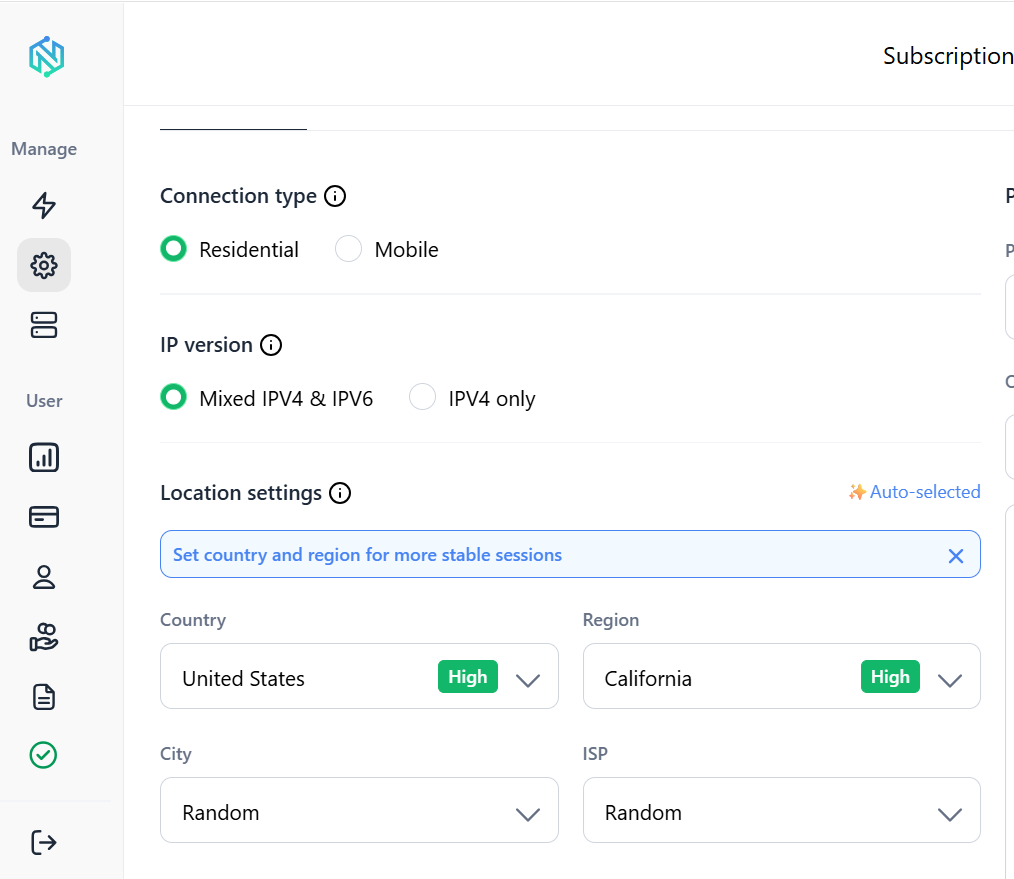
This is one of the places NodeMaven fits into a browser-based coding workflow: it runs on 30M+ residential IPs across 190+ countries and 1,400+ cities, with 95%+ clean IP quality and sticky sessions available, so a long-running automation session doesn’t lose its login state halfway through.
[TT1]
If you’re just testing this out, the $3.50 trial covers residential and mobile traffic, which is enough to see whether it fixes your session drops.
None of the browser automation tools you’re using, whether that’s ChatGPT Browser itself, Playwright, or Puppeteer, can fix a bad IP reputation on their own. The tooling handles the logic. The connection handles whether the site trusts you in the first place.
Best prompt templates
These five cover most of what you’ll need day to day for ChatGPT automation on real projects.
Creating a project:
Debugging:
Code review:
Documentation:
Refactoring:
Common mistakes
- Skipping the “research first” instructions
Without it, the model writes against outdated APIs. This is the single most common mistake developers make when they try to automate development tasks with ChatGPT Browser.
- Writing vague prompts
“Build me an API” gets generic output. Name your stack instead.
- Letting it rewrite entire files during debugging
Ask for only the affected code.
- Running long automation sessions on a single shared IP
Expect CAPTCHAs and rate limits.
- Not asking it to cite the documentation it used
If it can’t point to a source, verify manually.
- Chaining tasks in separate chats instead of one session
You lose context between steps.
- Skipping the self-review step
A model that reviews its own output before handing it to you catches more bugs than one that doesn’t.
- Ignoring session persistence for long-running browser tasks
Logins expire, and the chain breaks.
Power long running ChatGPT, Playwright, and Puppeteer workflows with trusted residential and mobile proxies. Start your NodeMaven trial from $3.50
Conclusion
Vibe coding with ChatGPT Browser comes down to a repeatable loop: research, generate, review, test, ship, all in one session instead of scattered across tabs. Set the rules up front, keep your prompts specific, and let the model check its own work before you do.
This same loop is what most teams mean when they talk about browser automation for developers or how to automate programming with AI more broadly. The tools change. The loop doesn’t.
The one variable you don’t fully control is your connection. If your automation runs long enough to hit CAPTCHAs, login checks, or rate limits, a clean residential IP fixes most of it.