Rightmove Scraper: How to Extract Property Data Step by Step



A Rightmove scraper can collect property URLs, prices, addresses, bedrooms, property types, and agent names from search results. It can then open individual listings for descriptions, tenure, floor area, nearby stations, and other details.
In its 2025 Full Year Results presentation, Rightmove reports around 10,000 property uploads per day. At that volume, manual checks soon become difficult. Automated collection can keep property research, listing monitoring, and internal datasets current.
This tutorial shows how to build a Rightmove scraper with NodeMaven Scraping Browser, its Real Estate template, and a plain-language AI Prompt. The result is structured JSON, and the main walkthrough requires no code knowledge.
Note: Rightmove’s Terms of Use prohibit bots, crawlers, scrapers, and other automated collection without prior written consent from its Legal team. Follow this tutorial only when you have permission to automate access and comply with the site’s terms and applicable data-protection rules.

Try NodeMaven Scraping Browser with 750 MB for $3.50. There is no browser usage fee, pay only for proxy traffic.
Quick Overview
| Your Starting Point | Recommended Workflow | How It Works |
| No coding experience | Use an AI Prompt | Describe the pages, actions, and fields you need. Scraping Browser completes the workflow and returns structured JSON. |
| Building a new scraper | Use a Playwright, Puppeteer, or Vanilla JavaScript template | Write and debug the automation in Playground while watching it run in Live Browser. |
| You already have a scraper | Connect through the Browser API and CDP | Keep your extraction logic and run the browser session on NodeMaven infrastructure. |
| You want to build and manage the scraper yourself | Send authorised requests to a JSON endpoint and parse the response with Python | You manage the requests, parsing, proxies, retries, and maintenance. Follow our web scraping vs API tutorial for the complete Python workflow. |
The first three options use NodeMaven Scraping Browser. They are different ways to operate the same managed browser. The fourth option is a separate, self-managed approach based on direct requests to an authorised JSON endpoint.
The tutorial below follows the AI Prompt workflow. Developers can apply the same page selection, pagination, session, and validation principles in a code template or an existing CDP-connected scraper. Readers who prefer to build and maintain a direct Python scraper can use the linked API scraping guide.
Can You Scrape Rightmove?
You can build the technical web-scraping workflow, but Rightmove restricts automated collection under its current Terms of Use.
Publicly visible property information is still subject to the website’s contract terms. Before running a Rightmove scraper, confirm that the written authorisation covers automated access, extraction, retention, and any planned display or linking of Rightmove content. The terms also restrict links to internal pages and direct use of platform assets without consent. Your storage and use of the data must also comply with UK data-protection rules.
With authorisation in place, a scraper can collect fields that appear on search cards and property pages, including:
- Property ID and listing URL
- Price and price qualifier
- Display address
- Bedrooms and bathrooms
- Property type
- Description and key features
Contact details and other personal data need stricter handling than basic listing facts. Define which fields the project actually needs, how long they will be retained, and who can access them.
For a wider review of permissions, database rights, personal data, and website terms, see our guide to web scraping laws. NodeMaven’s real estate scraper page also covers common benefits of proxies for property-data workflows across listing portals.
How Does Rightmove Load Property Data?
Rightmove property information can appear in rendered page elements, embedded JavaScript data, and internal requests used by its search interface. The exact structure can change, so inspect a current page before choosing how to extract it.
How Individual Listings Use PAGE_MODEL
Individual property pages have commonly exposed a JavaScript object named window.PAGE_MODEL. Depending on the page version, it can contain the property ID, address, price, description, features, agent information, images, and location data.
PAGE_MODEL is an observed implementation detail, not a documented public interface. Rightmove can rename it, change its structure, or move fields elsewhere. A production workflow needs checks for missing fields and a way to detect structural changes.
How Do Rightmove’s Internal Search Requests Work?
Rightmove’s search interface can load listing data through internal JSON requests. These requests are sometimes described as a “Rightmove search API,” but they are part of the website rather than a documented public service. Technical inspections may reveal parameters for location, result index, page size, sales or lettings channel, price range, and bedroom filters.
The response can contain property records, result counts, and pagination information. This makes direct JSON extraction attractive when an authorised project needs a smaller HTTP workload.
However, the internal search endpoint is not Rightmove’s documented public listings API. Request formats can change without notice, and a direct request may still depend on cookies, headers, or session state created by the website.
If you want to inspect a JSON endpoint and parse its response with Python, our web scraping vs API tutorial shows the process step by step. The rest of this article stays with Scraping Browser, which keeps page rendering, proxy support, CAPTCHA solving, navigation, session settings, and visual debugging in one workspace.
Test NodeMaven pre-filtered residential and mobile proxies with 750 MB of traffic for $3.50.
How to Scrape Rightmove With NodeMaven Scraping Browser
The following walkthrough uses AI Prompt in NodeMaven Scraping Browser. You describe the target page, the browser actions, and the required fields. Scraping Browser runs the browser and returns structured JSON.
If you prefer code, the same Playground supports Playwright, Puppeteer, and Vanilla JavaScript. Existing Playwright and Puppeteer applications can connect to a running browser through CDP. Check the documentation for more details.
Step 1: Prepare a Filtered Rightmove Search
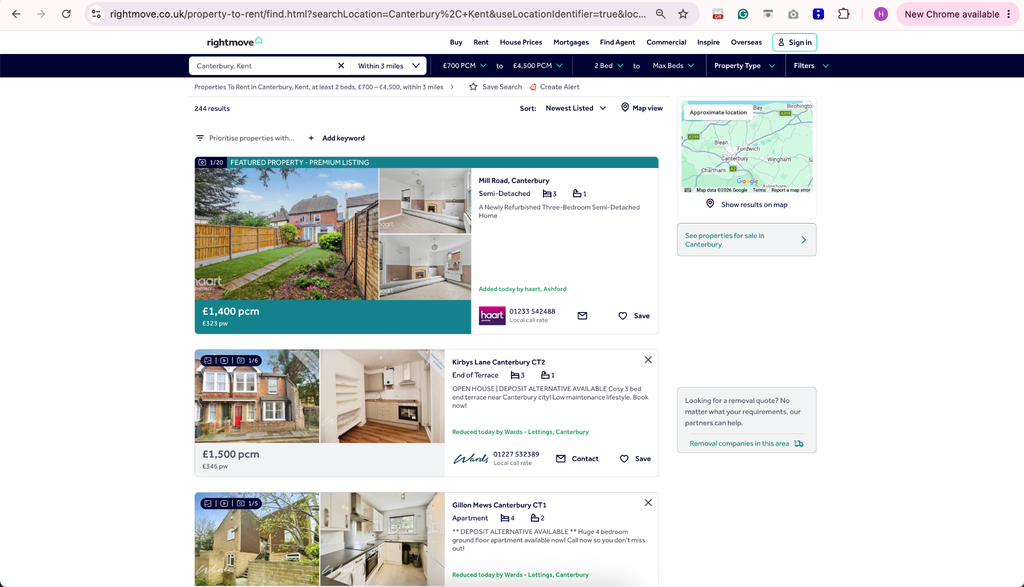
Open Rightmove and create the exact search your project needs. Choose properties for sale or rent, enter the location, set the radius, and apply your filters. These can include:
- Minimum and maximum price
- Minimum and maximum bedrooms
- Property type
- Added-to-site period
- Must-have features
- Include or exclude options
Copy the completed search URL. Starting with a finished URL keeps the first automation simple because the browser does not need to complete the search form.
For the first run, collect only three listings from one page. This makes it easier to compare each JSON record with the property card before adding pagination.
Step 2: Open the Real Estate Template
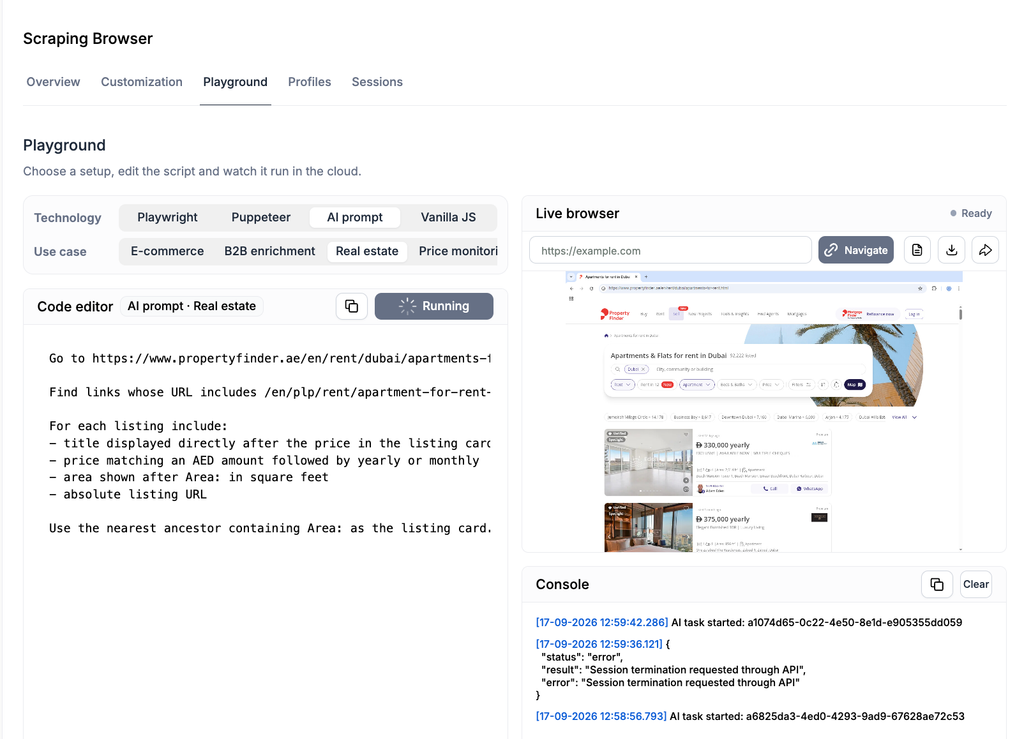
Open Scraping Browser in the NodeMaven dashboard. The Overview screen contains ready-made templates for e-commerce, B2B enrichment, real estate, and price monitoring.
Select Real Estate and press Quick Start. Playground opens with a prepared automation. The editor and technology selector appear on the left, while Live Browser appears on the right.
You can watch the template run once before changing it. You can see the page open, follow individual steps, inspect console messages, and review the structured result. This gives you a reference for a successful session.
For a tour of every dashboard section, use the full NodeMaven Scraping Browser guide.
Step 3: Configure the UK Browser Session
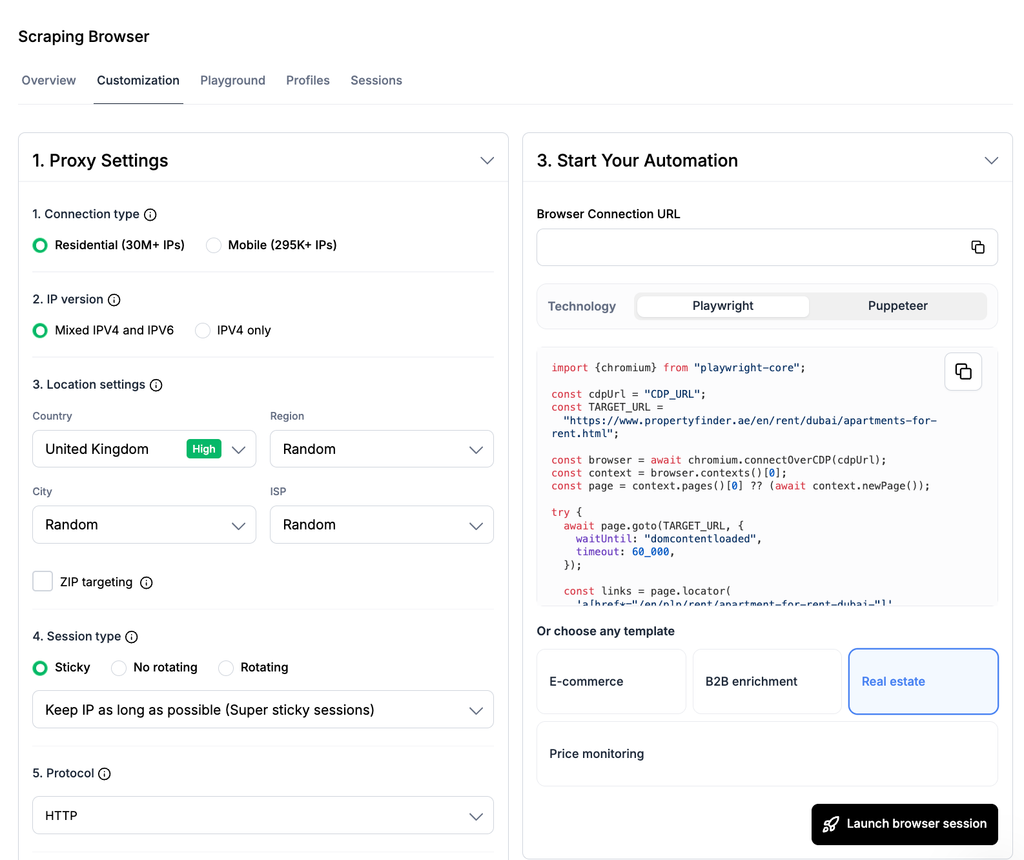
Open Customize browser from Overview, or use the Customization section before launching the session.
For a Rightmove search, use these starting settings:
| Setting | Starting Choice | Reason |
| Proxy type | Residential | Matches a standard household browsing connection |
| Country | United Kingdom | Keeps the connection and browser location consistent with the target market |
| Session behaviour | Sticky | Keeps the same IP while moving through filters, pagination, and property pages |
| Browser profile | Optional for the first run | Add one later if the workflow needs reusable cookies or saved state |
NodeMaven Scraping Browser aligns timezone, locale, geolocation, and network settings with the selected proxy location. You can also target UK proxy by region, city, ISP, or ZIP code when the selected proxy pool supports it.
Keep one sticky session for a connected search flow. Rotating the IP between page one and page two can discard continuity that the website associates with the session.
Scraping Browser also offers supported CAPTCHA handling and optional resource blocking. Leave optional settings at their defaults during the first test. Add them one at a time after the basic workflow returns accurate data.
Step 4: Write the Rightmove AI Prompt
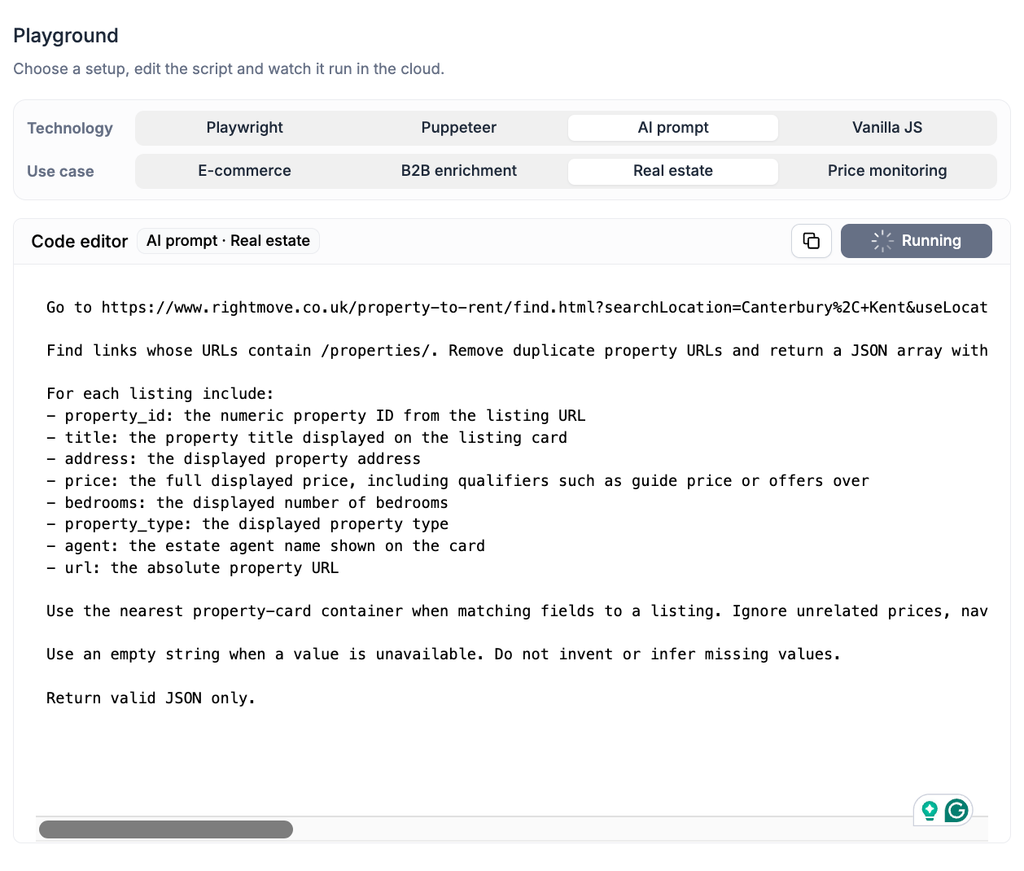
Switch to AI Prompt in Playground. A precise prompt should include the search URL, the number of records, the link pattern, the fields, and the required output format.
Use this version for the first test:
Replace the placeholder with your filtered URL, then press Run prompt. Live Browser will show the browser actions while the result panel returns the extracted JSON.
Step 5: Validate the First Three Listings
Do not add more pages until the first three records are correct. Compare the JSON with the visible Rightmove cards and check:
- Property ID: It should match the number in the /properties/{id} URL.
- Price: Keep qualifiers such as “guide price,” “offers over,” and rental frequency.
- Address: Confirm it comes from the same card as the price and URL.
- URL: Save the absolute URL, rather than a relative path.
- Missing fields: An unavailable value should be an empty string.
- Duplicates: Promoted or repeated cards should not create another record for the same property ID.
The numeric property ID makes a better deduplication key than the address. An address can be formatted differently, while the listing URL normally retains the same ID.
Save a test record with the date, search type, browser settings, number of requested listings, and number returned. This gives you a baseline when Rightmove changes a page layout.
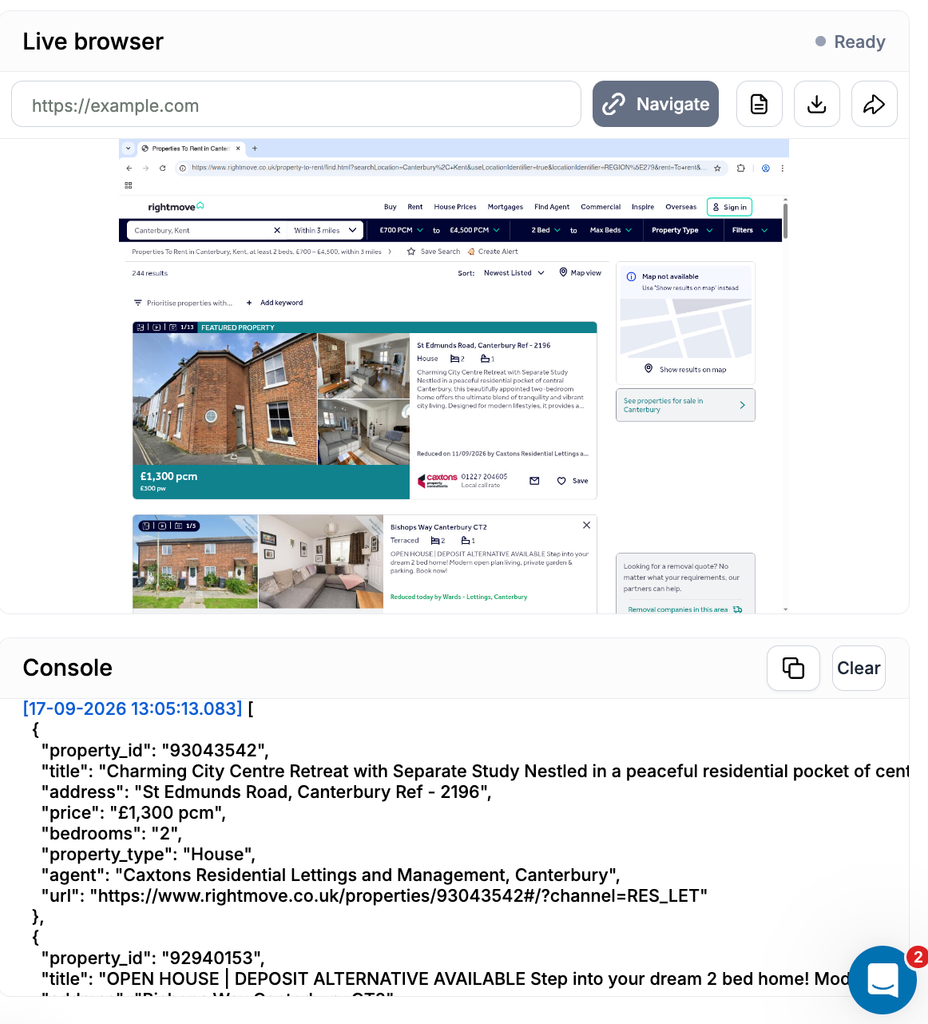
The JSON would look like this:
Step 6: Add Individual Property Details
Once search-card extraction is accurate, extend the prompt so the browser opens each saved URL. Ask for only the fields the project needs.
Add these instructions:
Opening detail pages increases session time and proxy traffic, so keep the first test small. If some fields appear only on certain property types, use empty values rather than guessing.
Step 7: Export the Result or Move the Workflow to Code
Download the structured result or pass it to your approved storage, analytics, or monitoring system. Keep the property ID as the primary record key so a later run can update an existing listing instead of creating a duplicate.
Developers can rebuild the same workflow in a Playwright, Puppeteer, or Vanilla JavaScript template inside Playground. If you already have a scraper, connect it to Scraping Browser through the Browser API and CDP. The session principles remain the same, but selectors, actions, waits, and output validation still need to be implemented and tested in your code. See the Scraping Browser guide for the developer path.
How Do You Handle Rightmove Pagination?
Pagination should use one sticky session, property-ID deduplication, and explicit stopping rules. Collect and validate one result page first, then expand the prompt gradually.
Add instructions similar to these:
The source_page field helps trace skipped or duplicated records. If page three returns an unexpected result, you know which navigation step to replay in Live Browser.
For larger projects, split broad searches into smaller groups. Area, postcode, price band, property type, and sales or lettings channel all work as boundaries. Smaller searches are easier to resume and less likely to repeat the same listing across many result pages.
Rightmove’s internal search requests may use an index value to represent the result offset. That can help when studying how the site paginates, but the workflow in this tutorial uses the visible Next control. This keeps the browser behaviour and the page shown in Live Browser aligned.
How to Configure Proxies and Sessions for Rightmove Scraping
Use one stable UK session for every connected search flow. Rotate between independent jobs, rather than between consecutive pages of the same search.
| Workflow | Session Setting | Why |
| One search across several pages | Sticky session | Preserves cookies, location, and navigation state |
| Separate city or postcode searches | Rotate between jobs | Treats each search as an independent task |
| Recurring approved monitoring | Sticky session with a browser profile | Reuses relevant cookies and saved state |
| Small development test | One stable session | Makes failures easier to inspect and reproduce |
Start with low concurrency and measured navigation. Watch the first sessions in Live Browser before increasing volume. If the page returns a verification screen, empty cards, or an unexpected location, stop and inspect the browser state rather than retrying immediately.
The proxy connection, browser fingerprint, cookies, location settings, and navigation pattern reach the website together. NodeMaven Scraping Browser uses residential and mobile proxies with its IP Quality Filter, location targeting, sticky sessions, and aligned browser settings. For a UK property search, that gives the browser a consistent UK network and browser environment.
You can use NodeMaven residential proxies with Playwright, Puppeteer, Selenium, and other scraping tools outside Scraping Browser as well. Our proxy rotation guide explains when sticky and rotating connections fit different collection patterns.
No proxy or browser configuration guarantees access to every website, and a proxy does not replace permission from the target site.
Run the Workflow Without Building Browser Infrastructure
NodeMaven Scraping Browser combines the cloud browser, high-quality NodeMaven proxies, managed browser settings, AI prompts, code templates, supported CAPTCHA solving, and debugging tools in one product.
The browser runtime has no separate usage fee for customers with an active NodeMaven Rotating Residential Proxy subscription. You pay for the rotating proxy traffic transferred during the session. AI prompts, Live Browser, supported CAPTCHA solving, and session recordings are included without a separate charge.
New customers can start with a $3.50 paid trial that includes 750 MB of residential and mobile proxy traffic. Rotating residential and mobile plans then start from $2.20 per GB. Check the NodeMaven pricing page for current rates and the Scraping Browser guide for current limits.
Try NodeMaven Scraping Browser with 750 MB for $3.50. There is no browser usage fee, pay only for proxy traffic.
Does Rightmove Have an Official API?
Rightmove has an official Real Time Data Feed, but it serves only approved partners that send and manage their listings. It is not a public search API for downloading Rightmove’s property inventory.
The Rightmove Real Time Data Feed specification describes authenticated calls for adding, updating, and removing properties. It also covers branch property lists, products, performance reports, and lead reporting. Access requires a network set up by Rightmove and authentication credentials supplied to the authorized party.
This creates three separate concepts:
| Option | Intended Use | Main Limitation |
| Rightmove Real Time Data Feed | Approved agents and data providers managing listings | Requires authorization and credentials from Rightmove |
| Rightmove internal search requests | Loading data for Rightmove’s own website | Undocumented and subject to change |
| Scraping Browser workflow | Authorized collection from rendered pages | Requires permission and ongoing workflow maintenance |
Fix Common Rightmove Scraper Errors
Most early failures come from timing, field matching, pagination, or session configuration. Live Browser and session recordings show the page that the automation actually received.
| Problem | What Usually Happened | What to Check |
| Empty result | The page was still loading or the expected cards were absent | Watch Live Browser and wait for visible property cards |
| Duplicate listing | The same property appeared as a promoted card or across pages | Deduplicate by the numeric property ID |
| Wrong address or price | The prompt matched text from another card | Restrict extraction to the nearest property-card container |
| Missing detail field | The listing omits the field or uses another layout | Return an empty value and inspect the page |
| Verification or rate-limit page | The access conditions or request pattern changed | Stop the run and review permission, pace, session state, and proxy location |
| High traffic use | The run loaded large images, video, ads, or repeated pages | Review browser actions and test resource blocking carefully |
| Prose instead of JSON | The output instruction is too loose | Define every field and require valid JSON only |
When an error appears, replay the session before editing the prompt. A missing field and a missing page need different fixes. The console, screenshot, structured result, and recording help identify which one occurred.