
Steam proxy guide: how to set up, troubleshoot, and choose the best proxy for Steam




Steam is the world’s largest PC gaming platform, serving millions of users every day. While most players access Steam without any issues, there are situations where using a Steam proxy can be useful.
Whether you’re trying to access Steam through a proxy, manage multiple accounts, browse region-specific content, or improve your online privacy, choosing the right proxy setup can make the experience much smoother.
NodeMaven offers best Steam proxies that can help users maintain stable connections while accessing content from different locations.
In this guide, we’ll explain how a Steam proxy works, which proxy types are best for Steam, how to configure Steam proxy settings on different devices, and how to fix common connection errors.
What is a Steam proxy?
A Steam proxy is a proxy server that routes your Steam traffic through another IP address before it reaches Steam’s servers.
Instead of connecting directly from your device, your requests pass through a proxy server first. This changes the IP address Steam sees.
Many users searching for a Steam proxy server want a simple way to change their visible location or use Steam with a different IP address.
Unlike a VPN, a proxy usually routes only specific traffic rather than all internet activity. This often results in lower overhead and faster performance for targeted tasks.
Why use a proxy for Steam?
There are several reasons why gamers and businesses use a proxy for Steam.
Access region-specific Steam content
Some games, promotions, or store pages may differ depending on your location. Using Steam with proxy servers from different countries allows you to view how content appears in those regions.
Manage multiple Steam accounts
Developers, publishers, and marketplace users often need to manage more than one account. A proxy helps separate account activity and reduce the chance of account conflicts.
Improve privacy
Proxies for Steam hide your real IP address and replaces it with the proxy server’s IP.
Test games and storefronts
Game developers frequently use Steam proxies to verify pricing, localization, and regional store availability.
Monitor marketplace data
Proxies can help collect publicly available Steam Marketplace information while distributing requests across multiple IP addresses.
Best proxy types for Steam
Not all proxies perform the same way. Choosing the right type can significantly improve your experience.
SOCKS5 proxy for Steam
A Steam SOCKS proxy is usually the preferred option for the Steam client.
SOCKS5 supports a wider range of traffic than HTTP proxies and works well with gaming applications. If you’re looking for a reliable Steam SOCKS proxy, this is often the first option to consider.
Benefits include:
- Better compatibility with applications
- Improved connection flexibility
- Support for different traffic types
- Good performance for Steam-related activities
HTTP proxy for Steam
A Steam HTTP proxy works primarily with web traffic.
If you’re browsing the Steam Store in a browser, an HTTP proxy setup may be sufficient. However, HTTP proxies are generally less versatile than SOCKS5 when used with desktop applications.
An HTTP proxy Steam configuration is often easier to set up but may offer fewer compatibility advantages.
Residential proxies
Residential proxies use IP addresses assigned by internet service providers.
Benefits include:
- High trust scores
- Better legitimacy
- Lower detection rates
- Excellent geographic coverage
Residential proxies are often recommended when account trust and authenticity are important.
ISP proxies
ISP proxies combine datacenter performance with residential IP reputation.
They offer:
- Fast speeds
- Stable connections
- Consistent IP addresses
- High trust levels
For many Steam-related use cases, ISP proxies provide the best balance between performance and reliability.
Datacenter proxies
Datacenter proxies are fast and affordable.
While they work well for many tasks, some platforms may identify them more easily than residential or ISP proxies.
| Proxy type | Works with Steam client | Works with Steam browser | Steam detection risk | Speed | Best for |
| SOCKS5 | ✓ | ✓ | Low | Fast | Client use |
| HTTP | ✗ | ✓ | Medium | Fast | Browser only |
| Residential | Depends on protocol (SOCKS5/HTTP) | ✓ | Very low | Medium | Account actions |
| ISP | ✓ | ✓ | Low | Fast | All-round use |
| Datacenter | ✓ | ✓ | High | Very fast | Testing |
How to set Steam proxy settings on Windows
Windows doesn’t natively support SOCKS5 in its proxy settings panel. For true SOCKS5 routing to the Steam client, you need a third-party tool (covered in the next section). However, the system proxy settings work fine if you’re using an HTTP proxy and only need the browser-based Steam Store.
Configuring the Windows system proxy (HTTP):
- Press Windows + I to open Settings.
- Go to Network & Internet → Proxy.
- Under Manual proxy setup, toggle Use a proxy server on.
- Enter your proxy’s IP address and port number.
- Click Save, then launch Steam.
If Steam prompts for a username and password after this, enter the credentials provided by your proxy provider.
How to set Steam proxy on macOS
macOS handles proxy configuration per network interface, making it more straightforward than Windows for system-wide proxies.
- Open System Settings → Network.
- Select your active network connection (Wi-Fi or Ethernet) and click Details.
- Click the Proxies tab.
- Select the protocol your proxy uses:
- For SOCKS5: enable SOCKS Proxy and enter the server address and port.
- For HTTP: enable Web Proxy (HTTP).
- If authentication is required, enter your credentials in the fields provided.
- Click OK, then Apply.
You may be prompted to enter your Mac user password to save these settings.
Once applied, Steam and all other applications on that network interface will route through the proxy. To apply it only to Steam, use Proxifier for macOS.
How to set Steam proxy with Proxifier (Windows and macOS)
Proxifier is a reliable method for routing Steam through a SOCKS5 proxy on both Windows and macOS. It costs $39.95 but offers a free 31-day trial. Download it from proxifier.com.
Step 1: Add your proxy server
- Open Proxifier and go to Profile → Proxy Servers.
- Click Add.
- Enter your proxy IP address and port.
- Set the protocol to SOCKS5 (recommended) or HTTPS.
- If authentication is required, check Enable and enter your username and password.
- Click OK, then click Yes when asked if you want to use this as the default proxy.
Step 2: Create a rule for Steam only
Rather than routing all your traffic through the proxy, it’s better to target Steam specifically:
- Go to Profile → Proxification Rules.
- Find the Default rule and change its Action to Direct (this keeps all other apps using your normal connection).
- Click Add to create a new rule.
- In the Applications field, enter steam.exe
- Set Action to your proxy server.
- Click OK

Looking for a Steam SOCKS5 proxy? Get fast, stable residential connections for gaming and account management
How to set Steam proxy on Steam Deck
Steam Deck runs a Linux-based OS (SteamOS), so configuration happens in Desktop Mode.
- Press the Steam button and navigate to Power → Switch to Desktop.
- Open System Settings → Network.
- Select your active connection (Wi-Fi) and click the settings icon.
- Go to the Proxy tab.
- Switch from No Proxy to Manual.
- Enter your proxy address and port for the relevant protocol (HTTP or SOCKS).
- Click Apply.
- Return to Gaming Mode via the desktop shortcut.
How to test if your Steam proxy is working
After configuring your Steam proxy server, it’s important to verify that traffic is actually being routed through the proxy.
Check your IP address
Visit an IP-checking website before and after enabling the proxy. You can use pixelscan.net for it.
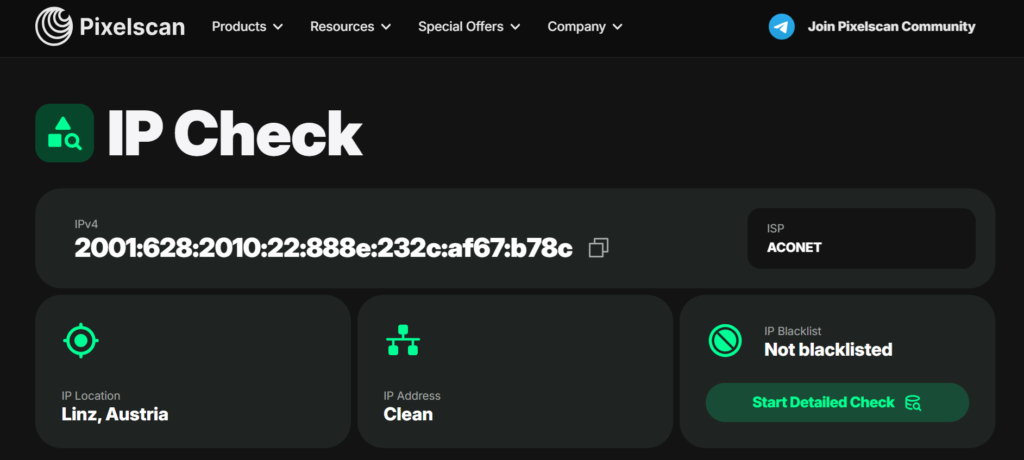
If the displayed IP changes to the proxy location, your configuration is working.
Verify Steam Store location
Browse the Steam Store and compare regional pricing or content availability.
Test account login
Log into Steam and verify that all features function normally.
Confirm application connectivity
Open:
- Steam Store
- Community pages
- Marketplace
- Library
Everything should load without errors.
Common Steam proxy errors and fixes
Even properly configured proxies can occasionally encounter issues.
“Please disconnect from VPNs or proxies”
One of the most common messages users encounter is:
“Please disconnect from VPNs or proxies.”
This error may appear during:
- Account verification
- Login attempts
- Marketplace actions
- Security checks
Possible solutions include:
- Switching proxy locations
- Using residential proxies instead of datacenter proxies
- Disabling VPN software
- Clearing browser cookies
- Logging out and back into Steam
Steam cannot connect
If Steam cannot connect after enabling a proxy:
- Verify IP address accuracy
- Check proxy port settings
- Confirm authentication credentials
- Test another proxy location
Authentication failed
Authentication errors usually indicate incorrect usernames or passwords.
Double-check all credentials provided by your proxy provider.
Steam Store loads but downloads fail
This issue may occur when using an incompatible HTTP proxy.
Switching to a Steam SOCKS proxy often resolves download-related problems.
Access Steam with trusted residential proxies and avoid common proxy-related restrictions
Steam proxy vs VPN
Many users compare proxies and VPNs before deciding which option to use.
| Feature | Steam Proxies | VPN |
| IP change | Yes | Yes |
| Encryption | Limited | Full |
| Speed | Usually faster | Slightly slower |
| Application-level routing | Yes | Usually no |
| Gaming flexibility | Excellent | Good |
For Steam-specific tasks, proxies often provide more flexibility and control. For full-device protection and encryption, VPNs remain a strong option.
Why choose NodeMaven for Steam proxies?
If you’re looking for a proxy provider that works well with Steam, NodeMaven offers both residential and ISP proxies designed for reliability and long-term use. With access to ethically sourced residential IPs across 190+ countries.
NodeMaven dashboard lets you quickly generate proxy credentials, select locations, manage sessions, and monitor your proxy usage from a single interface.
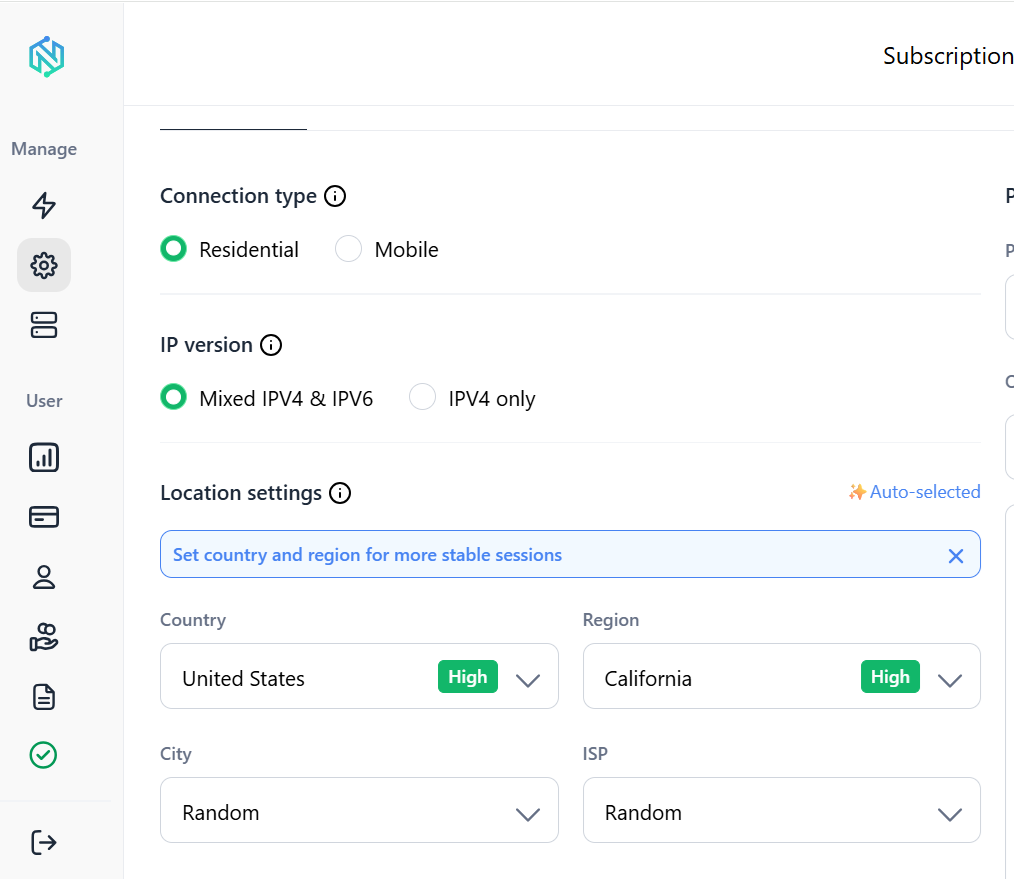
Whether you prefer residential IPs for lower detection risk or ISP proxies for additional speed and stability, NodeMaven offers flexible options for Steam users.
Final thoughts
Using a Steam proxy can help you access Steam with a different IP address, manage multiple accounts, test regional storefronts, and improve privacy.
Residential and ISP proxies typically offer the best balance of speed, stability, and trust, while SOCKS5 support provides excellent compatibility with Steam applications.
With the proper setup, you can use Steam with proxy servers safely and efficiently while avoiding many of the common connection issues users encounter.