
Stop Scraping the Page. Find the API Instead.



Before you fight a browser into submission, check what it’s already doing for you.
You open a page. The data you need is right there, sitting on screen. Then you check the page source and it’s almost empty. A skeleton of divs. No prices. No listings. Nothing you can actually parse.
Somewhere below the fold there’s a “Load more” button, or an infinite scroll, or a spinner that fills the page a beat after it loads. Your first instinct says Selenium. Or Playwright. Spin up a browser, wait for elements, click buttons, scrape the rendered DOM.
That instinct is usually wrong.
Before you write a line of browser automation, check what your browser is already doing. It’s fetching that data from somewhere. It has to. That “empty” page fills up with products because JavaScript calls a backend and turns the response into pixels.
Find that call. Copy it. Run it yourself.
That’s the whole trick. It takes minutes, and it can save you hours of fighting headless browsers, wait conditions, and selectors that break every time someone ships a redesign.
Let’s find it.
Your browser is already talking to the data source
Modern websites are mostly interfaces sitting on top of an API. The HTML you get on first load is often a shell. Real content shows up after the page fires a request to a backend and gets a JSON response back. JavaScript takes that response and paints it onto the screen.
Call this a “hidden API” if you like. That’s a practical label, not a technical one. It usually isn’t secret.
It’s just the internal endpoint the frontend calls to get its own data, and nobody built it expecting a scraper to see it directly. Which is exactly why it tends to be far more honest than the HTML.
Why this matters for you:
- HTML is built for rendering, not for parsing. It’s full of layout noise, ad slots, and markup that shifts with every redesign.
- Browser automation is expensive. Every headless instance eats memory and CPU. Multiply that by thousands of pages and it adds up fast.
- The API response is usually already structured. Products, prices, IDs, and images arrive as clean fields, not buried three divs deep.
- Pagination is often already solved. The endpoint feeding a “Load more” button typically takes a page number or cursor. You don’t need to click the button. You need to call what the button calls.
- Filters and sorting are frequently just parameters. Category, sort order, and search terms often show up right in the request URL.
Skip the render. Talk to the source.
Find the request instead of fighting the page
Chrome DevTools does the heavy lifting here. Firefox’s Network panel works the same way.
- Open the target page.
- Open DevTools (F12, or right-click and Inspect).
- Go to the Network tab.
- Filter by Fetch or XHR. This hides images, fonts, and CSS and leaves the traffic that matters.
- Reload the page.
- Trigger whatever loads the data you care about.
- Watch the requests land.
- Click through them and check the Response tab.
Actions worth triggering:
- Clicking “Load more”
- Scrolling for infinite loading
- Typing into a search box
- Applying a filter
- Changing sort order
- Paging through results
- Selecting a product variant
What you’re hunting for in the response:
- JSON, not HTML
- An array of items (products, listings, posts, whatever the page shows)
- Pagination fields like page, totalPages, or hasNext
- IDs that map to what’s visible on screen
- Parameters in the URL that look like they control the query
You’ll click through plenty of noise first. Analytics pings, ad trackers, session heartbeats. Ignore all of it. You’re looking for the one or two requests that actually feed the page.
How to tell if you found the right endpoint
Not every 200 OK is useful. Run through this before you build anything:
- The response body contains the actual records you need
- Changing a filter, page, or search term on the page changes the request
- The data is structured, not a wall of HTML
- The endpoint accepts parameters you can control
- You can send the same request outside the browser and get the same result
A green status code just means the server answered. However, some endpoints return partial data, empty placeholders, or HTML fragments meant for one widget. Some return GraphQL instead of a plain array. Check the actual content every time before you build a scraper around it.
Copy the request and test it
Found something promising? Right click the request in DevTools and choose Copy as cURL.
Paste that into:
- Postman
- Insomnia
- A Python script using requests
The copied request hands you everything you need to reproduce it:
- The URL
- The HTTP method
- Query parameters
- Request body, if it’s a POST
- Headers
- Cookies
- Any session or auth state the browser was carrying
Important! Reproduce requests you’re authorized to access, and follow the target site’s terms.
Paste the request into your tool of choice, hit send, and check if you get the same response you saw in DevTools. If you do, you’ve got a working, scriptable data source.

Need reliable proxies for your scraper? Start with NodeMaven from $3.50 and get 750MB to test
Look for the parameters that do the heavy lifting
This is where the real time savings show up.
Look at the query string on the request you found:
Common parameters worth testing:
- page or offset: which slice of results comes back
- limit or page_size: how many results come back per request
- cursor: a pagination token instead of a page number
- query or q: search terms
- category or filter: narrows the result set
- sort: changes result order
Now push on them a little.
If the site’s frontend only ever shows 20 items per page, try requesting 50 or 100. Sometimes the backend accepts it. That single change can cut your total request count, which means fewer chances to get rate limited and a faster scraper overall.
If the endpoint exposes a cursor, you can chain requests directly instead of guessing at page counts. If filters are just parameters, you can request exactly the slice of data you need instead of pulling everything and filtering it client-side.
Don’t assume this always works. Servers often cap page size. Some ignore parameters they don’t recognize. Some throw an error the moment you go past an internal limit. Test every parameter change.
From one request to a real scraper
Once you’ve confirmed the endpoint and its parameters, turning it into a working scraper is mostly plumbing.
That’s it. Just a loop, a request, and a JSON response you can parse directly.
Add error handling, respect rate limits, and store results however you need: CSV, a database, wherever your pipeline expects them. The core loop rarely needs to be more complicated than this.
When the shortcut does not work
Direct API requests aren’t magic. They fail, and it’s worth knowing why before.
Common reasons the shortcut breaks down:
- The endpoint requires authentication you can’t reasonably reproduce
- It depends on session cookies that expire fast
- Tokens rotate dynamically and need to be regenerated
- The endpoint expects browser generated state, like a fingerprint or a signed request
- Rate limits are aggressive
- An anti-bot system sits in front of the endpoint
- The endpoint changes often, since it was never meant to be a stable public API
- The data genuinely only exists after client-side JavaScript runs, with no backing request
When you hit one of these walls, that’s where browser automation earns its keep. Playwright or Selenium make sense when the browser itself has to be part of the workflow, not just a rendering engine you’re trying to route around.
Where proxies fit into API scraping
Once your scraper is hitting an endpoint directly, you’re often sending far more requests than a human ever would clicking through pages by hand. That’s the whole point of doing it this way. It’s also where IP based rate limits and blocks start to matter.
Moreover, proxy setup depends on the workflow. Pulling paginated results across thousands of requests usually calls for rotating residential proxies, spreading traffic across different IPs.
Workflows built around a login or a persistent session benefit from sticky sessions that hold the same IP for a stretch of time.
Long running jobs that need one consistent identity over hours often fit better with static ISP proxies.
NodeMaven runs a residential proxy pool of 30M+ IPs across 190+ countries, with rotating and sticky sessions (up to 24 hours), HTTP(S) and SOCKS5 support, and city or ZIP level targeting.
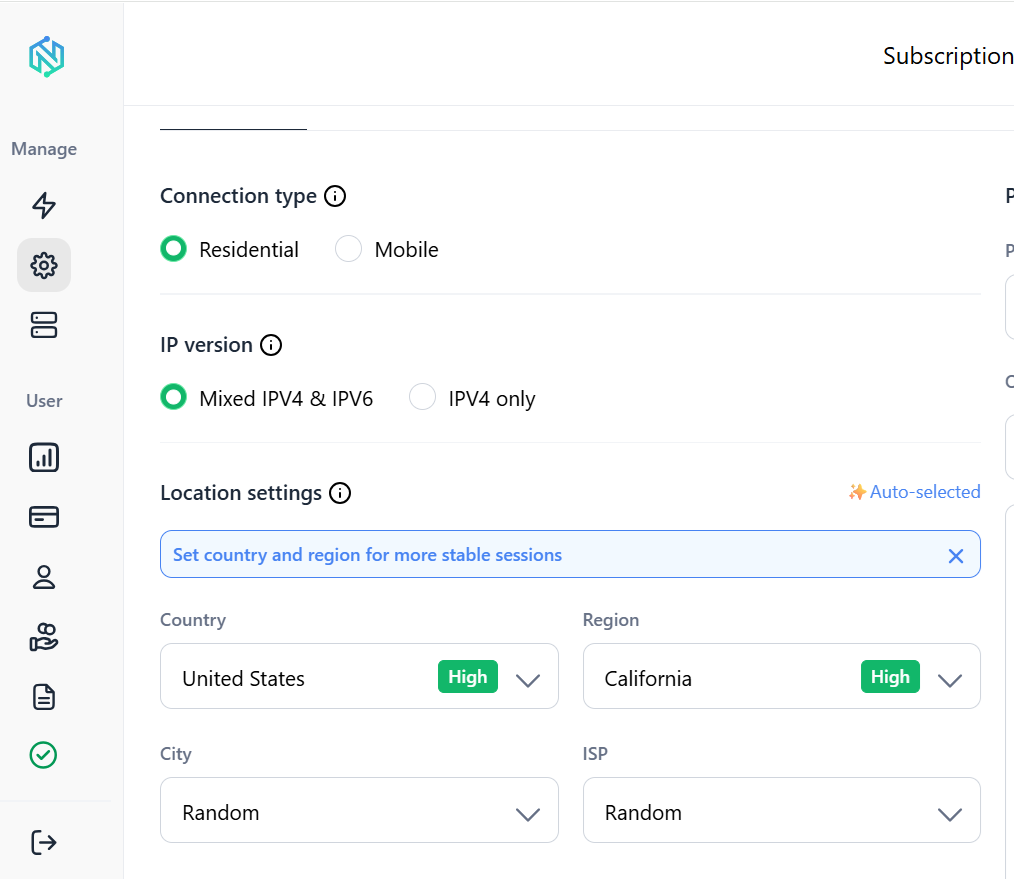
Mobile and ISP proxies cover the workflows that need a different profile. All of it works cleanly with Python’s requests library, so plugging proxies into the loop above is a simple config change.
Hidden API or browser scraping?
| Approach | Best for | Main advantage | Main drawback |
| Direct API requests | Sites where the frontend calls a JSON endpoint | Fast, clean data, low resource cost | Endpoint can change without notice, may need auth handling |
| Playwright | JS heavy sites, workflows needing real browser behavior | Handles rendering, clicking, and complex flows | Slower and heavier on resources than a raw request |
| Selenium | Established automation pipelines, legacy tooling | Mature ecosystem, broad browser support | Generally slower than Playwright, more setup overhead |
Use the simplest layer that gives you the data you need.
Power your scraping with reliable proxies. Get started with NodeMaven from $3.50 and 750MB of bandwidth
The 30-second checklist
Before launching Selenium or Playwright:
- Open Network tab
- Filter by Fetch/XHR
- Reload the page
- Trigger the dynamic content (scroll, click, filter, search)
- Inspect the JSON responses
- Find pagination or filter parameters
- Copy the request as cURL
- Test it outside the browser
- Automate it with a loop
- Add proxies if the workflow needs scale
The website you see isn’t where the data lives
The page you’re looking at is rarely the real source of the data. Somewhere behind it, a request goes out and a response comes back, and everything on screen is built from that exchange.
Find that request before you reach for a browser. Most of the time it’s a five-minute detour that saves you hours of Selenium waits, brittle selectors, and slow page renders.
Once your scraper talks straight to the API, the next problem is scale. NodeMaven gives you the residential, mobile, and ISP IPs to keep those requests running without tripping rate limits. Try it for $3.50 and see how far a clean, direct-to-API scraper can take you.
Ready to scale your scraper? Try NodeMaven from $3.50 and get 750MB of bandwidth to get started


