Playwright vs Selenium: Hands-On Comparison for Web Scraping and Automation



We installed both tools, ran the same automation and scraping tasks, connected both to proxies, and compared what actually happened.
Most Playwright vs Selenium comparisons online are feature lists copied from documentation. They tell you Playwright has auto waiting and Selenium has a bigger ecosystem, then stop there.
We installed Playwright and Selenium on the same machine, built the same simple automation workflow in both, connected both to proxies, and scraped the same page. Every claim tied to hands-on testing is marked. Where we have not run the test yet, you will see a placeholder instead of a guess.
The comparison covers setup, dynamic websites, scraping, proxy integration, and day to day developer experience. If you are choosing between Playwright and Selenium for a scraping project, a QA suite, or a proxy-based automation stack, this is meant to help you decide based on what actually happened.

Scraping the web at scale? Try NodeMaven residential & mobile proxies for $3.50 and get 750MB of bandwidth
Quick answer: Playwright or Selenium?
Based on the hands-on testing in this article:
- Choose Playwright if you’re starting a new automation or scraping project, especially on JavaScript-heavy sites. It needed no explicit waits to pass a login workflow and a four-case dynamic content test that Selenium only passed after adding WebDriverWait logic.
- Choose Selenium if you already run Selenium infrastructure, use Selenium Grid, or need the widest browser and language matrix. It scraped the same 60 items as Playwright and, in our run, finished faster.
- Strongest single result: authenticated proxy setup. Playwright accepted proxy credentials directly in the launch config. Selenium needed a manual Chrome authentication dialog, and our attempt to automate that step did not produce a reliable result.
This is a summary of the tests below, not a replacement for them. The full breakdown, including every runtime and error message, follows.
Playwright vs Selenium at a glance
| Feature | Playwright | Selenium |
| Setup | Single package installs browsers and drivers together | Selenium Manager now resolves drivers automatically in most setups |
| Browser support | Chromium, Firefox, WebKit | Chrome, Firefox, Edge, Safari, IE (via drivers) |
| Languages | JavaScript, TypeScript, Python, Java, C# | Java, Python, C#, Ruby, JavaScript, Kotlin |
| Waiting | Auto waiting built into actions | Explicit and fluent waits, plus newer BiDi based options |
| Dynamic websites | Built for modern JS heavy apps by design | Handles them with explicit wait strategies |
| Sessions | Isolated browser contexts per session | One driver instance per session, or multiple driver instances |
| Network control | Native request interception and routing | WebDriver BiDi network APIs, expanding across languages |
| Proxy support | Per context proxy configuration | Per driver proxy configuration, browser dependent details |
| Parallel execution | Contexts and workers on one machine | Contexts and workers, plus Selenium Grid |
| Distributed execution | Possible but not the core focus | Selenium Grid is built specifically for this |
| Scraping | Fast to get a scraper running | Mature ecosystem, more boilerplate |
| Best use case | New automation and scraping projects, JS heavy sites | Existing Selenium codebases, Grid based infrastructure, broad browser matrix testing |
The table above is a starting point. The real answer comes from the hands-on sections below.
What we tested
Both tools ran through the same basic workflow, in the same language, on the same machine:
- Open a website
- Find an element
- Click it
- Enter data
- Wait for dynamic content
- Extract information
- Integrate proxy
Results below come from testing on one setup, and one network (except proxy checks). Your own numbers will vary with hardware, connection, and target site.
Installation and first setup
Playwright installs as a single package that also downloads its own browser binaries, so there is no separate driver step for Chromium, Firefox, or WebKit.
Selenium no longer requires manual driver management in most cases either. Selenium Manager, bundled with the Selenium package since version 4.6, detects the installed browser and downloads a matching driver automatically. Manual driver downloads are now mostly needed for edge cases, custom driver versions, or offline environments.
Installation and first setup: Playwright
For the hands-on test, we installed Playwright in a fresh Python virtual environment. The test used Python 3.14.7 and Playwright 1.62.0.
The package installation itself took 16.57 seconds. Playwright then required an additional browser installation step. Running playwright install took 1 minute 39 seconds.
After installation, we launched Chromium with a short Python script and opened example.com. The first successful browser launch took 9.33 seconds.
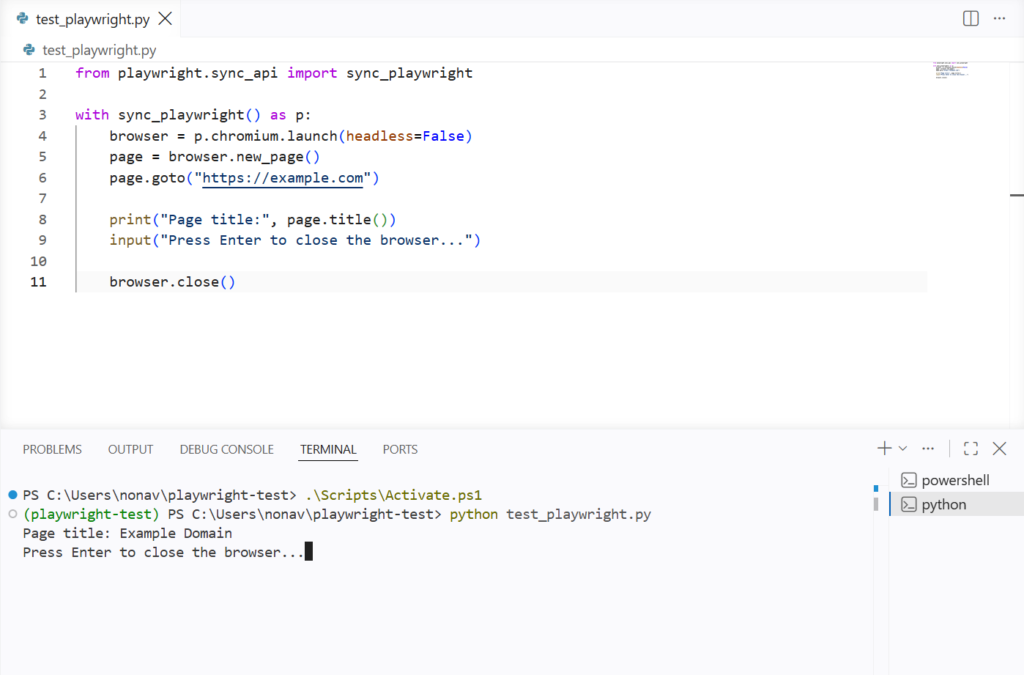
The complete results were:
| Test | Playwright result |
| Python version | 3.14.7 |
| Playwright version | 1.62.0 |
| Package installation | 16.57 sec |
| Browser installation | 1 min 39.69 sec |
| Total installation time | 1 min 56.26 sec |
| Manual driver installation | No |
| Installation errors | None |
| First Chromium launch | 9.33 sec |
| Test page | example.com |
| Result | Successful |
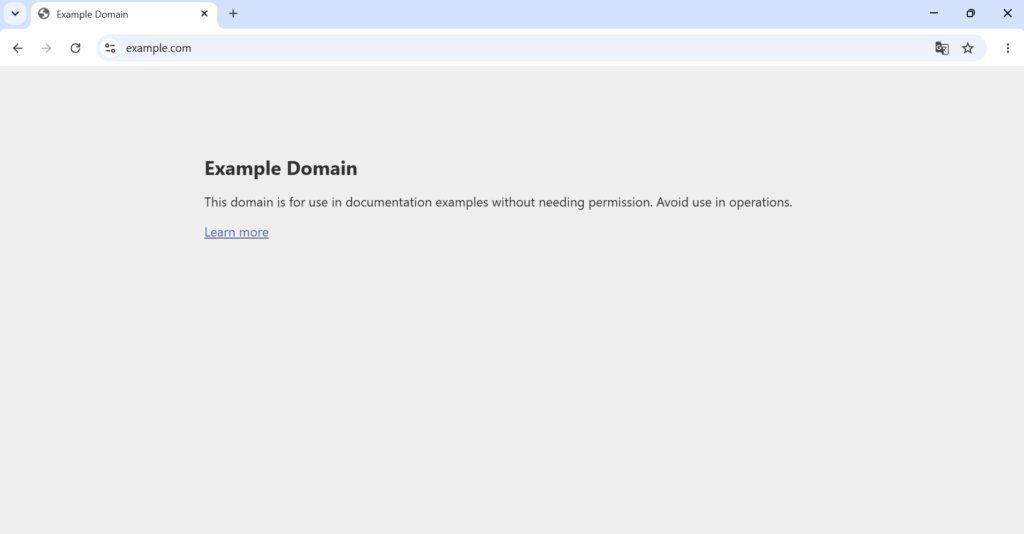
Playwright separates the Python package from its managed browser binaries. This adds an extra installation step, but it also gives Playwright control over the browser versions used by the automation.
For this test, Playwright required one package installation and one browser installation step. No separate WebDriver or manual driver download was needed.
Installation and first setup: Selenium
For the same hands-on test, we installed Selenium in a fresh Python virtual environment. We used the same Python version as in the Playwright test, Python 3.14.7. The installed Selenium version was 4.47.0.
The Selenium package installation took 32.15 seconds. No installation errors occurred.
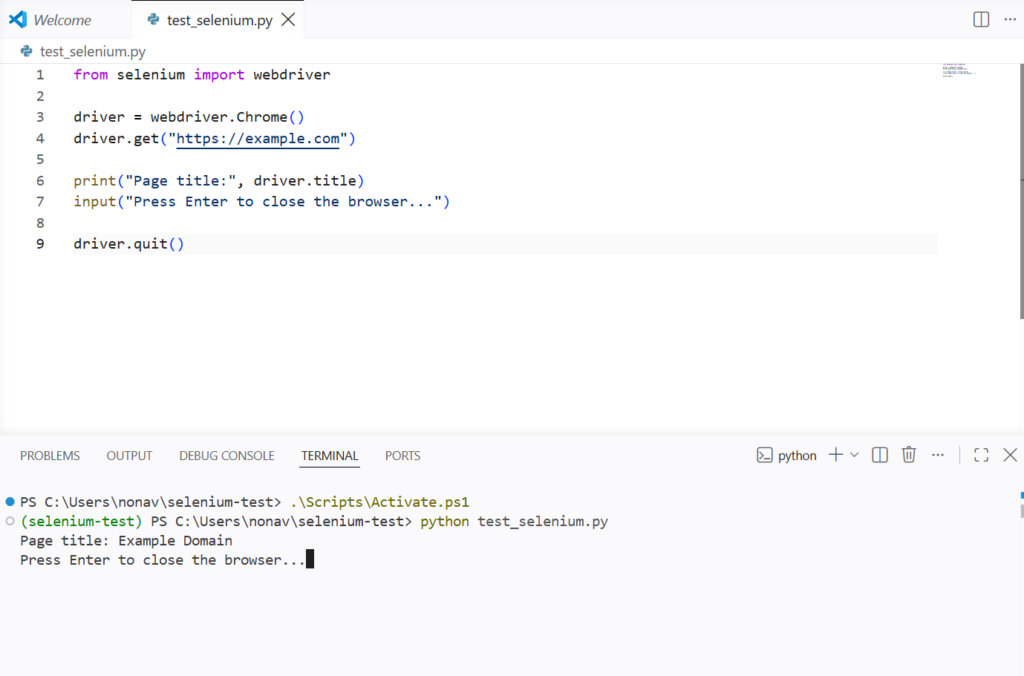
Unlike Playwright, Selenium did not require a separate browser download in this test. We already had Chrome installed, and Selenium Manager automatically handled the required driver when the script launched the browser. We did not install ChromeDriver manually.
The first successful Chrome launch and page load took 8.93 seconds.
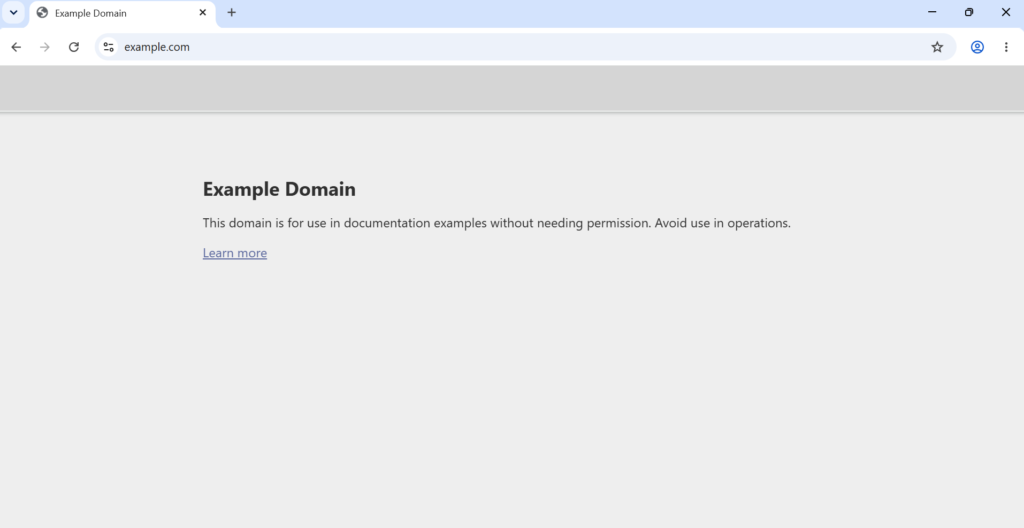
The complete results were:
| Test | Selenium result |
| Python version | 3.14.7 |
| Selenium version | 4.47.0 |
| Package installation | 32.15 sec |
| Browser installation | Not required in this test |
| Total measured installation time | 32.15 sec |
| Manual driver installation | No |
| Driver management | Selenium Manager |
| Installation errors | None |
| First Chrome launch | 8.93 sec |
| Test page | example.com |
| Result | Successful |
The results show a different setup approach from Playwright. Selenium’s Python package took longer to install in our test, but there was no separate browser download because Chrome was already installed. Selenium Manager also removed the need for a manual ChromeDriver installation.
Hands-on verdict: Selenium was slightly slower to install as a Python package, but it required less initial setup in this environment. With Chrome already installed, Selenium Manager handled the driver automatically and got the browser running in 8.93 seconds. Playwright took longer overall because its setup included downloading its managed browser binaries.
Running Playwright or Selenium with proxies? Get NodeMaven residential & mobile proxies for $3.50 and 750MB of bandwidth
Writing the same automation in Playwright and Selenium
A feature list can make two browser automation tools look very similar. A real test can show where the experience actually differs.
To compare Playwright and Selenium fairly, we built the same workflow in Python with both tools. The target was the login form on The Internet test site.
The workflow was simple:
- Open the login page.
- Enter a username.
- Enter a password.
- Click Login.
- Read the success message.
- Close the browser.
We also tested what happened when the workflow encountered a problem.
The Playwright implementation
The Playwright version used the following code:
The implementation contains 12 non-empty lines of code. There is no explicit wait.
The script opened the page, filled both fields, submitted the form and extracted the resulting message successfully on the first attempt.
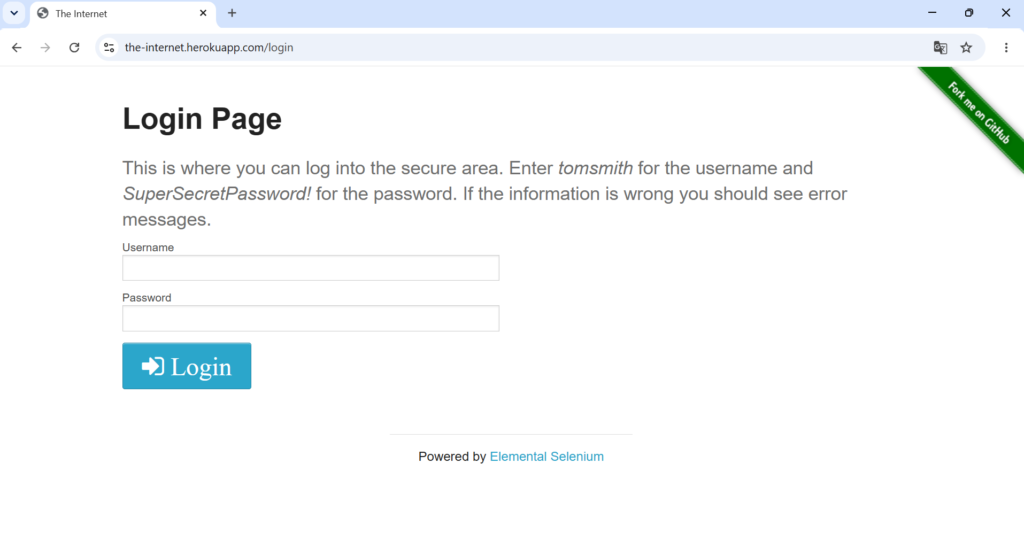
The successful run reached the Secure Area and displayed the confirmation message:
You logged into a secure area!
This was the first practical advantage we noticed. The basic workflow required very little setup code. The actions also read close to what the browser is actually doing.
The Selenium implementation
We then recreated the same workflow in Selenium.
The initial version was:
The initial Selenium implementation also contained 12 non-empty lines.
However, the first run did not complete successfully.
The browser opened the page, filled both fields and clicked Login. The failure happened when Selenium immediately tried to find the #flash element.
It returned a NoSuchElementException.
This was not a selector mistake, but it was timing. The page had not exposed the element by the time Selenium called find_element().
Adding an explicit wait
We fixed the Selenium version by adding an explicit wait:
The final Selenium version contains 15 non-empty lines.
The three additional lines are related to the explicit wait and its required imports.
After adding the wait, the same workflow completed successfully.
Results of implementation
| Test | Playwright | Selenium |
| Initial code | 12 lines | 12 lines |
| First run | Successful | Failed at result extraction |
| Explicit wait | Not needed | Needed |
| Final code | 12 lines | 15 lines |
| Successful result | Yes | Yes, after adding wait |
| Browser launch | 9.33 seconds | 8.93 seconds |
This does not mean Selenium always needs an explicit wait. It means that in this particular workflow, Selenium’s immediate element lookup was not enough.
Playwright handled the same transition without additional waiting code.
That difference becomes important when an automation script grows. A few extra wait statements are not a problem on their own. The maintenance cost becomes more noticeable when a test contains many dynamic elements and state changes.
Testing a broken selector
We also wanted to compare the debugging experience rather than simply compare successful runs.
Testing broken selector in Playwright
For Playwright, we deliberately changed the username selector from:
to:
The selector was now incorrect.
Playwright opened the correct login page but waited for the missing locator. After 30 seconds, it raised:
The browser was still on the login page when the error occurred.
The error was detailed. It identified the failing operation, the selector and the call log. However, the 30 second default timeout made a simple selector typo relatively slow to diagnose.
The same broken selector in Selenium
We made exactly the same mistake in Selenium:
Selenium failed immediately. The error pointed to line 10 and showed the selector Selenium was trying to locate.
This produced an interesting contrast.
Playwright waited for the missing locator and then returned a detailed timeout error. Selenium’s direct find_element() failed immediately with NoSuchElementException.
For a typo in a selector, Selenium’s immediate failure can be faster to spot. For asynchronous pages, however, that same immediate lookup can become a problem if the element simply needs more time to appear.
Our hands-on verdict
After using both tools for the same workflow, Playwright felt easier for this particular test.
The main reason was not the number of commands required to open Chrome. Both tools launched a browser quickly. The difference appeared when the page changed state after the Login click.
Playwright completed the workflow without adding explicit waiting logic. Selenium initially failed at the same point and required WebDriverWait to make the workflow reliable.
The debugging test was more nuanced. Selenium immediately reported a missing selector. Playwright waited for its default timeout and then produced a detailed timeout report with a locator call log.
Automating the web at scale? Start with NodeMaven residential proxies for $3.50 and 750MB of bandwidth
Hands on results at a glance
| Area | Playwright | Selenium |
| Initial workflow | Passed | Failed on dynamic result lookup |
| Final workflow | 12 lines | 15 lines |
| Explicit wait | Not required | Required in this test |
| Selector error | 30 second timeout | Immediate NoSuchElementException |
| Debugging output | Detailed locator call log | Detailed WebDriver traceback |
| Our experience | Easier for this workflow | More manual timing control |
Dynamic websites and waiting
Modern websites rarely load everything at once. Elements can appear after an AJAX request, be rendered by JavaScript, or change state after a user interaction. If an automation script tries to interact with an element before it is ready, the test can fail even though the page itself is working correctly.
This is where Playwright and Selenium take noticeably different approaches.
Playwright automatically waits for elements to reach an actionable state before performing actions such as click() or fill(). In many common scenarios, this means that no separate waiting code is required.
Selenium provides more explicit control over synchronization. A typical approach is WebDriverWait combined with expected conditions such as element_to_be_clickable() or visibility_of_element_located(). This makes the waiting behavior explicit, but adds additional code to the automation.
Hands-on test: waiting behavior
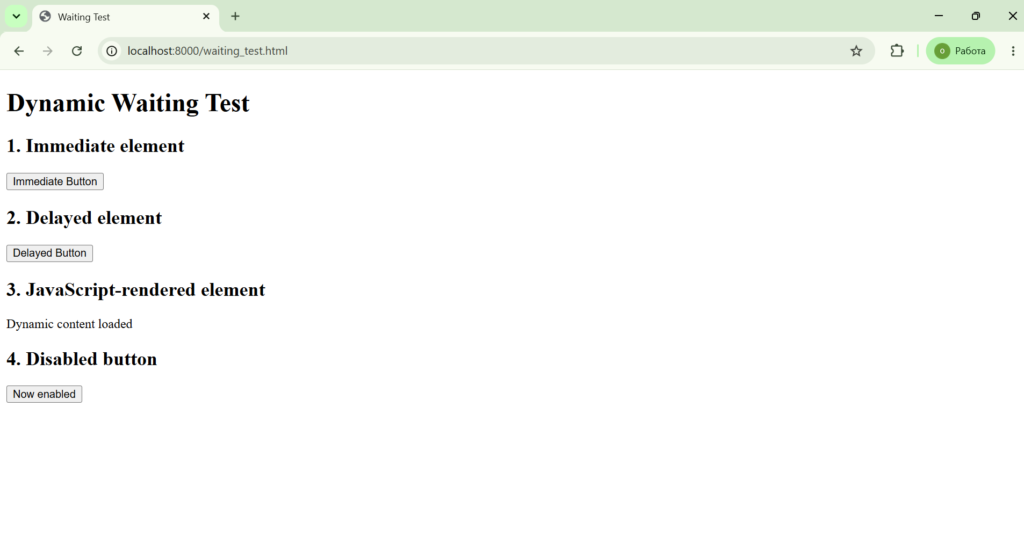
To compare the two approaches, we created a local test page containing four different situations:
- An element available immediately
- An element appearing after a delay
- Content rendered dynamically with JavaScript
- A button that becomes enabled after a state change
We then ran the same four tests in both frameworks.
Playwright result
Playwright passed all four cases without adding explicit waiting logic to the test.
The complete test finished in 2.56 seconds.
The important part of the test was that Playwright’s normal actions could be used directly. Its built-in waiting behavior handled the elements becoming ready without requiring a separate WebDriverWait-style mechanism.
Selenium result
Selenium also successfully passed all four cases, but the implementation required explicit synchronization using WebDriverWait and expected conditions.
The test finished in 3.96 seconds.
The Selenium implementation used conditions such as:
This gives Selenium precise control over what condition must be satisfied before the next action takes place. The trade-off is that the synchronization logic has to be written explicitly.
Test results
| Test case | Playwright | Selenium |
| Immediate element | PASS | PASS |
| Delayed element | PASS | PASS |
| JavaScript-rendered element | PASS | PASS |
| Button state change | PASS | PASS |
| Explicit waiting code | Not required | WebDriverWait + expected conditions |
| Execution time in our test | 2.56 s | 3.96 s |
Selenium took 1.40 seconds longer in this particular run. This should not be interpreted as a general benchmark of framework performance, since the test was small and executed only once. The more relevant difference was the amount of synchronization code required.
What the test showed
Both frameworks successfully handled all four dynamic situations. The difference was mainly how much responsibility the developer had to take for synchronization.
Playwright: less code for common dynamic interactions because waiting is built into its actions.
Selenium: more explicit control over waiting conditions, but with additional code and selector logic.
For modern JavaScript-heavy sites where elements frequently appear or change state dynamically, Playwright’s built-in waiting can make the initial automation code faster to write and easier to read. Selenium’s explicit approach can be more useful when a project needs precise control over exactly when an element should be considered ready.
Need reliable proxies for browser automation? Try NodeMaven residential & mobile proxies for $3.50
Web scraping with Playwright vs Selenium
Both Playwright and Selenium can drive a real browser and extract data from rendered pages. This matters when a website relies on JavaScript or browser behavior that a simple HTTP request cannot reproduce.
For comparison, we built the same small scraper with both tools. We used Books to Scrape, a public site designed for scraping practice. The scraper visited three pages and extracted the same three fields from every book:
- Title
- Price
- Product link
Each page contained 20 books, so the expected result was 60 items.
Playwright scraper
The Playwright implementation used browser navigation, CSS selectors and element locators to extract the data:
The scraper processed all three pages and extracted 60 out of 60 items without errors.

The terminal output confirmed the full extraction:
Pages scraped: 3
Items extracted: 60
The first five titles and prices were also extracted correctly.
Selenium scraper
We then built the same scraper with Selenium:
Selenium also extracted 60 out of 60 items across all three pages.
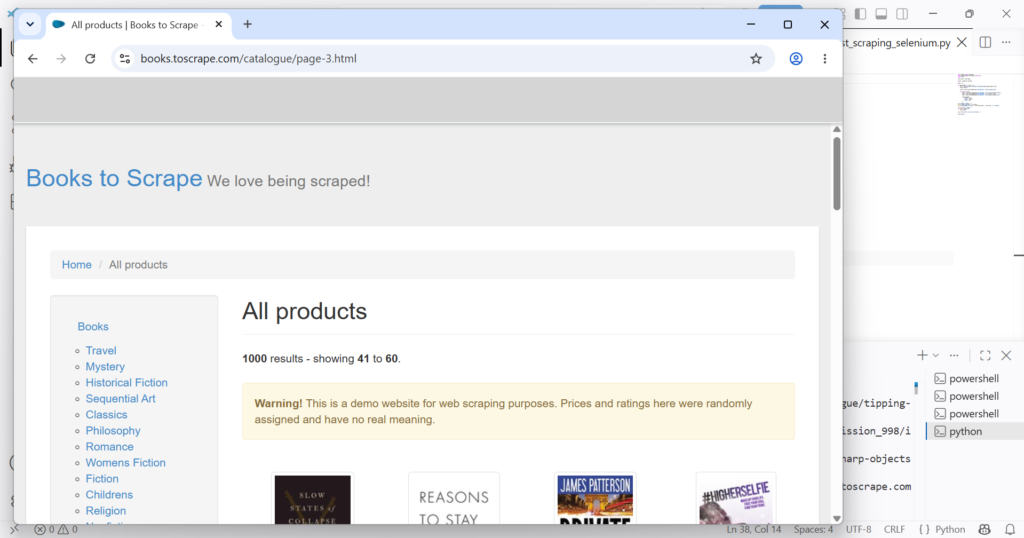
The first five titles and prices matched the Playwright results.
The Selenium output also returned absolute product URLs, while the Playwright implementation returned the relative href values from the page. This comes from the way each implementation retrieves the link attribute and is not a meaningful difference in scraping accuracy.
Scraping results
| Metric | Playwright | Selenium |
| Pages scraped | 3 | 3 |
| Expected items | 60 | 60 |
| Items extracted | 60 | 60 |
| Extraction success | 100% | 100% |
| Pagination | Pass | Pass |
| Title extraction | Pass | Pass |
| Price extraction | Pass | Pass |
| Link extraction | Pass | Pass |
| Reported run time | 27.00 sec | 17.49 sec |
| Failures | None | None |
Need reliable proxy authentication for browser automation? Try NodeMaven residential proxies for $3.50
What the test showed
For this simple scraping task, both tools were reliable.
Neither framework needed special handling for the pagination. The page structure was consistent, and both tools successfully located all product cards and extracted the requested fields.
The code was also relatively similar in size. The main difference was the API used to work with collections of elements.
Playwright uses locators:
and then works with individual cards through:
Selenium returns a collection of WebElements:
The Selenium version then works directly with each element in the returned list.
Our verdict: Playwright vs Selenium for web scraping
For this particular scraper, the two tools were closer than we expected.
Selenium was straightforward once the page structure and selectors were known. Its find_elements() API makes it easy to collect a list of matching elements and iterate through them.
Playwright’s locator API was also concise and worked well for the repeated product cards.
For a simple, static scraping target like Books to Scrape, we would not choose between Playwright and Selenium based on scraping alone. Both extracted 100% of the expected items in our test.
Proxy support: Playwright vs Selenium
To compare proxy support fairly, we tested both frameworks with the same NodeMaven proxy and the same target, https://api.ipify.org/?format=json. The comparison focused on authenticated proxies using a username and password, since this is a common setup when the proxy provider requires credentials.
This exposed one of the clearest practical differences between the two tools.
Playwright proxy support
Playwright allowed the proxy server, username, and password to be supplied directly in the browser launch configuration. The test completed successfully without any additional authentication mechanism.
Result:
- Proxy connection: Passed
- Detected IP: 109.127.17.1
- Runtime: 7.94 seconds
- Additional authentication setup: None
The returned IP differed from the local connection, confirming that traffic was routed through the proxy.
Selenium proxy support
The Selenium test exposed an important practical difference.
First, we configured Chrome with the NodeMaven proxy host and port. Chrome successfully reached the proxy, but it displayed a native authentication dialog requesting the proxy username and password.
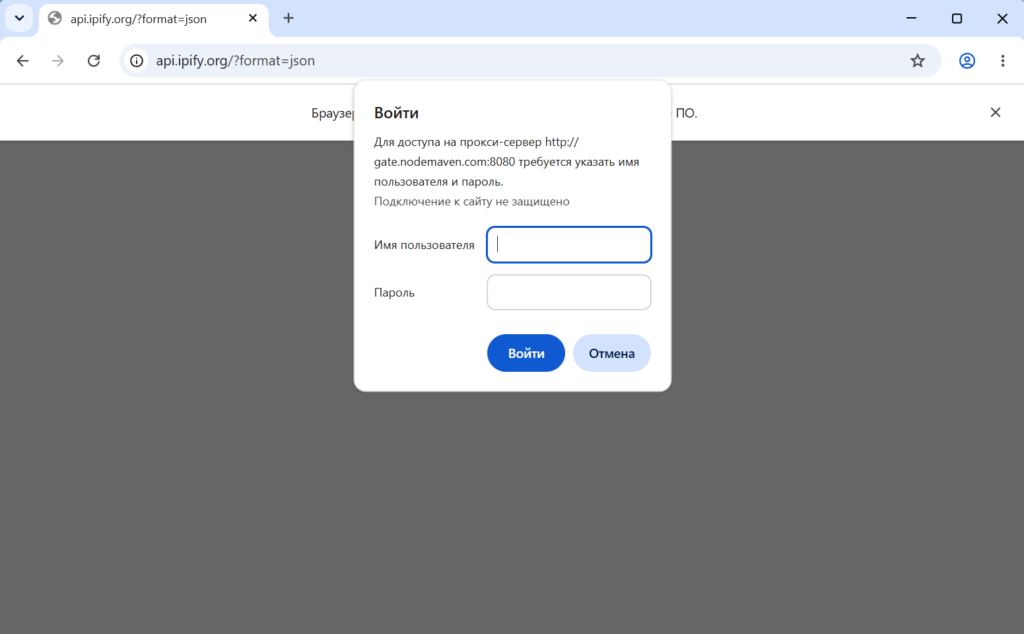
After entering the credentials manually, the page loaded successfully and returned:
{“ip”:”188.64.10.56″}
This confirmed that the Selenium browser could use the same proxy successfully when authenticated.
We then attempted to automate the authentication through a Chrome extension. Despite several iterations, the automated version continued to fall back to the local IP rather than reliably authenticating through the proxy.
We therefore did not treat the automated Selenium result as a successful proxy test.
An important Selenium exception: IP whitelisting
Our authenticated proxy test used the same conditions for both frameworks. Playwright handled username and password authentication much more easily, while Selenium’s automated authentication did not work reliably in our test.
However, Selenium can work well with proxies when IP whitelisting is available. Instead of sending credentials through the browser, the provider authorizes your public IP, avoiding the Chrome authentication dialog.
We tested IP whitelisting separately with NodeMaven, and Selenium connected successfully and returned a different IP from the direct connection.
This was a separate test, so it is not included in the authentication comparison. For the Selenium setup, including IP whitelisting, IP verification, sticky sessions, and rotation, see our Selenium proxy guide.
Final comparison: Playwright vs Selenium with proxies
| Playwright | Selenium | |
| Proxy host/port configuration | ✅ | ✅ |
| Authenticated proxy | ✅ | ✅ manually |
| Automated authentication | ✅ Native configuration | ❌ Not achieved reliably in our test |
| Additional setup | Minimal | Chrome authentication workaround required |
| Verified proxy IP | 109.127.17.1 | 188.64.10.56 |
| Runtime | 7.94 s | – |
| Overall setup experience | Straightforward | More complicated |
What the test showed
The biggest difference was not browser performance. It was configuration complexity.
With Playwright, authenticated proxy credentials are part of the browser launch configuration:
With Selenium, configuring the proxy itself was straightforward, but authenticated proxy handling required an additional Chrome-specific mechanism. Our manual test worked, while our attempt to automate that authentication did not produce a reliable result.
Based on the actual test, Playwright was substantially easier to configure for an authenticated proxy.
Running Playwright or Selenium with proxies? Get NodeMaven residential & mobile proxies for $3.50 and 750MB of bandwidth
Choosing a proxy type for Playwright or Selenium automation
The framework you pick doesn’t change what the underlying proxy needs to do: stay authenticated, avoid getting flagged, and hold a session when the workflow needs one. A few proxy types show up repeatedly in Playwright and Selenium automation:
- Residential proxies for scraping and automation that benefits from a large, rotating pool of real household IPs.
- Mobile proxies for workflows tied to mobile-first platforms or that need carrier-grade IPs.
- ISP (static residential) proxies for long-running sessions where the same IP needs to persist across a multi-step Playwright or Selenium script.
Before running an automation session behind any proxy, it’s worth confirming the browser isn’t leaking your real IP around it. NodeMaven’s free WebRTC leak test checks that in under a minute and needs no signup.
This article compares frameworks, not proxy setup steps. Configuring a NodeMaven proxy inside Playwright or Selenium is covered in separate step-by-step guides.
Final Playwright vs Selenium test results
| Test area | Playwright | Selenium | Result in our testing |
| Package installation | 16.57 sec | 32.15 sec | Playwright’s package installed faster |
| Full first-time setup | 1 min 56.26 sec (incl. browser download) | 32.15 sec (Chrome already installed) | Selenium had less to install in this environment |
| First browser launch | 9.33 sec | 8.93 sec | Close, Selenium marginally faster |
| Login workflow, first run | Passed, no explicit wait | Failed at result extraction (NoSuchElementException) | Playwright passed without extra code |
| Login workflow, final code | 12 lines | 15 lines | Selenium needed 3 more lines for a wait |
| Broken selector | 30 sec timeout, detailed log | Immediate NoSuchElementException | Selenium surfaced the error faster |
| Four-case dynamic waiting test | 2.56 sec, no explicit waits | 3.96 sec, WebDriverWait required | Playwright needed less synchronization code |
| Scraping (60 items across 3 pages) | 60/60, 27.00 sec | 60/60, 17.49 sec | Both fully accurate, Selenium faster in this run |
| Authenticated proxy | Automated, no extra step | Manual only, automation unreliable | Playwright’s setup was simpler |
Who should choose Playwright?
Playwright fit best in our testing for:
- New automation or scraping projects, where there’s no existing framework decision to work around.
- JavaScript-heavy or dynamic sites, where our login workflow and four-case waiting test both passed without extra synchronization code.
- Teams that want fewer lines of timing logic to maintain. Our final workflow stayed at 12 lines because no explicit wait was needed.
- Setups using authenticated proxies, where Playwright took proxy credentials directly in the browser launch configuration in our test, with no separate authentication step.
- Projects that benefit from isolated browser contexts for running multiple sessions without separate driver instances.
If your project is starting from zero and doesn’t depend on existing Selenium tooling, our results point toward Playwright as the lower-friction option.
Who should choose Selenium?
Selenium remains a reasonable choice, and our testing backs that up in specific cases:
- Existing Selenium codebases. There’s no evidence here that migrating an established suite would pay off on reliability or scraping accuracy alone.
- Selenium Grid or distributed test infrastructure. This article didn’t test Grid directly, but it’s a mature, purpose-built piece of Selenium’s ecosystem that Playwright doesn’t aim to replace.
- Broad browser coverage, including Edge, Safari, and IE through drivers, beyond Chromium, Firefox, and WebKit.
- Teams that want explicit control over synchronization. WebDriverWait with expected conditions is more code, but it makes the exact wait condition visible in the script instead of implicit in the framework.
- Static or simpler scraping targets. In our scraping test, Selenium extracted all 60 items and finished faster than Playwright in that single run (17.49 sec vs 27.00 sec).
- Immediate failure on bad selectors. In our broken-selector test, Selenium’s find_element() failed instantly with a clear NoSuchElementException, while Playwright waited out its 30-second timeout before reporting the same problem.
If you already have Selenium infrastructure, a broad browser test matrix, or a team fluent in WebDriver, our results don’t give a strong reason to switch.
Ready to test your scraper with real residential & mobile IPs? Try NodeMaven for $3.50 and get 750MB of bandwidth