
How to manage multiple Gmail accounts without getting overwhelmed



If you’ve ever found yourself logging out of one Gmail account just to log into another, you already know the problem. Freelancers juggle a personal inbox and a handful of client inboxes. Marketers split work and testing accounts. YouTubers, agencies, and remote workers all end up with the same situation: more than one Gmail account, and no clean way to move between them.
This guide explains how to create, organize, and manage multiple Gmail accounts efficiently, from basic Gmail settings to advanced setups used by agencies, marketers, and remote teams.

Managing multiple Gmail accounts? Keep each account environment consistent with NodeMaven ISP proxies from just $2.33/IP/30 days
Can you have multiple Gmail accounts?
Yes. Google doesn’t cap the number of Gmail accounts a single person can hold, and there’s no rule against creating several for different purposes. Having multiple Gmail accounts for work, personal use, marketing projects, or side businesses is allowed under Google’s Terms of Service.
Where it gets more complicated is volume and behavior.
The key is avoiding patterns that look like spam or abuse. For example, creating accounts too quickly, reusing recovery information across accounts, or showing unusual login behavior. Google’s systems are built to catch automated account creation and bot-like activity, not to penalize someone managing a reasonable number of accounts for legitimate reasons.
How to create multiple Gmail accounts
Creating a second, third, or fourth Gmail account follows the same steps every time:
- Go to the Gmail sign-up page and select “Create account.”
- Choose whether the account is for personal use or business.
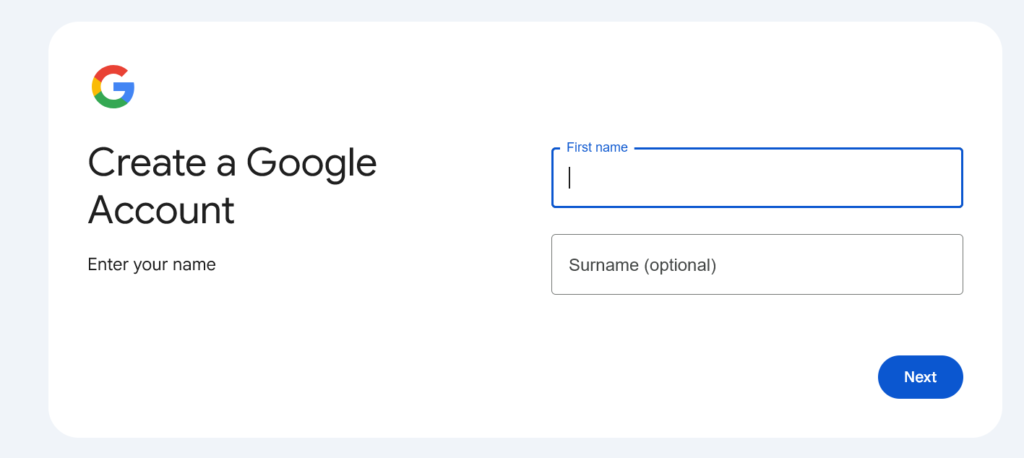
- Fill in your name and surname.
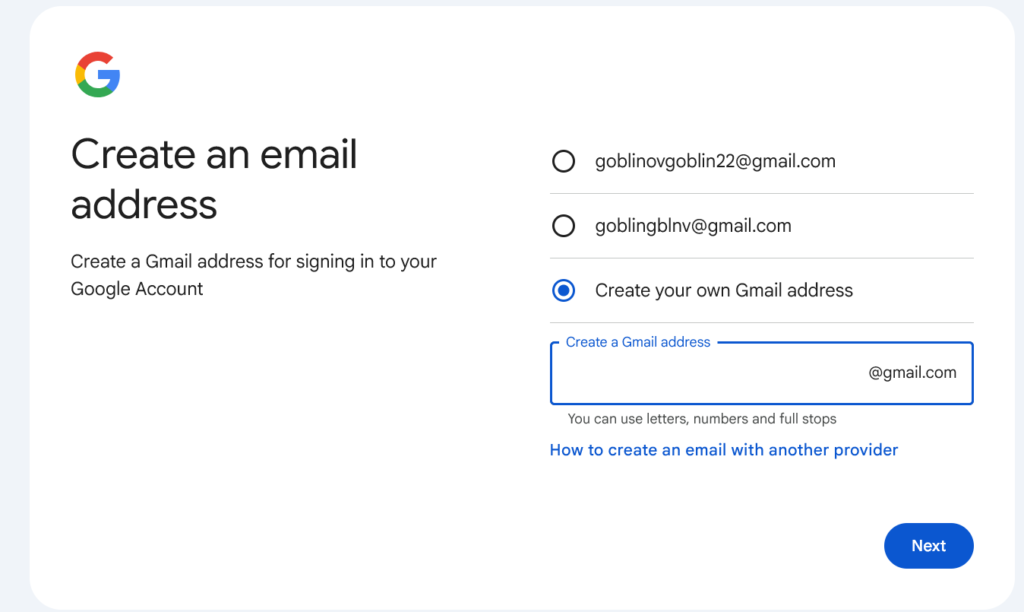
4. Choose a username (Gmail will suggest alternatives if your first choice is taken)
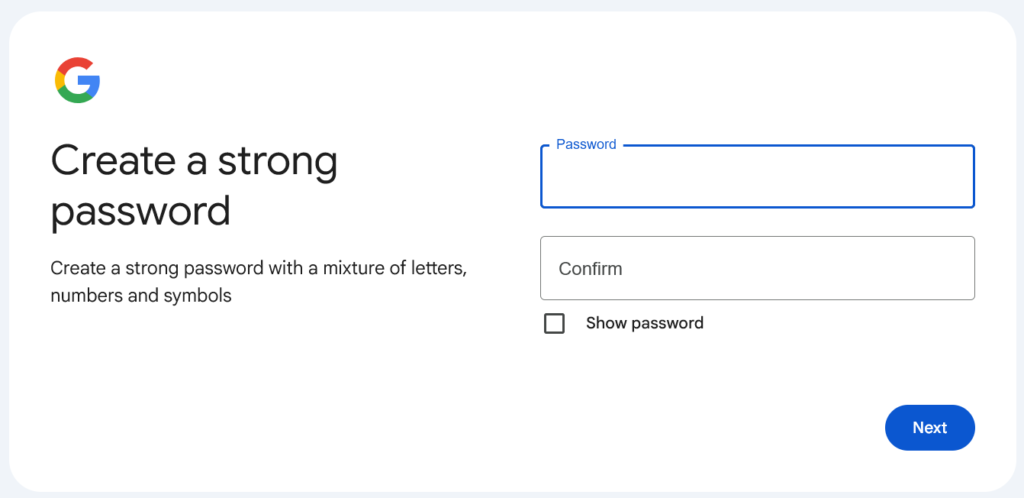
5. Set a password and confirm it.
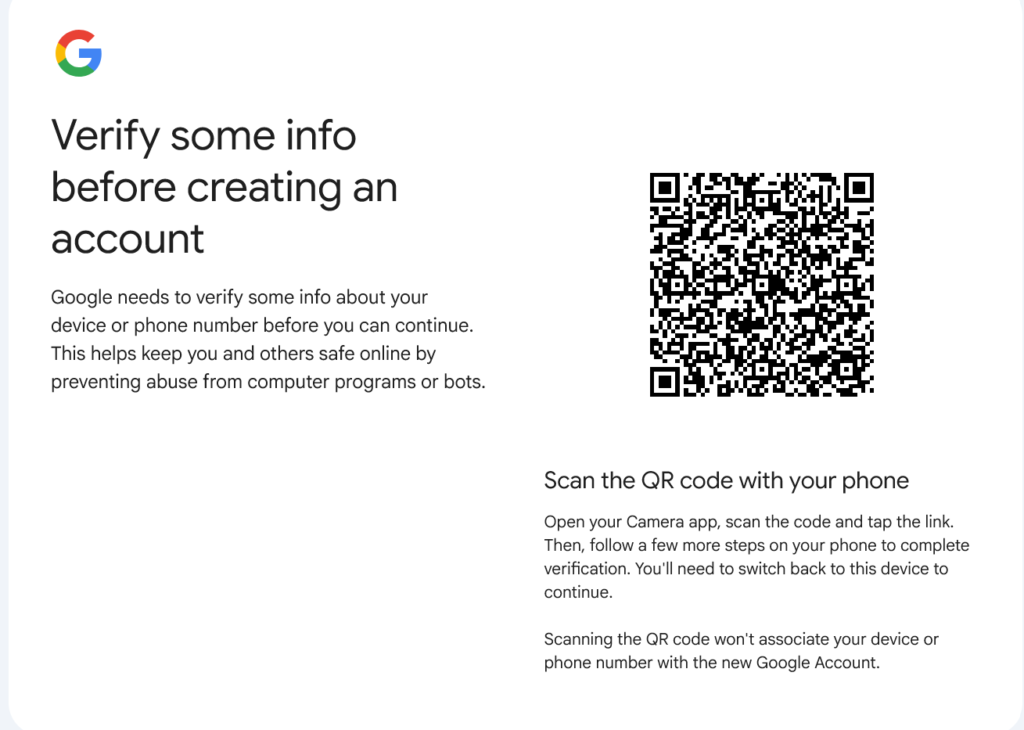
6. Verify the account, typically with a phone number.
7. Add recovery information and confirm your details.
That’s the process whether you’re creating your second account or your twelfth. The part that changes is verification.
Google relies on phone numbers to confirm a new account isn’t part of an automated batch. Google typically allows using the same phone number to verify around four new Gmail accounts before it starts asking for additional verification or blocks further use of that number entirely.
The biggest challenges of managing multiple Gmail accounts
The friction shows up once you’ve settled into a routine and realize the routine doesn’t scale.
Constant account switching
Gmail’s account switcher works fine for two or three accounts. Past that, you start losing track of which inbox you’re actually looking at. It’s a small thing until you’ve sent a client email from the wrong address, or replied to a personal message from a work account, more than once.
Mixed notifications and inboxes
Every account pings separately. If you’re checking five inboxes throughout the day, you’re either drowning in notifications or you’ve turned them all off and now you’re missing things that actually matter.
Security and recovery management
Each account needs its own password, its own recovery email or phone number, and ideally its own two-factor setup. Multiply that by ten accounts and you’ve got a real password and recovery management problem.
Account consistency across devices
If you manage accounts from your laptop one day and your phone the next, Gmail and Google’s security systems notice. Logging into the same account from wildly different devices, locations, and networks in a short window is one of the more common triggers for “verify it’s you” prompts.
Running client, work, and personal Gmail accounts? Use stable ISP proxies from $2.33/IP/30 days to simplify account management
6 ways to manage multiple Gmail accounts more efficiently
None of these require special tools to start. They’re habits and settings most people simply haven’t set up yet.
Use Gmail’s account switcher
Click your profile photo in the top right and add every account you manage. This keeps you within Google’s own ecosystem and avoids the more error-prone habit of logging in and out repeatedly.
Set up email forwarding
If some accounts are mostly passive, forward mail from that account into your main inbox. You’ll still need to log into the original account occasionally for security checks, but day-to-day, you’re not checking five separate places.
Use labels and filters
Within your primary inbox, set up filters that color-code or label incoming mail by source. This works well combined with forwarding, since it lets you tell at a glance which “version of you” an email is meant for.
Separate accounts by purpose, not by feeling
Decide in advance what each account is for. For example, one for client A, one for personal, one for a specific project and stick to it. The accounts that cause the most confusion are usually the ones with no clear job description.
Use browser profiles
Most modern browsers let you create separate profiles, each with its own cookies, sessions, and saved logins. This is a meaningful step up from one browser window with five accounts logged in, because it keeps sessions from bleeding into each other.
Use dedicated browser environments for higher volumes
Once you’re managing accounts for clients, multiple brands, or anything resembling business-scale operations, standard browser profiles start to show their limits.
Tired of juggling multiple Gmail accounts? Build more consistent account environments with NodeMaven ISP proxies from $2.33/IP/30 days
Why browser profiles aren’t always enough
Browser profiles are a good starting point for managing multiple Gmail accounts.
They help keep:
- Cookies separate
- Saved logins organized
- Personal and work accounts from overlapping
But they’re not a perfect solution.
Main challenge is consistency. While profiles separate browser data, all activity still comes from the same computer and internet connection. For many users keeping account environments organized often requires more than creating another Chrome profile.
For a closer look at the signals that websites can use to identify devices, check out our browser fingerprinting guide.
This is often the point where freelancers, marketers, and agencies start looking for solutions that help keep account environments more consistent.
How ISP proxies help manage multiple Gmail accounts
Many people managing multiple Gmail accounts run into the same problem: keeping account activity consistent over time.
Google expects accounts to behave predictably. If an account is usually accessed from one location and suddenly starts appearing from different cities, networks, or IP addresses, additional verification requests can become more common.
This doesn’t mean you can’t log in while traveling or changing networks. It simply means consistency matters.
That’s where ISP proxies can help.
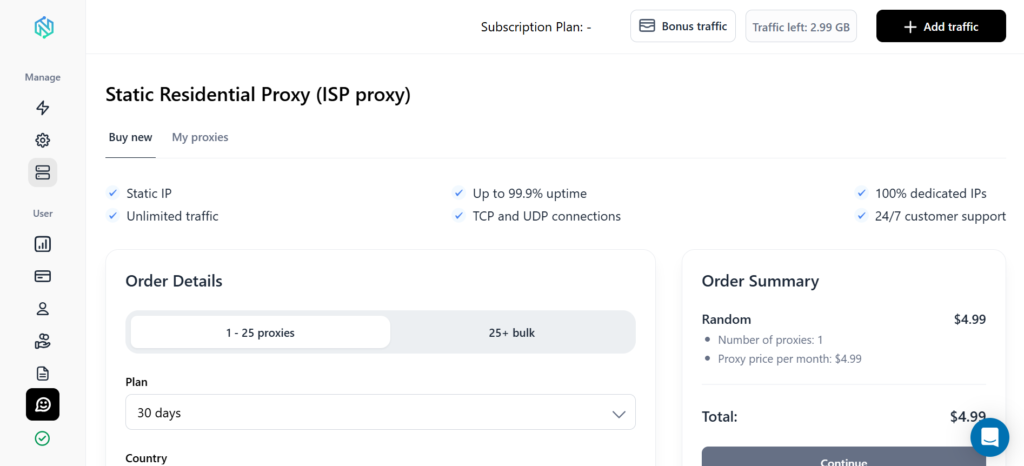
Unlike rotating proxy networks, ISP proxies provide a stable IP address that remains assigned to the same account environment for extended periods. This creates a consistent login history and makes account management easier.
With NodeMaven ISP proxies, you get:
- A dedicated IP address that stays consistent between sessions
- Long-term stability for accounts used daily or weekly
- Fewer disruptions caused by constantly changing network environments
- Better separation between personal, work, and client account setups
- A reliable foundation for browser profiles and anti-detect browsers
If you’re responsible for multiple client inboxes, outreach accounts, team workflows, or business operations, maintaining a stable environment can save time and reduce unnecessary account management headaches.
If you’d like to learn more about how proxies work, check out our guide on differences between residential and ISP proxies.
Best setup for managing multiple Gmail accounts professionally
The right setup depends almost entirely on how many accounts you’re handling. Here’s a general guide:
| Number of Accounts | Recommended Setup |
| 2–5 | Gmail account switcher |
| 5–20 | Browser profiles |
| 20–50 | Dedicated browser profiles + ISP proxies |
| 50+ | Anti-detect browser + ISP proxies |
At the higher end, an anti-detect browser guide is worth reading before you commit to a setup, since anti-detect browsers are built specifically to give each account its own consistent fingerprint alongside its own IP.
If long-term stability matters more than rotating IPs, static residential proxies are another option worth comparing against ISP proxies for this specific use case.
Common mistakes to avoid
A few habits cause more account problems than anything else:
· Logging every account into the same browser profile
This is the single fastest way to create cross-contamination between accounts that are supposed to be separate.
· Reusing recovery information
If one phone number or backup email is tied to ten accounts, losing access to that one point of failure puts all ten at risk. It also makes the accounts look connected to Google’s systems.
· Frequently changing locations and IPs
Constantly switching networks for the same account creates the erratic pattern that triggers extra verification, even when nothing suspicious is actually happening.
· Ignoring account security settings
Two-factor authentication and regular security checkups take a few minutes and meaningfully reduce the chance of losing access to an account you depend on.
· Sharing credentials instead of proper access
If a team needs to share an account, shared logins with no individual accountability are harder to secure and harder to audit than giving each person their own access path.
Managing Gmail accounts at scale? Pair browser profiles with NodeMaven ISP proxies from $2.33/IP/30 days for a more organized workflow
Conclusion
Managing one Gmail account is easy. Managing dozens requires a system. Start with Gmail’s built-in tools, add browser profiles as your account count grows, and consider dedicated browser environments and stable ISP proxies when consistency becomes part of your workflow. The right setup doesn’t just save time, but it makes managing multiple Gmail accounts far more sustainable over the long term.