







Browser Leak: 6 Checks to See What Your Proxy Exposes


Your IP checker shows the proxy address, yet a geo-restricted service still blocks you or serves content for the wrong region. Another test reports a different IP, and websites you expected to see as a new visitor still recognize you.
These problems can come from an exposed address, browser location permissions, or a saved session. This guide walks through six checks to find what your browser reveals and whether you need to change the proxy, its configuration, or your browser settings.
Key takeaways
- Check more than the IP at the top of the page. WebRTC, DNS, and IPv6 can follow paths that need separate inspection.
- Browser recognition doesn’t always mean an IP leak. Fingerprints, cookies, and signed-in accounts can remain recognizable after your IP changes.
- Choose the proxy for the task. Screened residential IPs help address exit reputation; a dedicated static ISP IP provides continuity for recurring sessions.
- Run the NodeMaven Connection Checker in your working browser and profile. Compare the observed addresses, fix any unintended route, and repeat the checks after configuration changes.

For regional research, testing, or data collection, use NodeMaven’s screened residential IPs with location targeting and sticky sessions. Start with a $3.50 paid trial containing 750 MB for residential and mobile proxies, and test the setup in your working browser before choosing a larger plan.
What is a browser leak?
A browser leak is the unintended exposure of information through your browser that you expected your privacy or connection setup to hide. People use the term for several different problems, so the useful question is what information became visible, and through which route?
An IP leak has a narrower meaning: an address from your direct connection becomes visible outside the proxy or other route you intended to use. Our IP leak guide explains those network failures in more detail.
Other browser information needs a different interpretation:
| Observation | What it tells you |
| Your direct public IP appears during a proxied session | A tested connection may be bypassing the intended route. |
| A DNS test lists a resolver | That resolver handled the test’s queries; its identity alone doesn’t reveal your public IP. |
| WebRTC displays a private address or a .local name | The browser exposed a local candidate, which isn’t automatically a public IP leak. |
| A site reads your timezone or graphics information | Browser fingerprinting surfaces remain available. |
| A website opens your existing account | Your saved session still identifies you. |
A visible browser detail isn’t always a leak. Your proxy can hide your direct public IP while websites still see your timezone, browser version, and screen size. Check whether the result exposes your actual connection or simply describes your browser.
What can your browser reveal while a proxy is active?
Public addresses and connection routes
An ordinary page request, a DNS lookup, and a browser call don’t necessarily travel through the same path. Your configuration determines which traffic uses the proxy.
WebRTC, used for browser communication, can gather connection candidates and use STUN or TURN services to establish a route. MDN’s explanation of WebRTC protocols describes those mechanisms. A successful HTTP proxy test doesn’t establish how those connections behave.
IPv6 also deserves attention. If your normal connection supports both IPv4 and IPv6, checking only an IPv4 destination leaves part of the setup untested.
Browser and device characteristics
Websites can read information such as language preferences, screen dimensions, timezone, and browser characteristics. Some tests also examine how your browser renders graphics.
These details can contribute to a browser fingerprint. Changing the network exit doesn’t automatically change the combination of characteristics your browser presents.
A timezone that differs from the proxy’s country isn’t proof of a leak. Travelers and remote workers produce that combination too. Treat an unexpected value as something to investigate, rather than a reason to change every setting.
Permissions and existing sessions
A website can remember you through an account or saved session even after you change IPs. If you’re still signed in, the site doesn’t need to discover your original address to recognize you.
Location permission is another separate channel. The browser’s Geolocation API requires permission and can provide device location rather than merely estimating it from the proxy IP. Review that permission if a website appears to know where you are despite a different network exit.
Why changing the proxy doesn’t change every connection
A browser extension may affect browser requests while leaving other applications untouched. Even within a browser, a proxy setting may cover some protocols but not others.
For example, Chromium’s proxy documentation states that its native SOCKS5 support handles TCP URL requests and cannot relay UDP. Buying a UDP-capable proxy doesn’t change that browser behavior by itself.
For workflows that need a persistent address and UDP, NodeMaven ISP proxies provide dedicated static IPs, unlimited traffic, and TCP and UDP support. Pair them with a client or tunnel that actually routes the required traffic, then verify the result. That gives you a stable endpoint without assuming a browser checkbox covers every connection.
If your problem is authentication, speed, or a proxy that won’t connect at all, start with our 8 checks for a proxy server. The checks below focus on what an otherwise working browser exposes.
How to check for a browser leak: 6 tests
Before enabling the proxy, note your direct public address using NodeMaven IP Lookup. If available, record both IPv4 and IPv6. Keep that baseline private so you can recognize it later.
Then enable the proxy and use the same browser and profile you use for work. A test in your personal browser won’t establish how an automation profile behaves. Record the expected proxy exit and whether rotation is enabled; otherwise, two valid proxy addresses can look like a leak.
1. Confirm the public IP websites receive
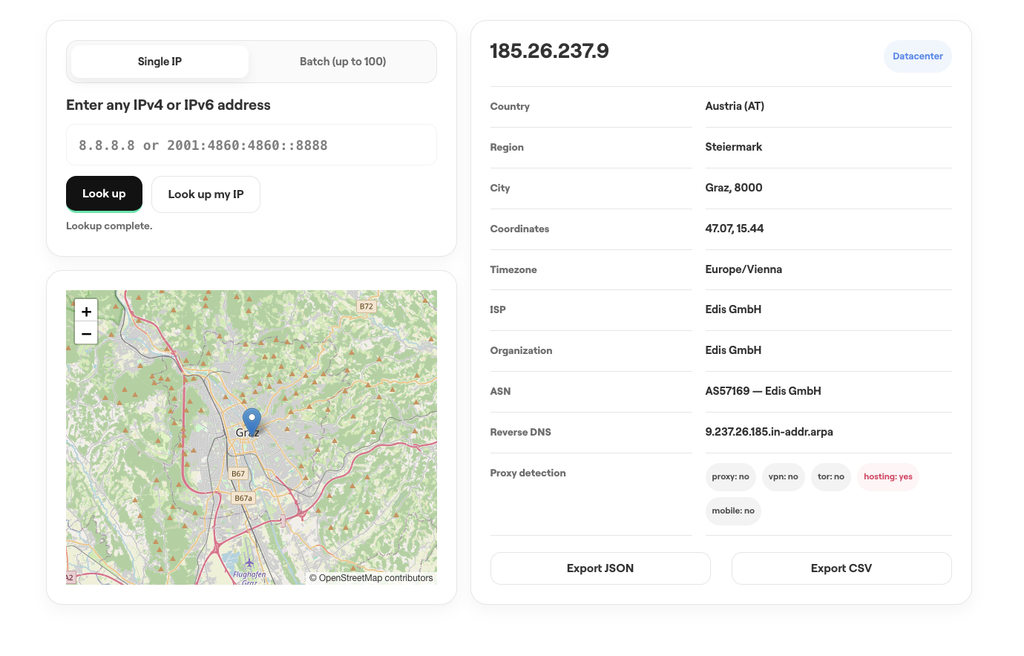
Open IP Lookup again with the proxy active. Compare the visible address with your expected exit, then check its country, network provider, and ASN, which identifies the network announcing it.
If your direct baseline address still appears, check whether the proxy is enabled for that browser, whether an extension is overriding it, and whether the destination is excluded from proxy routing.
If the proxy address appears but is labeled as hosting, VPN, or proxy traffic, that’s a classification result, not evidence that your direct IP escaped. Location and reputation databases can also disagree.
Where exit reputation is the concern, NodeMaven residential proxies screen addresses through an IP Quality Filter before assignment. You can select the required location and use sticky sessions for a multi-step task. Filtering addresses the quality of the exit you receive; the remaining checks establish how your browser uses it.
For regional research, testing, or data collection, use NodeMaven’s screened residential IPs with location targeting and sticky sessions. Start with a $3.50 paid trial containing 750 MB for residential and mobile proxies, and test the setup in your working browser before choosing a larger plan.
2. Compare WebRTC addresses with the HTTP exit
Run the WebRTC Leak Test and inspect the kinds of addresses it reports. A private LAN address or .local candidate isn’t equivalent to exposing your home’s public IP.
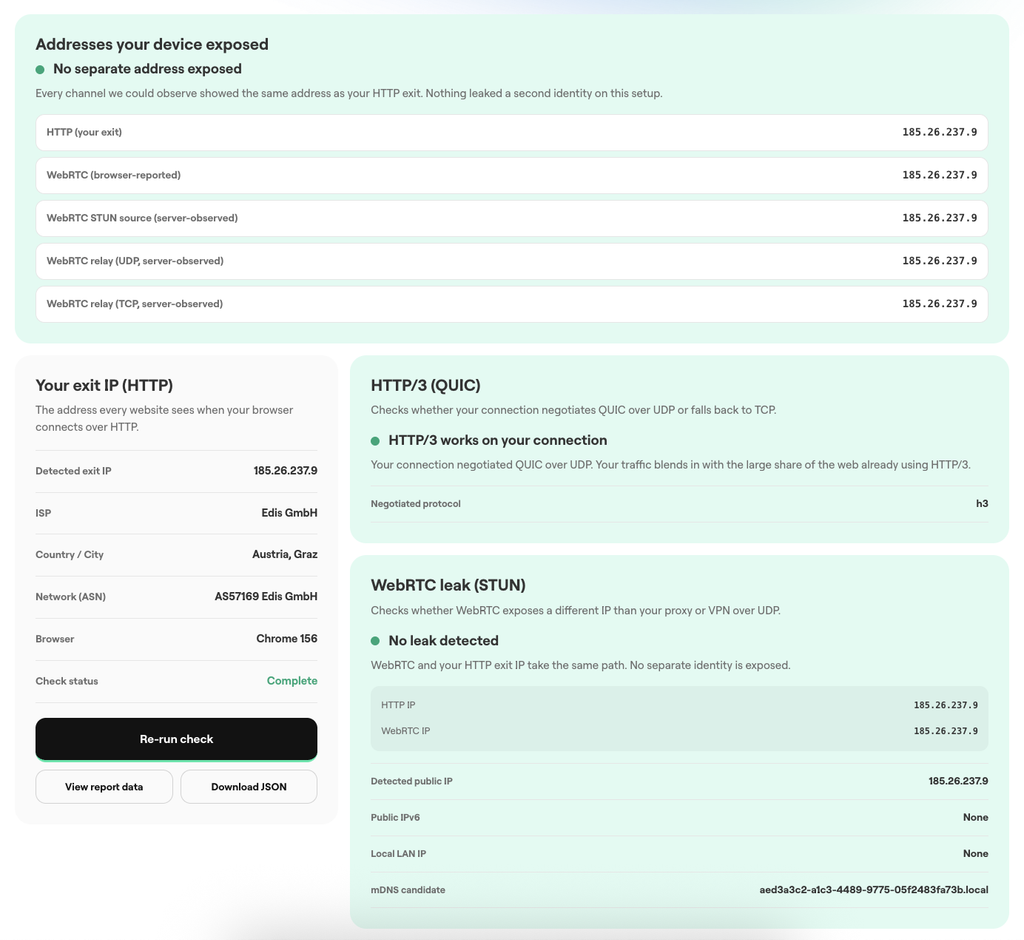
Then open Connection Checker for a broader comparison. It includes the HTTP exit, browser-reported WebRTC addresses, and server-observed STUN and relay results, including UDP and TCP paths when measurable.
Look for your direct public baseline in those results. If it appears on a route that should use the proxy, investigate the client configuration. Don’t assume a page displaying the expected candidate proves every packet followed that route.
An unavailable UDP result means that path wasn’t successfully measured. Likewise, HTTP/3 falling back to HTTP/2 isn’t, by itself, evidence of a real IP leak. Our WebRTC leak guide explains these distinctions and the available fixes.
3. Inspect the DNS resolvers handling your queries
Run the DNS Leak Test and review the resolver providers and addresses. Compare them with the resolution path your browser and proxy client are supposed to use.
An unexpected resolver can mean local DNS is still active, the browser is using secure DNS, or the proxy service uses an upstream resolver you didn’t recognize. A different country alone doesn’t establish a DNS leak.
This confusion appears in a NextDNS community discussion about Chromium and SOCKS5, where the poster questioned unexpected resolvers and a reply raised upstream DNS as another explanation. The resolver name needed interpretation before it could support a leak verdict.
Check your actual client’s documentation before changing anything. Chromium resolves SOCKS5 destination hostnames through the proxy, while another application’s SOCKS configuration can behave differently. Instructions for a command-line client aren’t automatically instructions for Chrome.
4. Test IPv6 separately
Use an IPv6-capable test destination, such as the BrowserLeaks IP page, to check whether an IPv6 connection exposes an address from your direct network. Compare it with your baseline and the IPv6 route your setup is intended to provide.
A public IPv6 address found through WebRTC is useful evidence, but it doesn’t replace checking an ordinary HTTP connection over IPv6. Those are different paths.
If the test cannot establish IPv6 connectivity, record it as unavailable or untested, rather than declaring IPv6 leak-free. A computer without working native IPv6 cannot demonstrate how the same setup will behave on a network that provides it.
5. Review fingerprints and request information
Inspect your browser’s timezone, languages, User-Agent, and other reported characteristics using the relevant BrowserLeaks diagnostics. Our BrowserLeaks guide explains the service and how to interpret its tests.
A visible fingerprint doesn’t mean your original IP was revealed. This check asks whether the browser is sharing other information you expected to keep separate, or whether its settings contradict the client you’re actually using.
Check request information too, but distinguish plain HTTP forwarding from an HTTPS tunnel. An ordinary HTTPS CONNECT proxy doesn’t have general access to rewrite headers inside the end-to-end encrypted request. Avoid blaming a visible header on the proxy without establishing where it came from.
Changing the User-Agent alone won’t turn one client into another. Start by removing accidental inconsistencies rather than copying a collection of settings from unrelated browsers.
6. Review location permissions and saved identity
Check whether the affected website has location permission, then review which account is signed in and whether the profile contains an existing session.
For a comparison, open a separate clean browser profile with the same proxy route. If the website no longer recognizes the account, saved state was likely involved.
Keep working profiles intact unless you actually need to reset them. Deleting every cookie can interrupt useful sessions without correcting a network leak.
What to change when a browser check fails
Keep the same browser profile and, where possible, the same proxy exit while troubleshooting. Change one setting at a time, then repeat the check that revealed the problem.
| What you observe | What to do next |
| Your direct public IP appears instead of the proxy exit | Check that the proxy is active in the affected browser or profile. Review competing extensions and any rules that allow direct connections. Follow the Chrome proxy setup guide or the matching integration instructions for your client. |
| HTTP shows the proxy IP, but WebRTC exposes your direct public IP | Check whether your client routes WebRTC traffic or only ordinary web requests. Use the WebRTC leak troubleshooting guide to choose a fix that preserves any calling features you need. |
| Only a private address or .local candidate appears | Compare it with your recorded public baseline. A local candidate alone doesn’t establish a public IP leak. Check the server-observed results in Connection Checker before changing the setup. |
| An unexpected DNS resolver appears | Review browser secure DNS settings and your client’s DNS handling. Ask the proxy provider whether it uses that upstream resolver, then repeat the DNS Leak Test. Resolver country alone isn’t enough to diagnose a leak. |
| Your direct IPv6 address appears while IPv4 uses the proxy | Check whether the client routes IPv6 through the intended connection. Configure supported IPv6 routing or block unintended direct IPv6 traffic, then test an IPv6-capable destination again. |
| UDP cannot be measured, or HTTP/3 falls back to HTTP/2 | First establish whether your task needs UDP. If it does, both the proxy and routing client must support it. NodeMaven ISP proxies include UDP support, but browser proxy settings alone don’t configure that route. An unavailable result isn’t proof of a leak. |
| The expected proxy IP appears, but a database flags it | Review the flag and reputation details in IP Lookup. If exit reputation is causing problems, test a screened residential IP. A proxy classification alone doesn’t mean your direct IP escaped. |
| The website remembers your account or location | Check saved logins, cookies, and location permissions. Compare with a separate clean profile using the same proxy. Keep your working profile intact unless you actually need to reset its state. |
After making a change, rerun the relevant check and your actual workflow. Confirm both the route and the task: the expected address should appear, and the pages, calls, or uploads you need should still work.
How to fix leaks, wrong locations, and repeated blocks
If a test exposes your direct public IP, fix the connection route first. Check your browser or proxy client against the matching NodeMaven integration guide, then repeat the failed check. For browser setup, follow our Chrome proxy configuration guide. Check WebRTC and UDP separately if your workflow uses them.
If the proxy IP appears correctly but you still get the wrong regional content, check the exit’s location, the website’s location permission, and any region saved in your account or cookies. For regional research and testing, NodeMaven residential proxies combine location targeting with screened IPs. Sticky sessions help keep the same exit throughout a multi-step task, while included mobile access lets you compare network types within one traffic plan.
For recurring logins, uploads, or long-running workflows, NodeMaven ISP proxies give you a dedicated static address with unlimited traffic. You keep a consistent endpoint without paying for every GB transferred. TCP and UDP support also accommodates workflows that need more than ordinary browser requests, provided your client routes that traffic through the proxy.
If the connection checks look clean but verification keeps returning, use Anti-Bot Checker to identify protection signals on the target website. Its scan won’t diagnose your browser directly, but it can guide the investigation. Our research into proxies getting blocked also examines how browser choice affects results, helping you decide whether to adjust the client, session settings, or proxy exit.
For regional research, testing, or data collection, use NodeMaven’s screened residential IPs with location targeting and sticky sessions. Start with a $3.50 paid trial containing 750 MB for residential and mobile proxies, and test the setup in your working browser before choosing a larger plan.


