

WebRTC Leak: Is Your Real IP Exposed Behind a Proxy?


A WebRTC leak can expose a public IP address that differs from the IP used for normal HTTP traffic. The mismatch often involves UDP traffic: WebRTC may send STUN or TURN connection checks through a route that does not match the configured proxy.
This guide explains how WebRTC, UDP, STUN, TURN, and HTTP/3 fit together, how to check whether your browser exposes a second public IP, how to read the results, and how to correct a routing mismatch without blindly disabling browser features.
Quick answer: Connect your proxy in the exact browser profile you plan to use, then run NodeMaven Connection Checker. Compare the HTTP exit with WebRTC, STUN, and TURN results. Different public IPs point to a browser, profile, or network routing problem that needs investigation before location-sensitive scraping, automation, or approved account workflows.
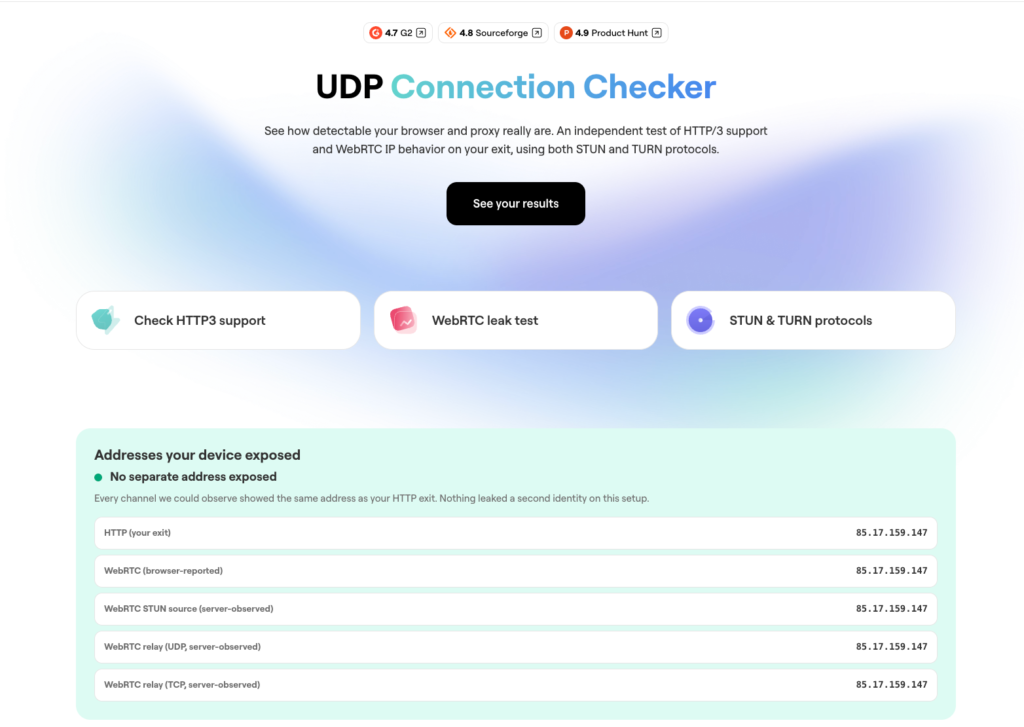
A standard IP checker only confirms the address websites see through HTTP. Connection Checker also tests browser-reported WebRTC, server-observed STUN and TURN routes over UDP and TCP, plus HTTP/3 status.

Use NodeMaven’s UDP-capable ISP proxies for persistent browser profiles and long-running workflows. Use code ISP25 to get 25% off your first order with 2+ IPs.
What Is a WebRTC Leak?
WebRTC is browser technology used for video calls, voice calls, screen sharing, and direct browser-to-browser connections. Before a connection starts, the browser checks which network routes it can use.
That process can expose more network information than an ordinary page request. A website may see the proxy IP through HTTP while a WebRTC-related connection exposes another public IP through a separate route.
How a Browser Can Expose Two Public IP Addresses
In a consistent setup, both page requests and WebRTC-related traffic leave through the selected proxy:
Browser -> Proxy -> Website

Browser -> Proxy -> STUN/TURN service
A possible routing mismatch looks like this:
Browser -> Proxy -> Website

Browser -> Local network -> STUN/TURN service
The website sees the proxy IP through HTTP, but a STUN or TURN service sees the local network’s public IP. That second public address is the potential leak.
A mismatch does not automatically mean that the proxy failed. The browser, proxy protocol, operating system, firewall, network policy, and anti-detect profile can all affect the route.
What STUN and TURN Do
STUN helps a browser discover the public IP address and port an external server sees. A STUN server records the address from which it receives the browser’s request and returns it as a possible connection route.
TURN relays traffic when a direct peer-to-peer connection is unavailable. A TURN relay can observe the browser’s connection over UDP or TCP.
Browser-reported WebRTC candidates and server-observed addresses can differ. Comparing both provides a fuller view of the tested connection path.
UDP, HTTP/3, and WebRTC Proxy Leaks
What Is UDP and How Does HTTP/3 Use It?
Web browsers traditionally load websites through HTTP/1.1 or HTTP/2, which use TCP. HTTP/3 uses QUIC, and QUIC runs over UDP.
W3Techs reports that around 40% of websites use HTTP/3, so browser traffic can regularly include UDP-based QUIC connections.
Connection Checker shows which protocol its HTTP check used:
- h3 means the test connection used HTTP/3 through QUIC over UDP.
- h2 means the test connection used HTTP/2 over TCP.
An h2 result shows that HTTP/3 was not negotiated for that test connection. A firewall, proxy route, browser setting, website configuration, or local network can cause that fallback.
Connection Checker can also show “Could not measure.” This means the tool could not determine the HTTP/3 route for that configuration. It often appears when QUIC or UDP is unavailable, including some HTTP-proxy and SOCKS5 setups. It does not mean the proxy is broken or that WebRTC leaked a real IP.
How WebRTC Uses UDP
WebRTC also commonly uses UDP, but for a different purpose. It uses STUN and TURN connection checks to discover or relay network routes for real-time features such as video calls, voice calls, and screen sharing.
A browser can therefore create more than one type of UDP connection:
HTTP/3 -> QUIC -> UDP -> Website or CDN

WebRTC -> STUN/TURN -> UDP -> Connection service
HTTP/3 and WebRTC are separate browser behaviors. A browser can use HTTP/3 for a website while WebRTC follows another route, falls back to TCP, or cannot establish a UDP connection.
How UDP Can Expose a Different Public IP
A normal page request may leave through the proxy:
Browser -> Proxy -> Website
A WebRTC STUN or TURN check can follow another path:
Browser -> Local network -> STUN/TURN service
When the two routes expose different public IP addresses, the browser has a WebRTC proxy leak. An HTTP-only IP checker can miss this because it sees only the first route.
Why Browser UDP Traffic Can Follow a Different Route
A proxy can support UDP while the browser still sends WebRTC traffic through a separate path.
Chromium’s proxy documentation states that Chrome’s SOCKS5 support for URL requests is TCP-based and cannot relay UDP traffic. Browser behavior and proxy network capabilities therefore need to be checked together.
NodeMaven ISP proxies support TCP and UDP and provide a stable static residential IP for approved long-running browser profiles, recurring dashboards, and automation workflows.
The h3 and h2 labels do not confirm or rule out a WebRTC leak. Compare the public IP shown for HTTP, WebRTC, STUN, and TURN to identify a routing mismatch.
Use NodeMaven’s UDP-capable ISP proxies for persistent browser profiles and long-running workflows. Use code ISP25 to get 25% off your first order with 2+ IPs.
Why WebRTC Leaks Affect Scraping and Automation
A plain Python Requests script, cURL command, or server-to-server API client does not normally create browser WebRTC traffic. The WebRTC leak question applies to browser-based workflows, including Playwright, Puppeteer, Selenium, anti-detect browsers, remote browser profiles, and manual browser sessions.
A routing mismatch can create conflicting signals:
- A browser profile is configured for Los Angeles, while STUN exposes a local ISP address from another country.
- A price-monitoring session keeps cookies and a sticky proxy session, while WebRTC traffic follows another public route.
- A cloud browser uses the expected proxy for page requests but exposes another address through a UDP connection check.
- An account workflow preserves cookies and browser storage while its selected location does not match the observed WebRTC route.
A 2017 cross-browser WebRTC study found that IP exposure differed across browser and VPN configurations. Browser privacy defaults have changed since then, but the study still demonstrates why a browser and network combination needs direct testing.
One OPNsense community discussion describes a WebRTC mismatch that appeared in one environment but not another with the same WireGuard configuration. Treat it as a troubleshooting example, not a performance benchmark.
WebRTC Leak Test: How to Detect a Proxy IP Mismatch
Test the browser profile you will actually use. A check in a personal browser does not confirm the behaviour of a cloud browser, anti-detect profile, virtual machine, or production automation environment.
Start with NodeMaven IP Lookup to confirm the expected HTTP exit. Then open NodeMaven Connection Checker in the same browser profile and proxy configuration.
- Connect the proxy and open the intended browser profile.
- Confirm the expected country, city, ISP, and HTTP exit IP.
- Run Connection Checker.
- Compare the HTTP, WebRTC, STUN, and TURN results.
- Save the report.
- Re-run the test after changing browser settings, proxy type, network, operating system, or anti-detect profile.
What Connection Checker Tests
Connection Checker runs a browser-level UDP connection test by checking whether its TURN relay observes the same public IP over UDP as the HTTP exit. It does not test whether an arbitrary UDP port is open on a server. The goal is to identify a browser-to-proxy routing mismatch that could expose a second public IP.
| Check | What It Verifies |
| HTTP exit | The public IP websites see through normal web requests |
| Browser-reported WebRTC | The address candidates exposed by the browser |
| STUN source | The public address NodeMaven’s STUN server observes |
| TURN relay over UDP | The public address NodeMaven’s relay observes through UDP |
| TURN relay over TCP | The public address NodeMaven’s relay observes through TCP |
| HTTP/3 / QUIC | Whether the test connection negotiated HTTP/3 over UDP or used HTTP/2 over TCP |
Why Test UDP and TCP Separately?
A browser can reach a TURN relay over UDP or fall back to TCP. Testing both paths shows whether the public address stays consistent when the transport changes.
A matching TCP result does not confirm that UDP is routed correctly. An unavailable UDP result does not automatically prove a leak. UDP may be blocked by the browser, firewall, proxy configuration, or local network.
This distinction often appears in browser automation that runs from cloud servers, office networks, VPNs, or anti-detect environments with their own routing rules.
How to Read the Results
| Result | What It Usually Indicates | Recommended Next Step |
| HTTP, WebRTC, STUN, and TURN show one public IP | No separate public IP appeared in the tested routes | Save the report and repeat the test after configuration changes |
| HTTP and WebRTC show different public IPs | Possible routing mismatch or public-IP leak | Review browser WebRTC policy, proxy routing, and anti-detect settings |
| Only a LAN IP or .local candidate appears | Local network information, not automatically a public-IP leak | Check whether any public IP differs from the HTTP exit |
| HTTP/3 falls back to h2 | QUIC was not negotiated for the tested route | Record the result; it does not prove a leak |
| UDP or TURN is unavailable | The path may be blocked or unsupported | Re-test in the production browser, network, and proxy setup |
| A public IPv6 address appears outside the expected route | An IPv4-only proxy may not cover a native IPv6 connection | Disable IPv6 for that browser environment or use a proxy or tunnel that carries IPv6, then re-test |
A clean result means NodeMaven’s tested routes observed the same expected public IP. Browser updates, extensions, websites, and network changes can alter behavior later. Re-test after meaningful configuration changes.
Use View report data or Download JSON to save the result before changing browser settings.
Why a Standard IP Checker Is Not Enough
An IP checker answers one question: which public IP did this website see over HTTP?
A basic WebRTC leak test can show browser-generated candidates. Connection Checker compares browser-reported values with server-observed STUN and TURN routes over both UDP and TCP.
For a wider browser-profile check, pair it with NodeMaven’s DNS leak test.
How to Fix a WebRTC Leak
Correct the browser routing mismatch, then run the same test again. Change one setting at a time so you can see which adjustment affected the result.
Choose the Fix Based on the Result
| Problem | Recommended Action |
| HTTP and WebRTC public IPs differ | Review browser WebRTC policy, proxy routing, and anti-detect configuration; test after every change |
| A local ISP public IP appears | Do not use that profile for location-sensitive browser workflows until public routes match |
| UDP test is unavailable | Check the production browser, firewall, local network, and proxy configuration |
| HTTP/3 falls back to h2 | Record the fallback; change settings only when the workflow specifically requires HTTP/3 |
| Recurring browser workflow needs one stable identity | Use a persistent browser profile and static ISP proxy in the approved account location |
| Independent public research requests need distribution | Use rotating residential proxies without carrying state between unrelated requests |
Do Not Disable Browser Features Blindly
Disabling WebRTC can break video calls, browser collaboration tools, and services that rely on real-time connections. Forcing a TCP fallback can also affect performance or prevent features that expect UDP.
The goal is a consistent route across the browser traffic your workflow uses. It is not to turn off every browser capability.
Route UDP Through a Tunnel or TUN Setup
Browser flags can restrict non-proxied WebRTC traffic, but some workflows need WebRTC and UDP to keep working through the selected exit.
A TUN or full-tunnel setup routes device traffic through a virtual network interface before it reaches the internet. When the tunnel uses a remote exit that carries both TCP and UDP, WebRTC-related UDP traffic can follow the same exit as normal browser requests.
One example is tun2proxy, which creates a tunnel interface for HTTP and SOCKS proxies and documents SOCKS5 UDP support. A WireGuard-style full-tunnel setup can serve a similar role when it routes browser traffic through a remote gateway.
This is a network-routing solution, not a browser spoofing setting. Run Connection Checker after configuring it to confirm that HTTP, STUN, and TURN over UDP show the expected public IP.
Configure Chrome and Edge
Chromium-based browsers can restrict WebRTC traffic that would otherwise leave outside the proxy route. One available launch flag is:
For managed Chrome environments, set the WebRtcIPHandling enterprise policy to:
Google describes this policy as allowing UDP only when the configured proxy supports it; otherwise, WebRTC falls back to TCP.
In Playwright, pass the flag when launching Chromium:
In Puppeteer:
After changing the setting, use NodeMaven’sWebRTC leak test tool for a quick browser-level candidate check. Then run NodeMaven Connection Checker in the same browser profile to compare the HTTP exit with server-observed STUN and TURN routes over UDP and TCP.
For standard browser proxy setup, follow NodeMaven’s Chrome proxy settings guide.
Configure Firefox
Firefox has a proxy-only WebRTC setting that can restrict ICE candidates to the configured proxy route:
media.peerconnection.ice.proxy_only = true
Set it through about:config, then restart or re-test the browser profile. Mozilla’s Firefox source includes this preference as part of its WebRTC ICE controls.
This setting can affect WebRTC calls if the configured proxy cannot support the route the website needs. Run Connection Checker after enabling it.
As a last resort, disable WebRTC entirely:
Disabling WebRTC can break video calls, screen sharing, browser collaboration tools, and other real-time features.
Review Anti-Detect Browser Profiles
An anti-detect profile can control proxy details, WebRTC behavior, browser fingerprint settings, timezone, locale, and geolocation. Conflicting settings can expose an inconsistent environment even when the HTTP proxy works.
Spoofing a browser-reported WebRTC address is not enough on its own. If real UDP traffic still leaves directly, a server-observed TURN check can reveal the local public IP even when a basic browser-only leak test appears clean. This is why Connection Checker compares browser-reported values with STUN and TURN routes observed by its servers.
Review the WebRTC option, selected proxy location, timezone, locale, and browser fingerprint as one profile.
Check IPv6 Before Calling a Setup Clean
An IPv4-only proxy does not automatically cover a device’s native IPv6 connection. If the browser or operating system can reach a target through IPv6, part of the traffic may use a different route from the selected IPv4 proxy.
Connection Checker shows a Public IPv6 field in its report. If an unexpected public IPv6 address appears, disable IPv6 for that browser environment or use a proxy or tunnel that carries IPv6. Re-run the test after changing the configuration.
These changes fix the Firefox contradiction, add the missing UDP-routing option, explain why server-observed checks catch spoofed browser values, cover IPv6, and clarify the Could not measure HTTP/3 state.
Match the Proxy Type to the Workflow
Residential proxies fit public browser research, regional content checks, and web automation where clean consumer-network IPs can reduce verification prompts.
UDP-capable ISP proxies fit persistent browser profiles, recurring dashboards, and long-running account workflows that need a stable static IP.
Proxy selection supports a consistent setup, but browser routing still needs verification.
Test Browser Automation Before Production
Before moving a location-sensitive workflow into production, run Connection Checker against the browser configuration you plan to use. The test shows whether HTTP, WebRTC, STUN, and TURN routes expose the expected public IP.
NodeMaven Scraping Browser provides a managed cloud browser for Playwright, Puppeteer, ready-made templates, and AI-prompt workflows. It includes NodeMaven proxy routing, persistent profiles, CAPTCHA support, session recordings, and Live Browser debugging.
Build, test, and debug Playwright or Puppeteer workflows with NodeMaven Scraping Browser, then verify the production browser profile with Connection Checker. Browser runtime, persistent profiles, and CAPTCHA support have no separate fee. Start with 750 MB of residential and mobile proxy traffic for $3.50.
Conclusion
A WebRTC leak test checks whether the browser exposes a public IP different from the HTTP proxy exit. UDP sits at the center of the check because WebRTC commonly uses it for STUN and TURN connection checks, while the browser may route that traffic differently from ordinary page requests.
Test the exact browser profile, proxy, network, and automation environment you plan to run. When HTTP, WebRTC, STUN, and TURN show the same expected public IP, save the report and repeat the test after major configuration changes. When they differ, correct the browser routing or profile settings before scaling browser-based workflows.


