Selenium Proxy: How to Set Up and Rotate Proxies in Python



A practical guide to configuring, authenticating, verifying, and rotating proxies in Selenium Python.
A proxy sits between the browser Selenium controls and the site it loads. The site sees the proxy’s IP address instead of yours. This guide covers how to set a proxy in Selenium Python, how to handle authentication, how to confirm the proxy is actually working, and how to rotate proxies between sessions.

Run Selenium with reliable proxies
Get NodeMaven proxies from $3.50 and 750MB of bandwidth to test your Selenium workflows
What is a Selenium Proxy?
A Selenium proxy server is an IP address that WebDriver passes to the browser at launch. Once that happens, every request the browser makes travels through that address instead of your direct connection.
Selenium still controls the browser itself: opening pages, clicking elements, filling forms, waiting for content. The proxy for Selenium controls the network path: which IP address the target site sees, and often which country or city that IP appears to belong to.
Proxy selenium setups come up in a few situations:
- Web scraping, where a site limits how many requests a single IP can send in a given window.
- Browser automation that runs many sessions in parallel and needs more than one outbound address.
- Geographic testing, where a page needs to load as if a real visitor from a specific country opened it.
- QA workflows that check region-locked content, currency defaults, or localized pricing.
How to set up a proxy in Selenium with Python
Selenium configures proxy through the Proxy class in selenium.webdriver.common.proxy, applied to a browser Options object before the driver starts. This is the pattern documented on selenium.dev, and it works the same way across Chrome, Firefox, and Edge.
Install Selenium if it is not already in your environment:
Here is a complete example that adds a proxy in selenium, opens a test page, and closes the browser cleanly:
Replace PROXY_HOST and PROXY_PORT with your provider’s gateway address and port. The http_proxy and ssl_proxy fields cover both plain HTTP and HTTPS traffic, since most sites now load over HTTPS. If the driver launches without errors and driver.title prints a value, the browser opened correctly.
It does not yet prove the proxy was used, that check comes in a later section. If the browser hangs on launch, check that the host and port are correct and reachable from your machine before assuming Selenium is at fault.
Chrome Selenium proxy configuration
When ChromeOptions carries a Proxy object, Selenium translates it into a W3C proxy capability and sends it to ChromeDriver at session start. ChromeDriver then passes that address to Chrome itself when it launches the browser process, similar to what the –proxy-server command line flag does directly:
Both approaches work for a ChromeDriver Selenium proxy setup with unauthenticated proxies.
The important detail is timing: Chrome reads its proxy configuration once, at startup. Neither approach lets you change the proxy on a browser that is already running, since Selenium cannot reconfigure networking on a live Chrome process.
To confirm Selenium proxy settings actually took effect, load an IP-checking page, covered in the next section.
Need a proxy for Selenium?
Test residential proxies with flexible locations, sticky sessions, and IP rotation. Start from $3.50 with 750MB included
How to use an authenticated proxy with Selenium
Two proxy types show up in practice. Some proxies only need a host and port. Others also require a username and password before they will forward traffic. Most paid providers, NodeMaven included, use authenticated proxies by default.
Selenium’s Proxy class has no username or password field. That is a real limitation, not an oversight. Selenium hands the browser a proxy address, and Chrome itself handles the authentication handshake at the network layer.
When Chrome connects to an authenticated proxy without embedded credentials, it opens a native browser dialog asking for a username and password, and that dialog sits outside the page DOM, so standard WebDriver commands like find_element cannot reach it.
Two approaches for how to use proxy with selenium python actually hold up in current Chrome versions.
IP whitelisting
Instead of sending credentials, the proxy provider allows connections from your machine’s public IP address without asking for a login. NodeMaven recommends this approach specifically for Selenium.
A generated Chrome extension
When whitelisting is not practical, for example on a machine with a changing IP, the standard workaround is a small unpacked Chrome extension that answers the authentication prompt automatically using the chrome.webRequest.onAuthRequired event. Selenium loads the extension through ChromeOptions.add_extension():
With a correctly configured extension, Chrome can provide the proxy credentials automatically when the proxy requests authentication. If an authentication dialog still appears, check that the extension was loaded before the browser started, that the extension files are valid, and that the proxy credentials and host settings are correct.
This approach can have compatibility limitations depending on the Chrome version, Selenium configuration, and whether the browser runs in headless mode. If the extension approach is unsuitable for your environment, IP whitelisting is a simpler alternative when your proxy provider supports it.
How to check if your Selenium proxy is working
Setting a proxy in code does not guarantee the browser used it. A typo in the port, an unreachable gateway, or a silently ignored capability can all leave the browser on your normal connection without raising an error. Confirming the change means opening a page that reports the visible IP address and comparing it to your real one.
api.ipify.org returns your visible IP as JSON. The example reads the page body and parses the JSON response to extract the IP address.
Run the script once without the proxy configured and once with it. Compare:
- Direct IP versus proxy IP
- Country, and region or city if the endpoint reports it
- Whether the target page loads and roughly how long it takes
- Whether HTTPS pages load without certificate warnings
An IP checker confirms the visible IP address and can help verify the proxy location. It does not measure every aspect of proxy quality, such as IP reputation, how many users share an IP, or long-term availability.
Scale your Selenium automation
Get reliable residential proxies for browser automation, scraping, and location based testing. Try NodeMaven from $3.50
How to rotate proxy in Selenium with Python
Proxy configuration in Selenium applies to the WebDriver session as a whole, not to individual requests. A running Chrome process reads its proxy settings once, at launch, so changing a Python variable after webdriver.Chrome() has already started does nothing to the live browser. Selenium proxies rotate at the session level, not mid-session.
In practice, Selenium rotating proxies comes down to a few options:
- Manually editing the proxy configuration between separate script runs.
- Starting a new WebDriver session with a different proxy address for each unit of work.
- Pointing every session at a single rotating gateway endpoint that assigns a new IP per connection on the provider’s side.
- Using a sticky session, where the same IP stays assigned for a set duration across one or more page loads.
The most common pattern for how to rotate proxy in Selenium is closing the browser and starting a fresh session per proxy, since that is the point at which Selenium actually reads new proxy settings:
Each loop iteration closes the previous browser with driver.quit() before opening a new one, which is what actually forces a new proxy connection.
If you are using an authenticated proxy through the extension method, build a separate extension zip per set of credentials, since the extension is loaded once per driver instance.
Rotating proxies vs Sticky sessions
| Option | Best for | IP behavior | Session continuity |
| Rotating proxy | Workflows that need IP changes between requests or sessions | IP changes according to rotation rules set by the provider | Lower |
| Sticky session | Multi step browser sessions, such as logins or checkout flows | Same IP for a defined period | Higher |
A rotating proxy fits tasks made of many independent page loads, where each one benefits from a different address. A sticky session fits any workflow where the site needs to see the same IP across several steps, since an IP change mid-session can look like a different visitor to some sites and disrupt logins or carts.
Test your Selenium proxy setup
Use NodeMaven residential proxies with city level targeting and rotating or sticky sessions. Get started with 750MB for $3.50
Selenium proxy tests
Configuration alone does not prove a proxy setup works end to end. These three tests cover the core behavior worth checking before relying on it for real automation.
Test 1: Direct connection vs proxy
Purpose: confirm Selenium is actually using the proxy, not the local connection.
The first test checked whether Selenium was actually routing browser traffic through the proxy.
We ran the same IP check with and without the proxy configured. The direct connection returned one public IP, while the Selenium session using the proxy returned a different IP. This confirmed that the browser traffic was routed through the proxy.
We then checked the proxy IP with an IP geolocation tool. The IP was identified as France, Rhône-Alpes, Lyon, matching the location selected for the proxy.
| Test | Result |
| Direct connection | One public IP detected |
| Proxy connection | Different public IP detected |
| IP changed | Yes |
| Selected proxy location | Lyon, France |
| Detected country | France |
| Detected region | Rhône-Alpes |
| Detected city | Lyon |
| Browser connection | Successful |
The test confirms two important points. First, Selenium successfully used the configured proxy instead of the local connection. Second, the proxy IP was geolocated to the requested city and country.
Test 2: Sticky session
Purpose: confirm the same IP stays active across a single browser session.
We configured a NodeMaven sticky proxy for Lyon, France and checked the visible IP three times within the same WebDriver session.
| Check | Result |
| Page 1 | Same IP |
| Page 2 | Same IP |
| Page 3 | Same IP |
| IP changed during session | No |
| Proxy connection | Successful |
| Location | Lyon, France |
Result: The proxy maintained the same IP across all three checks. This confirms that the sticky session kept a consistent IP throughout the Selenium WebDriver session.
The test confirms session level IP stability.
Test 3: Rotating proxy
Purpose: confirm proxy rotation actually produces different IPs across separate sessions.
We ran the same Selenium proxy configuration in separate browser sessions. Within each session, the detected IP remained unchanged across three checks. When a new WebDriver session was started, a different IP was assigned.
| Test | Result |
| Session 1 | Same IP across 3 checks |
| Session 2 | Same IP across 3 checks |
| IP changed between sessions | Yes |
| Proxy connection | Successful |
| Rotation behavior | Different IP assigned to a new session |
Result: The test confirmed that the rotating proxy provided a different IP when a new Selenium session was started, while keeping the assigned IP stable within each individual session.
This demonstrates the difference between session level stability and IP rotation between sessions.
Using NodeMaven proxies with Selenium
The three tests above used NodeMaven residential proxies with Lyon, France targeting. The results showed how the same proxy setup can support different Selenium workflows.
NodeMaven offers residential proxies with country, region, city, ISP, and ZIP level targeting. You can also choose between rotating and sticky sessions. Sticky sessions keep the same IP for a defined period, while rotating sessions provide a new IP according to the selected rotation settings.
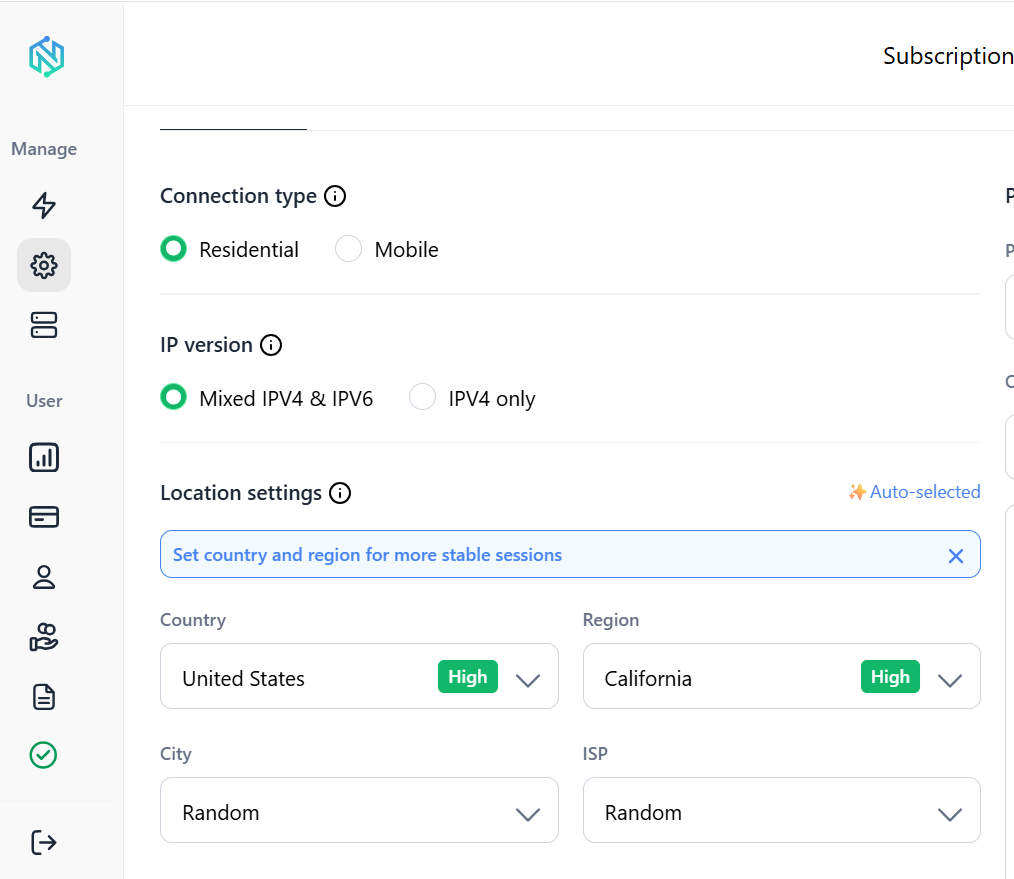
This flexibility is useful when Selenium workflows have different requirements. A sticky session can keep the same IP throughout a multi-step browser session. Rotating proxies can provide different IPs when starting separate sessions or running larger automation workflows.
NodeMaven also supports HTTP and SOCKS5 connections. Its residential proxy network covers more than 190 countries with location targeting.
Before connecting a proxy to Selenium, you can also test it with NodeMaven’s free Proxy Checker. The tool checks proxy connectivity, HTTP status, transfer time, and bandwidth usage.
For Selenium users: choose the required location and session type, verify the proxy connection, then connect it to Selenium and test the browser session.
Common Selenium proxy problems and how to fix them
Proxy authentication fails
Usually caused by a credential typo, an expired password, or an authentication dialog that Selenium cannot answer because it sits outside the page DOM.
Double-check the username and password against the provider dashboard, and confirm you are using either IP whitelisting or a working authentication extension.
Chrome does not use the proxy
Most often this means the proxy capability was set after the driver already started, or a typo in the host or port left the setting silently invalid.
Confirm the proxy object is assigned to options.proxy or passed through –proxy-server before calling webdriver.Chrome(), and verify with the IP check script.
Proxy connection times out
Check that the host and port are correct and that the proxy is online on the provider’s side. A firewall on your machine or network can also block outbound connections to the proxy port.
Testing the same host and port with a simple curl command outside Selenium can confirm whether the issue is with the proxy or with the browser setup.
The IP does not change
If you expect rotation but see the same IP repeatedly, check whether a sticky session is active, since sticky sessions intentionally keep one IP for their duration.
Also confirm you are actually closing and restarting the browser between checks.
HTTPS pages do not load
Some proxies do not support HTTPS traffic on the same port as HTTP, or expect a separate SSL proxy address.
Set proxy.ssl_proxy in addition to proxy.http_proxy, matching whatever port your provider assigns for secure traffic. Certificate warnings unrelated to the proxy can also come from the target site itself.
Conclusion
Selenium proxies work through browser configuration set before the driver starts, not through settings changed on a running session. A working setup still needs verification with an IP check, since a misconfigured proxy can fail silently.
Authentication needs extra handling, either IP whitelisting or a generated extension, because Selenium has no native field for proxy credentials. Proxy quality matters as much as the code, since a slow or unstable pool will show up as failed page loads no matter how the script is written.
NodeMaven’s residential and mobile proxies start at $3.50 for a trial with 750MB of bandwidth, and support both the authentication and session patterns covered in this guide.
Looking at Playwright instead? Our hands-on Playwright vs Selenium comparison covers setup, scraping, and proxy authentication side by side, including where Selenium’s authentication dialog becomes a real practical difference between the two tools.
Give your Selenium scraper a better IP pool
Access residential proxies with flexible targeting and session options. Start testing with 750MB for $3.50