Discord Unblocked: 6 Ways to Access Discord at School, Work, or on Restricted Networks


Discord has more than 90 million daily active users, according to Discord’s internal data from Q4 2025. People use it for gaming, study groups, developer communities, customer support, and remote team communication.
If Discord stops loading, first check whether the restriction affects the app, website, voice connection, or entire account. Each problem requires a different fix. A mobile hotspot may solve a school Wi-Fi block, while a proxy can provide more consistent access when the current IP or network is restricted.
Below are six ways to get Discord unblocked, followed by a troubleshooting table to help you choose the right one.
Why is Discord blocked?
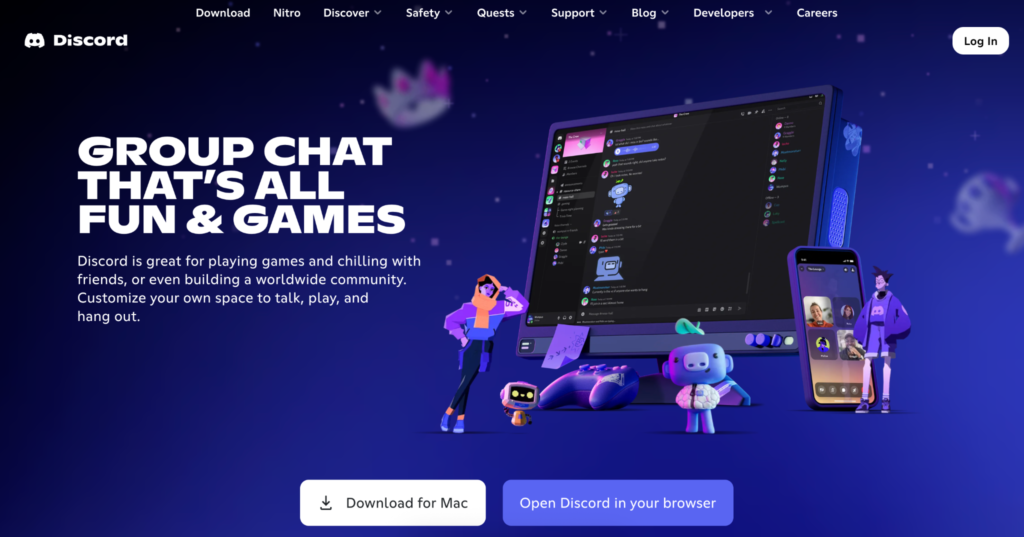
Discord can fail at several points between your device and its servers. Schools and workplaces often block the discord.com domain to reduce distractions, limit bandwidth use, or enforce acceptable-use policies. Some managed devices also prevent users from installing the Discord app.
Other blocks come from firewalls, antivirus software, DNS filters, internet providers, or regional restrictions. Discord itself can also experience an outage, so an inaccessible website does not automatically mean your network has blocked it.
Discord’s official voice connection troubleshooting guide confirms that work and school networks may restrict access. It also lists firewalls, VPN compatibility, and ISP problems as possible causes of voice errors.
A network block and an account restriction are different
“Discord blocked” can describe several unrelated situations:
- The website and app do not load on a particular network.
- Messages work, but voice channels remain on “RTC Connecting” or “No Route.”
- Discord has limited or suspended the account.
- Another user has blocked you.
- A server administrator has banned you from a server.
Changing the connection may help with a network or ISP restriction. It will not remove an account suspension, server ban, or personal block. Those issues need to be handled through Discord, the server moderators, or the person who applied the block.
How to identify what is blocking Discord
Before changing DNS settings or installing anything, compare how Discord behaves across devices and connections.
| What happens | Likely cause | What to check first |
| Discord fails only on school or office Wi-Fi | Network filter | Try an authorized alternative network |
| The app fails but discord.com/app opens | App or device restriction | Use Discord in the browser |
| Messages work but voice does not connect | Firewall, UDP, VPN, or proxy limitation | Check voice and network settings |
| Discord fails on every device using the same internet connection | Router, ISP, DNS, or regional issue | Test mobile data and Discord Status |
| Discord fails on every network | App, device, or account issue | Try the browser and another device |
| You can log in but see an account restriction | Discord enforcement | Contact Discord Support |
| One person’s messages or profile are unavailable | Personal block | Check the blocked-user list |
A useful test is to open Discord on the same device using mobile data or a hotspot. If it works there, the original network is the likely cause.
This pattern appears in a Reddit discussion about Discord failing on home Wi-Fi. Several users reported that Discord worked through mobile data or a VPN but remained unavailable through one ISP. Reinstalling the app did not address the underlying network problem.
Also check Discord Status before changing your setup. If Discord reports an incident, wait until the service is restored.
How to get Discord unblocked
1. Ask the network administrator to allow Discord
For a school club, study group, workplace community, or support team, asking the administrator is the easiest option. Explain what Discord is needed for and which features must work.
An administrator may be able to allow the Discord website while keeping unrelated services restricted. They can also check firewall logs and identify whether voice traffic, the website, or the desktop application is being blocked.
This approach is especially important on managed school or company devices. Their restrictions can extend to the device on other networks, so switching Wi-Fi may make no difference.
2. Open Discord in a browser
If the desktop app is unavailable or cannot be installed, open the Discord web client in Chrome, Firefox, Edge, or Safari.
The browser version supports text channels, direct messages, servers, and most voice features. Make sure the browser has permission to use the microphone and camera.
This method helps when software installation is blocked, but the website remains accessible. It will not work if the network filters the Discord domain itself.
A search for “Discord unblocked website” may also return unofficial copies, mirrors, and web proxies. Avoid entering your Discord credentials on pages that imitate the official login screen. The official browser client is hosted on discord.com.
3. Use mobile data or a personal hotspot
If Discord works on mobile data but fails on Wi-Fi, the Wi-Fi network is probably applying the restriction.
To use a hotspot:
- Turn on mobile data on your phone.
- Open the phone’s hotspot settings.
- Set a password for the hotspot.
- Connect the computer to that network.
- Open Discord and test messages and voice separately.
A hotspot is useful for occasional access and diagnosis. Voice calls, video, and screen sharing can use a considerable amount of mobile data, so it may become expensive during long sessions.
Use a personal device and connection where possible. Bypassing controls on a managed school or company device can violate its acceptable-use policy.
4. Check the firewall, DNS, and app settings
A connection error does not always indicate an intentional block.
Start with the checks recommended by Discord:
- Restart Discord, the device, and the router.
- Confirm that other websites work.
- Check whether the firewall or antivirus allows Discord.
- Disable conflicting VPN or proxy settings temporarily.
- Test the Discord web client.
- Try another authorized network.
Changing DNS can help when a provider or local network filters Discord through DNS. If you already use a proxy or VPN, run NodeMaven’s free DNS leak test to check whether DNS requests still pass through your original ISP instead of the intended connection.
DNS changes have a narrow purpose. They will not solve an IP-level block, geo-restriction, managed-device policy, account restriction, or firewall inspection.
5. Use a VPN
A VPN may unblock Discord, but consumer VPNs are often unreliable for logged-in accounts. Most route users through shared datacenter IPs, and the same address may have already been used for spam, automation, or other abusive activity.
The IP can also change when the VPN reconnects or chooses another server. Discord may then see the account moving between different addresses or countries, which can lead to login checks and unstable sessions. Free VPNs are especially prone to overcrowded servers, slow speeds, and poor IP reputation.
Voice support is another limitation. Discord requires UDP for voice connections, while some VPNs do not handle UDP properly. Messages may load while calls remain stuck on “RTC Connecting,” “ICE Checking,” or “No Route.”
A VPN can be sufficient for brief access, but it gives limited control over the assigned IP. For regular Discord use, a static ISP proxy or sticky residential session provides a more predictable location and avoids heavily shared VPN exits.
6. Use a proxy for Discord
A proxy routes Discord traffic through another IP address. It can be configured for one browser or across devices, depending on whether you use the web client or desktop app.
For browser access, an HTTP or SOCKS5 proxy is usually enough. Configure it in the browser, verify the new IP, and then open the official Discord website.
Voice calls require more care because Discord uses UDP. A basic browser proxy may load messages but fail when joining calls. This happened to a user in a Discord app discussion: text worked, while voice remained stuck on “ICE Checking.”
For the desktop app and voice channels, use a proxy with UDP support and configure it through a compatible system-level proxy client. NodeMaven ISP proxies support UDP and SOCKS5, so Discord traffic can use the same connection for messages and calls.
An ISP proxy is particularly suitable for Discord because it provides:
- A static IP that remains consistent between sessions
- Faster connections than typical rotating residential proxies
- UDP support for Discord voice traffic
- A choice of location
- An ISP-assigned address instead of an overcrowded VPN server
Keep the same IP while the account is active. Rotating the address during a call or logged-in session can interrupt the connection and trigger another login check.

Use a dedicated ISP IP with unlimited traffic, UDP support, and consistent location for Discord messages and voice calls. NodeMaven ISP proxies start at $2.99 per IP
Discord proxy vs VPN vs mobile hotspot
The right method depends on where Discord is blocked and whether you need occasional or regular access.
| Method | Best suited to | Main limitation |
| Discord web client | When the app cannot be installed | The Discord domain may still be blocked |
| Mobile hotspot | Checking whether Wi-Fi causes the problem | Uses mobile data |
| DNS change | DNS filtering or resolution errors | Does not change the IP or bypass other filters |
| VPN | Occasional full-device access | Often uses shared datacenter IPs and may lack UDP support |
| ISP proxy | Discord app, voice calls, and regular account access | Requires device-level configuration |
| Sticky residential proxy | Stable browser sessions and location control | Voice requires a compatible UDP setup |
| Mobile proxy | Mobile workflows and carrier-network access | Usually unnecessary for desktop use |
| Free Discord unblocker | Temporary browsing without an account | Poor privacy, slow speeds, and unreliable IPs |
A mobile hotspot is the quickest way to check whether the current Wi-Fi network is responsible. For regular Discord access, an ISP proxy is the stronger option because it provides a static IP, supports UDP, and keeps the account in one location.
Sticky residential proxies work well with the Discord browser client. VPNs give less control over the assigned address and often route users through crowded datacenter IPs.
Why use NodeMaven for Discord access?
Free proxy websites and mass-market VPNs reuse the same addresses across many users. Their IPs may already be associated with spam, automation, or suspicious login activity. They can also change without warning when the connection restarts.
For Discord, NodeMaven ISP proxies are the first choice. The IP remains static, the connection supports UDP, the traffic is unlimited, and the address comes from an internet provider rather than a typical hosting network. This setup suits the Discord app, voice channels, and accounts used regularly.
NodeMaven provides:
- Static ISP IPs for consistent Discord logins
- UDP and SOCKS5 support for messages and voice traffic
- Pre-filtered IPs with low fraud scores
- Country and location selection
- Fast connections for calls and screen sharing
- Quality guarantee and cashback where the program conditions apply
For browser-only access, NodeMaven residential proxies are another practical option. A sticky session keeps the same IP while Discord is open, which avoids the location changes common with shared VPN servers.
Mobile proxies make more sense when Discord is used through a mobile workflow or a carrier-network address is required. Most desktop users will get a simpler setup with an ISP proxy.
NodeMaven’s $3.50 trial includes 750 MB of residential and mobile traffic, so users can test browser access before choosing a larger plan. For ISP proxies, use the ISP40 promo code to get a 40% discount on the purchase of 3+ ISP proxy IPs.
A proxy will not restore a suspended account or remove restrictions installed on a managed device. It helps when the problem comes from the current IP, network route, or location.
Safe access and multiple Discord accounts
Unknown Discord unblocker sites are a poor place to enter an account password. The operator may be able to observe traffic, inject advertising, redirect the browser, or collect login information. Use the official Discord website and a proxy configured through a trusted browser, device, or proxy application.
For a logged-in account, keep the connection predictable. Avoid moving between several countries in one session or repeatedly switching between free VPN servers.
Teams that manage several authorized Discord communities need more separation than an ordinary user. A sensible arrangement assigns each account its own browser profile, cookies, and stable proxy session. NodeMaven’s guide to managing multiple Discord accounts covers the available switching methods on desktop and mobile.
For larger workflows, read how proxies support multi-accounting and how to choose proxies for multi-account management. A proxy separates the IP layer, while the browser profile separates cookies and local sessions.
An antidetect browser can keep browser profiles apart when agencies or support teams handle several client environments. The MoreLogin antidetect browser gives each authorized Discord account a separate profile with its own cookies, fingerprint settings, and proxy configuration.
Use a dedicated ISP IP with unlimited traffic, UDP support, and consistent location for Discord messages and voice calls. NodeMaven ISP proxies start at $2.99 per IP