
Playwright MCP: как это работает, настройка и сценарии использования



Playwright MCP быстро становится популярным инструментом в автоматизации браузера на базе AI. Он дает AI-агенту, например тому, что работает внутри Codex, Claude Code или Cursor, стандартизированный способ открыть браузер, кликать по странице, заполнять формы и считывать результат.
В этом руководстве разбираем, что такое Playwright MCP на самом деле, как его установить, как подключить к разным AI-клиентам и для чего он полезен. Также включен практический тест интеграции с Codex.

Скрапинг с Playwright MCP? Попробуйте прокси NodeMaven от $3.50 и получите 750MB трафика
Что такое Playwright MCP?
MCP расшифровывается как Model Context Protocol. Это открытый стандарт, который позволяет AI-моделям единообразно взаимодействовать с внешними инструментами, вместо того чтобы для каждого инструмента писать собственную интеграцию.
Playwright MCP — это сервер Model Context Protocol, поддерживаемый Microsoft, который предоставляет возможности автоматизации браузера с помощью Playwright. Проще говоря, сервер Playwright MCP выступает мостом между AI-агентом и реальным браузером под управлением Playwright.
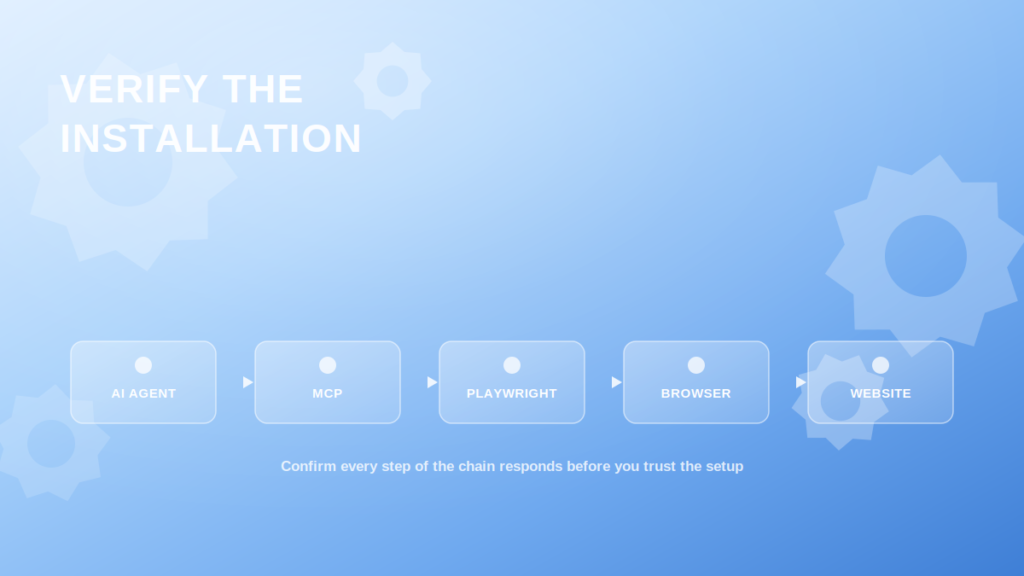
Архитектура выглядит так:
AI-агент → MCP → Playwright → браузер → сайт
AI-агент (работающий в Codex, Claude Code, Cursor или другом MCP-клиенте) отправляет запрос через MCP. Сервер Playwright MCP преобразует этот запрос в команду Playwright, которая затем управляет реальным браузером Chromium, Firefox или WebKit и взаимодействует с целевым сайтом.
Однако Playwright MCP не заменяет Playwright. Playwright по-прежнему остаётся базовым движком автоматизации, который выполняет сами клики, ввод текста и переходы по страницам. Playwright MCP лишь даёт AI-агенту структурированный стандартизированный способ обращаться к возможностям Playwright без того, чтобы разработчик заранее писал скрипт для каждого отдельного действия.
Согласно официальному microsoft/playwright-mcp репозиторию, сервер спроектирован быстрым и легковесным, поскольку использует дерево доступности Playwright вместо попиксельных скриншотов, и он удобен для LLM, так как работает со структурированными данными, а не требует модели компьютерного зрения.
Как работает Playwright MCP?
Рабочий процесс выглядит так:
- Пользователь ставит AI-агенту задачу для браузера обычным языком, например: «открой эту страницу и скажи цену первого товара».
- AI-агент решает, какое действие в браузере нужно выполнить, чтобы приблизиться к этой цели.
- MCP-клиент вызывает сервер Playwright MCP с этим действием.
- Playwright выполняет действие в реальном браузере: переход, клик, ввод текста или чтение содержимого.
- Состояние браузера возвращается AI-агенту, обычно в виде структурированного снимка дерева доступности, а не скриншота.
- Агент анализирует это состояние и решает, что делать дальше, повторяя цикл до завершения задачи.
Вместо того чтобы отправлять модели изображение страницы и просить её угадать, где находится кнопка, Playwright MCP может вернуть структурированный текстовый снимок дерева доступности страницы: роли, подписи и ссылки на элементы. Это удобно для LLM, потому что структурированный текст дешевле обрабатывать и он меньше подвержен ошибочным кликам, которые возникают, когда модели приходится интерпретировать пиксели. Официальная документация также поддерживает подключаемую по желанию возможность «vision» для взаимодействия по координатам, когда это действительно необходимо.
Playwright и Playwright MCP: сравнение
Классический Playwright — это фреймворк автоматизации, управляемый разработчиком. Playwright MCP позволяет AI-агенту использовать Playwright через стандартизированный протокол вместо написанного вручную скрипта.
| Аспект | Playwright | Playwright MCP |
| Кто им пользуется | Разработчики, пишущие тестовые или автоматизационные скрипты | AI-агенты в MCP-клиентах, таких как Codex, Claude Code, Cursor |
| Как задаются действия | Явный код, написанный заранее | AI-агент решает пошагово во время выполнения |
| Нужно ли программировать | Нужно писать и поддерживать скрипты | Нужно настроить MCP-сервер, а не писать код для браузера |
| Участие AI | Нет, если не добавите сами | Лежит в основе работы инструмента |
| Детерминизм | Высокая: один и тот же скрипт работает одинаково каждый раз | Ниже: зависит от решений модели в каждом запуске |
| Скорость | Быстро, без затрат на рассуждения на каждом шаге | Медленнее: на каждом шаге решает модель |
| Типичный сценарий | Повторяемые наборы тестов, крупные пайплайны скрапинга | Исследовательская автоматизация, разовые задачи, самовосстанавливающиеся тесты |
Ключевое отличие: Playwright — про надёжное выполнение известного плана. Playwright MCP — про то, чтобы агент сам выстраивал план по ходу дела.
Нужны прокси для автоматизации браузера? Получите прокси NodeMaven от $3.50 с 750MB трафика
Как установить Playwright MCP
Требования
Согласно актуальной официальной документации, для Playwright MCP требуется Node.js 20 or newer, а также поддерживаемый MCP-клиент, например VS Code, Cursor, Windsurf, Claude Desktop, Claude Code, Codex, Goose, Grok или Junie.
Установите сервер Playwright MCP
Стандартная конфигурация работает с большинством MCP-клиентов:
Это указывает клиенту запускать сервер Playwright MCP по требованию с помощью npx, поэтому в большинстве случаев отдельная установка не нужна. Сервер автоматически скачивает нужные ему бинарные файлы браузеров и управляет ими.
Настройте Playwright MCP
Сервер поддерживает набор аргументов командной строки и файл конфигурации JSON для более тонкого управления. Наиболее часто используемые параметры:
| Вариант | Что это делает |
| –browser | Выберите chrome, firefox, webkit или msedge |
| –headless | Запуск без видимого окна браузера (по умолчанию с окном) |
| –isolated | Хранить профиль браузера в памяти, а не сохранять на диск |
| –device | Эмуляция конкретного устройства, например «iPhone 15» |
| –proxy-server | Направить трафик браузера через прокси |
| –caps | Включите дополнительные возможности, такие как vision, pdf или devtools |
Пример минимального файла конфигурации, сохранённого как config.json и загружаемого с помощью –config path/to/config.json, можно задать browser.isolated в true и укажите размер области просмотра в разделе contextOptions. Полная схема, включая списки разрешённых сетевых адресов и уровни логирования консоли, описана в официальном репозитории.
Проверьте установку
После подключения сервера попросите ваш AI-клиент выполнить простую задачу, например открыть собственную демо-страницу TodoMVC и добавить пункт в список дел.
При успешной установке агент перейдёт на страницу, вернёт структурированный снимок её содержимого и подтвердит, что пункт добавлен, при этом вам не придётся написать ни строки кода на Playwright.
Playwright MCP с Codex: практический тест
Это практическая часть статьи. Мы протестировали интеграцию с Codex напрямую, поэтому результаты отражают реальный запуск, а не только документацию.
Подключение Playwright MCP к Codex
Согласно данным актуальной документации Codex MCP на которую ссылается официальный репозиторий Playwright MCP, есть два поддерживаемых способа подключения.
Первый — напрямую через Codex CLI:
Второй — через редактирование файла конфигурации Codex по пути ~/.codex/config.toml и добавив:
For our test, we used VS Code, Node.js, and the Codex CLI. Playwright MCP was connected to Codex through the Codex CLI.
Before starting, we checked the Node.js version:
Наша тестовая среда вернула:
Затем мы установили Codex CLI:
После установки мы проверили версию:
Тестовая среда вернула:
Затем мы добавили Playwright MCP в Codex командой:
Codex подтвердил установку сообщением:
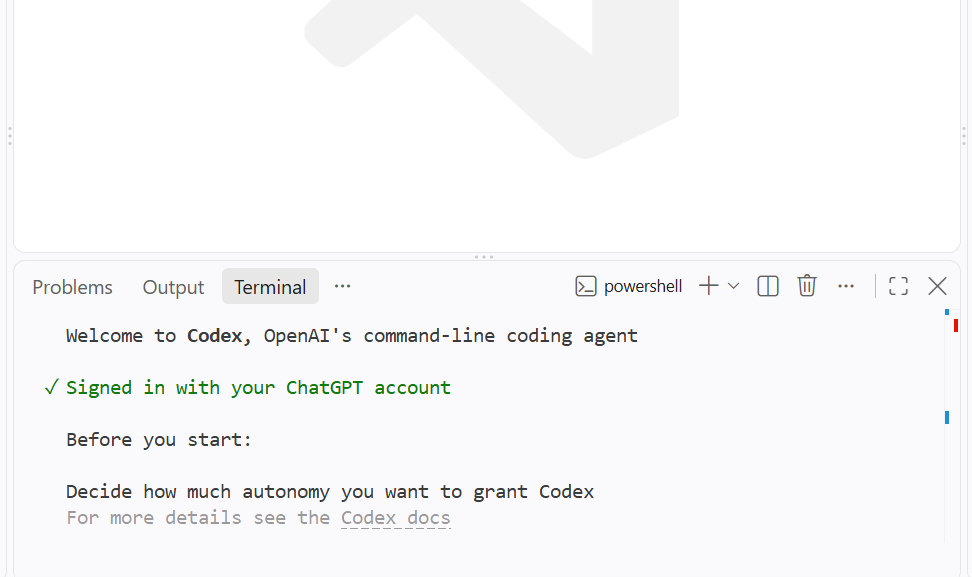
Мы запустили Codex командой:
После запуска Codex показал приветственный экран и подтвердил, что мы вошли в систему.
Проверка подключения MCP
Чтобы убедиться, что Codex действительно видит Playwright MCP, мы выполнили:
В списке MCP отобразился сервер playwright с браузерными инструментами, среди которых:
- browser_navigate
- browser_snapshot
- browser_click
- browser_fill_form
- browser_type
- browser_take_screenshot
- browser_navigate_back
- browser_wait_for
и другие.
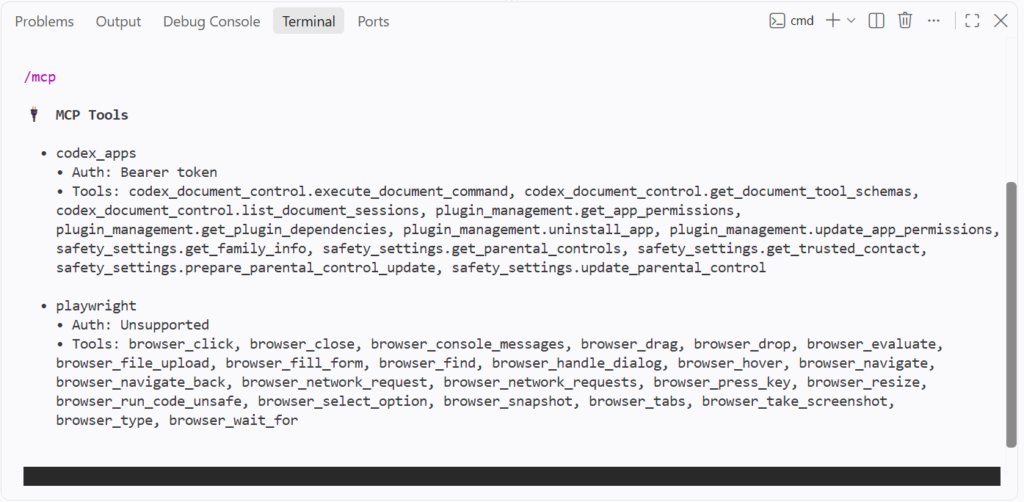
Это подтвердило, что Playwright MCP не только настроен, но и доступен Codex как активный MCP-сервер.
Запуск первой браузерной задачи
Мы начали с простого теста навигации и анализа страницы на публичном демо-сайте Интернет демо-сайт.
Запрос был такой:
Codex вызвал browser_navigate а затем browser_snapshot.
Он успешно открыл страницу и определил доступные демо-разделы, включая A/B Testing, Checkboxes, Form Authentication, File Upload, Frames, JavaScript Alerts и многие другие.
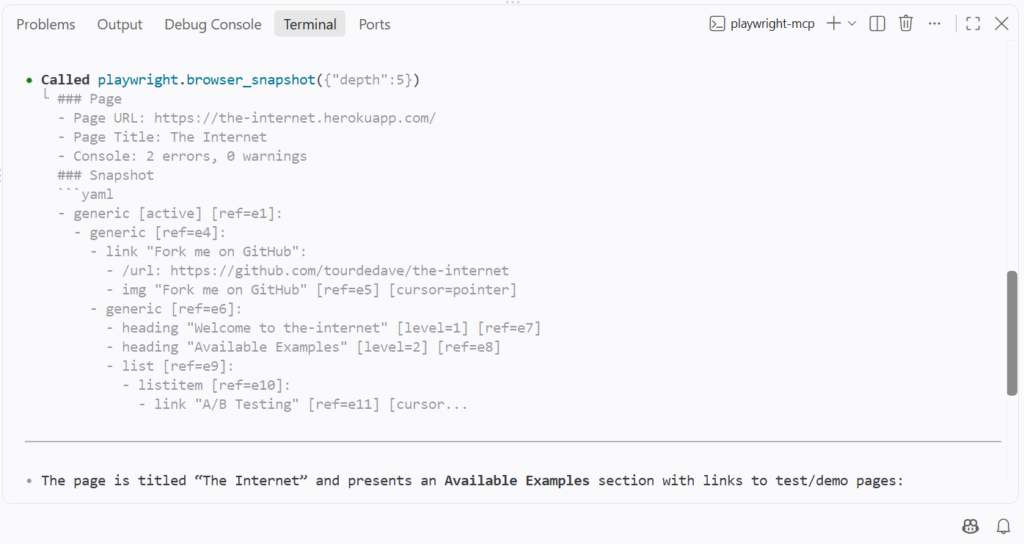
Первый тест навигации и анализа страницы прошел успешно.
Тестирование взаимодействия с элементами
Затем мы попросили Codex найти и нажать Checkboxes ссылка:
Codex использовал browser_click чтобы найти ссылку по её доступному имени, а затем вызвал browser_snapshot чтобы изучить получившуюся страницу.
Он корректно сообщил:
- URL: https://the-internet.herokuapp.com/checkboxes
- 2 чекбокса
- Чекбокс 1: не отмечен
- Чекбокс 2: отмечен
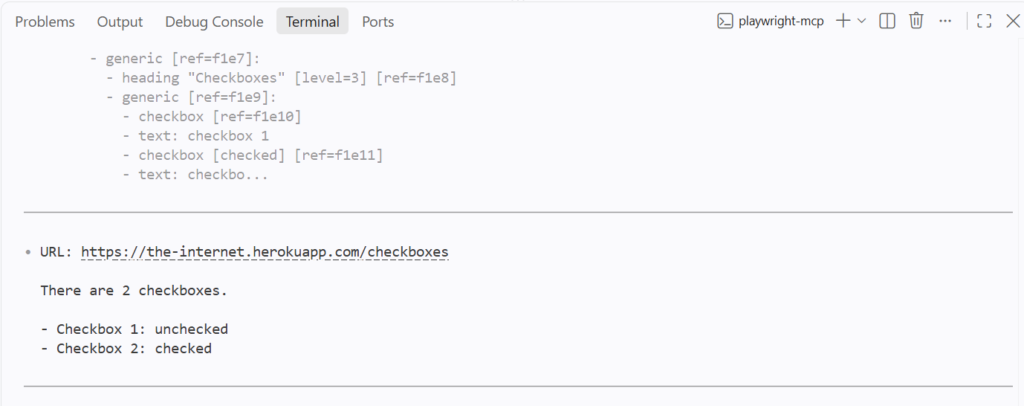
Этот тест подтвердил, что Codex способен определить элемент на странице, взаимодействовать с ним и извлечь информацию из получившегося состояния.
Тестирование заполнения формы
Затем мы отдельно протестировали работу с формой, чтобы убедиться, что Codex действительно использует инструмент заполнения форм Playwright.
Мы перешли на:
https://the-internet.herokuapp.com/login
и попросили Codex заполнить форму, не отправляя её:
На этот раз трассировка явно показала:
Вызвано playwright.browser_fill_form
Codex заполнил оба поля указанными значениями и подтвердил, что кнопка Login не была нажата.
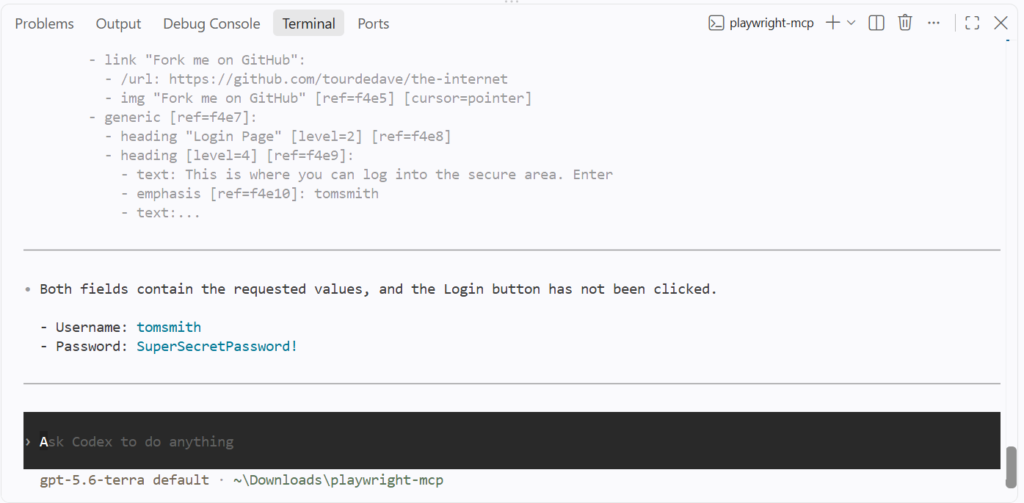
Это подтвердило, что Playwright MCP умеет заполнять формы через Codex.
Тестирование полного сценария входа
Мы также протестировали сам сценарий входа.
Codex перешёл на страницу входа, изучил её и взаимодействовал с кнопкой Login. Итоговая страница была:
https://the-internet.herokuapp.com/secure
Страница содержала сообщение:
Вы вошли в защищённую зону!

Codex корректно сообщил, что вход выполнен успешно.
Результаты тестов
| Тест | Результат |
| Подключение MCP | Успех ✅ |
| Открыть страницу | Успех ✅ |
| Анализ страницы | Успех ✅ |
| Переход между страницами | Успех ✅ |
| Клик по элементу | Успех ✅ |
| Заполнить форму | Успех ✅ |
| Извлечение данных | Успех ✅ |
| Сценарий входа в аккаунт | Успех ✅ |
Что сработало, а что нет
Интеграция заработала без серьёзных проблем с настройкой. Codex успешно подключился к Playwright MCP и справился с навигацией, изучением страницы, кликами, заполнением форм, извлечением данных и сценарием входа.
Основным ограничением было поведение самого агента, а не сбой Playwright MCP. В одном из тестов входа Codex пропустил запрошенный шаг с заполнением формы и сразу нажал Login. Отдельный, более явный запрос корректно вызвал browser_fill_form.
Это подчёркивает главное отличие от традиционного Playwright: в скрипте Playwright каждое действие браузера контролируется явно, а в связке Codex и MCP агент сам решает, какие инструменты и действия использовать.
В целом Playwright MCP хорошо показал себя вместе с Codex в типовых задачах автоматизации браузера и тестирования. Интерфейс на естественном языке упрощает взаимодействие с браузером без написания кода Playwright, но традиционный Playwright остаётся лучшим выбором, когда рабочему процессу нужен полностью детерминированный контроль над каждым действием.
Создаёте браузерные AI-сценарии? Попробуйте прокси NodeMaven от $3.50 и получите 750MB трафика
Playwright MCP с Claude Code
Этот раздел основан на актуальной официальной документации, но следует тем же правилам, что и описанная выше интеграция с Codex.
Согласно данным официальный репозиторий microsoft/playwright-mcp, добавление Playwright MCP в Claude Code выполняется одной командой CLI:
Это регистрирует сервер Playwright MCP в Claude Code с помощью стандартной npx @playwright/mcp@latest команды, того же базового пакета, который используют все остальные клиенты. После подключения пользователь Claude Code может попросить агента, например: «зайди на наш staging-сайт, войди под тестовым аккаунтом и убедись, что дашборд загружается», и агент выполнит каждый шаг через зарегистрированные инструменты Playwright MCP и сообщит о результатах.
Официальная документация Playwright — основной источник по актуальной настройке Claude Code, и перед началом стоит заглянуть туда напрямую, поскольку инструкции для MCP-клиентов могут меняться по мере развития инструментов.
Playwright MCP с Cursor и другими AI-инструментами
Playwright MCP с Cursor
Cursor поддерживает установку в один клик по ссылке прямо из официального репозитория либо ручную настройку: откройте Настройки Cursor → MCP → Добавить новый MCP-сервер, задайте имя, выберите тип команды и укажите npx @playwright/mcp@latest в качестве команды. Cursor также ограничивает совокупную длину имени сервера и инструмента 60 символами.
Playwright MCP с VS Code
VS Code поддерживает установку Playwright MCP прямо из командной строки:
После установки сервер становится доступен агенту GitHub Copilot внутри VS Code. У VS Code Insiders есть собственная ссылка для установки.
Другие MCP-клиенты
Официальная документация подтверждает поддержку ряда других клиентов с той же стандартной конфигурацией, включая Claude Desktop, Windsurf, Cline, GitHub Copilot CLI, Amp, Gemini CLI, Goose, Grok, Junie, Kiro, LM Studio, opencode, Qodo Gen и Warp. Детали настройки немного различаются в зависимости от клиента (где-то используется команда CLI, где-то файл JSON или TOML), поэтому стоит уточнить точный синтаксис для вашего клиента.
Сценарии использования Playwright MCP
- Веб-тестирование на базе AI
Агент может пройти реальный пользовательский сценарий, например регистрацию или оформление заказа, и отметить всё, что ломается или работает не так, как ожидалось, без необходимости заранее прописывать каждый возможный путь.
- Автоматизация браузера
Повторяющиеся браузерные сценарии, такие как ежедневная проверка дашборда или выгрузка отчёта из внутреннего инструмента, можно описать обычным языком вместо поддержки хрупкого скрипта.
- Веб-исследования
Агент может открывать несколько страниц, переходить по ссылкам и собирать информацию из разных источников, что полезно для анализа конкурентов или сбора контекста перед задачей.
- Веб-скрейпинг
Playwright MCP умеет работать с динамическими страницами, насыщенными JavaScript, так же, как это делал бы реальный пользователь.
- Заполнение форм и ввод данных
Однотипный ввод данных, например отправка одной и той же формы с разными значениями по множеству записей, отлично подходит для агента, использующего browser_fill_form.
- Отладка сайта
Когда баг-репорт сформулирован расплывчато, агент может воспроизвести описанные шаги в настоящем браузере и сделать снимок состояния или скриншот того, что происходит на самом деле. Это помогает найти причину быстрее, чем чтение одного лишь описания.
Playwright MCP для веб-скрапинга
Playwright MCP полезен для скрапинга там, где странице нужно реальное взаимодействие. Это контент, отрисованный через JavaScript, интерактивные элементы, многошаговая навигация, формы, за которыми скрыт контент, и сценарии с сессиями, где вход в аккаунт должен сохраняться при переходах между страницами.
Автоматизация браузера на базе AI не всегда подходит для скрапинга в больших объёмах. Каждый шаг требует решения модели, а это добавляет задержку и стоимость. Для задачи, которую нужно выполнять одинаково тысячи раз в день, обычный скрипт Playwright или специализированная система скрапинга обычно предсказуемее и эффективнее.
Playwright MCP лучше всего подходит там, где задача меняется настолько, что жёстко заданный скрипт пришлось бы постоянно дорабатывать.
Нужен прокси для Playwright MCP? Начните с NodeMaven от $3.50 и получите 750MB трафика
Использование Playwright MCP с прокси
Как только в цепочке появляется браузер, прокси становятся такими же актуальными, как и для любого скрипта Playwright. Архитектура расширяется:
AI-агент → Playwright MCP → Playwright → Прокси → Сайт
Прокси важны здесь по многим причинам. Для географического тестирования часто нужно увидеть страницу так, как её видит пользователь из конкретной страны или города. Локализованный контент, например цены или результаты поиска, может отличаться по регионам. Распределённые браузерные сценарии выигрывают от того, что запросы расходятся по разным IP.
Собственная конфигурация Playwright MCP поддерживает аргумент –proxy-server , поэтому прокси можно задать на том же уровне, что и выбор браузера или headless-режим. Это позволяет легко направлять браузерные сессии агента через резидентные, мобильные или ISP прокси в зависимости от задачи. Руководство NodeMaven по интеграции прокси с Playwright описывает аналогичную настройку для обычных скриптов Playwright, и та же схема аутентификации (сервер, имя пользователя, пароль) работает и здесь.
NodeMaven для сценариев автоматизации браузера
NodeMaven предоставляет резидентский, мобильный, и ISP прокси инфраструктура, которая хорошо сочетается со сценариями на базе Playwright и Playwright MCP.
Сеть резидентных прокси охватывает 190+ стран, обеспечивает 95% чистых IP, геотаргетинг вплоть до почтового индекса и стабильные сессии продолжительностью до 24 часов.

Для команд, которым нужна управляемая альтернатива запуску headless-браузеров локально, Браузер для скрапинга от NodeMaven это облачный браузер, который уже интегрируется с Playwright, Puppeteer и Selenium и самостоятельно берёт на себя ротации прокси и работу с отпечатками браузера.
Ограничения Playwright MCP
Playwright MCP — полезный инструмент, но он не всегда автоматически подходит для любой задачи по автоматизации браузера.
- AI-агенты могут принимать неверные решения, особенно на незнакомых макетах страниц
- MCP добавляет дополнительные накладные расходы по сравнению с прямым вызовом Playwright, поскольку каждый шаг требует обращения к модели
- Обычные скрипты Playwright работают быстрее и предсказуемее для сценариев, которые не меняются
- Процессы аутентификации могут вызывать сложности чтобы агент стабильно их проходил
- CAPTCHA по-прежнему может блокировать автоматизацию, независимо от того, управляет ей скрипт или AI-агент
- Для скрапинга в больших объёмах обычно нужна отдельная инфраструктура а не AI-агент, принимающий решения шаг за шагом.
Playwright MCP против традиционной автоматизации браузера
| Аспект | Playwright MCP | Обычный Playwright | Selenium |
| Управление ИИ | Полный: агент сам решает на каждом шаге | По умолчанию отсутствует | По умолчанию отсутствует |
| Детерминизм | Нижний | Высокий | Высокий |
| Производительность | Медленнее на каждом шаге | Быстро | Медленнее Playwright, быстрее MCP под управлением агента |
| Простота экспериментов | Высокая: новую задачу можно попробовать без кода | Нужно писать скрипт | Нужно писать скрипт |
| Повторяемость | Зависит от решений агента | Очень высоко | Очень высоко |
| Лучший вариант использования | Исследовательские задачи, ресерч, самовосстанавливающиеся тесты | Детерминированные наборы тестов, автоматизация больших объемов | Устаревшие наборы тестов, среды на базе WebDriver |
Альтернативы Playwright MCP
Несколько направлений, которые стоит рассмотреть:
- Прямые скрипты Playwright
Для чётко определённой повторяющейся задачи однажды написанный скрипт почти всегда будет быстрее и дешевле в работе, чем агент, который принимает решение на каждом шаге в реальном времени.
- Playwright CLI со Skills
Официальный репозиторий Playwright MCP сам рекомендует кодинг-агентам подход CLI плюс Skills как более экономный по токенам вариант для кодинг-агентов с высокой нагрузкой, поскольку он позволяет не загружать в контекст модели объёмные схемы инструментов и деревья доступности на каждом шаге.
- Другие MCP-серверы для автоматизации браузера
Их существует несколько, включая варианты от сообщества и на хостинге Apify, и у каждого свои компромиссы в части транспорта, хостинга и набора инструментов.
- Браузерные API и специализированные браузерные инструменты для агентов
Некоторые AI-инструменты и платформы для разработки предоставляют собственные более лёгкие браузерные инструменты, которые полностью обходят универсальный слой MCP.
Заключение
Playwright MCP подключает AI-агентов к реальной автоматизации браузера через Playwright, используя стандартизированный протокол вместо написанного вручную скрипта для каждого действия.
Он полезен для тестирования, исследований, повторяющихся задач в браузере и работы с динамическими сайтами. Codex, Claude Code, Cursor, VS Code и растущий список других MCP-клиентов могут к нему подключаться, хотя шаги настройки у разных клиентов немного отличаются.
Для детерминированных и объёмных сценариев традиционные скрипты Playwright остаются лучшим выбором. Для браузерных сценариев на базе AI, которым также нужна внешняя IP-инфраструктура, прокси можно добавить ещё одним слоем под самим браузером.


