How to Unblock Websites: 12 Easy and Safe Methods in 2026




A website can be blocked for many different reasons. Your browser, DNS provider, Wi-Fi network, ISP, IP address, or the website itself may be responsible. Some websites are also unavailable in specific countries or regions.
The right way to unblock a website depends on the type of restriction.
Before installing a VPN or proxy, try a few simple troubleshooting steps. Open the website in a private window, try another browser, clear your cache, switch networks, or check your DNS settings. If the restriction is based on your IP address or location, a VPN, Tor, or proxy may provide another way to connect.
In this guide, we’ll explain how to identify the cause of a website block and show 12 ways to access a website that isn’t loading.

Unblock websites with fast, trusted residential, ISP, and mobile proxies. Try NodeMaven from $3.50 with 750 MB included
Why are websites blocked?
Before trying to unblock website access, it helps to know why it happened in the first place. The cause usually falls into one of these buckets.
- Geo restrictions
Some content is only licensed for certain countries. Streaming services do this constantly.
- ISP restrictions
Your internet provider, school, or workplace network may block specific sites on purpose.
- IP bans
A site can block an IP address after unusual activity, sometimes without you doing anything wrong.
- Temporary website restrictions
The site itself might be down, overloaded, or rolling out changes.
- Network filtering
Government-level or regional filtering blocks certain domains entirely in some countries.
Once you know which one applies, it’s much easier to pick the right way to unblock blocked websites instead of guessing.
How to find out why a website is blocked
| What happens | Possible cause | What to try |
| The website works in another browser | Browser settings or extensions | Clear cache and disable extensions |
| It works in Incognito mode | Cookies or stored session data | Clear site data |
| It works on mobile data but not Wi-Fi | DNS or network restriction | Check DNS and router settings |
| It works from another location | Geographic or IP restriction | Try a VPN or location-specific proxy |
| Only your device is affected | Local settings | Check firewall, antivirus, and browser permissions |
| The website fails everywhere | Website-side issue | Check whether the website is down |
| Only your account is affected | Account restriction | Check account settings or contact support |
| You receive a DNS error | DNS resolution problem | Try another DNS resolver |
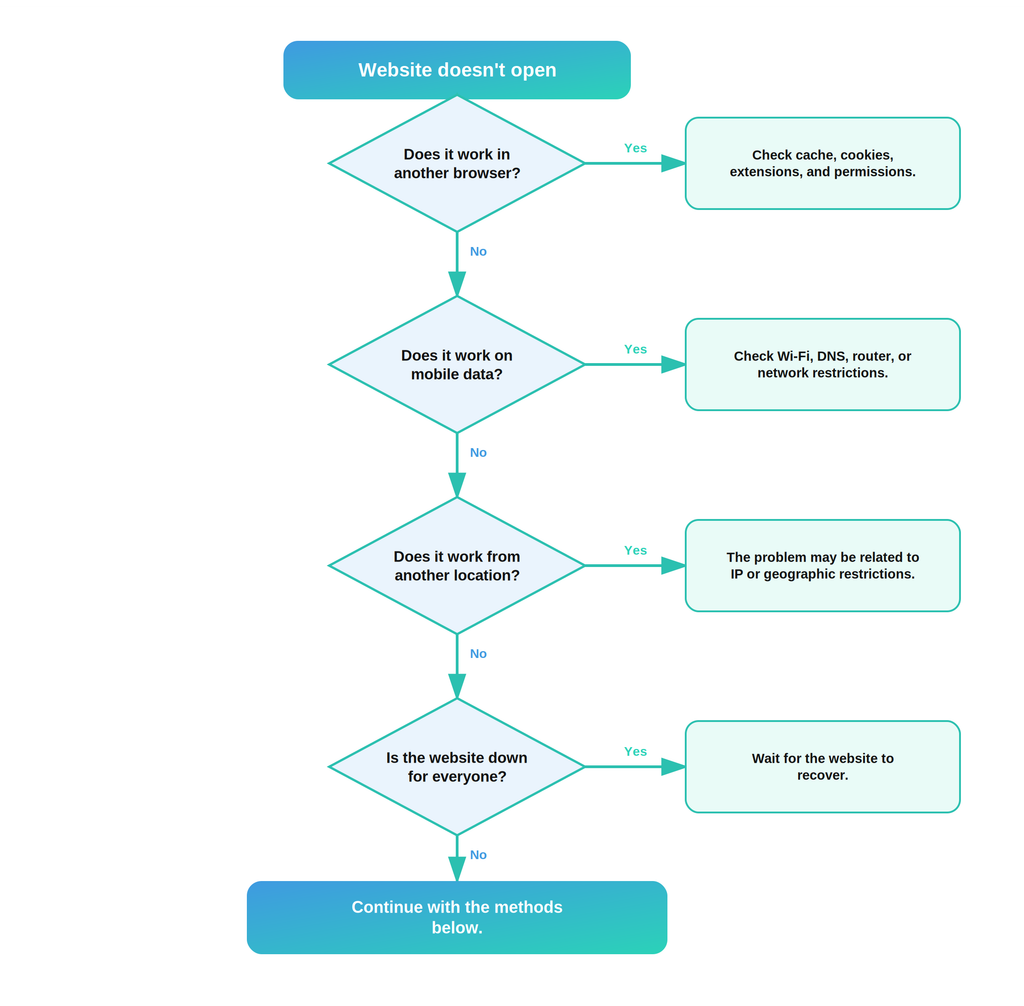
A simple troubleshooting flow
1. Try a Private or Incognito window
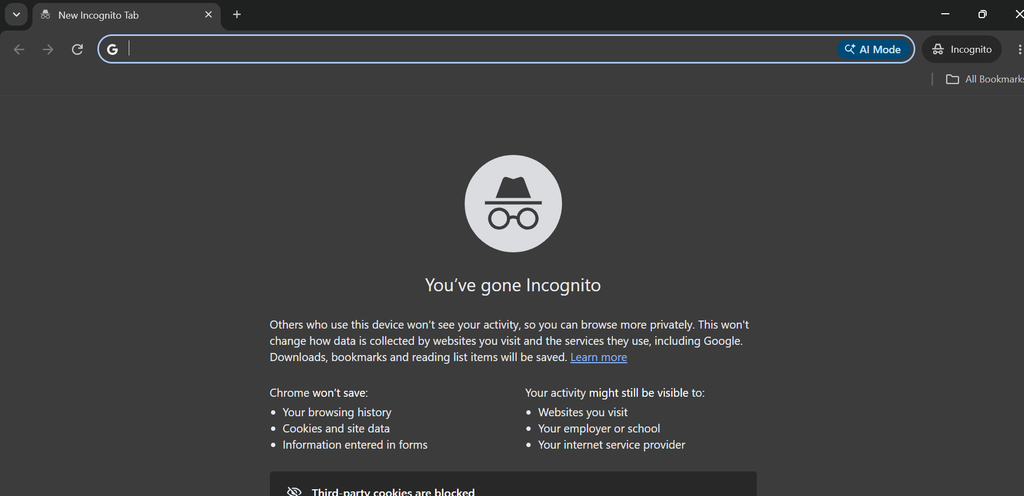
Private browsing is one of the quickest things to try.
An Incognito or Private window starts a separate browser session and doesn’t use your existing browsing session in the same way as a normal window. This can help if outdated cookies or session data are preventing a website from loading correctly.
How to do it
- Open your browser.
- Open a new Incognito or Private window.
- Enter the website address.
- Try loading the page again.
In Chrome, select New Incognito Window from the three-dot menu.
If the website works in Incognito mode, the problem may be related to cookies, cached data, extensions, or your existing browser session.
2. Try a different browser
A website that doesn’t load in one browser may work normally in another.
Try opening the same URL in Chrome, Firefox, Edge, Safari, or another browser installed on your device.
If the website works in another browser, the problem is likely related to the original browser rather than your internet connection.
You can then troubleshoot:
- Browser extensions;
- Cookies;
- Cached files;
- Site permissions;
- Security settings;
- Outdated browser software.
This is also a useful diagnostic step because it doesn’t require changing your network configuration.
3. Clear your cache and cookies
Browsers store files and website data locally to make pages load faster. Occasionally, this data can become outdated or corrupted.
Clearing the site’s cookies and cached files can fix loading problems, redirect loops, login issues, and outdated page versions.
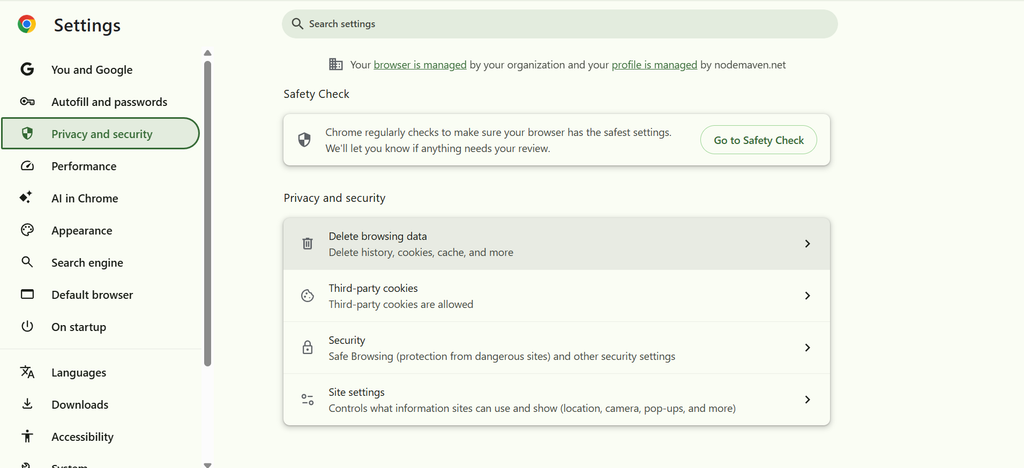
How to clear browsing data in Chrome
- Open Chrome.
- Go to Settings.
- Select Privacy and security.
- Click Delete browsing data.
- Select cached images and files and cookies or other site data.
- Choose the appropriate time range.
- Clear the data.
- Open the website again.
If you don’t want to sign out of other websites, you can also clear data for the affected website specifically through Chrome’s site settings.
4. Use a residential or mobile proxy
A proxy can be useful when the restriction is tied to your IP address or geographic location.
Residential and mobile proxies provide IP addresses associated with residential or mobile networks. Depending on the provider and configuration, you can also select a particular country, region, or city.
Residential vs. mobile proxies
| Proxy type | Common use cases |
| Residential | Location-specific browsing, research, and data collection |
| Mobile | Testing mobile-network traffic and location-specific access |
| ISP / Static residential | Longer sessions that require a consistent IP |
| Rotating residential | Workflows that require multiple IP addresses |
Using NodeMaven proxies
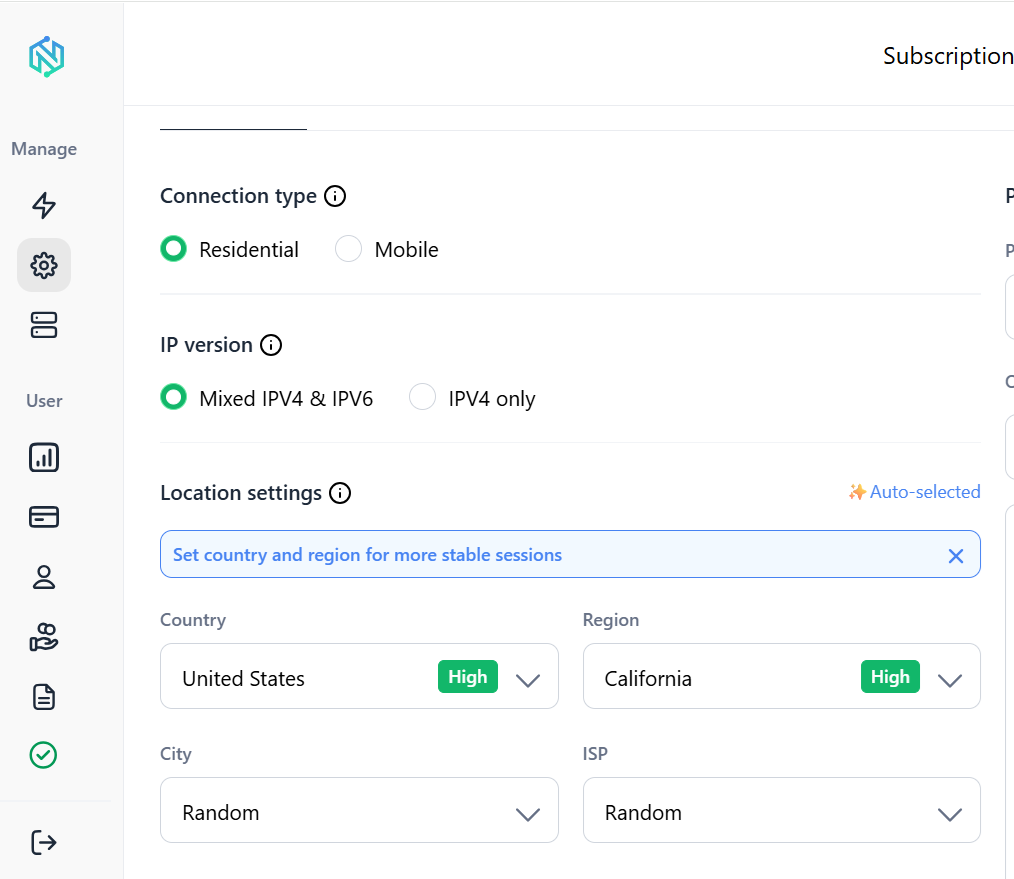
NodeMaven provides residential, mobile, and ISP proxy options with geographic targeting and different session configurations.
- Choose the proxy type that matches your use case.
- Select a country or geographic location.
- Generate your proxy credentials.
- Add the proxy to your browser, application, or automation tool.
- Open the website.
- Check your IP address to verify the connection.
5. Disable browser extensions
Browser extensions can interfere with websites.
Ad blockers, privacy tools, script blockers, proxy extensions, and security extensions can sometimes prevent certain page elements from loading.
How to test this
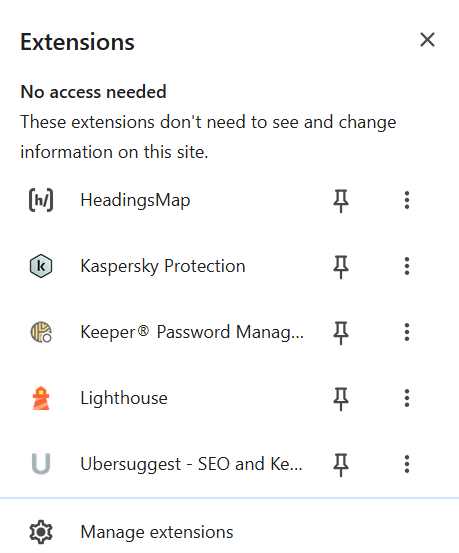
- Open your browser’s extensions menu.
- Temporarily disable your extensions.
- Reload the website.
- Check whether it works.
- If the problem disappears, enable extensions one at a time to find the one causing the issue.
Don’t leave security-related extensions disabled permanently unless you understand what protection they provide.
6. Change your DNS server
DNS is responsible for translating a domain name such as example.com into the IP address used to connect to the server.
If your current DNS resolver is filtering a domain or failing to resolve it correctly, changing DNS may help.
Popular public DNS resolvers include:
Cloudflare DNS: 1.1.1.1
Google Public DNS: 8.8.8.8
Quad9: 9.9.9.9
Important limitation
Changing your DNS does not change your public IP address and does not encrypt your internet traffic.
That means it can help with some DNS-level restrictions but won’t solve every type of website block.
How to change DNS in Windows
- Open Settings.
- Select Network & Internet.
- Choose your Wi-Fi or Ethernet connection.
- Find DNS server assignment.
- Select Edit.
- Choose Manual.
- Enter the DNS addresses you want to use.
- Save the settings.
- Try opening the website again.
The exact menu names may vary between Windows versions.
7. Try a different internet connection
Switching networks is one of the easiest ways to determine whether the restriction comes from your current connection.
For example, suppose a website doesn’t open while you’re connected to home Wi-Fi but loads immediately when you switch to mobile data. The website itself may be working correctly. The problem could instead be related to your router, DNS resolver, ISP, or local network.
Try this test
- Disconnect from Wi-Fi.
- Enable mobile data.
- Open the same website.
- Compare the result.
If the website works on mobile data, investigate your Wi-Fi connection and network configuration before changing anything else.
If the website is blocked by your IP or location, a proxy may help. Try NodeMaven proxies from $3.50 with 750 MB included
8. Check Firewall, antivirus, and site permissions
Your device may be blocking the website locally.
Check your firewall, antivirus web protection, parental controls, and browser permissions if you have access to these settings.
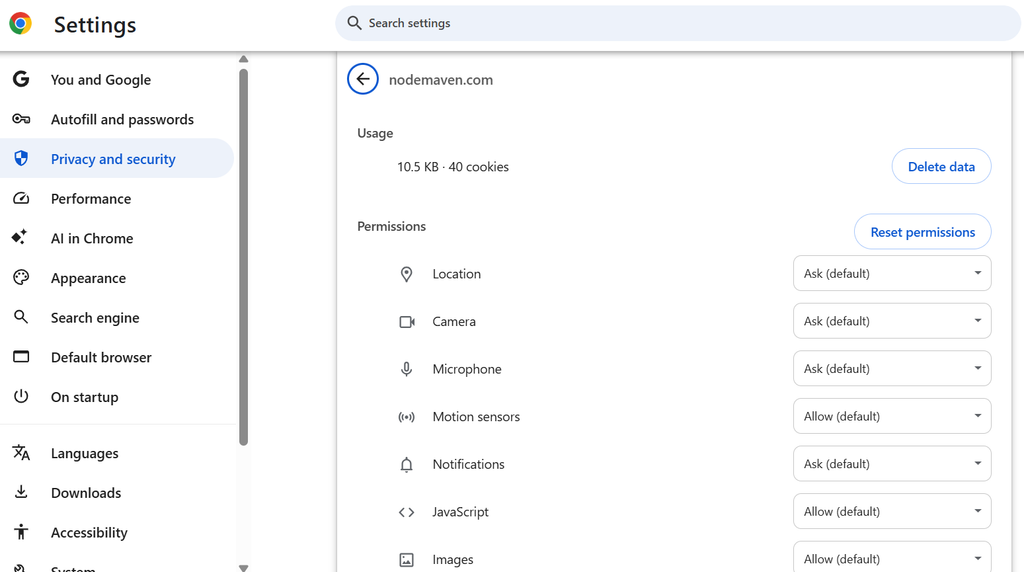
In Chrome, you can also check permissions for an individual website.
In Chrome
- Open the website.
- Click the site information icon next to the address.
- Open Site settings.
- Review the permissions.
- Reset or change a permission if necessary.
- Reload the page.
If you use Windows Security or third-party antivirus software, check whether the domain has been flagged or blocked.
9. Use a VPN
A VPN routes your internet traffic through a remote server and assigns your connection a different IP address. VPNs can therefore help with some network and geographic restrictions.
They also encrypt traffic between your device and the VPN server.
How to unblock a website with a VPN
- Choose a reputable VPN provider.
- Install its application.
- Open the application and sign in if required.
- Select a server location.
- Connect to the server.
- Open the website again.
If you’re trying to access content available in a particular country, choose a server in the relevant location.
You can use an IP lookup tool to check whether your public IP address has changed after connecting.
10. Use a VPN or proxy browser extension
A browser extension can be useful when you only need to route browser traffic through another server.
This can be especially relevant on devices where you cannot install a full desktop application.
Keep in mind that many browser extensions marketed as VPNs actually operate as browser proxies. They may not provide the same level of encryption or device-wide protection as a full VPN application.
How to use a browser extension
- Choose a reputable provider.
- Install the extension from the official browser extension store.
- Open the extension.
- Select a server or location if available.
- Connect.
- Reload the website.
Because the extension only affects supported browser traffic, other applications on your device may continue using your normal connection.
11. Use Tor browser
Tor Browser routes your connection through the Tor network instead of connecting directly to the destination website.
This can help with some network restrictions and provides additional privacy by separating your connection from your direct IP address.
How to use Tor Browser
- Download Tor Browser from the official Tor Project website.
- Install the version for your operating system.
- Open the browser.
- Connect to the Tor network.
- Enter the website address.
Tor has some limitations.
Connections can be slower than normal browsing, some websites block Tor exit nodes, and certain websites may require additional verification.
12. Use a Web Proxy
A web proxy works as an intermediary between your browser and the website you’re trying to access.
Instead of connecting directly:
Your browser → Website
the connection becomes:
Your browser → Web proxy → Website
The website sees the proxy’s IP address instead of your direct IP address.
Web proxies can be convenient because they usually don’t require software installation.
Limitations of web proxy
Web proxies are not a universal solution.
They can be slow, may break website functionality, and may not work with websites that actively detect or block proxy traffic.
You should also be careful with unknown free proxy services. Don’t enter passwords, payment information, or other sensitive data into a proxy service you don’t trust.
Are free website unblockers safe?
Free tools are tempting, especially for a one-time need. But it’s worth knowing what you’re trading for that convenience.
| Risk | Explanation |
| Ads | Many free unblockers are funded entirely by aggressive, sometimes deceptive ads that can redirect you to other pages. |
| Tracking | Your traffic passes through their servers, so they can see and log what you’re browsing. |
| Malware | Some free browser extensions and unblock websites tools bundle in unwanted software or malicious code. |
| Slow speeds | Free servers are shared by huge numbers of users at once, so pages can take much longer to load. |
None of this means every free tool is dangerous. It just means the free ones cut corners somewhere, and it’s usually on privacy, speed, or both. For anything more than a quick, low-stakes check, a paid and properly maintained option is the safer bet.
VPN vs. Proxy vs. Tor vs. DNS
There’s no single best answer for everyone. It depends on how often you need access, how much you care about speed, and whether privacy matters as much as reliability.
| Method | Ease of use | Privacy | Speed | Best for |
| Proxy | Easy | Good | Fast | Reliable, frequent access without getting blocked |
| VPN | Easy | Good | Medium | General privacy and everyday unblocking |
| Web proxy | Very easy | Low | Medium | Quick, one-time checks |
| DNS change | Easy | Low | Fast | Simple ISP-level blocks |
| Tor | Medium | Very good | Slow | High-privacy or high-censorship situations |
For most people who need a website to work consistently, without constant re-blocks or dropped sessions, a residential proxy is the strongest overall option.
NodeMaven in particular gives you real household IPs, city-level targeting, and sticky sessions that don’t fall apart mid-task, which is exactly what casual free tools can’t offer.
Access blocked websites with reliable residential, ISP, and mobile proxies. Start your NodeMaven trial from $3.50 with 750 MB included