
How to Set Up Sing-box on iPhone, Windows, Android, and macOS



Sing-box is an open-source proxy platform for iPhone, iPad, Windows, Android, macOS, Linux, and Apple TV. The app does not provide a server or VPN subscription. To connect, you need a compatible Sing-box profile or proxy credentials placed inside a JSON configuration.
This guide first shows you how to turn a NodeMaven SOCKS5 endpoint into a reusable Sing-box JSON profile. It then walks through Sing-box MT on an iPhone screen by screen. The iPad uses the same controls, while shorter sections cover the exact setup sequence on Windows, Android, macOS, Linux, and Apple TV.
Download links differ by device, so use the verified links in the next section. This avoids an outdated Apple documentation page that still says the iOS app is unavailable even though Sing-box MT has returned to the App Store.

Use NodeMaven’s quality-checked, UDP-capable ISP proxies with Sing-box, Proxifier, Shadowrocket, or Happ for stable sessions across desktop and mobile devices. Use code ISP40 to get 40% off your first order of three or more IPs.
Sing-box setup at a glance
The setup uses one profile across supported devices. Copy your proxy credentials, add them to the JSON template, then import or paste that profile into the official Sing-box app for your operating system. Only the app installation, profile-import screen, and system permission differ between devices.
- Install the official Sing-box client for your device.
- Copy the NodeMaven server, port, username, and password.
- Add those four values to the JSON template in this guide.
- Save the profile as nodemaven-sing-box.json, or copy the full JSON for the iPhone editor.
- Create or import a Local profile.
- Start the connection and verify the public IP.
| Device | Official app | Main setup method | Easier client for four-field credentials |
| iPhone and iPad | Sing-box MT | Create or import a local JSON profile | Shadowrocket, Happ |
| Windows 10+ | Sing-box for Desktop, SFW | Import the JSON profile | Proxifier or Happ |
| Android 5.0+ | Sing-box for Android, SFA | Import the JSON profile | SocksDroid or Happ |
| macOS 13+ | Sing-box for macOS, SFM | Import the JSON profile | Proxifier |
| Linux | Sing-box for Desktop, SFL, or the core | Import or run the JSON profile | Karing |
| Apple TV 17+ | Sing-box MT | Import from an iPhone or iPad | Karing where supported |
Where can you download Sing-box safely?
Use the direct store and project links below. Do not download proxy clients from unrelated APK, IPA, or software-download sites. A modified network client may be able to inspect the traffic sent through it.
Download Sing-box MT for iPhone, iPad, and Apple TV
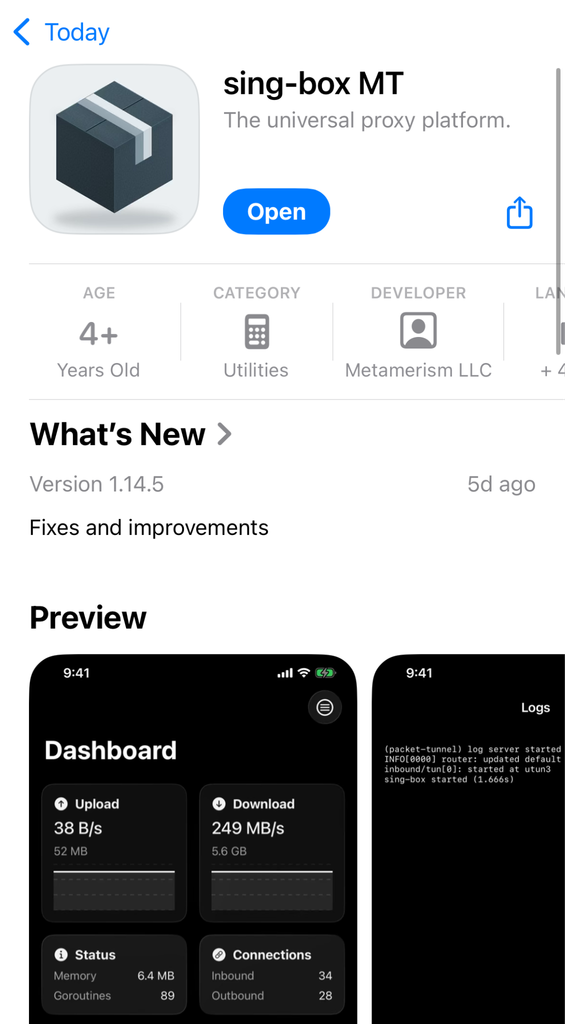
Install Sing-box MT from the App Store. The current US listing supports iOS 15+, iPadOS 15+, and tvOS 17+ and identifies the seller as Metamerism LLC.
The Apple page in the Sing-box documentation still contains an old removal notice. The newer Sing-box 1.14 release notes say the iOS and tvOS clients returned to the App Store as Sing-box MT, and the live listing confirms that the app is available in the US storefront.
Check the App Store region attached to your Apple account. If the listing is unavailable there, use a supported alternative such as Shadowrocket or Happ. Avoid shared Apple IDs and unofficial IPA files.
Download Sing-box for Windows and Linux
Windows and Linux use Sing-box for Desktop. The official page supports Windows 10+ on x64, x86, and ARM64, plus Linux on x64, ARM64, and ARMv7l.
Follow its GitHub Releases link and choose the latest stable release. Windows graphical packages use SFW in the filename, while Linux graphical packages use SFL. Do not choose a 1.15 alpha asset unless you intentionally want a testing build.
Download Sing-box for Android
The official Sing-box for Android page links to Google Play, F-Droid, and GitHub Releases. The app supports Android 5.0 and later.
Use Google Play for automatic updates. Choose F-Droid or an official GitHub APK when Google Play is unavailable. The universal APK covers users who do not know their device architecture.
Download Sing-box for macOS
Sing-box for macOS, called SFM, requires macOS 13 or later. The current standalone app is available through GitHub Releases or Homebrew:
brew install –cask sfm
The current project release notes say SFM is no longer offered through the Mac App Store. Choose the Apple silicon, Intel, or Universal package for your Mac. Check our guide on how to use SOCKS5 proxy servers natively or with proxy managers.
Where can you get a Sing-box key, configuration, or proxy server?
Sing-box does not include a connection when you install it. You need a complete JSON profile, a private subscription URL that returns Sing-box JSON, or proxy server credentials that you add to a profile. For the setup in this guide, the server comes from a NodeMaven ISP proxy and the template below turns its credentials into a profile Sing-box can run.
The word key is often used loosely in proxy tutorials. In Sing-box, it may refer to an individual protocol link, login credentials, or access to a subscription. Check the format before purchasing anything. A VPN subscription that works in another app will not necessarily provide Sing-box JSON.
Which connection formats work with Sing-box?
Sing-box runs local or remote JSON profiles. A profile can contain TUN settings, DNS, routing rules, and one or more outbound connections. HTTP and SOCKS5 credentials work after you place them in the matching outbound block. A raw host:port:username:password string is not a complete Sing-box configuration.
| What you received | Can Sing-box use it? | What to do |
| Complete Sing-box JSON | Yes | Import it or paste it into a Local profile |
| Private URL that returns Sing-box JSON | Yes | Add it as a Remote profile |
| SOCKS5 server, port, username, and password | Yes | Place the credentials in the SOCKS JSON template below |
| HTTP server, port, username, and password | Yes | Add them to an HTTP outbound in a full JSON profile |
| VLESS, VMess, Trojan, Shadowsocks, Hysteria2, or TUIC details | Yes | Build or obtain a compatible Sing-box profile |
| Clash YAML or an arbitrary subscription | Not automatically | Ask the provider for Sing-box JSON or an approved conversion method |
A server is the endpoint that carries the connection. An outbound tells Sing-box how to reach it. A profile is the complete configuration that the app runs.
The official SOCKS outbound documentation accepts a server, port, SOCKS version, username, and password. The HTTP outbound documentation covers HTTP CONNECT credentials. The SOCKS vs HTTP guide explains when each protocol fits.
Which option should you choose?
We recommend NodeMaven ISP proxies because they are quality-checked, versatile, and compatible with Sing-box and other proxy clients. Each plan includes a stable ISP IP, unlimited traffic, HTTP(S), SOCKS5, and UDP support for use across different devices, platforms, and authorized workflows. Plans start at $2.99 per IP.
That setup suits browser profiles, messaging apps, regional testing, and longer authorized sessions where repeated IP changes would interrupt the workflow. You select the country, copy four credentials from the dashboard, and place them in the ready-made JSON profile below.
For a short non-sensitive test, you can try an endpoint from the NodeMaven free proxy list. Public proxies often stop responding, become overloaded, or get blocked. Do not send account credentials, private messages, payment details, or other sensitive traffic through an unknown free endpoint.
If you want a managed list of VPN-style servers, choose a provider that explicitly supplies Sing-box JSON or a Sing-box-compatible subscription URL. For a self-hosted connection, you will need to maintain both the server and its profile.
Use NodeMaven’s quality-checked, UDP-capable ISP proxies with Sing-box, Proxifier, Shadowrocket, or Happ for stable sessions across desktop and mobile devices. Use code ISP40 to get 40% off your first order of three or more IPs.
How do you create a Sing-box JSON proxy profile?
A Sing-box profile is a JSON document that defines the device tunnel, DNS route, and proxy connection. Create the configuration once, add your NodeMaven credentials, and use it on iPhone, iPad, Windows, Android, macOS, or Linux. Apple TV can receive the finished profile from an iPhone or iPad.
Step 1: Copy the proxy credentials
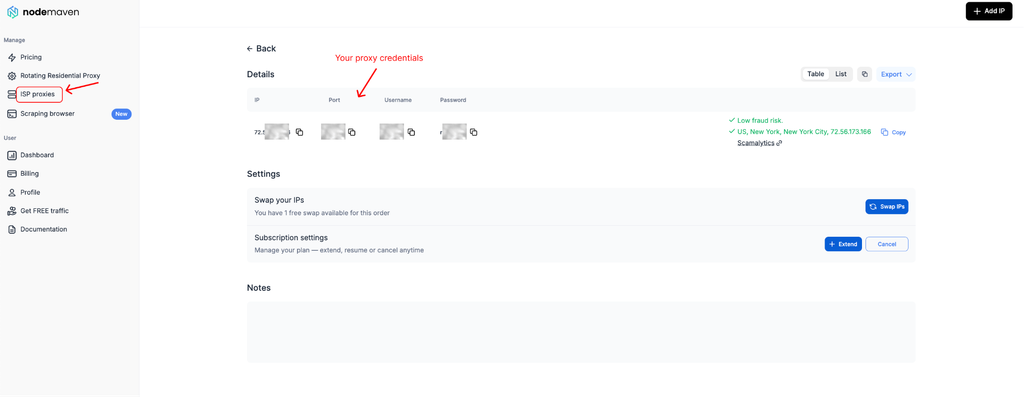
If you selected the NodeMaven ISP option in the previous section, open the order in your dashboard. The following four values are all you need for the JSON profile.
- Sign in to the NodeMaven dashboard.
- Open the ISP proxy order.
- Copy the IP address or server, port, username, and password.
- Keep these details private while building the profile.
Step 2: Copy the Sing-box JSON template
The template below was checked with the stable Sing-box 1.14.1 core. It creates a TUN route, sends DNS-over-HTTPS requests through the proxy, and uses the NodeMaven SOCKS5 endpoint as the default outbound.
Step 3: Add your server details
The JSON contains separate settings for DNS and the NodeMaven proxy. Keep the DNS server 1.1.1.1 and DNS port 443 unchanged. Only edit the four placeholder values inside the outbounds section.
Use this mapping:
| JSON value | NodeMaven dashboard value |
| PROXY_SERVER | IP address or Server |
| 1080 | Port |
| PROXY_USERNAME | Username |
| PROXY_PASSWORD | Password |
Replace the values as follows:
- Replace PROXY_SERVER with the IP address or hostname.
- Replace 1080 with the assigned port. Keep the port as a number without quotation marks.
- Replace PROXY_USERNAME with the username.
- Replace PROXY_PASSWORD with the password.
For example, if the dashboard shows server 123.45.67.89 and port 8294, the edited outbound begins like this:
The values above are examples. Copy the actual server, port, username, and password from your own NodeMaven order.
Credentials containing quotation marks or backslashes must follow JSON escaping rules. A single \ in a password must be entered as \\ in the configuration.
The DNS block uses Cloudflare’s public DNS-over-HTTPS service and sends its requests through the NodeMaven outbound. Replace that block only if your organization requires another resolver.
Step 4: Save or copy the finished profile
On iPhone or iPad, you do not need to create a file. Copy the complete JSON, choose Create Manually in Sing-box MT, and paste it into Edit Content during the walkthrough below.
To create an importable file on another device:
- Windows: Open Notepad, paste the complete JSON, and select File > Save As. Enter nodemaven-sing-box.json as the filename, select All files under Save as type, choose UTF-8, and click Save.
- macOS: Open TextEdit and select Format > Make Plain Text. Paste the JSON, select File > Save, and enter nodemaven-sing-box.json. If TextEdit asks whether to use .txt or .json, choose .json.
- Android: Open a plain-text editor, create a new document, and paste the JSON. Save it as nodemaven-sing-box.json in the Downloads folder. You can then select it from SFA when importing a Local profile.
- Linux: Open the system text editor, paste the JSON, and use Save As to save it as nodemaven-sing-box.json in your Documents or Downloads folder.
If the saved file is named nodemaven-sing-box.json.txt, rename it and remove the final .txt. The filename must end in .json.
Treat this file like a password. Do not upload it to a public validator, paste site, group chat, or shared cloud link. Change the proxy password if the file becomes public.
How do you set up Sing-box MT on iPhone with a NodeMaven proxy?
Install Sing-box MT, create a Local profile, and paste the JSON prepared above into the app’s editor. The current interface uses these labels: Dashboard, Profile, New Profile, Create Manually, Edit Content, Save, and Start. The screenshots in this walkthrough can also guide iPad users because both versions follow the same sequence.
Step 1: Install Sing-box MT
Open the Sing-box MT App Store listing on your iPhone and install the app. Confirm that the seller is Metamerism LLC before downloading.
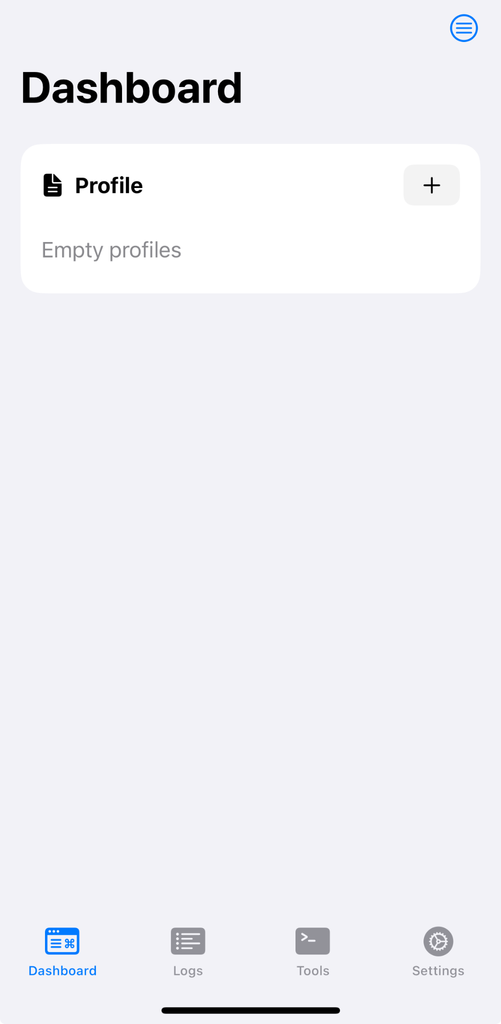
Open Sing-box MT after installation. You should land on the Dashboard with a Profile card near the top.
Step 2: Create a local profile
- Stay on the Dashboard tab.
- Tap the plus button in the upper-right corner of the Profile card.
- On the New Profile screen, tap Create Manually.
- Enter NodeMaven ISP in Name.
- Leave Type set to Local.
- Leave File set to Create New.
- Tap Create.
Sing-box MT creates the profile with an empty {} configuration and returns to the Dashboard.
Step 3: Open the profile editor
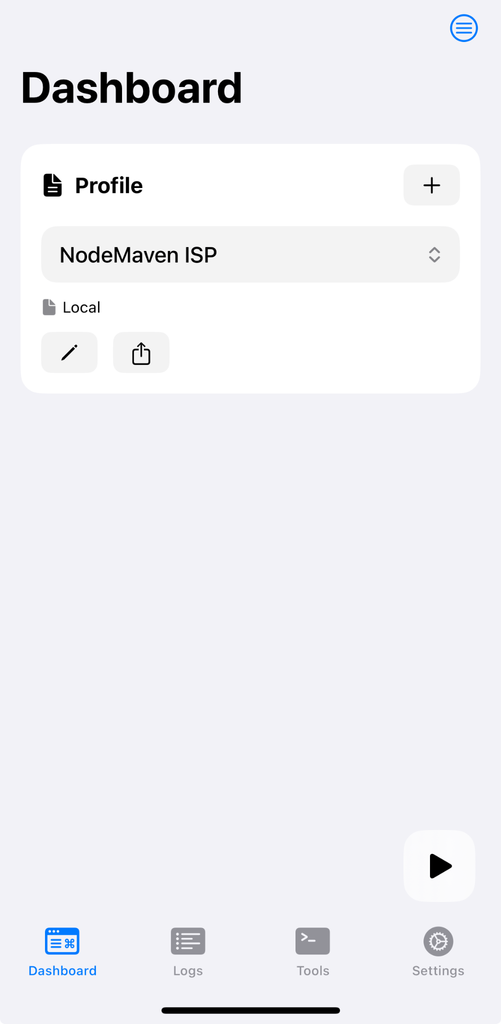
- Confirm that NodeMaven ISP is selected in the Profile card.
- Tap the pencil button below the profile details.
- On the Edit Profile screen, scroll to Action.
- Tap Edit Content.
- Delete the empty {} from the editor.
Step 4: Paste and save the JSON profile
Paste the complete JSON from How do you create a Sing-box JSON proxy profile? into Edit Content. Use the finished version containing your own server, port, username, and password.
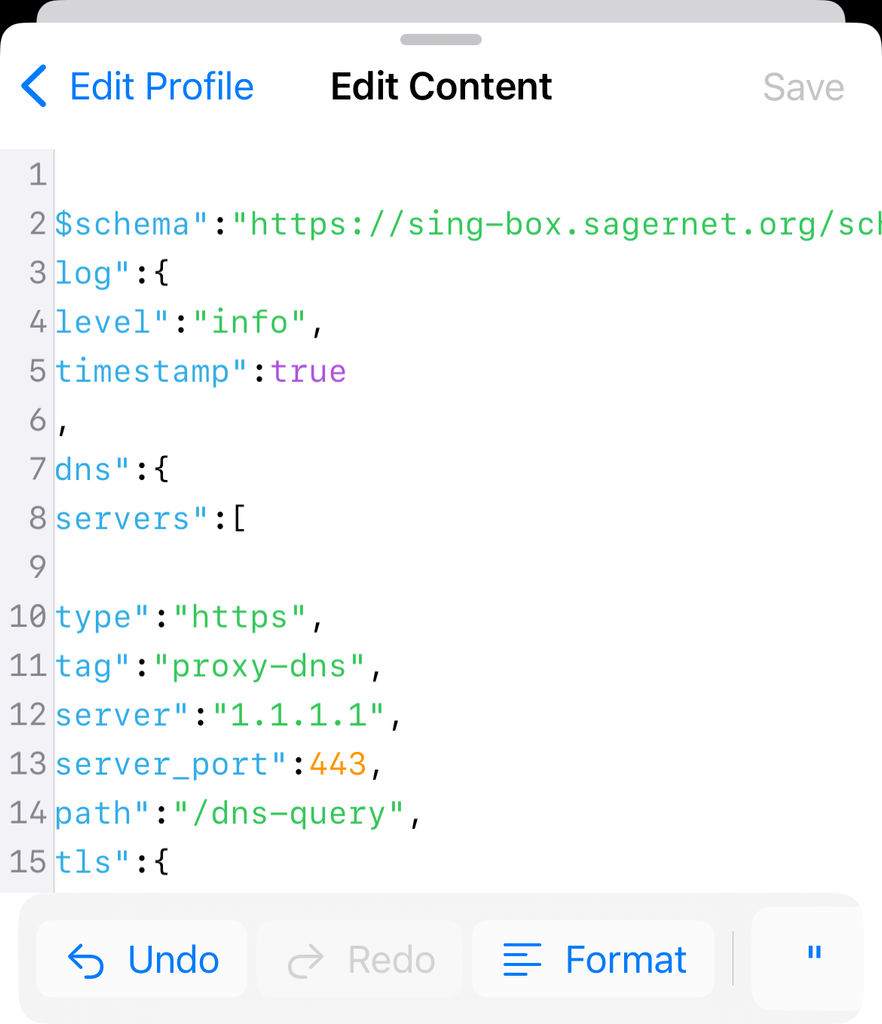
Tap Save in the upper-right corner. Sing-box MT checks the configuration when saving it. If the app reports an error, use the listed line number to check the commas, quotation marks, field names, and numeric port.
Step 5: Start the connection
- Return to the Dashboard.
- Confirm that NodeMaven ISP appears in the Profile card.
- Tap Start at the bottom of the Dashboard.
- Tap Allow when iOS asks to add a VPN configuration.
- Confirm with Face ID, Touch ID, or the device passcode if prompted.
- Wait for the status to change from Starting to Connected.
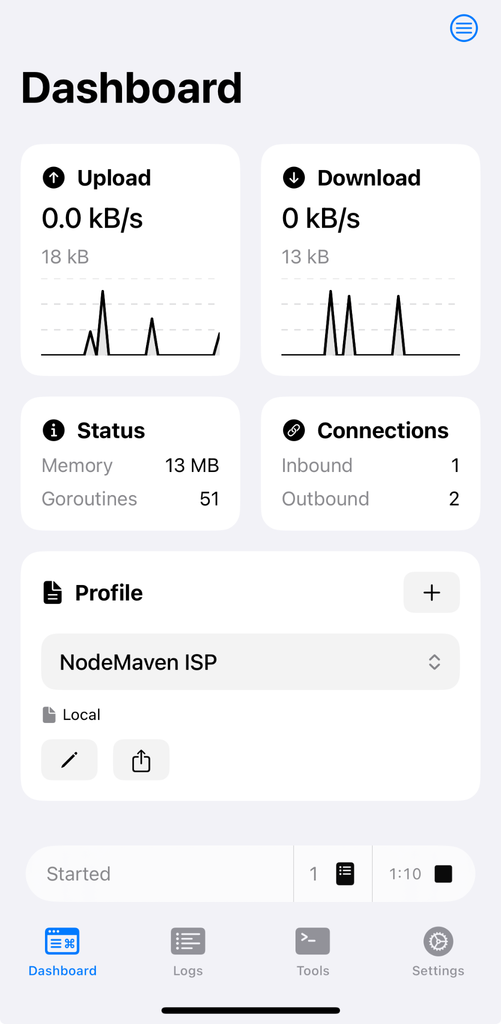
The VPN icon confirms that Sing-box MT created the iPhone tunnel. Traffic inside that tunnel uses the NodeMaven SOCKS5 outbound defined in the JSON profile.
Step 6: Verify the IP address and location
Open Safari and visit the NodeMaven IP lookup tool. Confirm that:
- The public IP differs from your regular mobile or Wi-Fi IP.
- The country matches the ISP proxy order.
- Websites load without repeated connection errors.
- The same ISP IP stays assigned during the session.
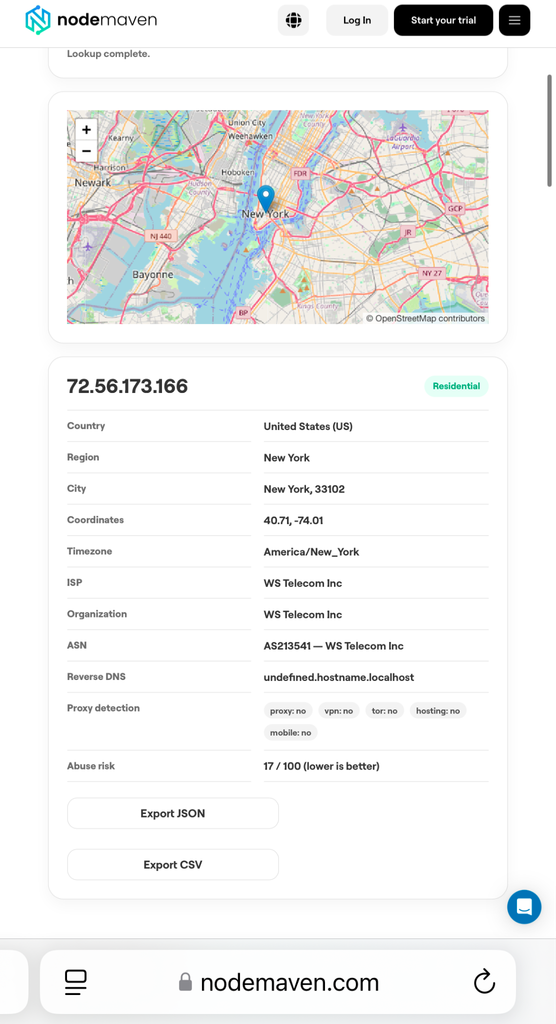
If Safari was already open, close it and test in a new tab. You can check the raw endpoint separately with the NodeMaven proxy checker. A successful checker result points to the JSON or iOS permission when Sing-box MT still cannot connect.
Import the JSON file instead of pasting it
If nodemaven-sing-box.json is already in the iPhone Files app:
- Tap the plus button in the Profile card.
- Choose Import from File.
- Select nodemaven-sing-box.json.
- Review the name and confirm Type: Local and File: Import.
- Tap Create, select the profile, and press Start.
How do you set up Sing-box on iPad?
Sing-box MT uses the same profile controls on iPad and iPhone. Create the JSON configuration above, then follow the iPhone screenshots for the Dashboard, Profile, Edit Content, and Start screens. The wider iPad layout may move controls, but their labels and order remain the same.
- Install Sing-box MT from the App Store.
- Open Dashboard and tap the plus button in Profile.
- Choose Create Manually to paste the JSON, or Import from File to select nodemaven-sing-box.json.
- Save and select the Local profile.
- Tap Start and approve the iPadOS VPN configuration.
- Open Safari and verify the address with the NodeMaven IP lookup tool.
Use the detailed iPhone walkthrough above when taking screenshots or locating a control. The connection sequence is the same on both devices.
How do you set up Sing-box on Windows?
Windows 10 and later use Sing-box for Desktop, whose release files contain SFW. Import the nodemaven-sing-box.json profile created above instead of rebuilding the proxy settings inside the Windows app. The desktop layout differs from Sing-box MT, but the profile selection, start, and IP-check sequence is equivalent.
- Open the official Sing-box desktop page and follow its GitHub Releases link.
- Download the latest stable SFW package for your processor.
- Install and open Sing-box for Desktop.
- Add or import a Local profile.
- Select nodemaven-sing-box.json.
- Start the service and approve any Windows firewall or network prompt.
- Open a browser and check the public IP and country.
The iPhone screenshots above show what the completed profile should contain and what to verify after connecting. If you prefer separate server, port, username, and password fields, follow the NodeMaven Proxifier setup guide.
How do you set up Sing-box on Android?
Android 5.0 and later use Sing-box for Android, also called SFA. Save the shared JSON profile on the phone, import it as a Local profile, and approve Android’s VPN request when you start the connection. SFA can then route the full device or selected apps, depending on its routing settings.
- Install SFA from Google Play, F-Droid, or the official GitHub release.
- Transfer nodemaven-sing-box.json to the phone without posting it to a public link.
- Open SFA and add a new Local profile.
- Import the JSON file and select the new profile.
- Start the connection and approve Android’s VPN request.
- Open a browser and confirm the public IP and country.
The iPhone section provides a visual reference for the same basic flow: add profile, select profile, start, allow the VPN, and verify. For direct credential fields without JSON, use the SocksDroid setup guide.
How do you set up Sing-box on macOS?
macOS 13 and later use Sing-box for macOS, known as SFM. Install the standalone application, import the JSON profile created above, and approve the macOS network extension during the first connection. The current project release notes say the standalone SFM app replaced the former Mac App Store build.
- Download the latest stable SFM package from the official GitHub Releases page, or run brew install –cask sfm.
- Choose the Apple silicon, Intel, or Universal package that matches the Mac.
- Open SFM and add a Local profile.
- Import nodemaven-sing-box.json and select it.
- Start the service and approve the network extension.
- Verify the public IP and selected country in a browser.
The iPhone walkthrough shows the profile content and final checks, although the macOS controls appear in a desktop window. For application-specific routing with four direct credential fields, see the NodeMaven Proxifier guide.
How do you set up Sing-box on Linux?
Linux users can import the shared JSON into Sing-box for Desktop, called SFL, or run it with the Sing-box core. The graphical route is closest to the Windows flow. The command-line route lets you validate the file before starting the service, which helps catch JSON errors early.
- Download the latest stable SFL package from the official desktop client page, or install the Sing-box core through an official method.
- Import nodemaven-sing-box.json into SFL and start the profile.
- Approve any desktop network prompt, then check the public IP in a browser.
For the command-line core, validate the profile first:
No output means the check passed. Start Sing-box with the validated file using the method documented for your installation. For a systemd service, inspect recent errors with:
How do you set up Sing-box on Apple TV?
Sing-box MT on Apple TV can receive a finished profile from an iPhone or iPad. Create and test the NodeMaven profile on the mobile device first, then transfer it to Apple TV. Both devices need the same Sing-box MT version, and the VPN should be disconnected before the import begins.
- Install Sing-box MT on the Apple TV and on the iPhone or iPad.
- Confirm that both devices run the same app version.
- Disconnect the active Sing-box connection on the mobile device.
- On Apple TV, open New Profile.
- Choose Import from iPhone or iPad.
- Select the mobile device, then choose the tested NodeMaven ISP profile.
- Start the imported profile and verify the public IP in a browser or supported network-checking app.
Refer to the iPhone walkthrough for creating, editing, testing, and naming the source profile before transfer.
Which clients make standard proxy credentials easier to add?
Sing-box gives you detailed JSON-based routing, but its configuration takes longer than entering four credentials. HTTP and SOCKS5 proxies are more portable in clients with separate fields for the server, port, username, and password.
| Device | Easier client | What you enter | Best fit |
| Windows and macOS | Proxifier | Server, port, username, password | Route selected desktop applications |
| iPhone and iPad | Shadowrocket | HTTP or SOCKS server and credentials | Direct iOS setup |
| Android | SocksDroid | SOCKS5 server and credentials | Short Android setup |
| Windows, macOS, Android, and iOS | Happ | Supported profile or proxy details | Similar client across several devices |
| Windows, macOS, Linux, Android, and iOS | Karing | HTTP/SOCKS credentials and compatible profiles | Cross-platform graphical setup |
A NodeMaven ISP endpoint can be entered in compatible clients for authorized access to services such as ChatGPT, subject to each platform’s terms. The dedicated address keeps the same location during the session.
See the Shadowrocket setup guide, SocksDroid guide, or Karing tutorial for device-specific alternatives.
Sing-box is not working: fixes by symptom
On iPhone, start with the error shown by Sing-box MT. Do not change the profile, credentials, and network at the same time, since that makes the failed part harder to identify.
Sing-box shows invalid character ‘Â’ or decode config
This error means the configuration contains a character that JSON cannot read. It usually appears after the template has been copied from Google Docs, a bold-formatted paragraph, or another rich-text editor. The proxy has not been contacted yet, so changing the server or password will not fix it.
- Tap OK, then tap the pencil button under the profile.
- Open Action > Edit Content.
- Select the entire configuration and delete it.
- Return to the clean, zero-indentation template in Step 2: Copy the Sing-box JSON template.
- Copy it from the plain code block, paste it into Edit Content, and enter the four NodeMaven values again.
- Tap Save, return to the Dashboard, and press Start.
The clean configuration must not contain:
- Â or another unexpected character at the beginning of a line;
- ** around JSON lines, since those are Markdown bold markers;
- backslashes before underscores, such as server\_port;
- curly quotation marks in place of straight JSON quotation marks.
The correct field names are server_port, server_name, dns_mode, and auto_route. Do not indent the replacement template manually on an iPhone. Indentation is optional in JSON, and the zero-indentation version avoids hidden spaces from formatted documents.
Sing-box MT will not save the configuration
- Confirm that the editor contains one complete JSON object.
- Check braces, brackets, commas, and quotation marks.
- Keep server_port as a number without quotation marks.
- Remove comments from the JSON.
- Make sure backslashes inside the credentials are escaped.
The profile starts, but Safari does not load pages
- Copy all four credentials from the NodeMaven dashboard again.
- Remove spaces before or after the server, username, and password.
- Test the raw endpoint with the NodeMaven proxy checker.
- Switch between Wi-Fi and mobile data to test the local network.
- In Sing-box MT, open Settings, then View Service Log, and look for an authentication, DNS, or connection error.
The public IP does not change
Return to Dashboard and confirm that the status says Connected and NodeMaven ISP is selected in the Profile card. Close and reopen Safari.
If another app still shows the regular IP, review that app’s connection and any routing overrides.
SOCKS5 authentication fails
- Enter only the hostname or IP in server. Do not add socks://.
- Confirm the port against the ISP order.
- Check the capitalization of the username and password.
- Escape special JSON characters.
- If you use IP whitelisting, confirm that the current public IP remains on the allowlist.
Calls or UDP traffic fail
Use the SOCKS outbound and confirm that the upstream proxy supports UDP. HTTP CONNECT is primarily a TCP tunnel. NodeMaven ISP proxies support UDP, but the application must also send that traffic through the active Sing-box TUN route.
Sing-box MT is unavailable in the App Store
Check the direct Sing-box MT listing and the country attached to the Apple account. The sponsor-only TestFlight route is intended for beta access.
If the public listing is missing in your storefront, use Shadowrocket or Happ instead of an unofficial IPA package.
Use NodeMaven’s quality-checked, UDP-capable ISP proxies with Sing-box, Proxifier, Shadowrocket, or Happ for stable sessions across desktop and mobile devices. Use code ISP40 to get 40% off your first order of three or more IPs.


