Настройки прокси в Firefox: как настроить прокси в Firefox



Настройки прокси в Firefox позволяют направлять трафик браузера через другой сервер, прежде чем он достигнет сайта, который вы посещаете.
Прокси для Firefox используют, чтобы защитить конфиденциальность, разблокировать контент или проверить, как выглядит страница из другого местоположения. В этом руководстве разбирается каждая часть настроек прокси Firefox: от открытия меню до настройки SOCKS5 и устранения распространенных проблем.
К концу вы будете знать, как настроить прокси в Firefox и выбрать подходящий вариант под свои задачи.

Настройте Firefox за считанные минуты с премиальными прокси. Начните с NodeMaven всего за $3.50 и получите 750 MB трафика резидентных и мобильных прокси
Что такое настройки прокси в Firefox?
Прокси на уровне браузера меняет трафик только для этого браузера. Настройки прокси Firefox применяются только к Firefox, тогда как ваша операционная система и другие приложения продолжают использовать обычное соединение. Системный прокси, напротив, меняет трафик для каждого приложения на вашем устройстве.
Это различие важно, если вы хотите, чтобы прокси в браузере Firefox оставался отдельным от других приложений.
Пользователи полагаются на настройки прокси в Firefox для таких задач, как:
- Проверка цен или товарных предложений в другой стране
- Тестирование контента или рекламы с географическими ограничениями
- Добавление дополнительного уровня конфиденциальности при работе в интернете
- Ведение нескольких аккаунтов без перекрытия
| Прокси-сервер браузера | Системный прокси |
| Влияет только на Firefox | Влияет на все приложения на устройстве |
| Настраивается в настройках Firefox | Настраивается в сетевых настройках операционной системы |
| Идеально подходит для задач в рамках браузера | Идеально подходит для сетевого трафика всей системы |
| Другие приложения продолжают использовать собственное подключение | Все совместимые приложения используют одни и те же настройки прокси |
| Легко включить или отключить без изменения системных настроек | Требует изменения настроек операционной системы |
| Отлично подходит для тестирования, веб-скрапинга и управления несколькими профилями браузера | Лучше подходит для маршрутизации всего трафика устройства через один прокси |
Как открыть настройки прокси в Firefox
- Откройте Firefox.
- Нажмите кнопку меню (три полоски) в правом верхнем углу.
- Выберите Настройки.
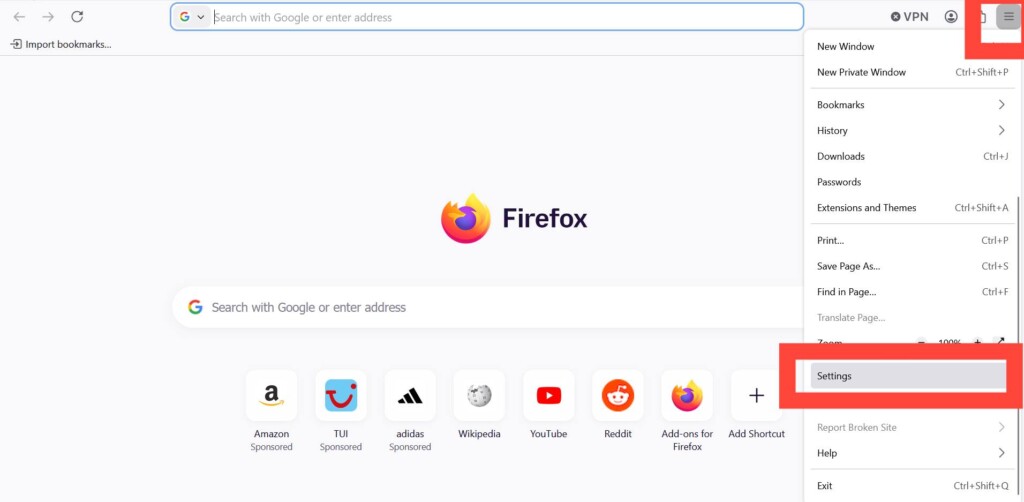
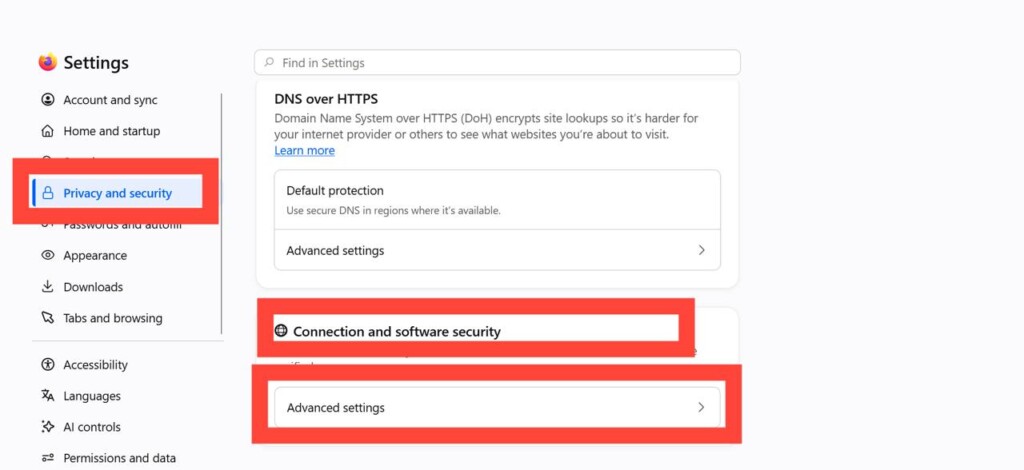
- Выберите «Приватность и защита» в настройках
- Прокрутите вниз до блока «Защита соединения и программного обеспечения» и нажмите «Дополнительные настройки»
- Прокрутите вниз до блока «Настройки прокси» и нажмите «Настроить прокси»
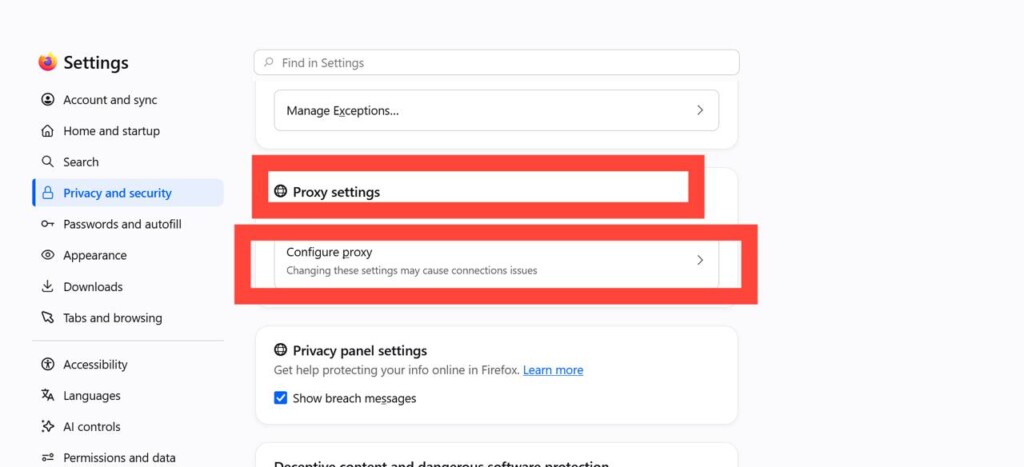
- Выберите «Ручная или автоматическая настройка прокси»
Откроется окно, в котором находятся все настройки прокси Firefox, включая ручную настройку и автоматические параметры.
Как настроить прокси в Firefox
Чтобы настроить прокси в Firefox вручную, выберите «Ручная настройка прокси» в окне сетевых настроек. Ручная настройка дает вам полный контроль над хостом, портом и протоколом.
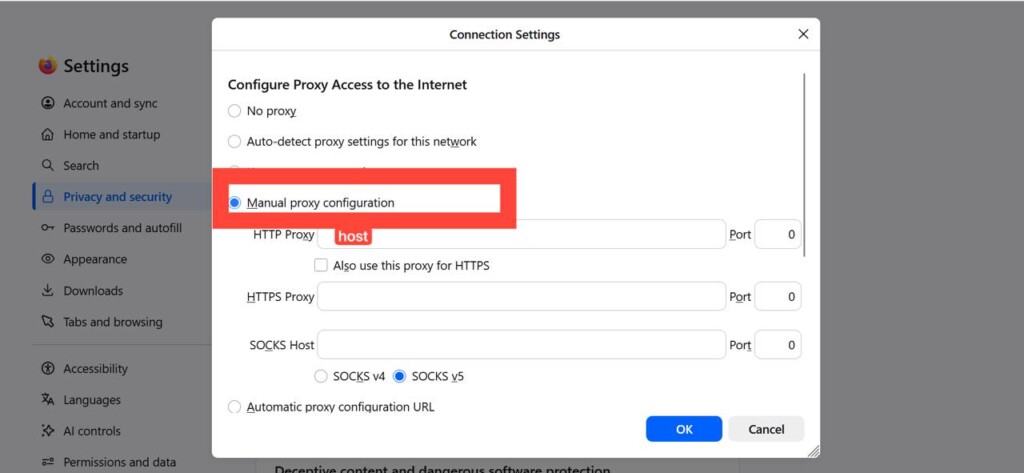
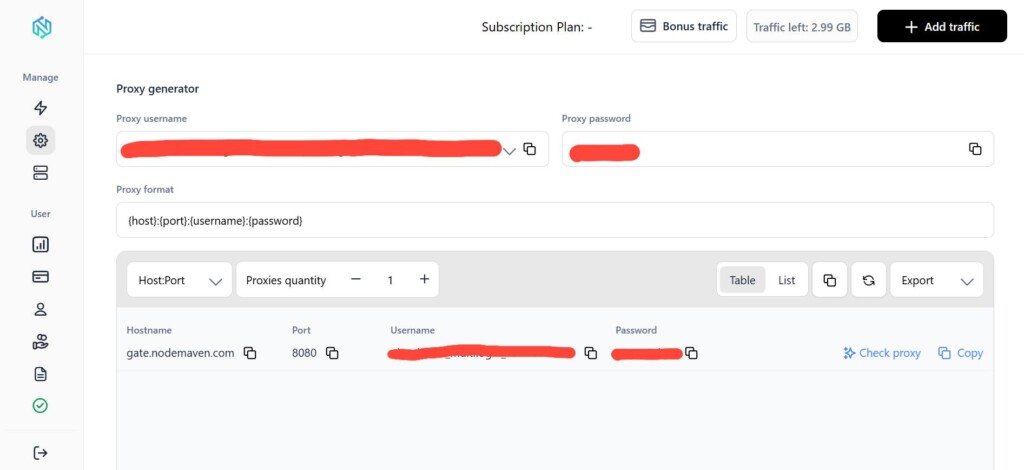
Если вы используете NodeMaven, вы можете скопировать данные прокси прямо из личного кабинета. NodeMaven поддерживает прокси HTTP, HTTPS и SOCKS5, что делает его полностью совместимым со встроенными настройками прокси в Firefox.
Правильные настройки заслуживают правильного прокси. Используйте более 30 млн чистых резидентных IP от NodeMaven в более чем 190 странах для быстрого и надежного просмотра в Firefox.
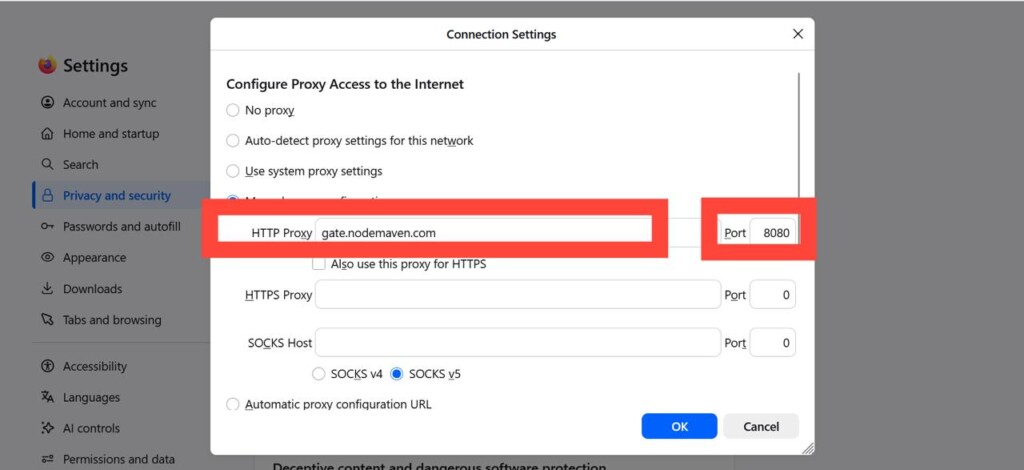
Host: адрес прокси-сервера
Порт: номер порта, который вам предоставляет провайдер
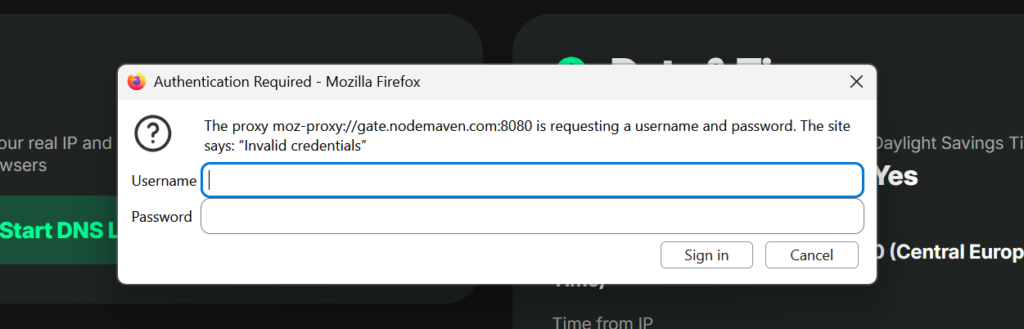
После ввода Хост и Порт нажмите «Ладно», чтобы сохранить настройки и открыть любой сайт. Firefox запросит имя пользователя и пароль прокси для входа
Имя пользователя и пароль: необходимы, если ваш прокси требует аутентификации
Теперь Firefox будет направлять трафик через выбранный вами сервер. Вы можете проверить свой текущий IP с помощью таких инструментов, как Pixelscan.
Разбираемся в настройках прокси Firefox
| Вариант | Когда использовать |
| Без прокси | Вы хотите, чтобы Firefox подключался напрямую, без какого-либо прокси. |
| Автоопределение | Вы хотите, чтобы Firefox использовал настройки автоматического определения прокси для этой сети, что часто встречается в управляемых или корпоративных сетях. |
| Использовать системный прокси | Вы уже настроили прокси на уровне операционной системы и хотите, чтобы Firefox использовал те же настройки. |
| Ручная настройка прокси | У вас есть данные о хосте, порте и протоколе, предоставленные вашим прокси-сервисом, и вы хотите настроить их вручную. |
| URL автоматической конфигурации | Ваш поставщик прокси предоставил вам URL PAC-файла, чтобы Firefox мог автоматически применять нужные правила прокси. |
Как настроить SOCKS5-прокси в Firefox
Firefox поддерживает SOCKS4 и SOCKS5. SOCKS4 устарел и не поддерживает аутентификацию или UDP-трафик. Прокси firefox socks5 обрабатывает и то, и другое, а также обеспечивает более надёжную конфиденциальность за счёт удалённого разрешения DNS.
- Откройте «Ручная настройка прокси».
- Введите ваш SOCKS Хост и Порт.
- Выберите SOCKS5.
- Установите флажок «Использовать DNS-прокси при использовании SOCKS5“
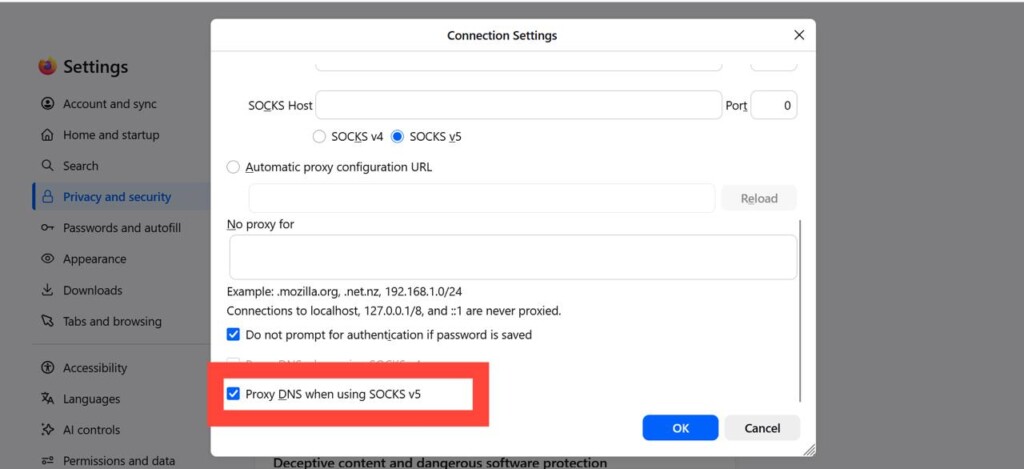
Совет: Включите «Использовать DNS-прокси при использовании SOCKS5”, чтобы предотвратить утечки DNS. Без этого DNS-запросы могут обходить ваш прокси и раскрывать ваше реальное местоположение.
Готовы работать с более удобным прокси для Firefox? Протестируйте резидентные и мобильные прокси NodeMaven с доступным пробным доступом за $3.50
Расширение прокси для Firefox против встроенных настроек
Некоторые пользователи предпочитают расширение-прокси вместо встроенного меню. Расширение-прокси для Firefox добавляет на панель инструментов кнопку для быстрого переключения серверов, что удобно, если вы управляете несколькими прокси одновременно.
| Встроенные настройки | Расширение-прокси для Firefox |
| Ручная настройка в параметрах Firefox | Устанавливается один раз из магазина дополнений Firefox |
| Требует повторного открытия настроек для переключения прокси | Переключение прокси одним кликом с панели инструментов |
| Лучше всего подходит для использования одного прокси за раз | Лучше всего подходит для управления несколькими прокси или профилями браузера |
| Нет дополнительных функций управления | Включает быстрое переключение, управление профилями и другие удобные функции |
Оба метода хорошо работают с NodeMaven, поскольку наши резидентные и мобильные прокси. поддерживают стандартные соединения HTTP, HTTPS и SOCKS5, независимо от того, используете ли вы плагин-прокси для Firefox или встроенное меню настроек.
Если вы часто переключаетесь между проектами, контейнеры для нескольких аккаунтов в Firefox хорошо сочетаются с прокси. Они позволяют назначать разные прокси для разных вкладок-контейнеров, что удобно для управления несколькими аккаунтами без смешивания сессий.
Распространенные проблемы с прокси в Firefox
Firefox не может подключиться: дважды проверьте хост и порт и убедитесь, что прокси активен
Ошибка аутентификации: перепроверьте имя пользователя и пароль, так как опечатки являются самой распространённой причиной
Сайт загружается без прокси: очистите кэш браузера или убедитесь, что по-прежнему выбран режим Manual Proxy Configuration
Утечка DNS: включите «Proxy DNS when using SOCKS5»
Разрешение для приватного просмотра: Firefox требует разрешение на работу в приватном режиме для настроек прокси в некоторых расширениях, поэтому проверьте разрешения расширения, если оно перестаёт работать в приватных окнах
Лучший прокси для Firefox
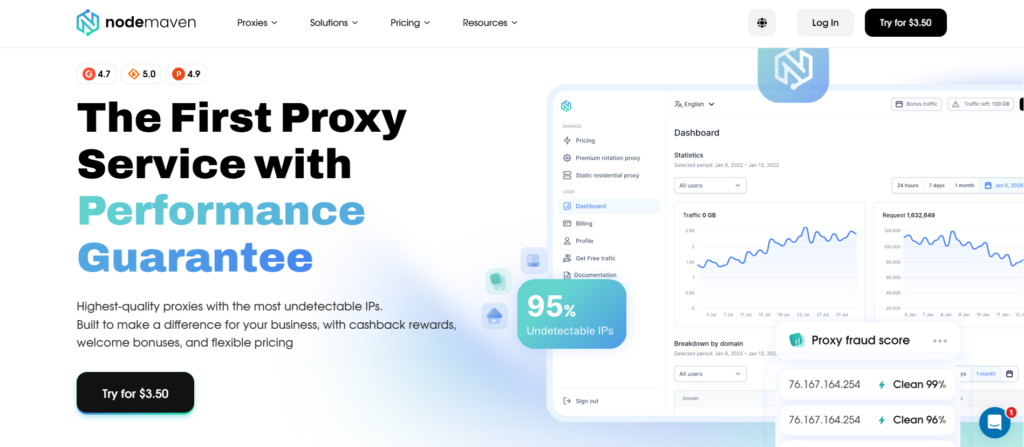
Не все прокси работают одинаково. Резидентские прокси работают лучше всего, потому что используют реальные IP-адреса, выданные интернет-провайдерами, поэтому сайты реже помечают или блокируют их.
NodeMaven предоставляет всем клиентам:
- Более 30 млн резидентных IP в 190+ странах и 1400+ городах
- Резидентные, мобильные и ISP-прокси
- Поддержка HTTP, HTTPS и SOCKS5
- чистота 95% Фильтрацию по качеству IP
- Sticky-сессии, которые сохраняют один и тот же IP для длительных задач
- Простую настройку прокси в Firefox, как вручную, так и через расширение
- Доступный пробный период за $3.50, чтобы протестировать производительность перед покупкой
Если вам нужны прокси, которые остаются быстрыми и надёжными, отфильтрованная сеть NodeMaven действительно меняет дело.
Заключение
Настройка прокси в Firefox занимает всего несколько минут, если знать, где искать. Независимо от того, выбираете ли вы ручную настройку, SOCKS5 или расширение, описанных выше шагов вам будет достаточно.
Если вам нужен прокси-сервер, который остаётся быстрым и не поддаётся блокировкам, выбирайте провайдера с чистыми, проверенными IP.
Резидентные и мобильные прокси NodeMaven без проблем работают с Firefox и по умолчанию поддерживают HTTP, HTTPS и SOCKS5. Начните с пробного периода за $3.50 чтобы увидеть, как они работают с вашей конфигурацией.
Используете ли вы настройки Firefox или расширение, NodeMaven работает с обоими вариантами. Получите надёжные резидентные, мобильные и ISP-прокси с 95% фильтрацией чистых IP всего от $3.50