Firefox proxy settings: how to configure a proxy in Firefox



Firefox proxy settings let you route your browser traffic through a different server before it reaches the website you are visiting.
People use a Firefox proxy to protect their privacy, unblock content, or check how a page looks from another location. This guide walks through every part of Firefox proxy settings, from opening the menu to configuring SOCKS5 and fixing common issues.
By the end you will know how to set up a proxy in Firefox and pick the right option for your needs.

Configure Firefox in minutes with premium proxies. Start with NodeMaven for just $3.50 and get 750 MB of residential and mobile proxy traffic
What are Firefox proxy settings?
A browser proxy only changes traffic for that one browser. Firefox proxy settings apply just to Firefox, while your operating system and other apps keep using their normal connection. A system proxy changes traffic for every app on your device instead.
This difference matters if you want a browser proxy Firefox setup that stays separate from your other apps.
People rely on proxy Firefox settings for tasks like:
- Checking prices or listings in another country
- Testing geo restricted content or ads
- Adding an extra layer of privacy while browsing
- Running multiple accounts without overlap
| Browser Proxy | System Proxy |
| Only affects Firefox | Affects every app on the device |
| Configured in Firefox settings | Configured in the operating system’s network settings |
| Ideal for browser specific tasks | Ideal for system wide network traffic |
| Other applications continue using their own connection | All compatible applications use the same proxy settings |
| Easy to enable or disable without changing system settings | Requires changing operating system settings |
| Great for testing, web scraping, and managing multiple browser profiles | Better for routing all device traffic through one proxy |
How to open Firefox proxy settings
- Open Firefox.
- Click the menu button (three lines) in the top right corner.
- Select Settings.
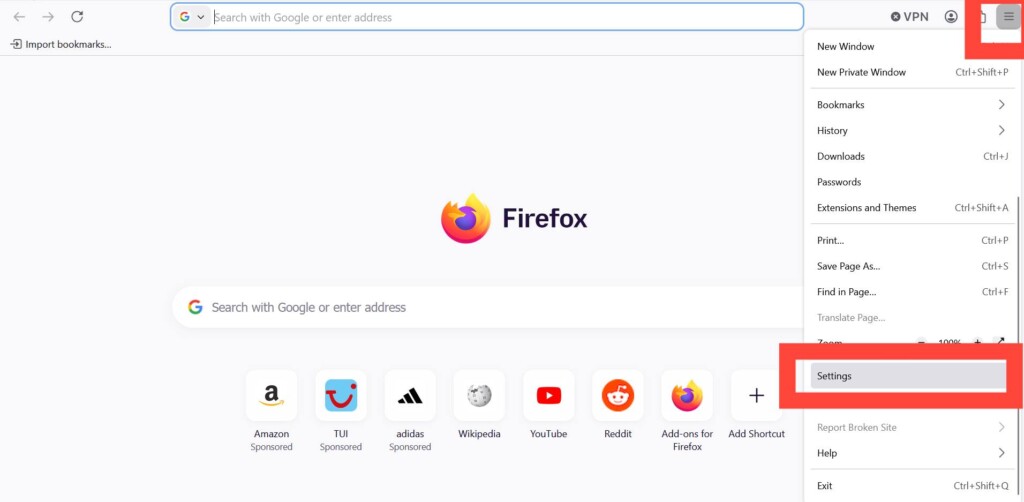
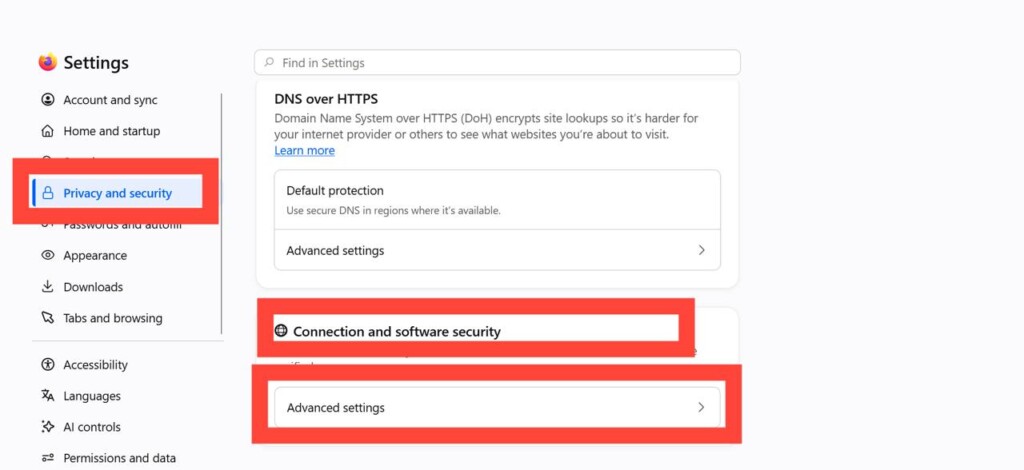
- Choose “Privacy and security” in Settings
- Scroll down to “Connection and Software security” block and click “Advanced settings”
- Scroll down to “Proxy settings” block, click “Configure proxy”
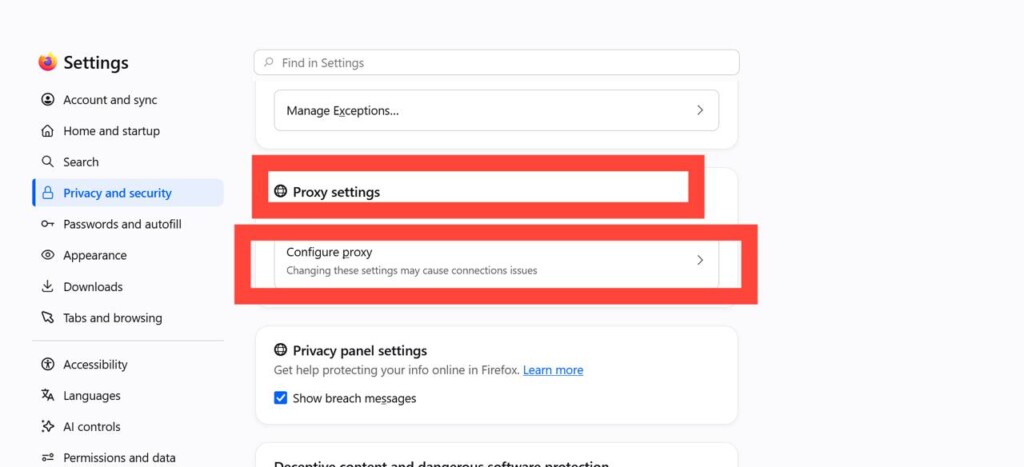
- Choose “Manual or Auto proxy configuration”
This opens the window where all Firefox proxy settings live, including manual configuration and automatic options.
How to set up a proxy in Firefox
To setup proxy in Firefox manually, select “Manual proxy configuration” in the Network Settings window. Manual setup gives you full control over host, port, and protocol.
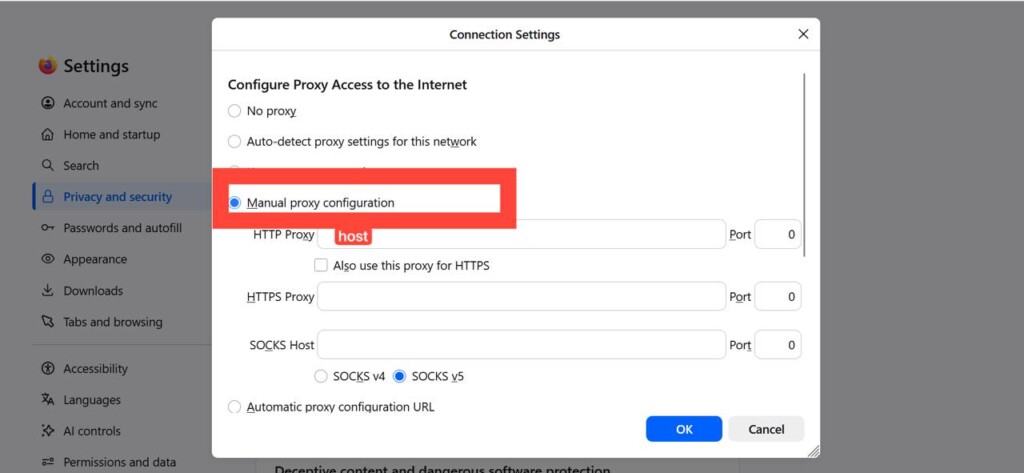
If you’re using NodeMaven, you can copy your proxy credentials directly from your dashboard. NodeMaven supports HTTP, HTTPS, and SOCKS5 proxies, making it fully compatible with Firefox’s built in proxy settings.
The right settings deserve the right proxy. Use NodeMaven’s 30M+ clean residential IPs across 190+ countries for fast, reliable browsing in Firefox.
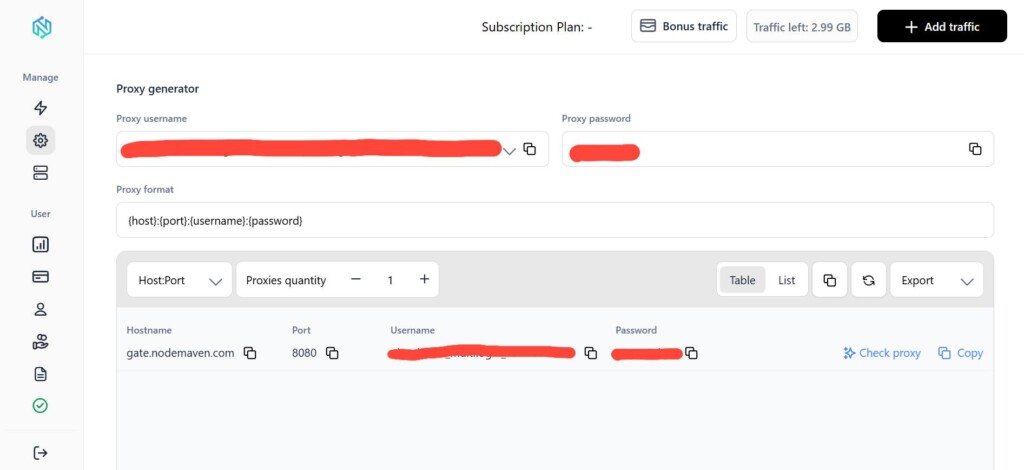
Host: the proxy server address
Port: the port number your provider gives you
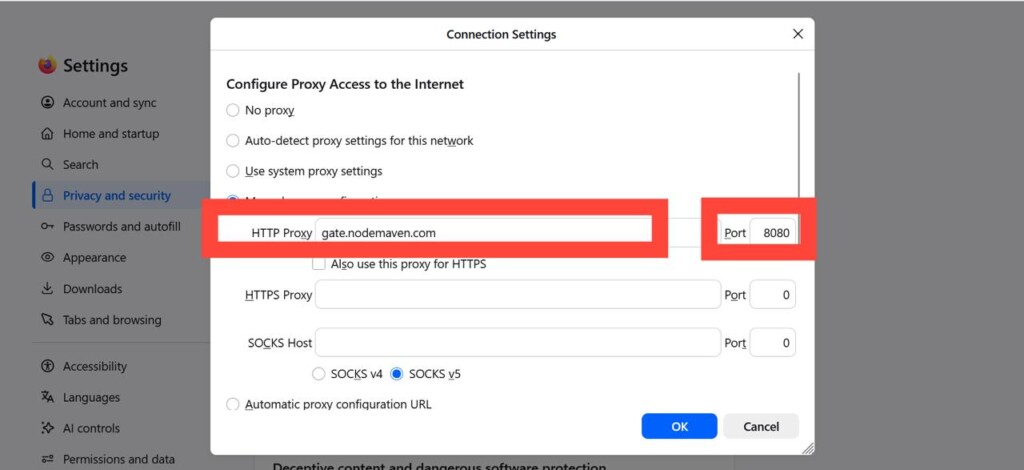
After entering Host and Port click “OK” to save settings and open any website. Firefox will request proxy username and password to enter
Username and Password: needed if your proxy requires authentication
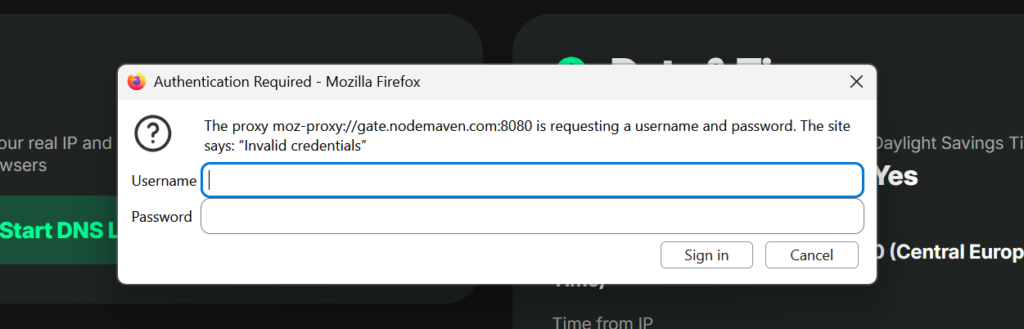
Firefox will now route traffic through your chosen server. You can check your current IP with tools like Pixelscan.
Understanding Firefox proxy options
| Option | When to Use |
| No Proxy | You want Firefox to connect directly, without any proxy. |
| Auto Detect | You want Firefox to use the auto detect proxy settings for this network feature, which is common on managed or corporate networks. |
| Use System Proxy | You already configured a proxy at the operating system level and want Firefox to use the same settings. |
| Manual Proxy | You have the host, port, and protocol details provided by your proxy service and want to configure them manually. |
| Automatic Configuration URL | Your proxy provider gave you a PAC file URL, so Firefox can automatically apply the required proxy rules. |
How to Configure a SOCKS5 Proxy in Firefox
Firefox supports SOCKS4 and SOCKS5. SOCKS4 is older and does not support authentication or UDP traffic. A firefox socks5 proxy handles both, plus stronger privacy through remote DNS resolution.
- Open “Manual proxy configuration”.
- Enter your SOCKS Host and Port.
- Select SOCKS5.
- Check the box for “Proxy DNS when using SOCKS5“
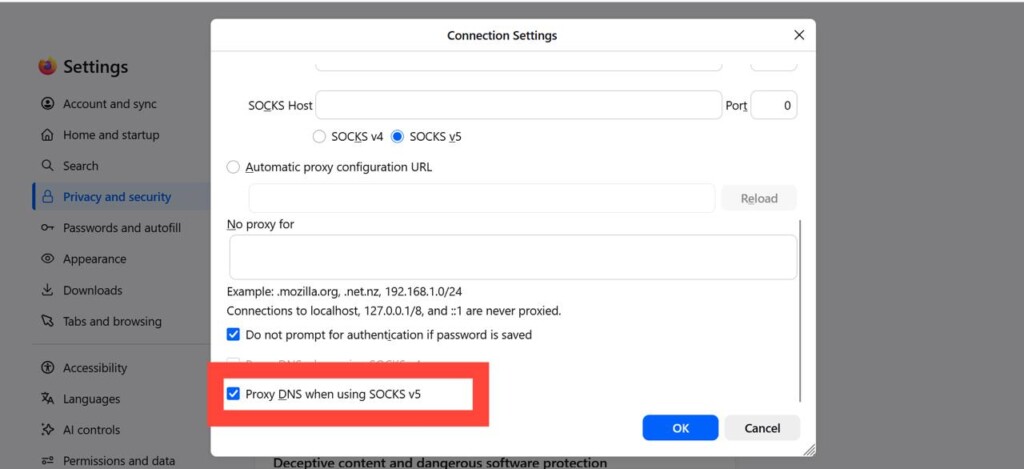
Tip: Enable “Proxy DNS when using SOCKS5” to prevent DNS leaks. Without it, DNS requests can bypass your proxy and reveal your real location.
Ready to browse with a better Firefox proxy? Test NodeMaven’s residential and mobile proxies with an affordable $3.50 trial
Firefox proxy extension vs built-in settings
Some people prefer a proxy extension instead of the built-in menu. A Firefox proxy extension adds a toolbar button to switch servers quickly, which helps if you manage several proxies at once.
| Built In Settings | Firefox Proxy Extension |
| Manual configuration in Firefox settings | Install once from the Firefox Add-ons store |
| Requires reopening settings to switch proxies | Switch proxies with one click from the toolbar |
| Best for using one proxy at a time | Best for managing multiple proxies or browser profiles |
| No additional management features | Includes quick switching, profile management, and other convenience features |
Both methods work well with NodeMaven, since our residential and mobile proxies support standard HTTP, HTTPS, and SOCKS5 connections whether you use a plugin proxy Firefox setup or the native settings menu.
If you often switch between projects, Firefox’s multi account containers pair well with proxies. They let you assign different proxies to different container tabs, which is useful for managing several accounts without mixing sessions.
Common Firefox proxy problems
Firefox cannot connect: double check the host and port, and confirm the proxy is active
Authentication failed: recheck the username and password, since typos are the most common cause
Website loads without proxy: clear the browser cache or confirm Manual Proxy Configuration is still selected
DNS leak: enable “Proxy DNS when using SOCKS5”
Private browsing permission: Firefox requires private browsing permission for proxy settings on some extensions, so check the extension’s permissions if it stops working in private windows
Best proxy for Firefox
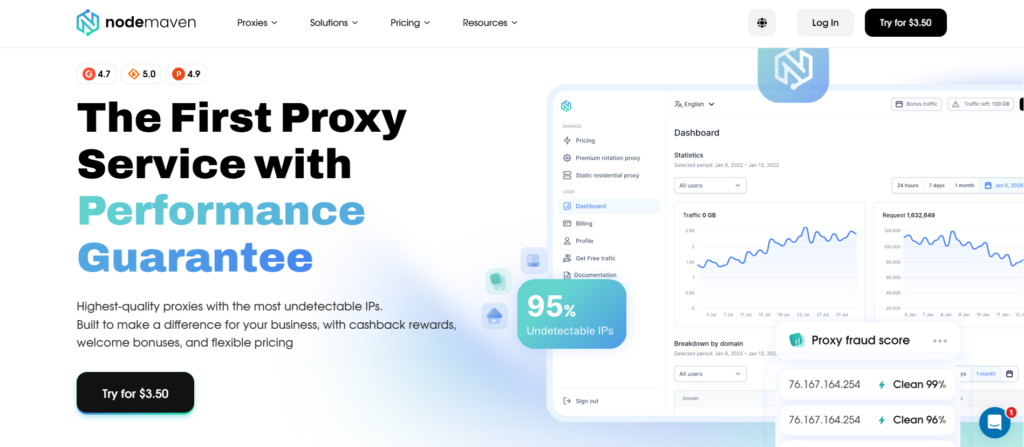
Not every proxy performs the same. Residential proxies work best because they use real IP addresses assigned by internet providers, so websites are less likely to flag or block them.
NodeMaven provides to all clients:
- 30M+ residential IPs across 190+ countries and 1,400+ cities
- Residential, mobile and ISP proxies
- HTTP, HTTPS, and SOCKS5 support
- 95% clean IP-quality filtering
- Sticky sessions that keep the same IP for longer tasks
- Easy setup for Firefox with proxy, whether manual or through an extension
- An affordable $3.50 trial to test performance before committing
If you want proxy that stays fast and reliable, a filtered NodeMaven network makes a real difference.
Conclusion
Setting up a Firefox proxy takes just a few minutes once you know where to look. Whether you choose manual configuration, SOCKS5, or an extension, the steps above cover what you need.
If you want proxy server that stay fast and unblockable, pick a provider with clean, verified IPs.
NodeMaven’s residential and mobile proxies work smoothly with Firefox and support HTTP, HTTPS, and SOCKS5 out of the box. Start with $3.50 trial to see how it performs with your setup.
Whether you use Firefox settings or an extension, NodeMaven works with both. Get reliable residential, mobile, and ISP proxies with 95% clean IP filtering from just $3.50