How to Use Shadowrocket: Proxy Setup, Settings, and Alternatives


Shadowrocket is a proxy client for Apple devices. It routes internet traffic through an HTTP or SOCKS5 proxy, applies custom routing rules, and lets users control which connections use the proxy. The app does not include proxy servers, so you need to add your own provider.
The app has built a substantial user base. At the time of research, the official Shadowrocket App Store listing showed a 4.5 rating from approximately 12,000 users and the number one position in the US Utilities category.
This guide explains how to configure Shadowrocket with proxies, choose the right routing mode, verify the connection, and troubleshoot common errors. It also covers Android and Windows alternatives and shows how NodeMaven’s clean, stable proxies fit each setup.

Connect NodeMaven residential or mobile proxies to Shadowrocket with SOCKS5 support, precise geo-targeting, and stable sessions. Start with 750 MB of traffic for $3.50.
What is Shadowrocket and how does it work?
Shadowrocket is a rule-based proxy utility developed by Shadow Launch Technology Limited. The official app supports iPhone, iPad, compatible Mac computers, and Apple TV.
Once configured, the connection follows this path:
Your device → Shadowrocket → proxy server → website or app
Shadowrocket handles the routing. The proxy provider supplies the IP address, location, protocol, and session.
Downloading Shadowrocket alone will not change your IP. You still need:
- A proxy server address
- A port
- A username and password
- A supported protocol, usually HTTP or SOCKS5
The App Store description confirms support for HTTP, HTTPS, TCP, IPv6, local DNS mapping, domain-based rules, GeoIP rules, URL rewrites, and traffic measurement.
Is Shadowrocket a VPN?
Shadowrocket is often called “Shadowrocket VPN” because Apple displays a VPN icon when the app is connected. The app uses Apple’s networking framework to route traffic through a local tunnel, but it does not work like a typical consumer VPN subscription.
A VPN usually includes both the application and access to remote servers. Shadowrocket is a proxy client, so users add their own proxy configuration.
This gives users control over:
- Which proxy server and IP type are used
- Which websites use the proxy
- Which connections remain direct
- How DNS requests are handled
- When the IP rotates
- How long the session keeps the same address
Many consumer VPNs assign shared datacenter IPs used by large numbers of customers. These addresses may already have poor reputations, while busy servers can reduce connection speed and trigger CAPTCHA. On protected platforms such as Reddit, an overused IP may lead to more CAPTCHAs, verification checks, or access restrictions. NodeMaven’s Reddit proxy guide covers this issue in more detail.
Shadowrocket paired with NodeMaven gives users more control than an average VPN. NodeMaven provides pre-filtered residential, mobile, and ISP IPs, along with geo-targeting and sticky or static sessions. Proxy users get a cleaner address and keep it for the required period instead of accepting whichever shared VPN server is assigned.
Shadowrocket for iOS, Android, Windows, and Mac
The official Shadowrocket application belongs to the Apple ecosystem. Searches for Shadowrocket Android APKs and Windows downloads often lead to applications with similar names, but these should not automatically be treated as versions from the same developer.
Shadowrocket for iPhone and iPad
iPhone and iPad users can download Shadowrocket from the official Apple App Store. The US listing currently prices it at $2.99.
Before purchasing, check that the listed developer is Shadow Launch Technology Limited. This helps avoid unofficial copies and similarly named apps.
Shadowrocket for Mac
The App Store lists Shadowrocket as compatible with supported Mac computers. Availability depends on the device, operating system, processor, and App Store region.
Mac users who need detailed per-application routing can also consider Proxifier. It lets users assign different proxy rules to individual desktop applications.
Shadowrocket for Android
An official Shadowrocket Android release from the Apple-listed developer could not be verified. Be careful with websites offering a “Shadowrocket APK,” particularly when the developer identity and update source are unclear. You can check our Shadowrocket integration guide, which includes Android app setup with screenshots.
A practical Android alternative is Happ. It supports manual SOCKS proxy configuration and has official mobile downloads. NodeMaven has a complete guide for setting up proxies with Happ on Android.
The setup is similar to Shadowrocket:
- Generate a SOCKS5 proxy in NodeMaven dashboard.
- Open manual input in Happ.
- Enter the server, port, username, and password.
- Connect and verify the new IP.
Proxifier is another option. Its official compatibility information lists Android 8 and newer.
Shadowrocket for Windows
There is no verified official Shadowrocket Windows application from Shadow Launch Technology Limited.
For Windows, Proxifier with NodeMaven is the closest alternative for application-level routing. Proxifier supports HTTP, HTTPS, and SOCKS proxy servers and can route applications that lack built-in proxy settings.
The official Proxifier download page lists support for Windows 7, 8, 10, and 11. A 31-day trial is available.
If you only need to proxy browser traffic, Simple Proxy Switcher proxy configuration or SwitchyOmega proxy setup is simpler.
| Device | Recommended client | Suitable for |
| iPhone and iPad | Shadowrocket | Device traffic and routing rules |
| Mac | Shadowrocket or Proxifier | Apple devices and desktop applications |
| Android | Happ or Proxifier | Mobile SOCKS5 connections |
| Windows | Proxifier | Desktop and application-level routing |
| Desktop browser | SwitchyOmega, or Simple Proxy Switcher | Browser traffic only |
What you need before setting up Shadowrocket
Shadowrocket asks for connection details supplied by your proxy provider. For a NodeMaven setup, you need:
- Type: HTTP or SOCKS5
- Server (Hostname): gate.nodemaven.com
- Port: the port shown in the dashboard
- Username: the generated NodeMaven username
- Password: the generated NodeMaven password
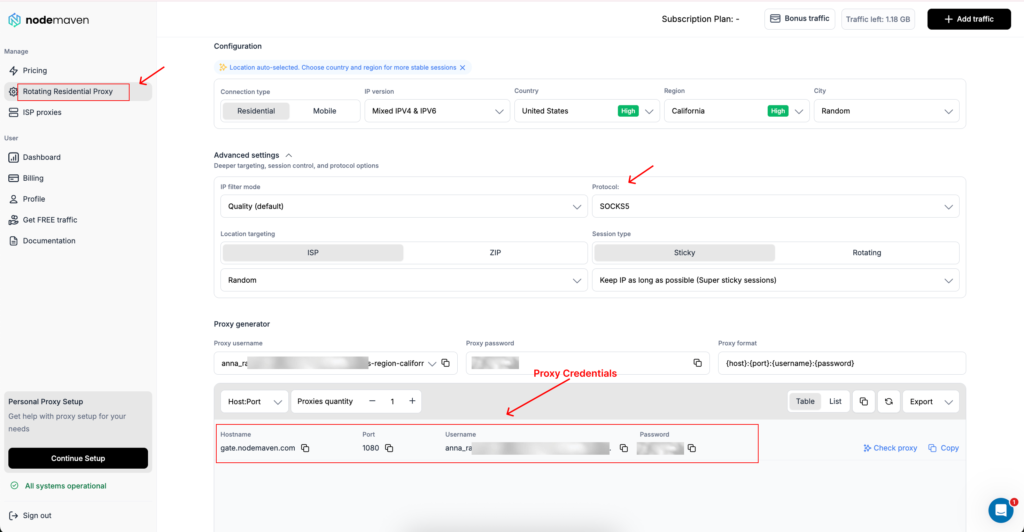
You can copy all the credentials in the dashboard. The username may contain the selected country, city, ISP, filter, or session information. Copy the entire value. Removing part of it can change the configuration or cause authentication to fail.
Which NodeMaven proxy should you choose?
For regular browsing and location-specific access, a residential proxy with a sticky session is a sensible starting point. It uses an IP associated with a consumer network and can keep the same address throughout the session.
An ISP proxy is better when you need one static IP for repeated use. NodeMaven ISP proxies have unlimited traffic, UDP support, and response times below 0.2 seconds.
A mobile proxy uses an IP from a 4G, 5G, or LTE network. Choose it when a mobile carrier address has a specific purpose, such as testing an app or checking cellular content.
Avoid changing the IP on every request when using logged-in accounts. A sticky or static ISP proxy address keeps the connection history more consistent.
How to use Shadowrocket with NodeMaven
Step 1: Install Shadowrocket
Open the App Store and search for Shadowrocket.
Before installing it, confirm:
- Developer: Shadow Launch Technology Limited
- Category: Utilities
- Description: Rule based proxy utility
Open the app after installation. Apple may request permission to create a network configuration later in the setup.
Step 2: Generate a proxy in NodeMaven
Sign in to the NodeMaven dashboard and open the proxy setup tool.
Choose the settings for your connection:
- Select residential or mobile in Rotating Residential Proxy section, or static proxy in ISP proxies section.
- Choose the required country.
- Add city, ISP, or ZIP targeting if supported.
- Select a sticky session for residential or mobile if the IP should remain unchanged.
- Choose HTTP or SOCKS5.
- Select an IP filtering mode.
The default Quality filter prioritizes cleaner addresses. Quality + Speed is useful when both IP reputation and connection speed matter.
Copy the generated server, port, username, and password.
Step 3: Add the NodeMaven proxy to Shadowrocket
Open Shadowrocket and follow these steps:
- Tap the + icon in the upper-right corner of the Home screen.
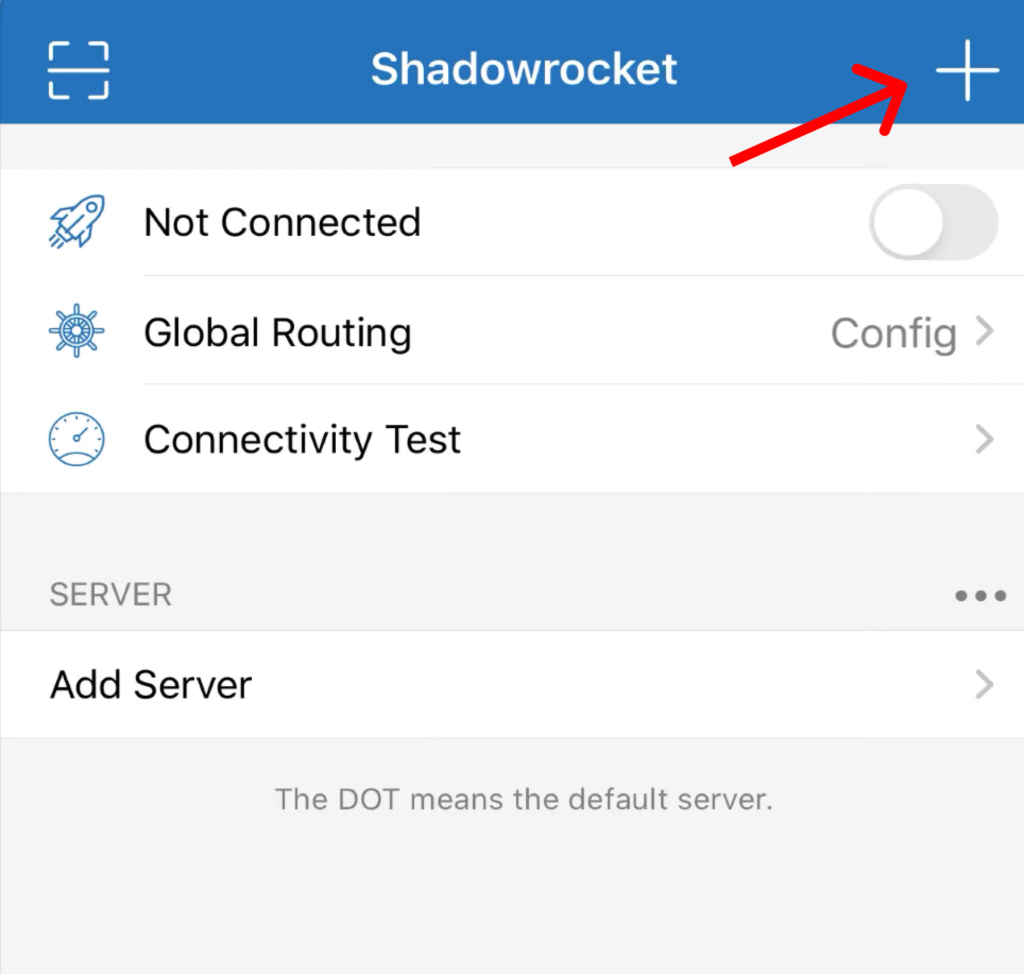
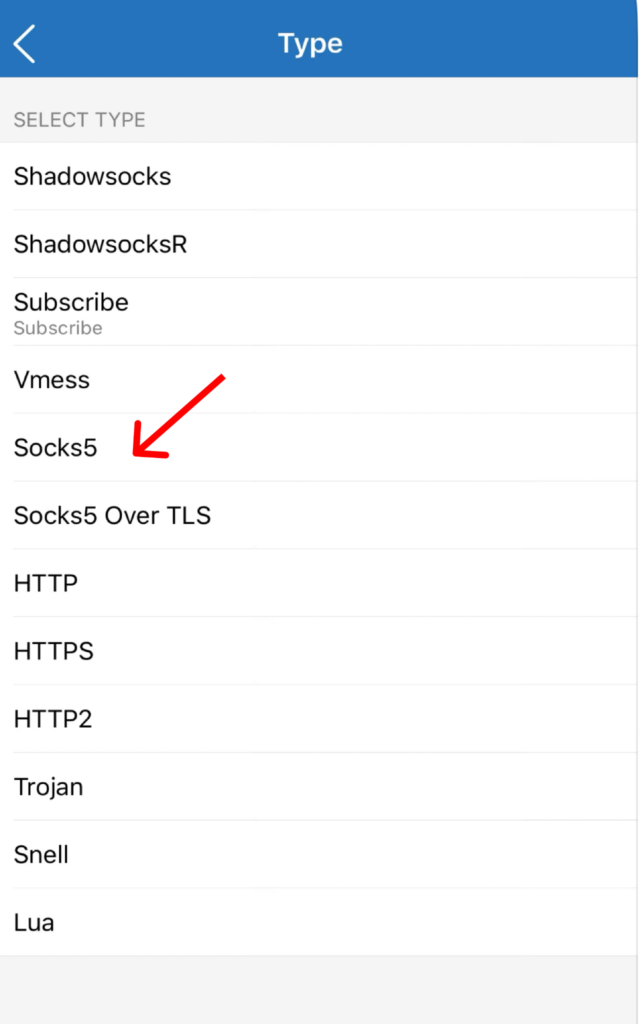
- Tap Type at the top of the Add Server screen.
- Select Socks5.
- Return to the Add Server screen and enter:
- Address (Host): gate.nodemaven.com
- Port: the SOCKS5 port generated in the NodeMaven dashboard
- User: your complete NodeMaven proxy username
- Password: your NodeMaven proxy password
- Remarks: an optional name such as “NodeMaven Germany ISP”
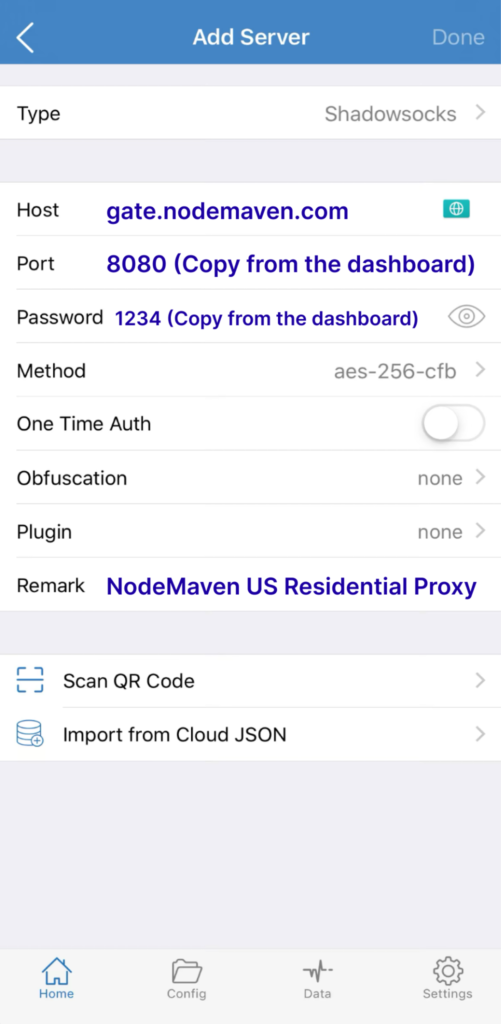
- Tap Done in the upper-right corner.
The new server will appear under Add Server on the Shadowrocket Home screen.
Connect NodeMaven residential or mobile proxies to Shadowrocket with SOCKS5 support, precise geo-targeting, and stable sessions. Start with 750 MB of traffic for $3.50.
Step 4: Select the server and connect
Tap the new NodeMaven server so the selection indicator appears beside it.
Before connecting, open Global Routing and select Proxy. This sends all supported traffic through the selected proxy and makes the first test easier.
Return to the Home screen and move the Not Connected switch to the on position.
The first connection prompts iOS to add Shadowrocket to the device’s VPN configurations. Tap Allow, then confirm with Face ID, Touch ID, or the device passcode.
When the connection succeeds:
- The switch changes to Connected
- A VPN icon appears in the iOS status area
- Shadowrocket may display a Success message
Step 5: Test and verify the proxy
Tap Connectivity Test on the Home screen. Shadowrocket should display the server latency in milliseconds.
Then open an IP lookup tool and check:
- Visible IP address
- Country and city
- Internet service provider
- Connection type
The result should match the location selected in NodeMaven. If the original IP remains visible, check that:
- The NodeMaven server is selected
- Global Routing is set to Proxy
- The connection switch shows Connected
- The server, port, username, and password are correct
Run a DNS leak test as a final check. After confirming the IP and DNS results, you can change Global Routing to Config if you want Shadowrocket to apply custom routing rules instead of proxying all traffic.
Best Shadowrocket and proxy settings for different uses
Shadowrocket controls how device traffic is routed. NodeMaven controls which IP is assigned, where it is located, and how long it remains active.
Choose a Global Routing mode in Shadowrocket
The Global Routing menu appears on the Shadowrocket Home screen and includes four options.
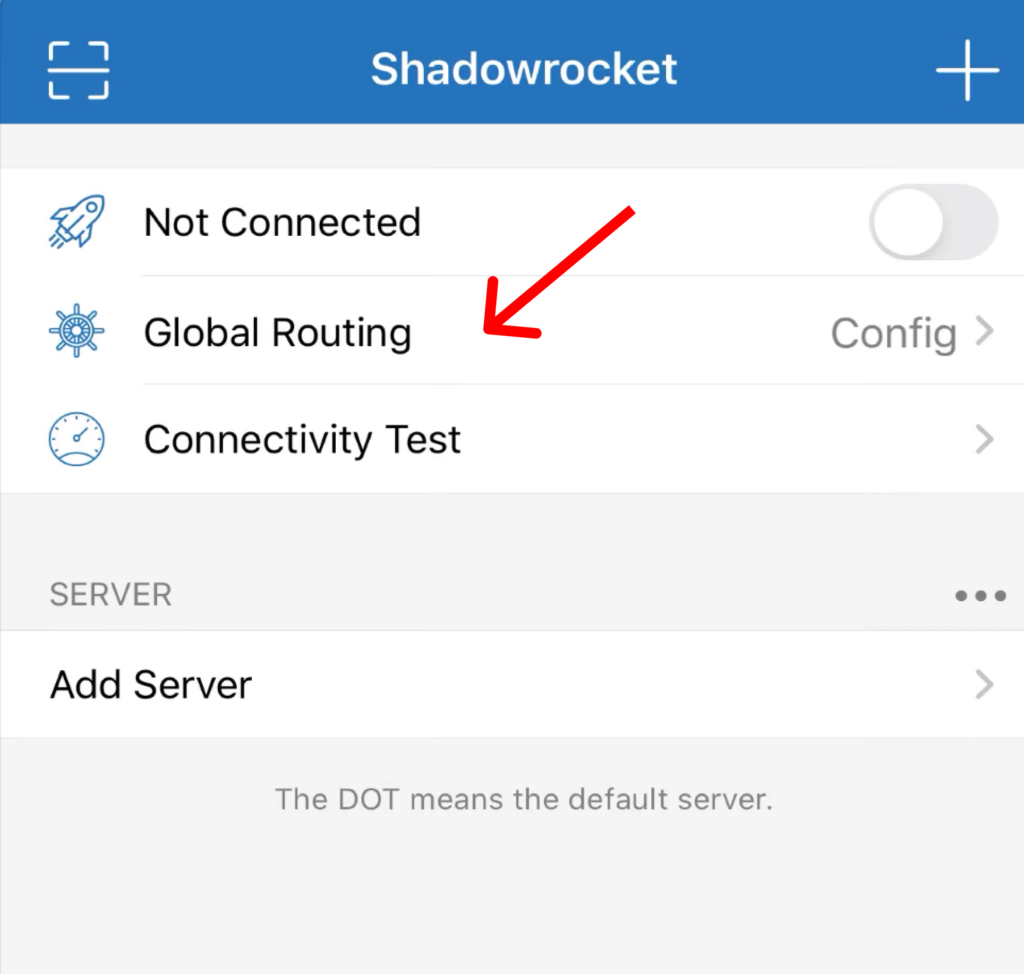
Proxy
Proxy mode sends all supported device traffic through the selected proxy server.
Use it when:
- Testing a new proxy
- Confirming that the visible IP changes
- Routing device traffic through one location
- Checking whether a Config rule causes a connection problem
Proxy is the best mode for the initial setup test.
Config
Config mode follows the rules in the active configuration file. One website can use the proxy while another connects directly.
Rules can use:
- Domain names and suffixes
- Keywords
- IP ranges
- GeoIP information
Choose Config when only selected websites or connections should use the proxy.
Direct
Direct mode bypasses the proxy and uses the device’s regular connection. Websites will see the original IP.
Use it for comparison tests or when the proxy needs to be disabled temporarily.
Scene
Scene mode applies different routing behavior under predefined conditions, such as switching between Wi-Fi and cellular networks.
It is useful for advanced setups where routing should change according to the current network. Most beginners can start with Proxy or Config.
Choose a session type in NodeMaven
Session behavior is configured in the NodeMaven dashboard before generating the proxy credentials.
Use a sticky session for logins, shopping sessions, account work, or websites that store location and session data. NodeMaven residential proxies can keep the same IP for up to seven days.
Use rotation for independent requests that do not depend on the previous connection. Frequent rotation is usually unnecessary for ordinary Shadowrocket browsing and can interrupt authenticated sessions.
Choose HTTP or SOCKS5
The protocol is selected in NodeMaven and must match the Type chosen when adding the server in Shadowrocket.
HTTP works well for standard browser traffic.
SOCKS5 supports a broader range of traffic and is usually the more flexible choice for Shadowrocket. If an application needs UDP, confirm that the selected proxy product supports it. NodeMaven ISP proxies support both TCP and UDP.
Shadowrocket not working: common problems and fixes
A green Connected switch confirms that Shadowrocket has started its iOS network tunnel. It does not confirm that the selected proxy works or that every connection follows the intended route.
Shadowrocket connects, but the IP does not change
Confirm that the correct server has a selection indicator beside it. Then open Global Routing, select Proxy, and check the IP again.
If the IP changes in Proxy mode but not Config mode, the proxy is working. A rule in the active configuration file is probably sending the connection directly.
Shadowrocket shows an authentication error
Open the saved server and check:
- Type: Socks5
- Address: gate.nodemaven.com
- Port: the port shown in NodeMaven
- User: the complete proxy username
- Password: the proxy password
The Type selected in Shadowrocket must match the protocol generated in NodeMaven. Check copied credentials for missing characters or accidental spaces.
Connectivity Test works, but apps have no internet
Shadowrocket’s Connectivity Test checks whether the selected server responds and displays its latency. It does not validate every routing rule, DNS request, or application connection.
A user in this Shadowrocket community discussion reported that the server test passed while applications remained offline.
Try this sequence:
- Open Global Routing and select Proxy.
- Test the affected app again.
- If it works, the problem is likely in the active Config rules.
- Open the Config tab and restore or test the default configuration.
- Restart Shadowrocket and reconnect.
Reintroduce custom rules one at a time to find the rule causing the problem.
Shadowrocket works on Wi-Fi but not cellular data
Open the iPhone or iPad settings and confirm that Shadowrocket can use cellular data. The official App Store description states that Shadowrocket supports cellular networks.
If permission is enabled, reconnect and run Connectivity Test while using mobile data. Try another NodeMaven server if the selected address responds on Wi-Fi but times out over the carrier network.
Old network profiles can also interfere with the connection. Users describe device-specific profile and permission problems in this Shadowrocket iPhone discussion.
The connection is slow
Run Connectivity Test and check the response time shown in milliseconds. High latency may indicate that the proxy location is too far away or the selected address is responding slowly.
Try:
- A country or city closer to your actual location
- NodeMaven’s Quality + Speed filter
- Another IP in the same target location
- An ISP proxy for a fast, static connection
You can briefly compare the result with Direct mode, but remember that Direct exposes the device’s normal IP.
The IP changes, but DNS still uses the original network
Run a DNS leak test after connecting. If it still shows the original network, review the DNS options in Shadowrocket and check whether the active configuration specifies a local resolver.
Other VPN profiles, private DNS applications, and security tools may control DNS separately. Disable conflicting network profiles temporarily, reconnect Shadowrocket, and repeat the test.
Why use NodeMaven proxies with Shadowrocket?
Shadowrocket gives users detailed routing controls, but the quality of the connection depends on the proxy behind it. A public free proxy with a poor reputation can be slow, overloaded, or already blocked by popular websites.
NodeMaven filters its proxy pool before assigning addresses. This gives Shadowrocket users cleaner IPs and more control over location and session duration.
Features suited to Shadowrocket include:
- Residential proxies in more than 190 countries
- City, ISP, and ZIP targeting
- Sticky residential sessions lasting up to 24 hours
- HTTP and SOCKS5 support
- Quality and Speed filters
- Residential and mobile access under one traffic plan
- Static ISP proxies with unlimited traffic and UDP support
- Quality guarantee for residential, mobile, and ISP products
For regular browsing, start with a sticky residential proxy in the required location. Choose an ISP proxy when a static address, faster response time, and unlimited traffic are more important than broad location coverage.
NodeMaven’s residential and mobile trial costs $3.50 and includes 750 MB of traffic. This is enough to configure Shadowrocket, verify the connection, and test the selected IP before purchasing a larger plan.
Connect NodeMaven residential or mobile proxies to Shadowrocket with SOCKS5 support, precise geo-targeting, and stable sessions. Start with 750 MB of traffic for $3.50.