Try for $3.50
Back

Chrome Proxy Settings Guide: How to Set Up and Change Proxy in Google Chrome

Summarize this article with your preferred AI
Try our premium proxies

Test our premium proxies with no limits on quality.

  • Mobile & residential proxies
  • ZIP-level targeting
  • Static & rotating IPs
  • Built-in quality filter
Try now

Chrome proxy settings control how your browser connects to the internet through a proxy server instead of directly through your local network. People use proxies in Chrome for many reasons such as testing websites from different locations, managing multiple sessions, or running browser-based automation tasks.

In this guide, you’ll learn how to change proxy settings in Google Chrome, add a proxy server, and switch between proxies using browser extensions. We’ll demonstrate the setup using NodeMaven proxies, where clean, high-quality IPs help ensure stable Chrome connections.

u003cdivntttntttclass=u0022so-widget-rhinocore-addons-rhino-alert-banner so-widget-rhinocore-addons-rhino-alert-banner-default-d75171398898u0022ntttnttu003eu003cdiv class=u0022rhino-widget rhino-widgetu002du002drhinocore-addons-rhino-alert-banner section-alertu0022 style=u0022u002du002dalert-background-color: #E6E6FFu0022nu003en u003cdiv class=u0022section-alert__iconu0022u003en u003cimg src=u0022https://nodemaven.com/wp-content/uploads/2026/02/icon-4.svgu0022 alt=u0022u0022 loading=u0022lazyu0022 width=u002264u0022 height=u002264u0022u003e u003c/divu003en n u003cdiv class=u0022section-alert__mainu0022u003en n u003cdiv class=u0022section-alert__descriptionu0022u003eu003cpu003eGet 750MB of NodeMaven proxy traffic for $3.50 and start using proxies in Chromeu003c/pu003enu003c/divu003en u003c/divu003en n u003can class=u0022section-alert__button b-btn b-btnu002du002dstatic-xl b-btnu002du002dsecondary-blacku0022n href=u0022https://dashboard.nodemaven.com/accounts/signup/?next=/checkout/pag/trialu0026#038;_gl=1*1um2ioy*_gcl_au*NDk2MjIxNDYuMTc3MzE0MDgwMw..*_ga*NDY4OTU1MjAyLjE3NTc1ODY1MjM.*_ga_33JL89XFQ5*czE3NzQ4Nzg3MjQkbzYwOSRnMSR0MTc3NDg4MDk0OCRqMTIkbDAkaDIxMzU1OTIzODQu0022n u003en Start trial u003c/au003en u003c/divu003enu003c/divu003e

How to Set and Change Proxy Settings Using the Chrome Simple Proxy Switcher Extension

If you often switch proxy servers in Google Chrome, using a Chrome proxy extension is usually the easiest option. Instead of opening system network settings every time, the extension allows you to set and change proxy settings directly inside the browser.

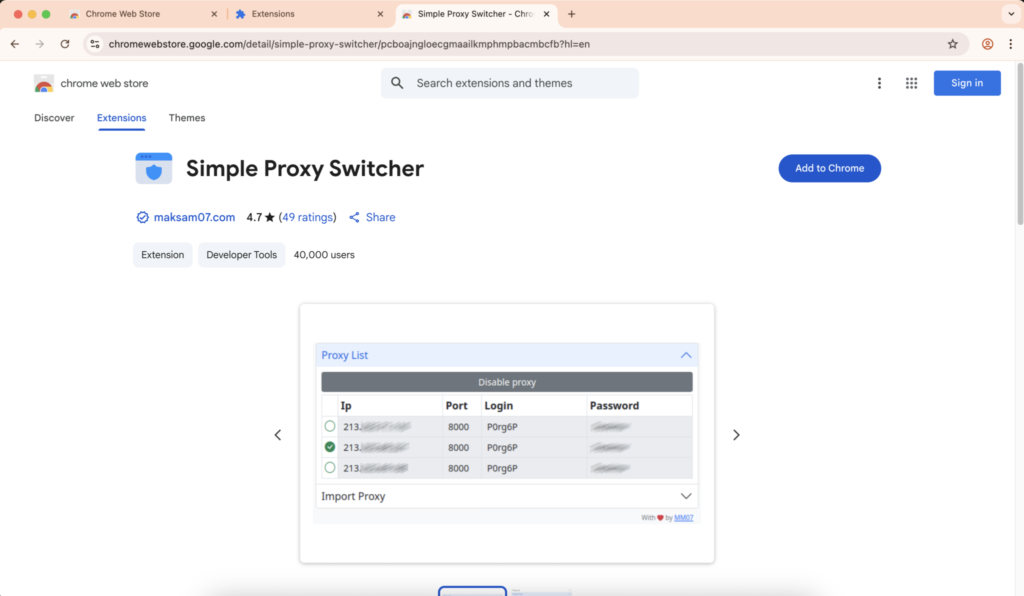
One commonly used tool is Simple Proxy Switcher in the Chrome Web Store. This Google Chrome proxy extension lets you add proxy profiles, enable or disable them, and quickly switch between different proxy connections.

Install the Chrome Simple Proxy Switcher Extension

First, install the extension from the Chrome Web Store.

  1. Open the Chrome Web Store
  2. Search for Simple Proxy Switcher.
Simple Proxy Switcher Proxy Setting - NodeMaven
  1. Click Add to Chrome
  2. Confirm the installation

After installation, the extension icon will appear in the Chrome toolbar. From there, you can manage your proxy server in Chrome without opening system proxy settings.

Add a Proxy Server to Chrome

After installing the extension, you can add your proxy configuration.

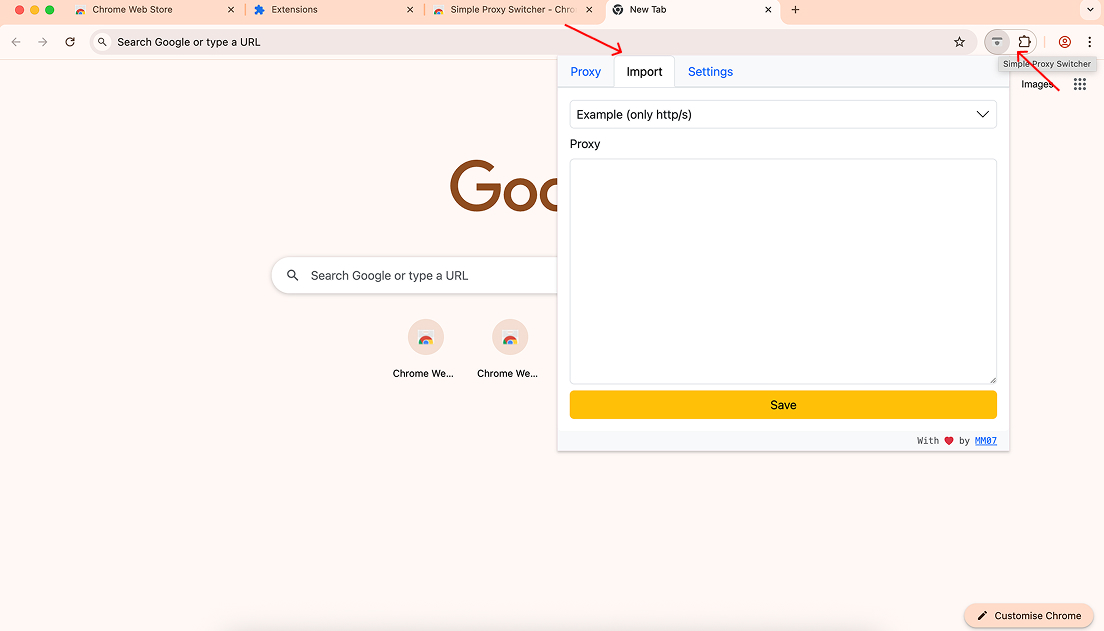
  1. Click the Simple Proxy Switcher icon in Chrome
Simple Proxy Switcher Chrome Proxy Setting - NodeMaven
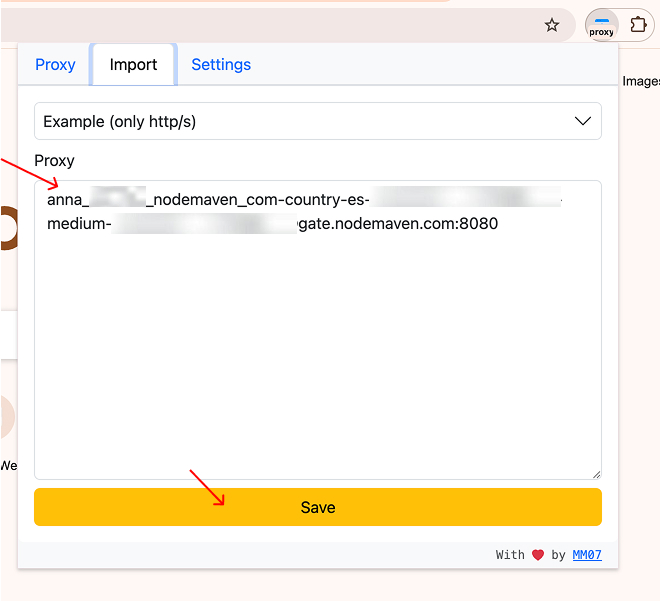
  1. Open the Import tab
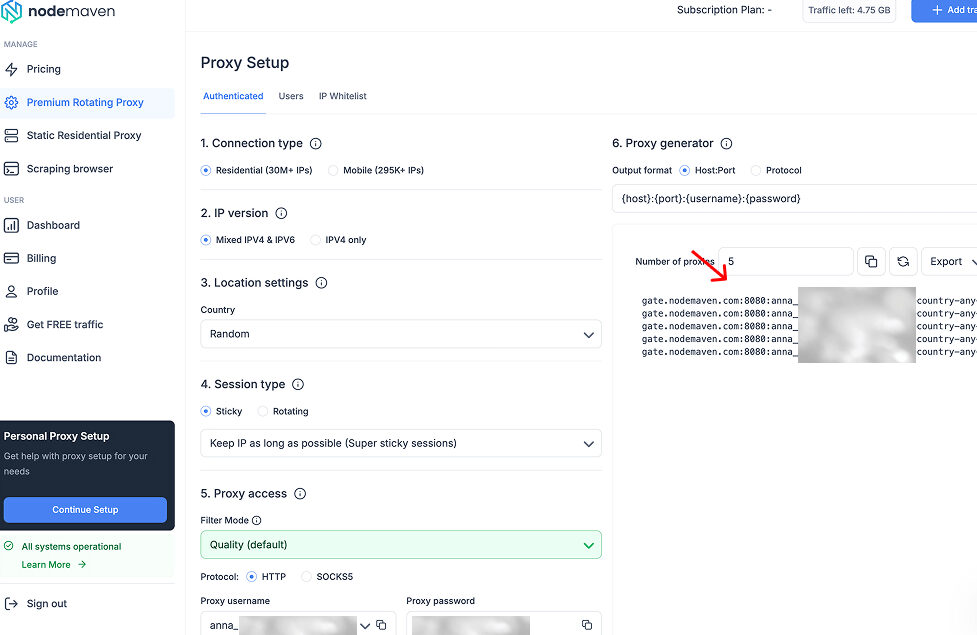
  2. Generate your proxy configuration in the NodeMaven dashboard
Proxy Dashboard - NodeMaven
u003cdivntttntttclass=u0022so-widget-rhinocore-addons-rhino-alert-banner so-widget-rhinocore-addons-rhino-alert-banner-default-d75171398898u0022ntttnttu003eu003cdiv class=u0022rhino-widget rhino-widgetu002du002drhinocore-addons-rhino-alert-banner section-alertu0022 style=u0022u002du002dalert-background-color: #E6E6FFu0022nu003en u003cdiv class=u0022section-alert__iconu0022u003en u003cimg src=u0022https://nodemaven.com/wp-content/uploads/2026/02/icon-4.svgu0022 alt=u0022u0022 loading=u0022lazyu0022 width=u002264u0022 height=u002264u0022u003e u003c/divu003en n u003cdiv class=u0022section-alert__mainu0022u003en n u003cdiv class=u0022section-alert__descriptionu0022u003eu003cpu003eGet 750MB of NodeMaven proxy traffic for $3.50 and start using proxies in Chromeu003c/pu003enu003c/divu003en u003c/divu003en n u003can class=u0022section-alert__button b-btn b-btnu002du002dstatic-xl b-btnu002du002dsecondary-blacku0022n href=u0022https://dashboard.nodemaven.com/accounts/signup/?next=/checkout/pag/trialu0026#038;_gl=1*1um2ioy*_gcl_au*NDk2MjIxNDYuMTc3MzE0MDgwMw..*_ga*NDY4OTU1MjAyLjE3NTc1ODY1MjM.*_ga_33JL89XFQ5*czE3NzQ4Nzg3MjQkbzYwOSRnMSR0MTc3NDg4MDk0OCRqMTIkbDAkaDIxMzU1OTIzODQu0022n u003en Start trial u003c/au003en u003c/divu003enu003c/divu003e
  1. Copy the proxy string provided there
  2. Paste it into the extension
Simple Proxy Switcher Chrome Proxy Setting - NodeMaven
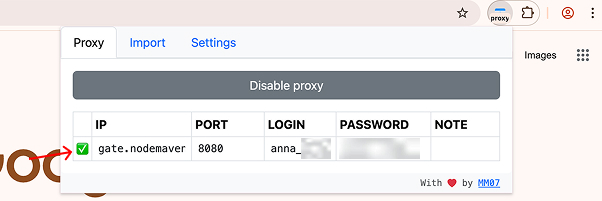
  1. Click Save
  2. Go to the Proxy tab and enable your proxy
Simple Proxy Switcher Chrome Proxy Setting - NodeMaven
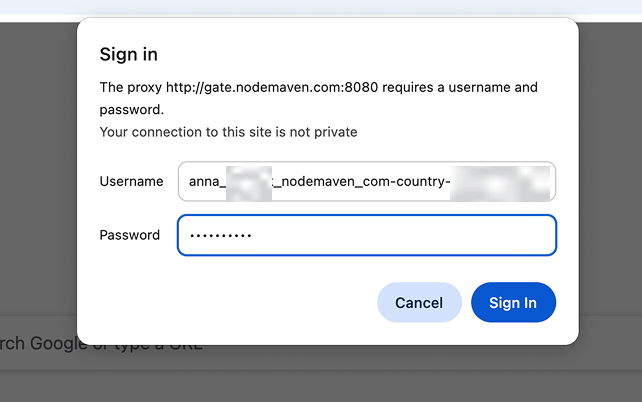
  1. Try to go to any website, and enter your proxy credentials to the appeared Sign in tab (Go to the NodeMaven Dashboard to copy your Proxy username and password)
Simple Proxy Switcher Chrome Proxy Setting - NodeMaven
  1. Double-check the assigned IP and location using a trusted IP-checking tool

This will add the proxy profile to your browser.

With NodeMaven proxies, starting to use Chrome with proxies is straightforward because the proxy credentials are already generated in the dashboard, and the IPs are filtered for quality and stability.

Switch Proxy Servers in Chrome

Once the proxy profile is saved, you can change proxy settings in Chrome in just a few clicks.

  1. Click the Simple Proxy Switcher icon
  2. Open the Proxy tab
  3. Select the proxy profile you created, or add a new proxy
  4. Enable the proxy
u003cdivntttntttclass=u0022so-widget-rhinocore-addons-rhino-alert-banner so-widget-rhinocore-addons-rhino-alert-banner-default-d75171398898u0022ntttnttu003eu003cdiv class=u0022rhino-widget rhino-widgetu002du002drhinocore-addons-rhino-alert-banner section-alertu0022 style=u0022u002du002dalert-background-color: #E6E6FFu0022nu003en u003cdiv class=u0022section-alert__iconu0022u003en u003cpictureu003eu003csource srcset=u0022https://nodemaven.com/wp-content/uploads/rhino-images/images/2026/05/18/icon-2_64x64_1x_b1e0296b.webp 1x, https://nodemaven.com/wp-content/uploads/rhino-images/images/2026/05/18/icon-2_128x128_2x_b1e0296b.webp 1.3xu0022 type=u0022image/webpu0022u003eu003cimg alt=u0022u0022 loading=u0022lazyu0022 width=u002264u0022 height=u002264u0022 src=u0022https://nodemaven.com/wp-content/uploads/rhino-images/images/2026/05/18/icon-2_64x64_1x_b1e0296b.pngu0022u003eu003c/pictureu003e u003c/divu003en n u003cdiv class=u0022section-alert__mainu0022u003en u003cdiv class=u0022section-alert__titleu0022u003eTipu003c/divu003en n u003cdiv class=u0022section-alert__descriptionu0022u003eu003cpu003eYou can confirm the connection by visiting u003ca href=u0022https://www.maxmind.com/en/locate-my-ip-addressu0022u003ean IP checker pageu003c/au003e and verifying that your browser is using the proxy location.u003c/pu003enu003c/divu003en u003c/divu003en n u003c/divu003enu003c/divu003e

Chrome will now route traffic through the selected proxy server.

u003cdivntttntttclass=u0022so-widget-rhinocore-addons-rhino-alert-banner so-widget-rhinocore-addons-rhino-alert-banner-default-d75171398898u0022ntttnttu003eu003cdiv class=u0022rhino-widget rhino-widgetu002du002drhinocore-addons-rhino-alert-banner section-alertu0022 style=u0022u002du002dalert-background-color: #E6E6FFu0022nu003en u003cdiv class=u0022section-alert__iconu0022u003en u003cimg src=u0022https://nodemaven.com/wp-content/uploads/2026/02/icon-4.svgu0022 alt=u0022u0022 loading=u0022lazyu0022 width=u002264u0022 height=u002264u0022u003e u003c/divu003en n u003cdiv class=u0022section-alert__mainu0022u003en n u003cdiv class=u0022section-alert__descriptionu0022u003eu003cpu003eGet 750MB of NodeMaven proxy traffic for $3.50 and start using proxies in Chromeu003c/pu003enu003c/divu003en u003c/divu003en n u003can class=u0022section-alert__button b-btn b-btnu002du002dstatic-xl b-btnu002du002dsecondary-blacku0022n href=u0022https://dashboard.nodemaven.com/accounts/signup/?next=/checkout/pag/trialu0026#038;_gl=1*1um2ioy*_gcl_au*NDk2MjIxNDYuMTc3MzE0MDgwMw..*_ga*NDY4OTU1MjAyLjE3NTc1ODY1MjM.*_ga_33JL89XFQ5*czE3NzQ4Nzg3MjQkbzYwOSRnMSR0MTc3NDg4MDk0OCRqMTIkbDAkaDIxMzU1OTIzODQu0022n u003en Start trial u003c/au003en u003c/divu003enu003c/divu003e

How to Manually Configure Chrome Proxy Settings

You can also configure a proxy in Chrome manually. Chrome does not have its own independent proxy configuration panel. Instead, Chrome proxy settings are controlled by your operating system’s network settings. This means when you configure a proxy in your system settings, Chrome will automatically use that connection.

Step 1: Open Chrome Proxy Settings

  1. Open Google Chrome
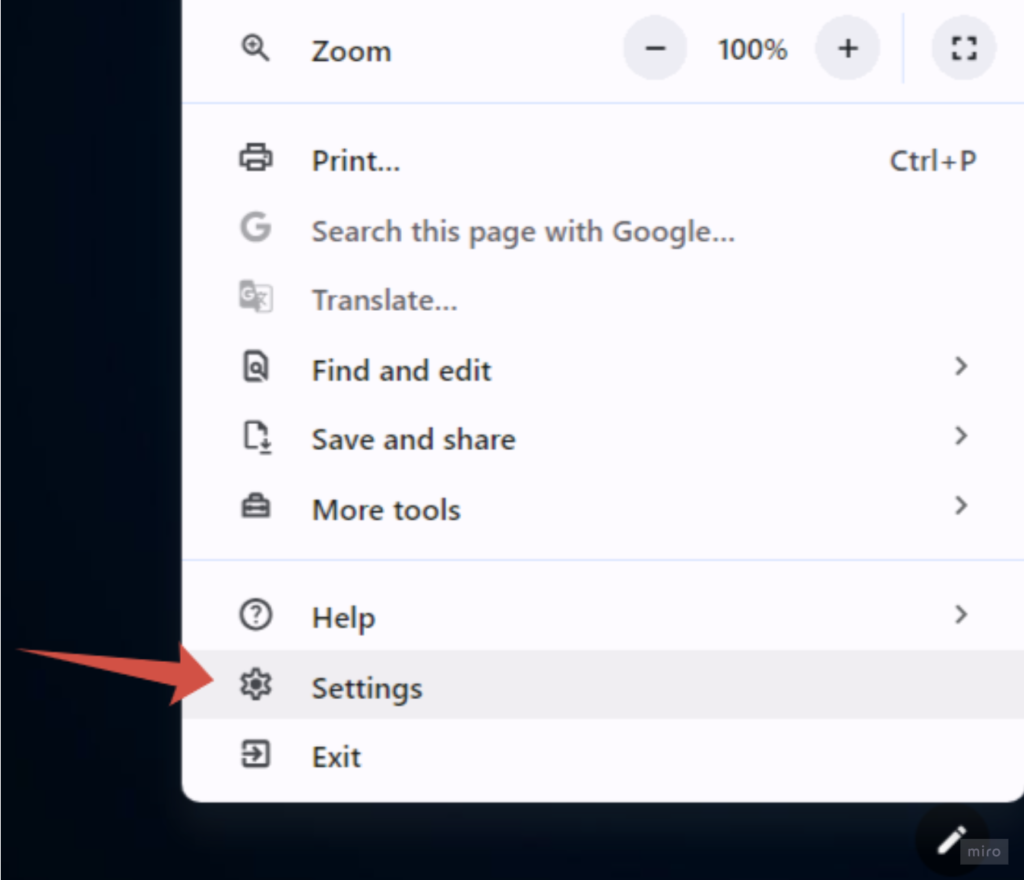
  2. Click the three-dot menu in the top right corner
  3. Select Settings
Chrome Proxy Settings - NodeMaven
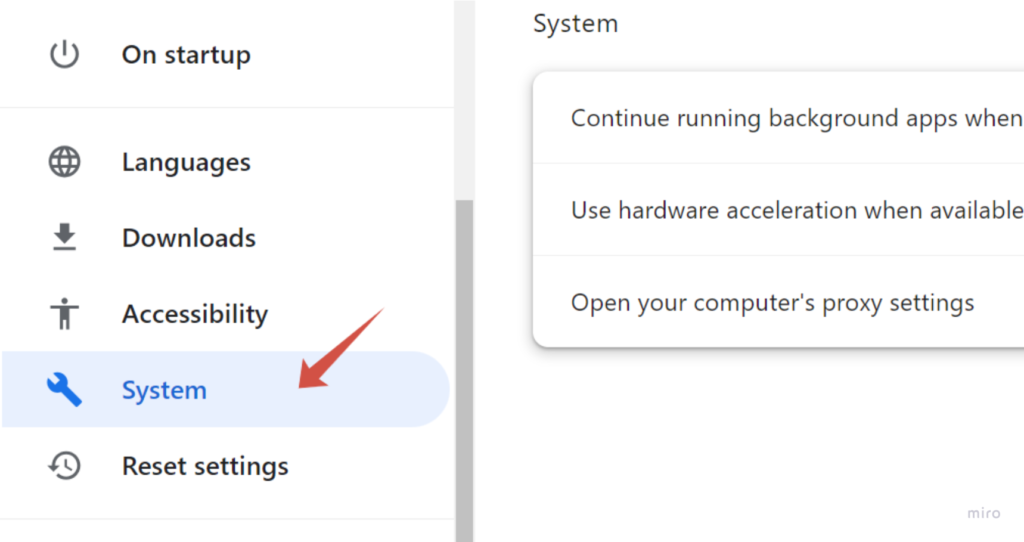
  1. Scroll down to the System section
Chrome Proxy Settings - NodeMaven
  1. Click Open your computer’s proxy settings
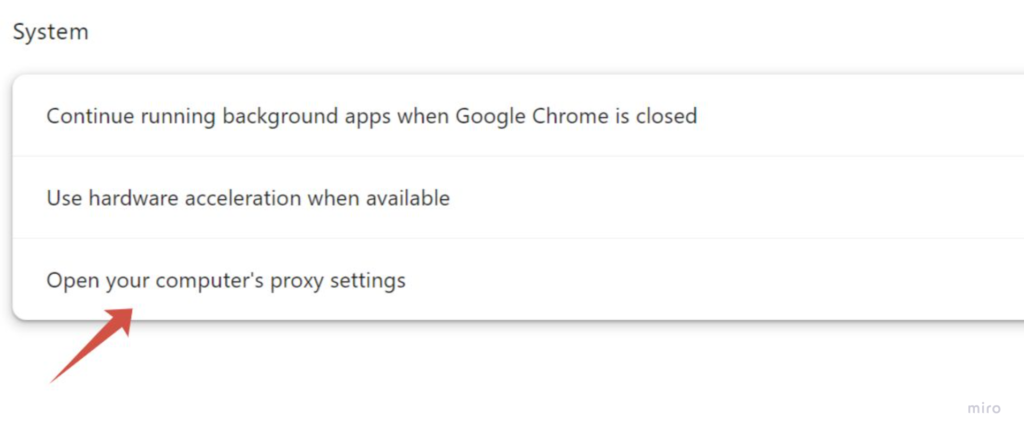
Chrome Proxy Settings - NodeMaven

This will open the proxy configuration panel of your operating system, where you can add or change proxy settings.

Step 2: Add a Proxy Server in Chrome

Once the proxy settings window opens, you can configure your proxy connection.

On macOS

  1. Open Network Settings
  2. Select your active connection such as Wi-Fi or Ethernet
  3. Click Details
  4. Open the Proxies tab
  5. Choose the proxy protocol you want to use, usually SOCKS5 or HTTP
  6. Enter the following information:
  • Proxy server address
  • Port
  • Username and password if authentication is required

Save the changes to apply the configuration.

On Windows

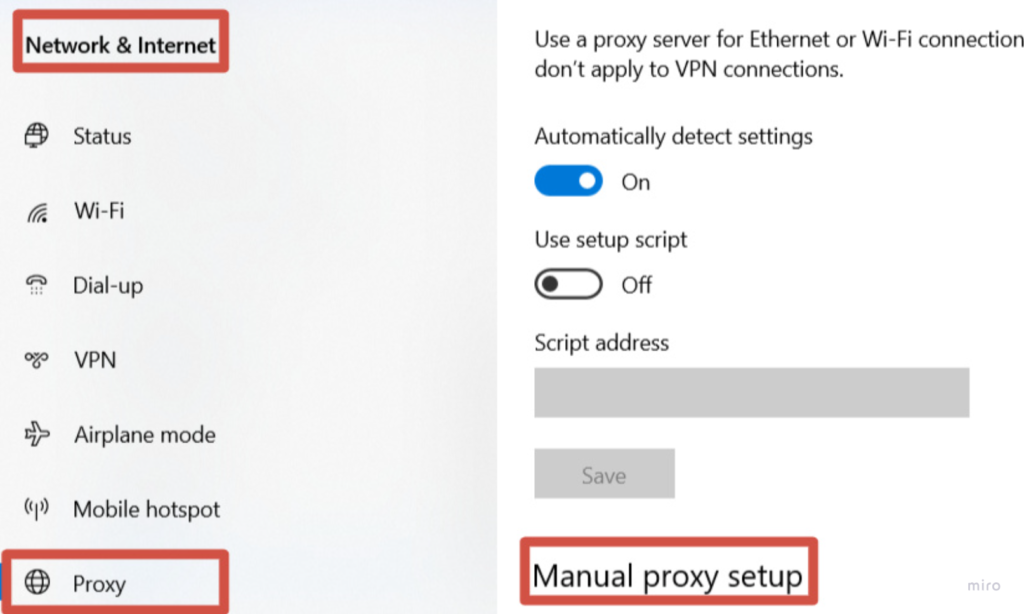
  1. Open Proxy settings
Chrome Proxy Settings (Windows) - NodeMaven
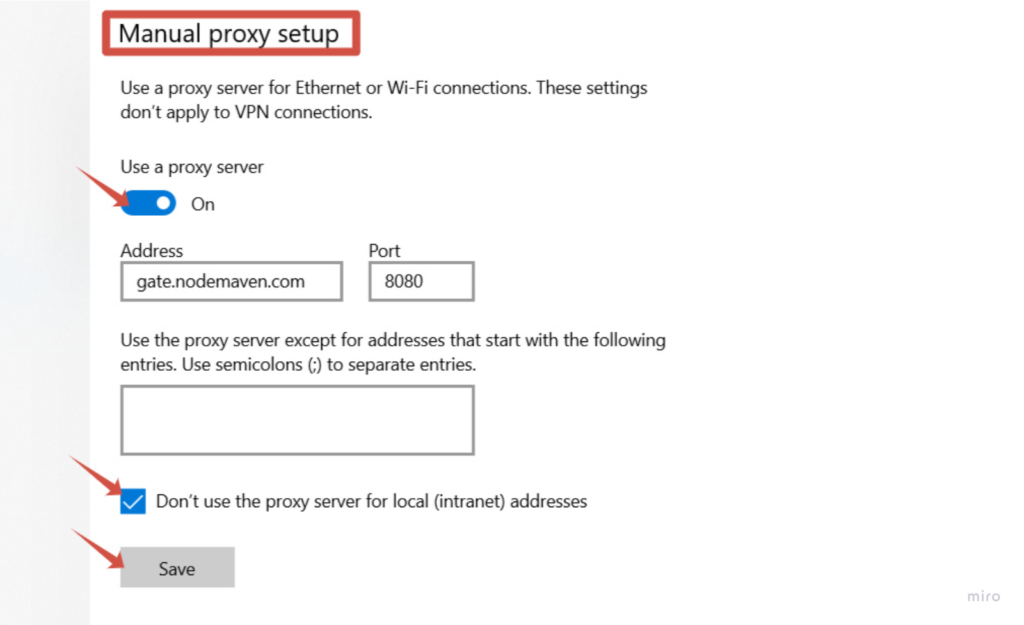
  1. Turn on Use a proxy server
Chrome Proxy Settings - NodeMaven
  1. Enter the proxy server IP address
  2. Enter the port number
  3. Save the settings
  4. Try to go to any website, and enter your proxy credentials to the appeared Sign in tab (Go to the NodeMaven Dashboard to copy your Proxy username and password)

After saving, Chrome will automatically route browser traffic through the configured proxy server.

u003cdivntttntttclass=u0022so-widget-rhinocore-addons-rhino-alert-banner so-widget-rhinocore-addons-rhino-alert-banner-default-d75171398898u0022ntttnttu003eu003cdiv class=u0022rhino-widget rhino-widgetu002du002drhinocore-addons-rhino-alert-banner section-alertu0022 style=u0022u002du002dalert-background-color: #E6E6FFu0022nu003en u003cdiv class=u0022section-alert__iconu0022u003en u003cimg src=u0022https://nodemaven.com/wp-content/uploads/2026/02/icon-4.svgu0022 alt=u0022u0022 loading=u0022lazyu0022 width=u002264u0022 height=u002264u0022u003e u003c/divu003en n u003cdiv class=u0022section-alert__mainu0022u003en n u003cdiv class=u0022section-alert__descriptionu0022u003eu003cpu003eGet 750MB of NodeMaven proxy traffic for $3.50 and start using proxies in Chromeu003c/pu003enu003c/divu003en u003c/divu003en n u003can class=u0022section-alert__button b-btn b-btnu002du002dstatic-xl b-btnu002du002dsecondary-blacku0022n href=u0022https://dashboard.nodemaven.com/accounts/signup/?next=/checkout/pag/trialu0026#038;_gl=1*1um2ioy*_gcl_au*NDk2MjIxNDYuMTc3MzE0MDgwMw..*_ga*NDY4OTU1MjAyLjE3NTc1ODY1MjM.*_ga_33JL89XFQ5*czE3NzQ4Nzg3MjQkbzYwOSRnMSR0MTc3NDg4MDk0OCRqMTIkbDAkaDIxMzU1OTIzODQu0022n u003en Start trial u003c/au003en u003c/divu003enu003c/divu003e

Step 3: Check if the Chrome Proxy Works

To make sure the proxy is active, open a new Chrome tab and visit an IP checking website. If the setup is correct, the displayed IP address and location should match the proxy server you configured.

When Should You Use a Proxy in Chrome?

Changing Chrome proxy settings allows your browser to connect to websites through a proxy server instead of your local network. This can be useful in many situations where you need more control over your connection, location, or browser sessions.

Common cases where people use a proxy in Chrome browser include:

Testing websites from different locations
Developers and marketers often use a proxy server in Chrome to check how websites, ads, or landing pages appear in different countries or cities.

Running automation tools
Many browser automation workflows rely on proxies to distribute requests across different IP addresses. Setting up proxy settings in Chrome helps keep these tasks running without interruptions.

Managing multiple sessions or accounts
If you work with several accounts or browser profiles, proxies help keep sessions separate by assigning a different IP to each connection.

Browsing with a different IP location
Using a proxy allows your Google Chrome proxy settings to route traffic through another region, which can be useful when checking region-specific content or services.

Many users configure Chrome proxy settings for tasks such as automation workflows, regional testing, and collecting public data from websites. Using reliable proxy providers like NodeMaven makes the setup easier because their residential, mobile, and ISP proxies come with clean IPs and stable connections that work smoothly with Chrome.

Why Free Chrome Proxies Often Cause Problems

Free proxies may look convenient at first, especially if you only need a quick way to change your IP. However, many free proxy lists are unreliable and often cause problems when used with Chrome proxy settings.

Common issues with free proxies include:

Blocked or blacklisted IP addresses
Free proxy servers are often used by thousands of people at the same time. Because of that, many of their IPs are already flagged or blocked by websites.

Slow page loading
Public proxy servers usually have limited bandwidth and too many users connected at once, which leads to very slow browsing speeds.

Unstable connections
Free proxies frequently go offline or disconnect without warning. This can interrupt sessions and make automation tools or browser workflows unreliable.

Frequent CAPTCHA challenges
Since many users share the same IP address, websites may treat the traffic as suspicious and trigger additional verification steps.

Chrome works best with stable network connections, so unreliable proxies can easily disrupt normal browsing and testing workflows. Using a reliable provider like NodeMaven helps avoid these issues by offering clean residential, mobile, and ISP proxies that are filtered for quality and designed to work consistently with Chrome proxy setups.

u003cdivntttntttclass=u0022so-widget-rhinocore-addons-rhino-alert-banner so-widget-rhinocore-addons-rhino-alert-banner-default-d75171398898u0022ntttnttu003eu003cdiv class=u0022rhino-widget rhino-widgetu002du002drhinocore-addons-rhino-alert-banner section-alertu0022 style=u0022u002du002dalert-background-color: #E6E6FFu0022nu003en u003cdiv class=u0022section-alert__iconu0022u003en u003cimg src=u0022https://nodemaven.com/wp-content/uploads/2026/02/icon-4.svgu0022 alt=u0022u0022 loading=u0022lazyu0022 width=u002264u0022 height=u002264u0022u003e u003c/divu003en n u003cdiv class=u0022section-alert__mainu0022u003en n u003cdiv class=u0022section-alert__descriptionu0022u003eu003cpu003eGet 750MB of NodeMaven proxy traffic for $3.50 and start using proxies in Chromeu003c/pu003enu003c/divu003en u003c/divu003en n u003can class=u0022section-alert__button b-btn b-btnu002du002dstatic-xl b-btnu002du002dsecondary-blacku0022n href=u0022https://dashboard.nodemaven.com/accounts/signup/?next=/checkout/pag/trialu0026#038;_gl=1*1um2ioy*_gcl_au*NDk2MjIxNDYuMTc3MzE0MDgwMw..*_ga*NDY4OTU1MjAyLjE3NTc1ODY1MjM.*_ga_33JL89XFQ5*czE3NzQ4Nzg3MjQkbzYwOSRnMSR0MTc3NDg4MDk0OCRqMTIkbDAkaDIxMzU1OTIzODQu0022n u003en Start trial u003c/au003en u003c/divu003enu003c/divu003e

The Most Reliable Proxy Setup for Chrome with NodeMaven

If you plan to use proxies in Chrome regularly, free proxy lists often create problems such as unstable connections, slow speeds, or blocked IPs. A high-quality proxy network provides a much more consistent experience when working with Chrome proxy settings and browser proxy extensions.

NodeMaven proxies are designed to integrate smoothly with both manual Google Chrome proxy settings and Chrome proxy extensions. This allows you to run browser workflows with stable connections and clean IP addresses.

Clean IPs Filtered for Quality

NodeMaven uses an IP Quality Filter that screens proxies before they are assigned. This helps remove flagged or unreliable IPs from the pool, which reduces connection issues and improves stability when using a proxy server in Chrome.

Multiple Proxy Types for Different Workflows

NodeMaven provides several proxy types that work well with Chrome proxy settings:

  • Residential proxies for browsing, website testing, and multi-session workflows
  • Mobile proxies for tasks that require mobile network traffic and higher trust signals
  • ISP proxies for stable sessions with static residential IPs

This flexibility allows users to choose the right proxy type depending on their Chrome workflow.

u003cdivntttntttclass=u0022so-widget-rhinocore-addons-rhino-alert-banner so-widget-rhinocore-addons-rhino-alert-banner-default-d75171398898u0022ntttnttu003eu003cdiv class=u0022rhino-widget rhino-widgetu002du002drhinocore-addons-rhino-alert-banner section-alertu0022 style=u0022u002du002dalert-background-color: #E6E6FFu0022nu003en u003cdiv class=u0022section-alert__iconu0022u003en u003cpictureu003eu003csource srcset=u0022https://nodemaven.com/wp-content/uploads/rhino-images/images/2026/05/18/icon-2_64x64_1x_b1e0296b.webp 1x, https://nodemaven.com/wp-content/uploads/rhino-images/images/2026/05/18/icon-2_128x128_2x_b1e0296b.webp 1.3xu0022 type=u0022image/webpu0022u003eu003cimg alt=u0022u0022 loading=u0022lazyu0022 width=u002264u0022 height=u002264u0022 src=u0022https://nodemaven.com/wp-content/uploads/rhino-images/images/2026/05/18/icon-2_64x64_1x_b1e0296b.pngu0022u003eu003c/pictureu003e u003c/divu003en n u003cdiv class=u0022section-alert__mainu0022u003en u003cdiv class=u0022section-alert__titleu0022u003eTipu003c/divu003en n u003cdiv class=u0022section-alert__descriptionu0022u003eu003cpu003eNodeMaven offers 2-in-1 plans: access to both mobile and residential IPs with one subscription, which makes it convenient for workflows across different platforms and tasks.u003c/pu003enu003c/divu003en u003c/divu003en n u003c/divu003enu003c/divu003e

Geo Targeting Across 190+ Countries

NodeMaven proxies support precise location targeting, allowing you to connect through IP addresses from 150+ countries and thousands of regions. This is useful when testing localized content, verifying ads, or running region-specific browsing sessions in Chrome.

Long Sticky Sessions for Stable Connections

NodeMaven proxies support sticky sessions up to 24 hours, allowing you to keep the same IP address for longer browsing sessions. This helps maintain stability when working with Chrome proxy settings, especially for tasks that require consistent sessions such as account management, testing workflows, or browser automation.

This approach reduces session interruptions and keeps your proxy in Chrome browser stable throughout the workflow.

24/7 Expert Support for Setup and Guidance

If you need help configuring a proxy server in Chrome, NodeMaven provides 24/7 expert support. The support team can assist with proxy setup, extension configuration, and workflow guidance, helping users get their proxies running smoothly in Chrome.

u003cdivntttntttclass=u0022so-widget-rhinocore-addons-rhino-alert-banner so-widget-rhinocore-addons-rhino-alert-banner-default-d75171398898u0022ntttnttu003eu003cdiv class=u0022rhino-widget rhino-widgetu002du002drhinocore-addons-rhino-alert-banner section-alertu0022 style=u0022u002du002dalert-background-color: #E6E6FFu0022nu003en u003cdiv class=u0022section-alert__iconu0022u003en u003cimg src=u0022https://nodemaven.com/wp-content/uploads/2026/02/icon-4.svgu0022 alt=u0022u0022 loading=u0022lazyu0022 width=u002264u0022 height=u002264u0022u003e u003c/divu003en n u003cdiv class=u0022section-alert__mainu0022u003en n u003cdiv class=u0022section-alert__descriptionu0022u003eu003cpu003eGet 750MB of NodeMaven proxy traffic for $3.50 and start using proxies in Chromeu003c/pu003enu003c/divu003en u003c/divu003en n u003can class=u0022section-alert__button b-btn b-btnu002du002dstatic-xl b-btnu002du002dsecondary-blacku0022n href=u0022https://dashboard.nodemaven.com/accounts/signup/?next=/checkout/pag/trialu0026#038;_gl=1*1um2ioy*_gcl_au*NDk2MjIxNDYuMTc3MzE0MDgwMw..*_ga*NDY4OTU1MjAyLjE3NTc1ODY1MjM.*_ga_33JL89XFQ5*czE3NzQ4Nzg3MjQkbzYwOSRnMSR0MTc3NDg4MDk0OCRqMTIkbDAkaDIxMzU1OTIzODQu0022n u003en Start trial u003c/au003en u003c/divu003enu003c/divu003e

Frequently Asked Questions About Chrome Proxy Settings

u003cdivntttntttclass=u0022so-widget-rhinocore-addons-faq so-widget-rhinocore-addons-faq-default-d75171398898u0022ntttnttu003e u003cdiv class=u0022rhino-widget rhino-widgetu002du002drhinocore-addons-faq section-faqu0022u003en u003cdiv class=u0022section-faq__list section-faq__listu002du002dcolumns-1u0022 role=u0022listu0022 aria-label=u0022Frequently Asked Questionsu0022u003en u003cdiv class=u0022section-faq__columnu0022u003en u003cdiv class=u0022section-faq__itemu0022 data-accordion=u0022wrapperu0022 data-accordion-group=u0022faqu0022 role=u0022listitemu0022u003en u003cbutton class=u0022section-faq__triggeru0022 data-accordion=u0022triggeru0022 type=u0022buttonu0022 aria-expanded=u0022falseu0022u003en u003cspan class=u0022section-faq__questionu0022u003eHow do I change proxy settings in Google Chrome?u003c/spanu003en u003csvg width=u002228u0022 height=u002228u0022 viewBox=u00220 0 28 28u0022 fill=u0022noneu0022 xmlns=u0022http://www.w3.org/2000/svgu0022u003en u003cpath d=u0022M7 10.5L14 17.5L21 10.5u0022 stroke=u0022#5D5D5Du0022 stroke-width=u00222u0022 stroke-linecap=u0022roundu0022 stroke-linejoin=u0022roundu0022 /u003en u003c/svgu003en u003c/buttonu003en u003cdiv class=u0022section-faq__contentu0022u003en u003cdiv class=u0022section-faq__answeru0022u003en u003cpu003eTo change proxy settings in Google Chrome, open Chrome and go to Settings → System → Open your computer’s proxy settings. Chrome uses your operating system’s network configuration, so any proxy server you add there will automatically apply to Chrome. You can also manage proxies using a Chrome proxy extension if you want to switch connections quickly. Many users configure their Chrome setup with NodeMaven proxies, which provide clean residential, mobile, and ISP IPs designed to work reliably with Chrome.u003c/pu003en u003c/divu003en u003c/divu003en u003c/divu003en u003cdiv class=u0022section-faq__itemu0022 data-accordion=u0022wrapperu0022 data-accordion-group=u0022faqu0022 role=u0022listitemu0022u003en u003cbutton class=u0022section-faq__triggeru0022 data-accordion=u0022triggeru0022 type=u0022buttonu0022 aria-expanded=u0022falseu0022u003en u003cspan class=u0022section-faq__questionu0022u003eHow do I set a proxy server in Chrome?u003c/spanu003en u003csvg width=u002228u0022 height=u002228u0022 viewBox=u00220 0 28 28u0022 fill=u0022noneu0022 xmlns=u0022http://www.w3.org/2000/svgu0022u003en u003cpath d=u0022M7 10.5L14 17.5L21 10.5u0022 stroke=u0022#5D5D5Du0022 stroke-width=u00222u0022 stroke-linecap=u0022roundu0022 stroke-linejoin=u0022roundu0022 /u003en u003c/svgu003en u003c/buttonu003en u003cdiv class=u0022section-faq__contentu0022u003en u003cdiv class=u0022section-faq__answeru0022u003en u003cdiv class=u0022faq-item activeu0022u003enu003cdiv class=u0022faq-answeru0022u003eTo set a proxy in Chrome, open your Chrome proxy settings through the system network configuration panel. Enter the proxy server address, port, and authentication details if required. Once the settings are saved, Chrome will route browser traffic through that proxy server in Chrome. If you are using NodeMaven proxies, you can simply copy the proxy credentials from the dashboard and add them to your Chrome configuration or proxy extension.u003c/divu003enu003c/divu003enu003cdiv class=u0022faq-itemu0022u003e u003c/divu003en u003c/divu003en u003c/divu003en u003c/divu003en u003cdiv class=u0022section-faq__itemu0022 data-accordion=u0022wrapperu0022 data-accordion-group=u0022faqu0022 role=u0022listitemu0022u003en u003cbutton class=u0022section-faq__triggeru0022 data-accordion=u0022triggeru0022 type=u0022buttonu0022 aria-expanded=u0022falseu0022u003en u003cspan class=u0022section-faq__questionu0022u003eCan I use a proxy extension instead of manual Chrome proxy settings?u003c/spanu003en u003csvg width=u002228u0022 height=u002228u0022 viewBox=u00220 0 28 28u0022 fill=u0022noneu0022 xmlns=u0022http://www.w3.org/2000/svgu0022u003en u003cpath d=u0022M7 10.5L14 17.5L21 10.5u0022 stroke=u0022#5D5D5Du0022 stroke-width=u00222u0022 stroke-linecap=u0022roundu0022 stroke-linejoin=u0022roundu0022 /u003en u003c/svgu003en u003c/buttonu003en u003cdiv class=u0022section-faq__contentu0022u003en u003cdiv class=u0022section-faq__answeru0022u003en u003cpu003eYes. A Chrome proxy extension is often the easiest way to manage proxies in the browser. Tools like Chrome Simple Proxy Switcher allow you to add proxy profiles and switch between them without changing system settings. This approach works well with NodeMaven proxies, since the platform provides ready-to-use proxy strings that can be quickly added to Chrome proxy extensions.u003c/pu003en u003c/divu003en u003c/divu003en u003c/divu003en u003cdiv class=u0022section-faq__itemu0022 data-accordion=u0022wrapperu0022 data-accordion-group=u0022faqu0022 role=u0022listitemu0022u003en u003cbutton class=u0022section-faq__triggeru0022 data-accordion=u0022triggeru0022 type=u0022buttonu0022 aria-expanded=u0022falseu0022u003en u003cspan class=u0022section-faq__questionu0022u003eWhere are proxy settings located in Chrome?u003c/spanu003en u003csvg width=u002228u0022 height=u002228u0022 viewBox=u00220 0 28 28u0022 fill=u0022noneu0022 xmlns=u0022http://www.w3.org/2000/svgu0022u003en u003cpath d=u0022M7 10.5L14 17.5L21 10.5u0022 stroke=u0022#5D5D5Du0022 stroke-width=u00222u0022 stroke-linecap=u0022roundu0022 stroke-linejoin=u0022roundu0022 /u003en u003c/svgu003en u003c/buttonu003en u003cdiv class=u0022section-faq__contentu0022u003en u003cdiv class=u0022section-faq__answeru0022u003en u003cdiv class=u0022faq-item activeu0022u003enu003cdiv class=u0022faq-answeru0022u003eProxy settings in Chrome are located in the system network settings of your operating system. In Chrome, go to Settings → System → Open your computer’s proxy settings to access the configuration panel. From there you can add or update a proxy server for Google Chrome. Many users connect Chrome to NodeMaven residential or mobile proxies to maintain stable connections and reliable browsing sessions.u003c/divu003enu003c/divu003enu003cdiv class=u0022faq-itemu0022u003e u003c/divu003en u003c/divu003en u003c/divu003en u003c/divu003en u003cdiv class=u0022section-faq__itemu0022 data-accordion=u0022wrapperu0022 data-accordion-group=u0022faqu0022 role=u0022listitemu0022u003en u003cbutton class=u0022section-faq__triggeru0022 data-accordion=u0022triggeru0022 type=u0022buttonu0022 aria-expanded=u0022falseu0022u003en u003cspan class=u0022section-faq__questionu0022u003eWhy do people use proxies in Chrome?u003c/spanu003en u003csvg width=u002228u0022 height=u002228u0022 viewBox=u00220 0 28 28u0022 fill=u0022noneu0022 xmlns=u0022http://www.w3.org/2000/svgu0022u003en u003cpath d=u0022M7 10.5L14 17.5L21 10.5u0022 stroke=u0022#5D5D5Du0022 stroke-width=u00222u0022 stroke-linecap=u0022roundu0022 stroke-linejoin=u0022roundu0022 /u003en u003c/svgu003en u003c/buttonu003en u003cdiv class=u0022section-faq__contentu0022u003en u003cdiv class=u0022section-faq__answeru0022u003en u003cpu003eMany users configure Chrome proxy settings for tasks such as testing websites from different locations, running automation tools, managing multiple browser sessions, or verifying localized content. Using a proxy in Chrome browser allows the browser to connect through a different IP address. Services like NodeMaven provide residential, mobile, and ISP proxies that help keep these workflows stable while using Chrome.u003c/pu003en u003c/divu003en u003c/divu003en u003c/divu003en u003cdiv class=u0022section-faq__itemu0022 data-accordion=u0022wrapperu0022 data-accordion-group=u0022faqu0022 role=u0022listitemu0022u003en u003cbutton class=u0022section-faq__triggeru0022 data-accordion=u0022triggeru0022 type=u0022buttonu0022 aria-expanded=u0022falseu0022u003en u003cspan class=u0022section-faq__questionu0022u003eWhat is the best proxy for Google Chrome?u003c/spanu003en u003csvg width=u002228u0022 height=u002228u0022 viewBox=u00220 0 28 28u0022 fill=u0022noneu0022 xmlns=u0022http://www.w3.org/2000/svgu0022u003en u003cpath d=u0022M7 10.5L14 17.5L21 10.5u0022 stroke=u0022#5D5D5Du0022 stroke-width=u00222u0022 stroke-linecap=u0022roundu0022 stroke-linejoin=u0022roundu0022 /u003en u003c/svgu003en u003c/buttonu003en u003cdiv class=u0022section-faq__contentu0022u003en u003cdiv class=u0022section-faq__answeru0022u003en u003cdiv class=u0022faq-item activeu0022u003enu003cdiv class=u0022faq-answeru0022u003eThe best proxy for Chrome usually depends on the task. Many users choose residential, mobile, or ISP proxies because they provide more trusted IP addresses than public proxy lists. NodeMaven proxies are commonly used with Chrome because the IP pool is filtered for quality and supports stable sessions, which helps improve reliability when running browser workflows.u003c/divu003enu003c/divu003enu003cdiv class=u0022faq-itemu0022u003e u003c/divu003en u003c/divu003en u003c/divu003en u003c/divu003en u003cdiv class=u0022section-faq__itemu0022 data-accordion=u0022wrapperu0022 data-accordion-group=u0022faqu0022 role=u0022listitemu0022u003en u003cbutton class=u0022section-faq__triggeru0022 data-accordion=u0022triggeru0022 type=u0022buttonu0022 aria-expanded=u0022falseu0022u003en u003cspan class=u0022section-faq__questionu0022u003eHow do I check if my Chrome proxy is working?u003c/spanu003en u003csvg width=u002228u0022 height=u002228u0022 viewBox=u00220 0 28 28u0022 fill=u0022noneu0022 xmlns=u0022http://www.w3.org/2000/svgu0022u003en u003cpath d=u0022M7 10.5L14 17.5L21 10.5u0022 stroke=u0022#5D5D5Du0022 stroke-width=u00222u0022 stroke-linecap=u0022roundu0022 stroke-linejoin=u0022roundu0022 /u003en u003c/svgu003en u003c/buttonu003en u003cdiv class=u0022section-faq__contentu0022u003en u003cdiv class=u0022section-faq__answeru0022u003en u003cpu003eAfter configuring a proxy, open a new Chrome tab and visit an IP checking website. If the setup is correct, the displayed IP address will match the proxy location configured in Chrome. When using NodeMaven proxies, you can easily confirm the connection by checking the IP and region assigned through the NodeMaven dashboard.u003c/pu003en u003c/divu003en u003c/divu003en u003c/divu003en u003cdiv class=u0022section-faq__itemu0022 data-accordion=u0022wrapperu0022 data-accordion-group=u0022faqu0022 role=u0022listitemu0022u003en u003cbutton class=u0022section-faq__triggeru0022 data-accordion=u0022triggeru0022 type=u0022buttonu0022 aria-expanded=u0022falseu0022u003en u003cspan class=u0022section-faq__questionu0022u003eCan I use different proxies in Chrome for different tasks?u003c/spanu003en u003csvg width=u002228u0022 height=u002228u0022 viewBox=u00220 0 28 28u0022 fill=u0022noneu0022 xmlns=u0022http://www.w3.org/2000/svgu0022u003en u003cpath d=u0022M7 10.5L14 17.5L21 10.5u0022 stroke=u0022#5D5D5Du0022 stroke-width=u00222u0022 stroke-linecap=u0022roundu0022 stroke-linejoin=u0022roundu0022 /u003en u003c/svgu003en u003c/buttonu003en u003cdiv class=u0022section-faq__contentu0022u003en u003cdiv class=u0022section-faq__answeru0022u003en u003cpu003eYes. With a Chrome proxy extension, you can switch between different proxy servers depending on the task. This is useful when testing websites from different locations or managing multiple browser sessions. Many users add multiple NodeMaven proxy profiles in Chrome extensions so they can quickly switch between residential, mobile, or ISP proxies while working.u003c/pu003en u003c/divu003en u003c/divu003en u003c/divu003en u003c/divu003en u003c/divu003en u003c/divu003enu003c/divu003e

You might also like these articles

This site uses cookies to enhance your experience. By continuing, you agree to our use of cookies.