
Как узнать IP-адрес на компьютере (Windows, Mac и Linux)



Вот быстрый ответ. Ваш собственный IP на компьютере: ipconfig в командной строке (Command Prompt) на Windows, Системные настройки > Сеть на Mac, ip addr show в Linux. Это ваш локальный адрес. Чтобы узнать свой публичный IP или сведения о любом чужом адресе, вставьте его в инструмент поиска.
Готово. Можете перестать читать, если это всё, что вам было нужно.
Всё ещё здесь? Хорошо, потому что есть момент, который почти каждое руководство упускает, и именно из-за него люди тратят двадцать минут, глядя не туда.
«Найти IP» — это не одна задача, а две. И они находятся в совершенно разных местах на вашем устройстве. Первая — это получение адреса, которым вы уже владеете. Ваш компьютер. Ваш принтер. Ноутбук в соседней комнате. Это работа с настройками и командами.
Второй сценарий это исследование. У вас есть публичный IP, возможно ваш, а возможно чей-то чужой из логов, и вы хотите узнать, что за ним стоит. Местоположение. Владелец. Не помечен ли он. Ни одно меню на вашем компьютере вам этого не скажет.
Определите, что именно вы делаете. Всё остальное после этого просто.
Если это второй вариант, есть полезный приём, о котором стоит знать заранее. Бесплатный инструмент IP Lookup от NodeMaven принимает любой адрес IPv4 или IPv6 и сразу возвращает его местоположение, ISP, ASN, обратный DNS, флаги proxy/VPN/Tor и оценку угрозы. Без регистрации. Работает в браузере. Одинаково работает независимо от того, проверяете ли вы собственный IP, подозрительный адрес из своих логов или выходной IP, который ваш прокси незаметно показывает всему миру.
Частный и публичный IP
У каждого устройства есть два адреса. Это сбивает с толку больше людей, чем следовало бы.
Зона частный IP это то, что ваш маршрутизатор выдаёт вашему устройству внутри вашей собственной сети. 192.168.x.x или 10.0.x.x. Никто за пределами вашей сети его не видит. Это IP вашего принтера, вашей локальной сетевой папки, адрес, который нужен, чтобы соединить два домашних компьютера.
Зона публичный IP устроен иначе. Это единый адрес, который вся ваша сеть показывает интернету, назначаемый вашим ISP. Его используют совместно все устройства в доме. Именно его фиксируют сайты. Именно он выдаёт ваше примерное местоположение. Именно его вы проверяете, когда адрес выглядит подозрительно.
Как найти собственный IP на компьютере
Windows
Быстрее всего через командную строку.
- Нажмите клавишу Windows, введите
cmd, нажмите Enter. - Тип
ipconfig, нажмите Enter. - Найти Адрес IPv4 строка. Это ваш локальный IP, обычно начинающийся с
192.168.
Предпочитаете кликнуть, а не печатать? Настройки > Сеть и Интернет, выберите активное подключение, и адрес IPv4 будет указан в свойствах.
Полезно знать: ipconfig показывает ваш частный IP. Не публичный. Для этого прокрутите вниз до раздела поиска.
Mac
- Открыть Настройки системы (Системные настройки в старых версиях macOS).
- Нажмите Сеть.
- Выберите активное подключение слева. IP находится справа.
Любите работать в терминале? ipconfig getifaddr en0 для Wi-Fi, en1 для Ethernet. Возвращает приватный IP без всяких меню.
Линукс
Две команды, выберите любую:
ip addr show, затем прочитайтеinetстроку под вашим активным интерфейсомhostname -I, которая просто выводит ваши приватные IP
ifconfig по-прежнему работает, если установлен, но ip addr это текущий стандарт.
Как узнать локальный IP другого устройства
Ищете принтер, смарт-телевизор, NAS или второй компьютер в своей сети? Есть два надёжных способа.
Ваш роутер. Введите его IP («192.168.0.1 или 192.168.1.1 как правило) в любом браузере, войдите в систему и найдите список «Подключённые устройства» или «DHCP-клиенты». Все устройства в сети отображаются с назначенным им локальным IP.
Командная строка. arp -a перечисляет устройства, с которыми ваш компьютер недавно обменивался данными, вместе с их IP. Работает одинаково в Windows, Mac и Linux.
Принтеры — это отдельная небольшая головная боль в зависимости от модели, поэтому для них есть отдельная инструкция.
Определение публичного IP
Здесь настройки вашего компьютера уже не помогут. Публичный IP не хранится на вашей машине, он живёт в публичных регистрационных и геолокационных базах данных, и вам нужен инструмент, который к ним обращается.
В этом и заключается вся работа Инструмент IP Lookup от NodeMaven. Работает в браузере, ничего устанавливать не нужно.
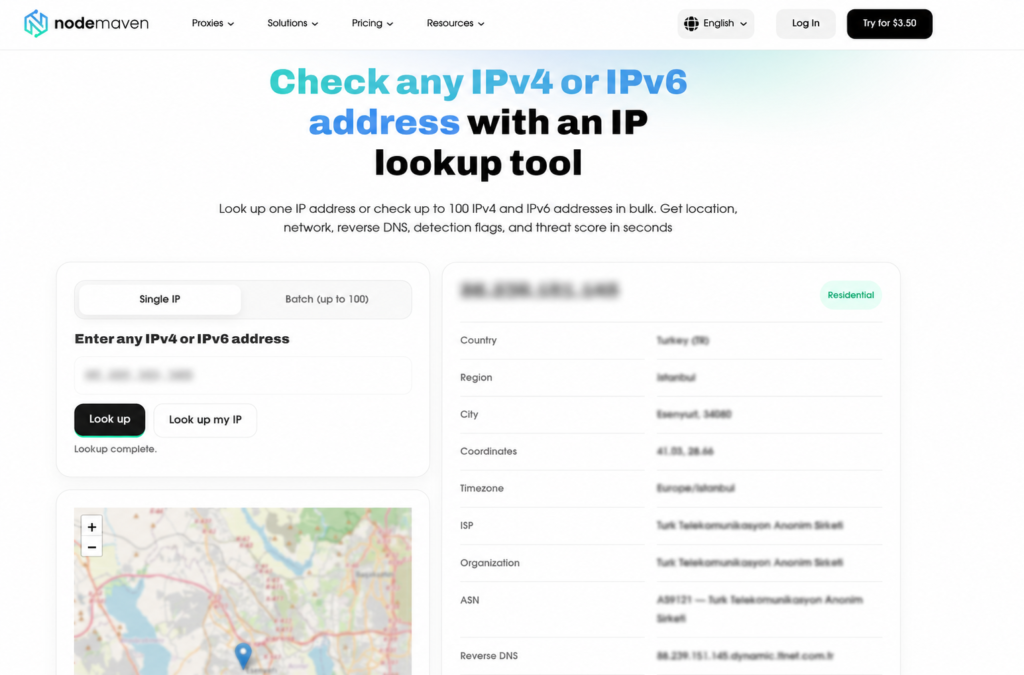
Три шага:
- Откройте инструмент.
- Введите адрес или проверьте свой собственный. Вставьте любой IPv4 или IPv6 в поле и нажмите Найти. Хотите узнать публичный IP, который сейчас показывает ваша сеть? Нажмите Проверить мой IP он получает его автоматически.
- Прочитайте результат. Да.
| Поле | Что это показывает |
|---|---|
| Страна / Регион / Город | Приблизительное местоположение вплоть до города и почтового района |
| Координаты | Приблизительные широта/долгота |
| Часовой пояс | Местный часовой пояс, привязанный к IP |
| Интернет-провайдер | Провайдер, которому принадлежит адрес |
| Организация | Зарегистрированная сеть, стоящая за ним |
| АСН | Номер автономной системы (ASN) сети |
| Обратный DNS | Имя хоста, связанное с IP, если оно есть |
| Флаги обнаружения | Прокси, VPN, Tor, хостинг или мобильный? |
| Оценка угрозы | Оценка риска на основе репутационных сигналов |
Есть Пакетная обработка тоже, до 100 адресов за раз. Удобно для списка прокси или набора IP, собранных из логов.
Однако стоит настроить ожидания. Геолокация является приблизительной. Страна, регион, обычно город, а также ISP и сеть - да. Точный адрес или чьё-то имя? Нет. Любой, кто говорит вам, что один только IP это выдаёт, продаёт вам то, что данные не могут подтвердить.
Как проверить, какой IP использует ваш прокси
Единственная задача прокси - показать сайтам его IP вместо вашего. Поэтому вы проверяете этот выходной IP и видите ровно то, что видят эти сайты.
Два способа проверить.
Что мой прокси показывает прямо сейчас? Включите прокси в браузере или антидетект-инструменте, откройте поиск, клик Проверить мой IP. Вместо вашего реального адреса вы получаете выходной IP прокси со всем его профилем. Это самый быстрый способ убедиться, что прокси работает и маршрутизирует трафик, прежде чем приступать к чему-то серьёзному.
Проверьте конкретный прокси из списка. Уже знаете IP конечной точки? Вставьте его в поле Single IP или добавьте весь список в Batch и проверьте, не маршрутизируя через него предварительно.
Теперь о полях, которые здесь действительно важны:
- Страна, регион, город: выходит ли он там, где положено? Прокси из «Техаса», который резолвится в другой штат, будет помечен в тот же миг, как коснётся чего-либо, чувствительного к местоположению.
- ISP и организация: название реального оператора связи или домашнего провайдера выглядит естественно. Купили «резидентный» прокси, а в поле организации видите облачный хостинг? Это проблема.
- Флаги обнаружения: самое важное. Если помечено как proxy, VPN или hosting, значит да, платформы, на которые вы нацелены, тоже это видят. А это перечёркивает весь смысл.
- Оценка угрозы: низкий уровень означает, что адрес чист. Высокий уровень говорит о том, что за IP уже тянется шлейф, из-за которого вас блокируют ещё до того, как вы что-либо сделаете.
Сложите всё вместе: прокси определяется как IP дата-центра, флаг хостинга включён, оценка угрозы высокая? Вот и ответ, почему аккаунты постоянно блокируются. Чистый показывает резидентский или мобильный Интернет-провайдер, без меток proxy или hosting, с низким уровнем угрозы.
И всё это действительно упирается в качество прокси. Резидентные, мобильные и ISP-прокси NodeMaven пропустите через Фильтр качества ещё до того, как они попадут к вам, поэтому они созданы, чтобы проходить именно эту проверку: реальные данные ISP, чистые флаги, низкие оценки. Проверьте любой из них сами в инструменте, прежде чем доверять им.

Есть Тестовая версия $3.50 с объемом 750 МБ если хотите протестировать наши прокси.
Когда вам может понадобиться публичный поиск по IP
Реальные ситуации, когда это правильный шаг:
- Проверка прокси или VPN перед запуском рабочего процесса, чтобы помеченный IP не сорвал его на середине.
- Отслеживание подозрительного трафика. Странный IP в логах вашего сервера или в активности аккаунта? Поиск покажет его происхождение и то, относится ли он к хостингу или анонимизирован.
- Подтверждаем, что ваш публичный IP изменился. ISP их меняют. Быстрая самопроверка — готово.
- Проверяем локализованный контент действительно раздаётся из того местоположения IP, которое вы ожидаете.
Если что-то из этого регулярная часть вашей работы, добавьте инструмент в закладки. Это быстрая первая проверка, прежде чем полагаться на соединение.


