Telegram Proxy Setting Guide: How to Configure and Use Proxies for Telegram



If you’re reading this, chances are you’ve run into problems using Telegram smoothly, whether that’s slow connections, regional blocks, or troubles with Telegram proxy setting.
This blog breaks down why proxies matter for Telegram, how they can make your experience more stable and private, and why NodeMaven stands out as a trusted option. By the end, you’ll know exactly what to look for in a Telegram proxy, how to set it up and how it can improve both personal and business use.
u003cdivntttntttclass=u0022so-widget-rhinocore-addons-rhino-alert-banner so-widget-rhinocore-addons-rhino-alert-banner-default-d75171398898u0022ntttnttu003eu003cdiv class=u0022rhino-widget rhino-widgetu002du002drhinocore-addons-rhino-alert-banner section-alertu0022 style=u0022u002du002dalert-background-color: #E6E6FFu0022nu003en u003cdiv class=u0022section-alert__iconu0022u003en u003cimg src=u0022https://nodemaven.com/wp-content/uploads/2026/02/icon-4.svgu0022 alt=u0022u0022 loading=u0022lazyu0022 width=u002264u0022 height=u002264u0022u003e u003c/divu003en n u003cdiv class=u0022section-alert__mainu0022u003en u003cdiv class=u0022section-alert__titleu0022u003eKeep your Telegram workflows running smoothly with clean IPs and long sessions. Get 750MB for $3.50 and see the difference.u003c/divu003en n u003c/divu003en n u003can class=u0022section-alert__button b-btn b-btnu002du002dstatic-xl b-btnu002du002dsecondary-blacku0022n href=u0022https://dashboard.nodemaven.com/accounts/signup/?next=/checkout/pag/trialu0026#038;_gl=1*1um2ioy*_gcl_au*NDk2MjIxNDYuMTc3MzE0MDgwMw..*_ga*NDY4OTU1MjAyLjE3NTc1ODY1MjM.*_ga_33JL89XFQ5*czE3NzQ4Nzg3MjQkbzYwOSRnMSR0MTc3NDg4MDk0OCRqMTIkbDAkaDIxMzU1OTIzODQu0022n u003en Start trial u003c/au003en u003c/divu003enu003c/divu003eWhat Are Telegram Proxies and How Do They Work?
Telegram proxies are tools that help you access Telegram through an alternative route when direct access is blocked or unstable.
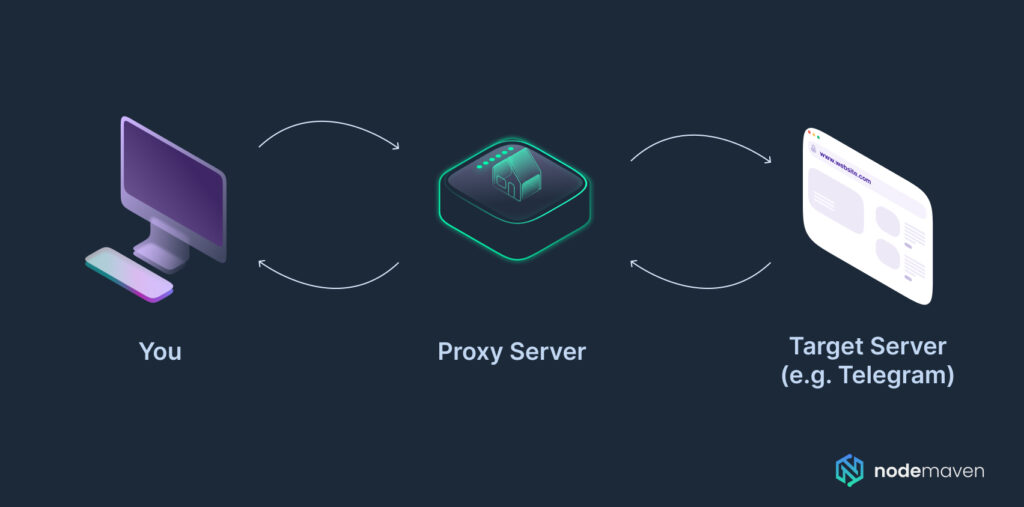
Instead of your traffic going directly from your device to Telegram’s servers, it goes through a proxy server first. Such a connection to the platforms keeps you connected to Telegram in the regions where it is restricted, while also improving your privacy.
SOCKS5 Proxies
SOCKS5 proxies provide more flexibility. Unlike MTProto, SOCKS5 works across multiple apps and platforms, not just Telegram. SOCKS5 is the most commonly recommended option for Telegram. It supports authentication and works well with residential, mobile, and ISP proxies from providers like NodeMaven. It’s suitable for everyday messaging, multi-account workflows, and stable long sessions.
NodeMaven offers filtered SOCKS5 proxies that guarantee speed and quality, ensuring stable sessions that will keep your calls and messaging uninterrupted.
MTProto Proxies
Telegram developed its own protocol called MTProto, which was designed specifically for the app.
However, these proxies are not very versatile, as residential and mobile, and can’t be used for other use cases and platforms. MTProto is limited to Telegram traffic only, and its performance often depends on free community servers that may be unstable. When utilizing workflows outside of Telegram or for long-term stability, a premium proxy could be the better choice.
HTTP/HTTPS Proxies
Telegram Desktop also supports HTTP proxies, but they are more limited. They work mainly for basic connections and may not handle certain traffic types as reliably as SOCKS5. Because of this, most proxy providers recommend SOCKS5 instead of HTTP for Telegram.
Which one should you choose?
For most workflows:
- SOCKS5 proxies → best for stability, automation, and multi-account use
- HTTP proxies → acceptable for simple connections but less flexible
- MTProto proxies → general solution for Telegram but less flexible
If you are using residential, mobile, or ISP proxies from NodeMaven, the recommended option is typically SOCKS5, because it provides the most consistent compatibility with proxy authentication and advanced proxy features.
Proxy or VPN for Telegram
It’s easy to confuse VPNs and proxies, but they are different tools.
Proxy for Telegram
A proxy routes only Telegram traffic through a server. With NodeMaven servers, this means faster connection speeds and content loading, cleaner IPs, and fewer interruptions.
VPN for Telegram
A VPN encrypts and routes all internet traffic on your device, not just Telegram. This provides greater privacy, but often reduces speed and can affect connection stability.
For most users who simply want Telegram to run smoothly, setting up a proxy with NodeMaven is usually the faster and more convenient option. VPNs are useful when you need protection for all internet traffic, but proxies offer a better balance of speed, stability, and reliability.
u003cdivntttntttclass=u0022so-widget-rhinocore-addons-rhino-alert-banner so-widget-rhinocore-addons-rhino-alert-banner-default-d75171398898u0022ntttnttu003eu003cdiv class=u0022rhino-widget rhino-widgetu002du002drhinocore-addons-rhino-alert-banner section-alertu0022 style=u0022u002du002dalert-background-color: #E6E6FFu0022nu003en u003cdiv class=u0022section-alert__iconu0022u003en u003cimg src=u0022https://nodemaven.com/wp-content/uploads/2026/02/icon-4.svgu0022 alt=u0022u0022 loading=u0022lazyu0022 width=u002264u0022 height=u002264u0022u003e u003c/divu003en n u003cdiv class=u0022section-alert__mainu0022u003en u003cdiv class=u0022section-alert__titleu0022u003eKeep your Telegram workflows running smoothly with clean IPs and long sessions. Get 750MB for $3.50 and see the difference.u003c/divu003en n u003c/divu003en n u003can class=u0022section-alert__button b-btn b-btnu002du002dstatic-xl b-btnu002du002dsecondary-blacku0022n href=u0022https://dashboard.nodemaven.com/accounts/signup/?next=/checkout/pag/trialu0026#038;_gl=1*1um2ioy*_gcl_au*NDk2MjIxNDYuMTc3MzE0MDgwMw..*_ga*NDY4OTU1MjAyLjE3NTc1ODY1MjM.*_ga_33JL89XFQ5*czE3NzQ4Nzg3MjQkbzYwOSRnMSR0MTc3NDg4MDk0OCRqMTIkbDAkaDIxMzU1OTIzODQu0022n u003en Start trial u003c/au003en u003c/divu003enu003c/divu003eChoosing the Best Proxy for Telegram
Not all proxies work the same way. When adjusting your Telegram proxy settings, you’ll likely come across three main types of proxies: Residential, ISP, Mobile, and Datacenter.
Each has its own strengths and limitations, depending on how you plan to use Telegram.
| Proxy Type | Pros for Telegram | Cons for Telegram | Best For |
| Residential Proxies | Real IPs from internet providers, stable, less likely to be flagged. Great for long-term connections and reliable access. | Can be expensive for traffic-heavy workflows. | Everyday Telegram use, connecting multiple accounts, stable messaging. |
| Mobile Proxies | Provide higher trust signals with real mobile IPs, making them appear highly authentic. Very effective for avoiding restrictions and mobile-first platforms. | Rotation can disconnect sessions if not managed properly. But sticky sessions solve this issue. | Regions with strict blocks, users who need authentic IPs to access Telegram. |
| ISP Proxies | Static residential IPs hosted on high-speed servers. Unlimited traffic, pay only for IP. | Limited IP rotation compared to residential or mobile proxies. | Managing Telegram accounts, automation tools, and long-running sessions that require stable IPs. |
| Datacenter Proxies | Fast, affordable, easy to scale. Good for quick testing. | Easier to detect, easily blocked, less reliable for restricted regions. | Short-term use, testing proxy settings on Telegram desktop or mobile. |
Which Proxy Is Best for You?
- If you need long-term stability and custom IP rotation, residential proxies are a reliable choice.
- If you want a stable, static IP with high-speed, unlimited traffic, ISP proxies combine residential trust with consistent performance for long Telegram sessions or automation tools.
- If you’re in a region with tougher network restrictions, mobile proxies offer the best chance of maintaining stable access.
- If you just need a simple setup for Telegram desktop or light testing, datacenter proxies are a budget-friendly option.
Choosing the right type depends on whether you value speed, authenticity, or cost. NodeMaven offers 2-in-1 plans, giving access to residential and mobile proxies for a flexible workflow.
Moreover, with NodeMaven, you can filter proxies by quality, speed, and pool size, so your Telegram connection stays smooth no matter which type you choose.
u003cdivntttntttclass=u0022so-widget-rhinocore-addons-rhino-alert-banner so-widget-rhinocore-addons-rhino-alert-banner-default-d75171398898u0022ntttnttu003eu003cdiv class=u0022rhino-widget rhino-widgetu002du002drhinocore-addons-rhino-alert-banner section-alertu0022 style=u0022u002du002dalert-background-color: #E6E6FFu0022nu003en u003cdiv class=u0022section-alert__iconu0022u003en u003cpictureu003eu003csource srcset=u0022https://nodemaven.com/wp-content/uploads/rhino-images/images/2026/04/09/icon-2_64x64_1x_b1e0296b.webp 1x, https://nodemaven.com/wp-content/uploads/rhino-images/images/2026/04/09/icon-2_128x128_2x_b1e0296b.webp 1.3xu0022 type=u0022image/webpu0022u003eu003cimg alt=u0022u0022 loading=u0022lazyu0022 width=u002264u0022 height=u002264u0022 src=u0022https://nodemaven.com/wp-content/uploads/rhino-images/images/2026/04/09/icon-2_64x64_1x_b1e0296b.pngu0022u003eu003c/pictureu003e u003c/divu003en n u003cdiv class=u0022section-alert__mainu0022u003en u003cdiv class=u0022section-alert__titleu0022u003eTipu003c/divu003en n u003cdiv class=u0022section-alert__descriptionu0022u003eu003cpu003eIf you prefer to use mobile proxies for Telegram, choose NodeMaven’s Sticky Session to keep your IP stable. u003c/pu003enu003c/divu003en u003c/divu003en n u003c/divu003enu003c/divu003eWhy Telegram Proxies Can Be Blocked or Limited
While Telegram is one of the world’s most popular messaging apps, it isn’t always freely accessible everywhere. In some regions, governments and internet providers actively restrict or slow down Telegram connections, making proxies an essential tool for users.
Regional Restrictions
Two well-known examples are Iran and Pakistan, where Telegram has faced repeated restrictions:
- Telegram in Iran: The government has introduced nationwide blocks on Telegram due to concerns over content sharing and encrypted communications. For users who still rely on the platform, a Telegram proxy for Iran is often the only way to maintain access.
- Telegram in Pakistan: In Pakistan, Telegram has been temporarily banned or heavily restricted at different times. Even when the app isn’t completely blocked, many ISPs throttle the connection. A Telegram proxy for Pakistan helps bypass these limitations, ensuring users can continue messaging without interruptions.
- Telegram in Russia: In Russia, Telegram has periodically faced restrictions and attempts to limit access. As a result, connections can sometimes be unstable due to regulatory measures or how internet providers handle traffic. In these conditions, using a proxy can help maintain a stable connection and keep Telegram running smoothly.
Government Firewalls and ISP Restrictions
These blocks are typically enforced through government firewalls and cooperation with internet service providers (ISPs).
When you try to access Telegram in such countries, your requests are either blocked or redirected. A proxy reroutes your traffic through a different server, allowing you to reach Telegram as if you were connecting from another location.
For users in restricted regions, configuring the right proxy settings for Telegram is often the simplest and most effective solution to stay connected.
Why Do You Need Telegram Proxies?
A Telegram proxy isn’t just a trick for getting around restrictions. For many people, it’s the difference between having a reliable connection and not being able to use the app at all.
Access When It’s Blocked
In some countries, Telegram is limited or completely unavailable. By routing your traffic through another server, a proxy lets you keep messaging, sharing files, and scrolling through channels without the constant disconnects.
More Privacy
Using a proxy also hides your actual IP. That doesn’t make you invisible, but it does add a layer of protection. MTProto proxies were built with Telegram in mind, but SOCKS5 and HTTPS options tend to be more stable and flexible.
Managing Multiple Telegram Accounts
For agencies or teams, it’s pretty common to use and manage several Telegram accounts. Whether it’s for customer support, marketing, or running communities. But there is a problem with that. Logging into all of them from the same network can cause slowdowns or even trigger limits. By giving each account its own proxy server, you create a smoother setup and access that keeps accounts separated and helps avoid unnecessary interruptions.
Better Performance Compared to VPN
VPNs cover your whole device connection and encrypt everything, which is great for privacy but can often slow things down and give you frustration instead of stable connection. A proxy only handles Telegram traffic, so it usually feels lighter and faster.
In short, whether you’re after stable access, a bit more privacy, or smoother performance, setting up Telegram with the right proxy can make the app far easier to use.
u003cdivntttntttclass=u0022so-widget-rhinocore-addons-rhino-alert-banner so-widget-rhinocore-addons-rhino-alert-banner-default-d75171398898u0022ntttnttu003eu003cdiv class=u0022rhino-widget rhino-widgetu002du002drhinocore-addons-rhino-alert-banner section-alertu0022 style=u0022u002du002dalert-background-color: #E6E6FFu0022nu003en u003cdiv class=u0022section-alert__iconu0022u003en u003cimg src=u0022https://nodemaven.com/wp-content/uploads/2026/02/icon-4.svgu0022 alt=u0022u0022 loading=u0022lazyu0022 width=u002264u0022 height=u002264u0022u003e u003c/divu003en n u003cdiv class=u0022section-alert__mainu0022u003en u003cdiv class=u0022section-alert__titleu0022u003eKeep your Telegram workflows running smoothly with clean IPs and long sessions. Get 750MB for $3.50 and see the difference.u003c/divu003en n u003c/divu003en n u003can class=u0022section-alert__button b-btn b-btnu002du002dstatic-xl b-btnu002du002dsecondary-blacku0022n href=u0022https://dashboard.nodemaven.com/accounts/signup/?next=/checkout/pag/trialu0026#038;_gl=1*1um2ioy*_gcl_au*NDk2MjIxNDYuMTc3MzE0MDgwMw..*_ga*NDY4OTU1MjAyLjE3NTc1ODY1MjM.*_ga_33JL89XFQ5*czE3NzQ4Nzg3MjQkbzYwOSRnMSR0MTc3NDg4MDk0OCRqMTIkbDAkaDIxMzU1OTIzODQu0022n u003en Start trial u003c/au003en u003c/divu003enu003c/divu003eHow to Set Up Telegram Proxies on Various Devices
Getting your Telegram proxy setting right only takes a few minutes. Whether you’re using Telegram on mobile or desktop, the process is straightforward.
Below you’ll find step-by-step instructions for mobile app (Android, iOS) and desktop app, along with a quick walkthrough for adding proxy details.
How to Set Proxy in Telegram (Mobile: Android/iOS)
- Open the Telegram app on your device.
- Go to Settings > Data and Storage > Proxy.
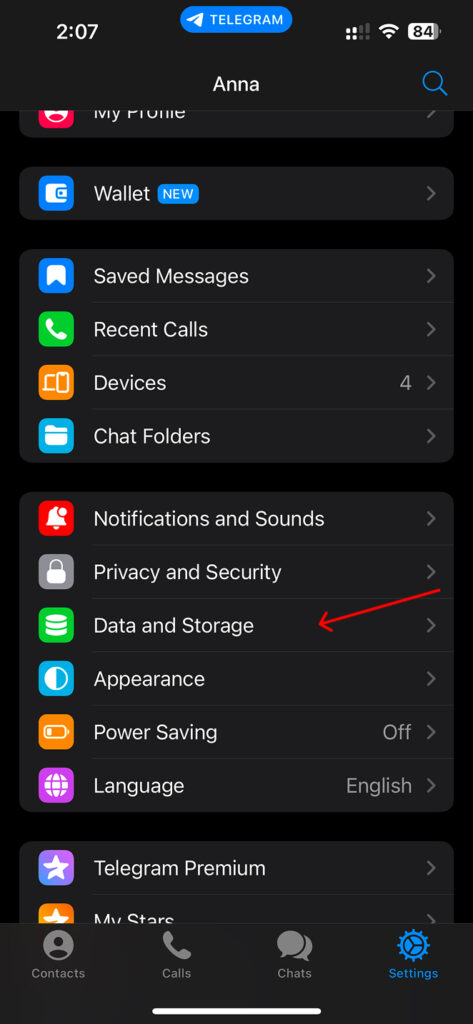
- Enable Use Proxy.
- Choose the type of proxy (MTProto or SOCKS5).
- Enter the SOCKS5 server details: Server (gate.nodemaven.com), Port (1080), Secret (For MTProto), Credential (Proxy Username and Password). If you are using NodeMaven’s proxy, find all required proxy credentials in your dashboard.
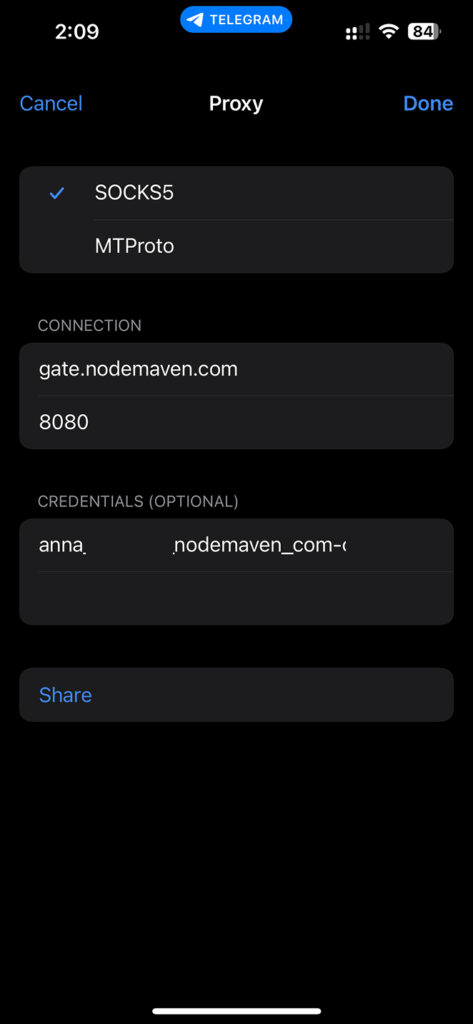
- Tap Save, and Telegram will connect through your proxy.
How to Set Proxy in Telegram Desktop
- Open Telegram Desktop and click on the menu (three lines) in the top left.
- Go to Settings > Advanced > Connection Type.
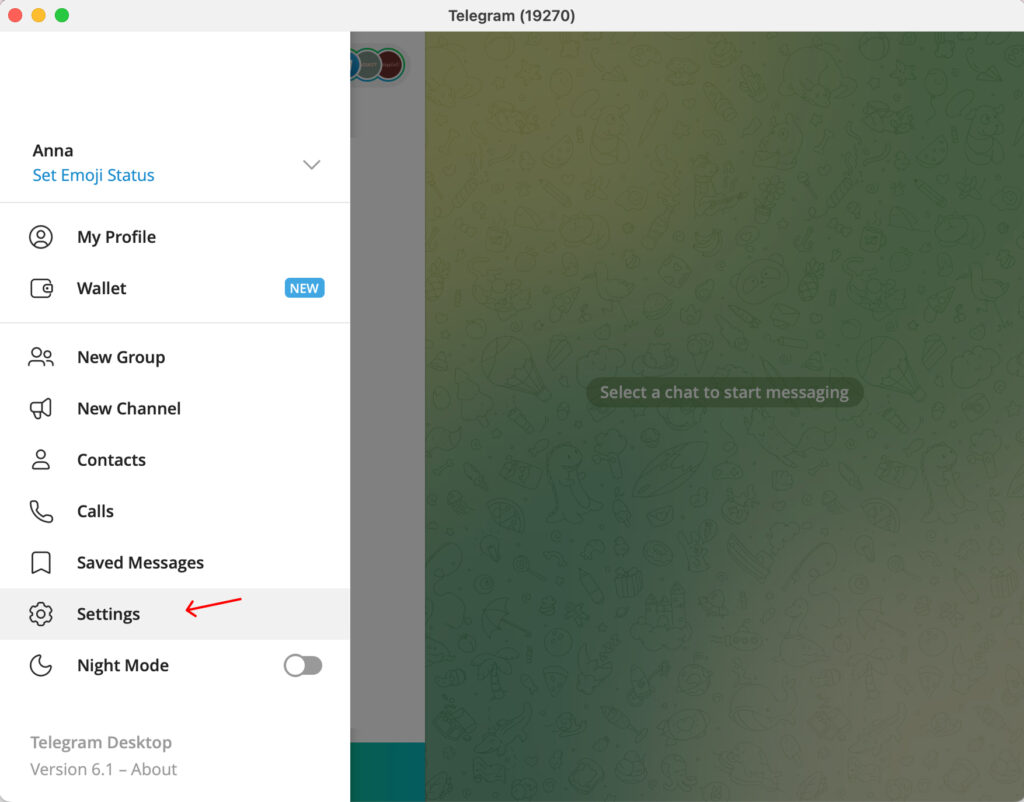
- Select Use Custom Proxy.
- Choose the type of proxy (MTProto, HTTP or SOCKS5)
- Enter your SOCKS5 proxy details: Hostname (gate.nodemaven.com), Port (1080), Secret (For MTProto), Proxy Username/Password if required.
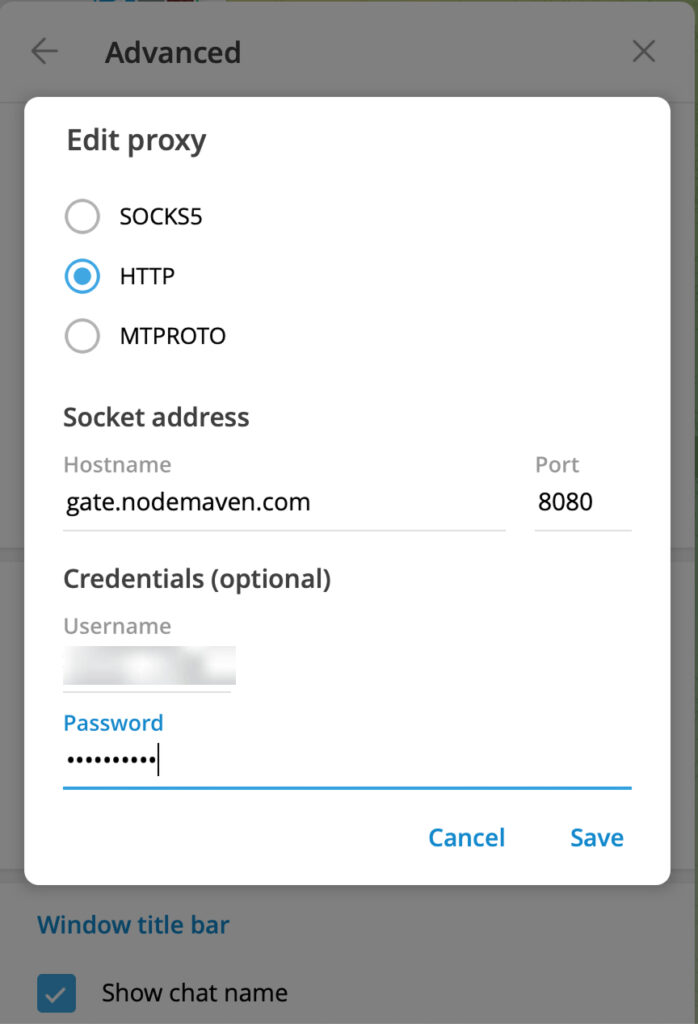
- Click Save to activate your new connection.
This method works across Windows, macOS, and Linux versions of Telegram.
Many users set up proxy settings for Telegram in Pakistan this way, as desktop connections can often be easier to stabilise than mobile.
How to Configure a Telegram Proxy List to Rotate Proxies Automatically
If you manage multiple Telegram accounts, run bots, or automate tasks, using a rotating proxy setup helps distribute connections across different IP addresses. Instead of repeatedly connecting from the same IP, a rotating proxy network assigns a new IP from a proxy pool when sessions refresh or reconnect.
With NodeMaven, proxy rotation is handled on the network level, so you don’t need to manually change proxy settings inside Telegram.
1. Generate Rotating Proxies in the NodeMaven Dashboard
After creating a NodeMaven account, open the Premium Rotating Proxies in your dashboard and configure your proxy endpoint.
Choose the proxy type that fits your workflow:
- Residential proxies for stable everyday Telegram use and multi-account setups
- Mobile proxies for higher trust traffic from real mobile carrier networks
You can also select targeting options such as country, city, ZIP code, or ISP depending on where you want the connection to appear from.
2. Use Rotating Sessions Instead of Static IPs
Instead of creating a long list of individual proxies, NodeMaven allows you to generate rotating proxy credentials. Simply select Session type as Rotating to rotate the proxy per request, or select Sticky and use the Custom setting field to set the rotation period.
When rotation is enabled:
- Each new connection can receive a different IP from the proxy pool
- The proxy pool contains pre-filtered IPs checked for quality and reputation
- Rotation happens automatically without changing your Telegram configuration
If your workflow requires a consistent identity, you can also enable sticky sessions with Keep as long as possible setting, which keeps the same IP address for a defined time period.
3. Let the Proxy Network Handle Rotation
Telegram itself does not automatically rotate between proxies from a list. Instead, the proxy provider handles rotation on the backend.
With NodeMaven’s rotating proxy infrastructure:
- IPs are pulled from a large filtered pool
- Connections are automatically assigned clean IPs with stable performance
- Sessions can rotate or remain sticky depending on your settings
This approach keeps Telegram connections stable while avoiding repeated connections from the same IP.
When Rotating Proxies Are Useful for Telegram
Automatic proxy rotation is especially helpful when:
- Managing multiple Telegram accounts
- Running Telegram bots or automation workflows
- Testing connections from different geographic locations
- Maintaining stable long-running sessions without repeated IP reuse
Using a rotating proxy network allows Telegram sessions to run more smoothly while reducing interruptions caused by repeated logins from the same IP address.
u003cdivntttntttclass=u0022so-widget-rhinocore-addons-rhino-alert-banner so-widget-rhinocore-addons-rhino-alert-banner-default-d75171398898u0022ntttnttu003eu003cdiv class=u0022rhino-widget rhino-widgetu002du002drhinocore-addons-rhino-alert-banner section-alertu0022 style=u0022u002du002dalert-background-color: #E6E6FFu0022nu003en u003cdiv class=u0022section-alert__iconu0022u003en u003cimg src=u0022https://nodemaven.com/wp-content/uploads/2026/02/icon-4.svgu0022 alt=u0022u0022 loading=u0022lazyu0022 width=u002264u0022 height=u002264u0022u003e u003c/divu003en n u003cdiv class=u0022section-alert__mainu0022u003en u003cdiv class=u0022section-alert__titleu0022u003eKeep your Telegram workflows running smoothly with clean IPs and long sessions. Get 750MB for $3.50 and see the difference.u003c/divu003en n u003c/divu003en n u003can class=u0022section-alert__button b-btn b-btnu002du002dstatic-xl b-btnu002du002dsecondary-blacku0022n href=u0022https://dashboard.nodemaven.com/accounts/signup/?next=/checkout/pag/trialu0026#038;_gl=1*1um2ioy*_gcl_au*NDk2MjIxNDYuMTc3MzE0MDgwMw..*_ga*NDY4OTU1MjAyLjE3NTc1ODY1MjM.*_ga_33JL89XFQ5*czE3NzQ4Nzg3MjQkbzYwOSRnMSR0MTc3NDg4MDk0OCRqMTIkbDAkaDIxMzU1OTIzODQu0022n u003en Start trial u003c/au003en u003c/divu003enu003c/divu003eWhy NodeMaven Is the Go-To Choice for a Telegram Proxy
Not every proxy service is built the same. If you’re looking for something that actually works day in and day out on Telegram, NodeMaven sets itself apart. We combine clean, high-quality IPs with features that make your connection stable, your chats smooth, and your setup hassle-free.
Here’s what makes us different:
Clean, High-Quality IPs
We don’t just hand you any random IP. Our IP Quality Filter refine reused or flagged IPs, so you’re only connecting through fresh, trusted residential or mobile addresses. That means fewer headaches and frustrations, and more reliable Telegram sessions.
Sticky Sessions That Last
Free MTProto servers can drop out at any time, which is annoying if you’re managing multiple accounts. NodeMaven lets you hold a sticky session for up to 24 hours, keeping the same IP the whole day without interruptions.
No Wasted Traffic
Didn’t use up all your data this month? No problem. With Traffic Rollover, it carries over into the next cycle, so you get the full value of your bandwidth you’ve already paid for.
Built for Reliability
Our network is designed to stay up and running. From uptime and speed to connection success rates, NodeMaven proxies are engineered to give you steady performance when it matters most.
Residential + Mobile in One Plan
Why pick one type when you can use both? Every plan includes residential and mobile proxies, giving you the flexibility to choose what fits your task best without any hidden add-ons.
Real Support With Real Experts
Setting up Telegram proxies can get tricky, and we know that. That’s why our support team is available on WhatsApp, Telegram, Slack, or Zoom. Whether it’s setup, troubleshooting, or fine-tuning your settings, you’ll always have an expert ready to help.
u003cdivntttntttclass=u0022so-widget-rhinocore-addons-rhino-alert-banner so-widget-rhinocore-addons-rhino-alert-banner-default-d75171398898u0022ntttnttu003eu003cdiv class=u0022rhino-widget rhino-widgetu002du002drhinocore-addons-rhino-alert-banner section-alertu0022 style=u0022u002du002dalert-background-color: #E6E6FFu0022nu003en u003cdiv class=u0022section-alert__iconu0022u003en u003cimg src=u0022https://nodemaven.com/wp-content/uploads/2026/02/icon-4.svgu0022 alt=u0022u0022 loading=u0022lazyu0022 width=u002264u0022 height=u002264u0022u003e u003c/divu003en n u003cdiv class=u0022section-alert__mainu0022u003en u003cdiv class=u0022section-alert__titleu0022u003eKeep your Telegram workflows running smoothly with clean IPs and long sessions. Get 750MB for $3.50 and see the difference.u003c/divu003en n u003c/divu003en n u003can class=u0022section-alert__button b-btn b-btnu002du002dstatic-xl b-btnu002du002dsecondary-blacku0022n href=u0022https://dashboard.nodemaven.com/accounts/signup/?next=/checkout/pag/trialu0026#038;_gl=1*1um2ioy*_gcl_au*NDk2MjIxNDYuMTc3MzE0MDgwMw..*_ga*NDY4OTU1MjAyLjE3NTc1ODY1MjM.*_ga_33JL89XFQ5*czE3NzQ4Nzg3MjQkbzYwOSRnMSR0MTc3NDg4MDk0OCRqMTIkbDAkaDIxMzU1OTIzODQu0022n u003en Start trial u003c/au003en u003c/divu003enu003c/divu003e