Multiple Discord Accounts: Best Practices, Mobile Setup, and How Proxies Help



Discord has over 200 million monthly active users worldwide. A lot of people manage multiple Discord accounts for perfectly normal and legitimate reasons. One account is for work, one for gaming, and another for moderation, testing, or a private community. Creating a second Discord account is easy enough. Managing several accounts without being linked to suspicious bot activity, crossed sessions, messy recovery details, or shared account signals takes more work.
This guide answers the practical questions: can you have multiple Discord accounts, how to manage them on desktop and mobile, what tends to cause login problems, and where proxies actually help.
Can You Have Multiple Discord Accounts?
Yes, you can have multiple Discord accounts. Discord’s Terms of Service explain how accounts work, what information users must provide, and what account holders are responsible for. The rules do not say that simply owning more than one account is prohibited. However, each account should use a separate email address, and Discord may require phone verification depending on the account, activity, or risk signals. Check our guides on how to create and manage multiple Google and Gmail accounts and how to get multiple phone numbers.
What Discord cares about is how those accounts are used. Discord’s Community Guidelines are very clear on the behaviors that cross the line. Discord prohibits unsolicited bulk messages, self-bots and user-bots, inauthentic engagement, deceptive identity use, account selling, and using new or existing accounts to evade permanent Discord-level enforcement.
So the short answer is simple: multiple accounts are allowed, abusive use is not.
How to Use Multiple Discord Accounts on Desktop
On desktop, Discord is much easier to manage than it used to be. For most users, the easiest way is to use the built-in account-switching flow in the desktop app. If you only need a couple of accounts and you are not doing anything sensitive, that may be enough.
That said, not every setup needs the same level of separation.
Built-in Discord account switching
For normal day-to-day use, Discord’s built-in account switcher is the easiest place to start.
- Open Discord on desktop.
- Click the profile area in the bottom-left corner.
- Open the account menu.
- Choose Switch Accounts or Add Account.
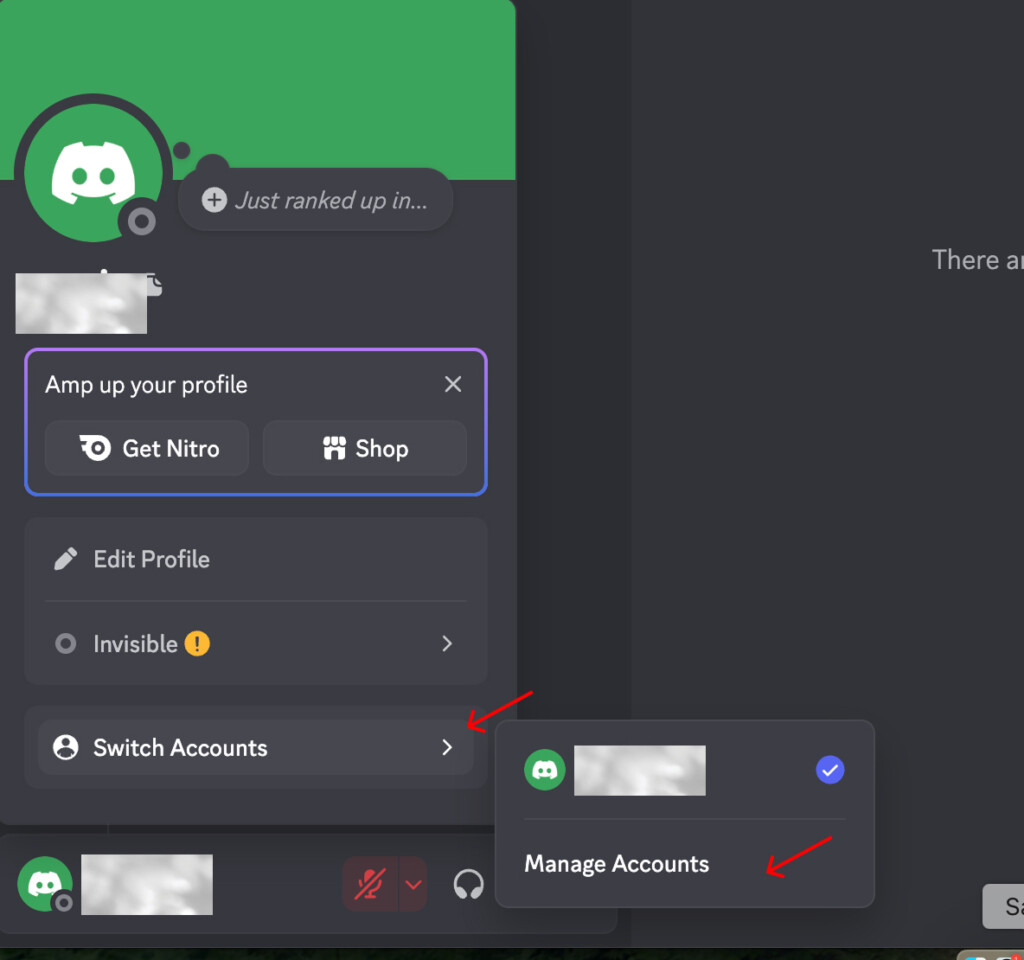
- Log into the second Discord account.
- Repeat the process if you want to add more accounts.
- When you want to move between them, open the same menu and select the account you want to use.
This setup is usually enough for a personal account plus one or two work, moderation, or community accounts.
The main limitation is separation. Built-in switching is convenient, but it does not give the same level of isolation as separate browser profiles or a more advanced multi-account setup. If several accounts handle some automations, different roles, clients, or sensitive workflows, stronger separation is usually a better long-term choice.
Browser profiles, app plus browser, and Discord Canary or PTB
Once you move beyond two accounts, you might want to create a better setup that will keep your accounts live and stable.
A few common options work well:
- Built-in switching: best for a few accounts and everyday use
- Separate browser profiles: useful when each account needs cleaner cookies, separate logins, and less session overlap. For example, you can use Google Chrome with a proxy extension for managing Discord in separate browser profiles.
- Desktop app plus browser: a simple way to split one account into the app and another into a dedicated browser profile
- Discord Canary or PTB: helpful when you want another app environment for testing or a cleaner separation
A community manager handling a few real accounts may be fine with native switching and browser profiles. A higher-risk setup, especially one that mixes automation, client work, moderation, and testing, usually benefits from a stronger multi-account setup.
Can You Have Multiple Discord Accounts on Mobile?
Yes, multiple Discord accounts can be used on mobile, but the setup is usually less flexible than on desktop, especially when cleaner session and account separations matter.
If all you need is occasional switching, mobile is manageable. If you are trying to run several active accounts, mobile gets awkward faster.
How to switch accounts on Discord mobile
Discord’s quick Switch Accounts feature is available on desktop and web, but not as a built-in one-tap switcher on mobile. On the mobile app, switching accounts usually means logging out of the current account and signing back in with another one.
The manual process looks like this:
- Open the Discord mobile app.
- Tap your profile picture in the bottom bar.
- Open Settings.
- Scroll down and tap Log Out.
- Return to the login screen.
- Enter the email, phone number, and password for the other Discord account.
- Repeat the same process when switching back.
If you need to move between accounts often, logging in and out every time gets tedious. That is why many users keep the main account in the Discord app and open the second one in a mobile browser instead.
Better ways to manage multiple Discord accounts on mobile
For most users, the easiest setup is one account in the Discord app and a second one in a mobile browser.
If you need more than two accounts, use separate mobile browser sessions or browser profiles where available. That is usually easier than logging in and out of the app all day. Use sticky or static residential proxies with mobile proxy manager like Happ, for smooth and uninterrupted Discord access.

Use clean residential and ISP proxies with sticky sessions to reduce obvious IP overlap, support steadier Discord logins, and manage multiple accounts with more control. Start with 750MB for just $3.50.
Why Multiple Discord Accounts Get Flagged or Locked
In most cases, accounts do not get flagged because there are two of them. They get flagged because too many signals stack up in the wrong direction.
Shared IP reputation and company or VPN networks
If several accounts log in from the same home IP or office Wi-Fi, coworking network, VPN exit, or cloud server, that shared IP may already have a messy reputation. Five accounts using the same poor-quality IP can look like suspicious activity.
This is one reason business users and agencies run into friction even when their use case is legitimate. A bad shared IP can create false suspicion and result in a ban before the actual account behavior is even reviewed.
Discord looks at more than IPs
Discord can also see patterns around:
- browser or device fingerprint
- cookies and local storage
- login behavior
- email or phone verification
- account age
- activity timing
- shared recovery details
- shared payment details if paid features are involved
That is why people sometimes assume a proxy alone will fix everything and then get confused when the problem does not go away. It helps with the network layer, however it does not erase every other shared signal.
Common issues and fixes
A few problems show up again and again:
- Constant unusual location verification prompts: usually means that the IPs used for login are in different locations. Use proxy geo-targeting to keep IP in the same location, like a USA or UK proxy.
- Repeated login challenges: usually a sign that the session or IP history looks inconsistent. Choose clean residential proxies with quality filtering.
- Suspicious login alerts: often triggered by abrupt location or device changes. Try to align your account location and IP. When using proxies, choose geo-targeting settings.
- Phone verification friction: more common when several accounts look related. As a solution, choose services that offer temporary phone numbers.
- Sessions crossing over: usually caused by weak browser separation, shared cookies, or sloppy switching habits. Use an anti-detect browser for digital fingerprints separation
How Proxies Help With Multiple Discord Accounts
Proxies help with multiple Discord accounts because they can reduce one of the common shared signals: IP overlap.
If several accounts always connect from the same IP, especially a company network, VPN exit, or low-reputation cloud IP, platform risk systems can associate them with bot-like activity.
Account separation at the network level
Example setup for a community manager:
Account 1 with proxy A: personal account in the Discord desktop app, home IP, 2FA enabled.
Account 2 with proxy B: work moderation account in a dedicated Chrome profile, static residential proxy in the same country, separate recovery email.
Account 3 with proxy C: testing account in Discord PTB or a separate browser profile, used only for checking onboarding, invite links, and bot permissions.
It removes one of the most common signs of bot activity, which is a common IP and that can lead to an account ban.
Regional testing and moderation workflows
Proxies are also useful when the goal is not just account separation.
Developers, moderation teams, and agencies sometimes need to test how Discord behaves from different regions. That can include:
- bot behavior
- embeds and preview cards
- invite links
- onboarding flows
- region-specific access checks
In those cases, the geo-specific proxy helps to simulate location and keep testing cleaner.
Use clean residential and ISP proxies with sticky sessions to reduce obvious IP overlap, support steadier Discord logins, and manage multiple accounts with more control. Start with 750MB for just $3.50.
Best Proxy Setup for Multiple Discord Accounts with NodeMaven
Free and public proxies are usually the worst choice. They tend to have weak security, an abused IP history, unstable performance, and a much higher chance of login interruptions. Datacenter proxies are better than public proxies, but they are still easier to link to bot activity than cleaner residential or ISP options.
For long-term Discord multi-account setup, the strongest fit is usually:
- ISP or static residential proxies: best for stable identity, streaming, long sessions, support teams, and community managers
- Residential sticky sessions: best when you need cleaner trust signals, session control, and more flexible account separation
- Mobile proxies: sometimes useful, but usually less necessary than residential or ISP for standard Discord workflows
Why NodeMaven works well here
For Discord account management, NodeMaven provides:
- clean IPs instead of cheap, overused exits
- sticky or static proxies to keep streaming and calls uninterrupted
- residential, mobile, and ISP options depending on the workflow
- geo-targeting when testing by region matters
- quality-focused filtering instead of random pool volume
- geo-targeting across 190+ countries
All of these features make NodeMaven a stronger fit for Discord than a generic rotating-proxy setup.
Best practices for managing multiple Discord accounts safely
Whatever proxy setup you use, the strongest results come from cleaner account hygiene.
Keep each account clearly separated:
- separate browser profiles
- separate proxies for each account
- separate cookies and storage
- separate recovery emails
- separate phone numbers where possible
- notes and labels so accounts do not get mixed up
Use 2FA and keep recovery details unique. Discord’s Terms of Service explicitly remind users that they are responsible for account security and recommend stronger account protection.
Use clean residential and ISP proxies with sticky sessions to reduce obvious IP overlap, support steadier Discord logins, and manage multiple accounts with more control. Start with 750MB for just $3.50.