

A SOCKS5 configuration is commonly used when people need more control over how their internet traffic is routed. It is often chosen for activities such as automation, data collection, testing websites from different locations, or managing multiple online sessions.
Many tools, browsers, and operating systems support SOCKS5 connections because the protocol works with different types of network traffic. This flexibility makes it useful for developers, marketers, researchers, and anyone running workflows that require stable proxy connections.
In this guide, we’ll explain what SOCKS5 proxies are, how the SOCKS protocol works, and how to configure a SOCKS5 proxy server across different devices and browsers. We’ll also show how NodeMaven proxies can be used with SOCKS5 for reliable connections in everyday browsing, automation, and data workflows.

What Is a SOCKS5 Proxy Server?
A SOCKS5 proxy server is a proxy that forwards internet traffic between your device and the website or service you want to access. Instead of connecting directly, your request first goes through the proxy server. The destination server then sees the proxy’s IP address rather than your real one.
When people search what is SOCKS5 or what is SOCKS5 proxy, they are usually looking for a proxy type that works with more than just web browsing. Unlike HTTP proxies that only handle web traffic, a SOCKS5 proxy server can route different types of network connections.
Because of this flexibility, SOCKS5 proxies are often used for:
- data collection and research
- browser automation
- testing websites from different locations
- managing multiple online sessions
Many proxy providers support SOCKS5 connections. For example, NodeMaven allows SOCKS5 usage across its residential, mobile, and ISP proxy pools. Its IP Quality Filter also screens IPs before they are assigned, which helps avoid unstable or flagged addresses during proxy sessions.
What Is the SOCKS Protocol?
The SOCKS protocol is a network protocol designed to send traffic through a proxy server. It works at the transport layer, meaning it simply forwards data packets without changing their content.
This approach makes SOCKS proxies more flexible than many other proxy types. Instead of focusing only on web traffic, the SOCKS protocol can handle a wide range of internet connections, including:
- HTTP and HTTPS browsing
- FTP file transfers
- email protocols such as SMTP or IMAP
- peer-to-peer connections
- TCP and UDP traffic
Because the proxy does not inspect or modify the packets, applications can communicate with servers almost exactly as they would without a proxy. This is one reason SOCKS proxies are widely used with automation tools, scripts, and software that require stable connections.
When combined with high-quality proxy infrastructure such as NodeMaven’s residential and mobile networks, the SOCKS protocol can support more demanding workflows while maintaining stable connections.
What Makes SOCKS5 Different From Older SOCKS Versions?
SOCKS5 is the newest and most commonly used version of the SOCKS protocol. Earlier versions such as SOCKS4 provided basic proxy routing but lacked several capabilities that modern applications require.
The SOCKS5 protocol introduced several improvements:
- support for both TCP and UDP traffic
- authentication methods such as username and password
- improved compatibility with modern software and applications
- better performance for complex network traffic
These features make SOCKS5 proxies more suitable for tasks like automation, data collection, and managing multiple connections.
When SOCKS5 is used with a reliable proxy network, these protocol advantages become even more noticeable. For example, NodeMaven’s SOCKS5 proxies combine protocol flexibility with infrastructure features such as:
- large residential and mobile IP pools
- geo-targeting across 150+ countries
- filtered IP addresses through the IP Quality Filter
This helps keep proxy sessions more consistent compared with many public or free proxy lists.
SOCKS5 Proxy vs HTTP Proxy vs VPN
Different proxy types serve different purposes. When comparing SOCKS and other proxy technologies and protocols, the most common alternatives to SOCKS5 are HTTP proxies and VPNs. Each option routes traffic differently and works best in specific situations.
SOCKS5 vs HTTP Proxy
An HTTP proxy is designed mainly for web traffic. It understands and processes HTTP or HTTPS requests, which makes it useful for basic browsing tasks.
A SOCKS5 proxy, on the other hand, works at a lower network layer and does not inspect the traffic. This allows it to support more types of connections.
Key differences:
- HTTP proxy works mainly with web traffic (HTTP/HTTPS)
- SOCKS5 proxy supports multiple protocols and traffic types
- HTTP proxies may modify requests
- SOCKS5 proxies simply forward packets without altering them
Because of this flexibility, SOCKS5 proxies are often preferred for automation tools, scripts, and applications that require stable connections.
SOCKS5 Proxy vs VPN
Both SOCKS proxies and VPNs route traffic through another server, but they work differently.
A VPN with SOCKS5 support encrypts all internet traffic from the device and sends it through a secure tunnel. This improves privacy but can also reduce connection speed.
A SOCKS5 proxy server only routes traffic from the specific application or browser using the proxy.
Key differences:
- VPN encrypts all device traffic
- SOCKS5 proxy routes traffic from specific apps or tools
- VPNs can be slower due to encryption
- SOCKS5 proxies are often faster and more flexible
When SOCKS5 Is the Best Choice
A SOCKS5 proxy is usually the better option when you need:
- compatibility with many types of applications
- stable connections for automation tools
- support for different traffic types (TCP and UDP)
- flexible proxy routing without encrypting all traffic
Many proxy providers support SOCKS5 connections, but the quality of the proxy network also matters. NodeMaven proxies are compatible with the SOCKS5 protocol across residential, mobile, and ISP proxy pools, allowing users to configure high-quality proxies in browsers, operating systems, and automation tools.
Benefits of Using SOCKS5 Proxies
SOCKS5 proxies are widely used because they work with many types of internet traffic and applications. Compared with more limited proxy types, a SOCKS5 proxy server offers flexibility and stable routing for different online workflows.
Protocol Flexibility (Works With TCP and UDP)
One major advantage of SOCKS5 proxies is support for both TCP and UDP traffic. This allows the proxy to handle many types of connections, including web browsing, file transfers, messaging apps, and automation tools.
Because the proxy forwards traffic without modifying packets, it can work with a wide range of services and protocols.
High Compatibility With Applications
A SOCKS5 proxy server can be configured across browsers, operating systems, and many types of software. It works with tools that require stable connections without restricting the type of traffic being sent.
This makes SOCKS5 proxies suitable for developers, marketers, researchers, and teams running automated workflows.
Better Performance for Automation and Data Tasks
Since SOCKS5 proxies do not inspect or modify data packets, they often introduce less overhead than some other proxy types. This can help maintain stable connections when running tasks such as:
- collecting public data
- testing websites from different locations
- running browser automation
- managing multiple sessions
The stability of these workflows also depends on the proxy network itself. Providers like NodeMaven maintain large proxy pools and offer stable sessions to help reduce interruptions.
How to Set Up a SOCKS5 Proxy Server
Configuring a proxy may look technical at first, but the SOCKS5 configuration process is usually straightforward once you have the required details. Most setups only require a few parameters that your proxy provider gives you.
Before you start the browser or OS configuration, make sure you have the following:
- proxy IP address or hostname
- port number
- authentication credentials (username and password, if required)
These values allow your device, browser, or application to connect to the SOCKS5 proxy server.
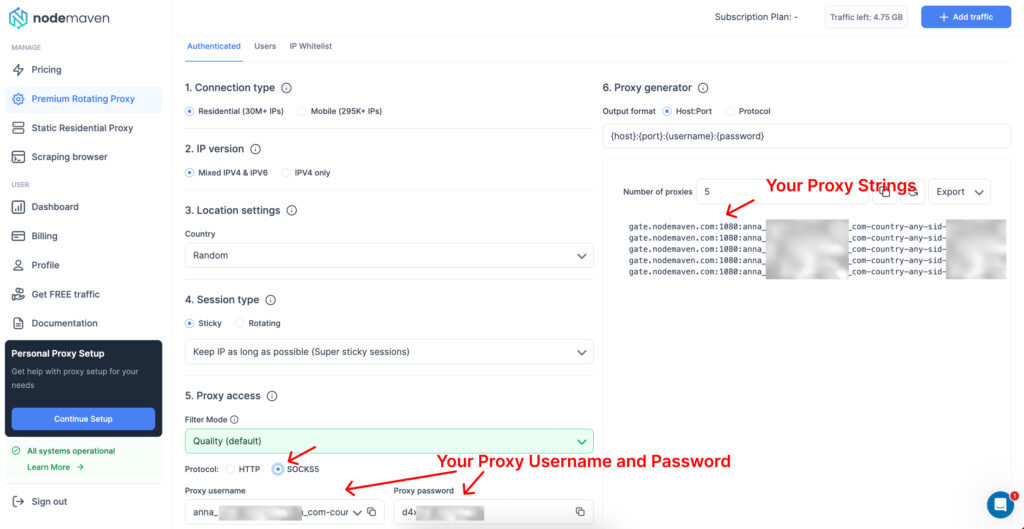
If you are using NodeMaven, all proxy details are generated in the dashboard. When creating a proxy endpoint, you can choose the SOCKS5 protocol in the Protocol section, after which the proxy can be configured across browsers, operating systems, or automation tools.
How to Configure SOCKS5 Proxies in NodeMaven
There are two ways to generate SOCKS5 proxies inside the NodeMaven dashboard.
Option 1: Premium Rotating Proxies (Residential or Mobile)
- Open the Premium Rotating Proxies section in the dashboard.
- Choose the proxy type: Residential or Mobile.
- In the configuration panel, select SOCKS5 in the Protocol section.
- Generate the proxy string and copy the credentials (IP, port, username, password).
Option 2: Static Residential Proxies (ISP)
- Go to the Static Residential Proxies section.
- Choose the number of proxy IPs you want to purchase.
- During the purchase process, select the SOCKS5 protocol.
- After the proxy is created, copy the assigned IP address and authentication details.
Once you have these credentials, the SOCKS5 proxy can be added to your browser, operating system, or proxy management tool.
How to Set Up a SOCKS5 Proxy on Windows
You can configure a Windows SOCKS5 proxy directly through the system network settings. Once the proxy is added, applications and browsers on the device will route traffic through the proxy server.
- Right-click the network icon in the bottom-right corner of your screen.
- Select Network and Internet settings.
- Open the Proxy section.
- Under Manual proxy setup, click Set up and turn the proxy option ON.
- Enter the proxy details:
• Proxy server address (for example: gate.nodemaven.com)
• Port 1080 for SOCKS5
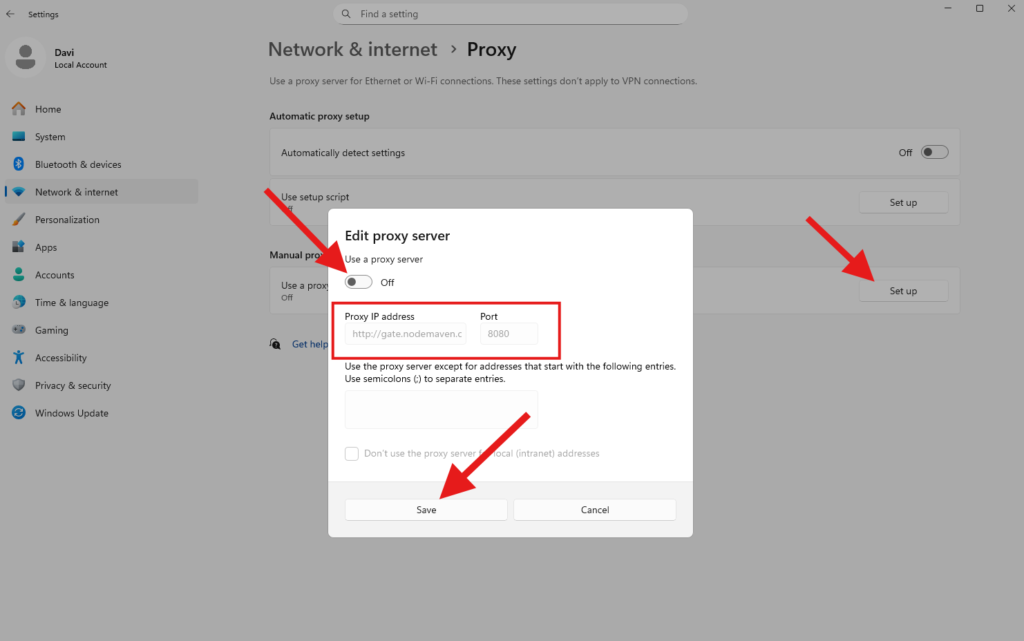
- Click Save.
After saving the configuration, open a browser or application. When prompted, enter the proxy username and password provided in your NodeMaven dashboard.
How to Configure a SOCKS5 Proxy on macOS
You can configure a SOCKS5 proxy on macOS directly in the Wi-Fi network settings. This method routes system and browser traffic through the proxy without installing additional software.
- Click the Apple menu sign in the top-left corner and open System Settings (or System Preferences on older macOS versions).
- Select Wi-Fi from the sidebar.
- Find the network you are connected to and click Details… (or Advanced…).
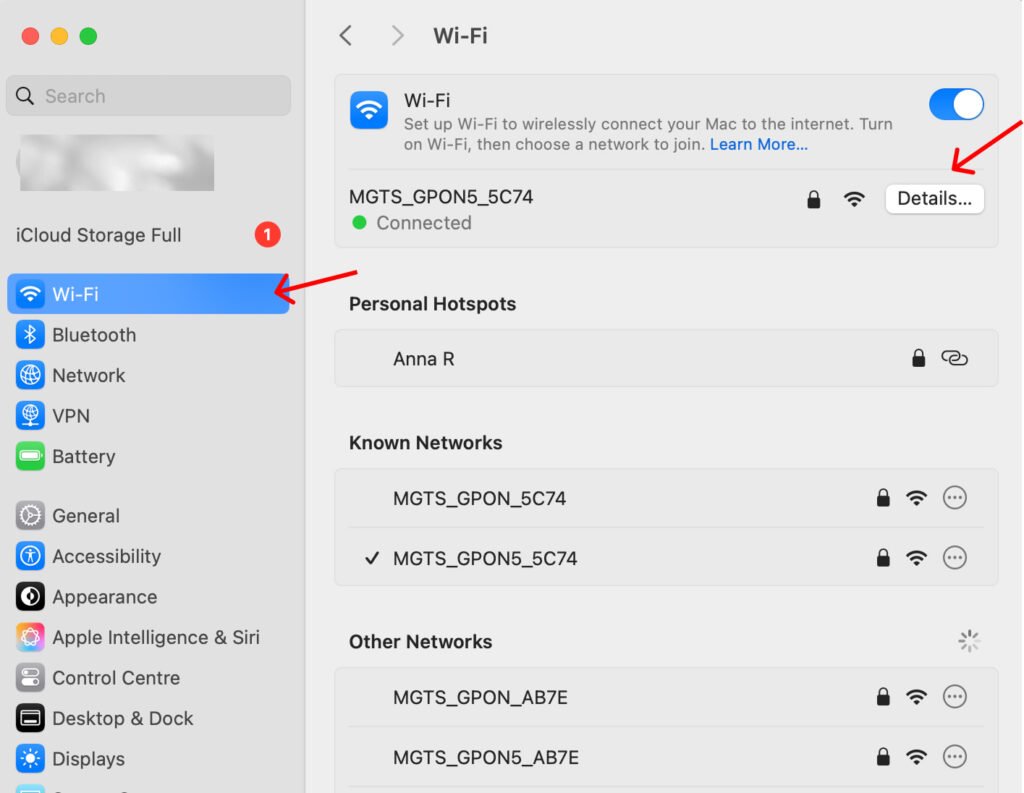
- Open the Proxies tab.
- Check SOCKS Proxy.
- Enter the proxy details:
• Server (Host), for example gate.nodemaven.com
• Port, 1080 for a SOCKS5 connection
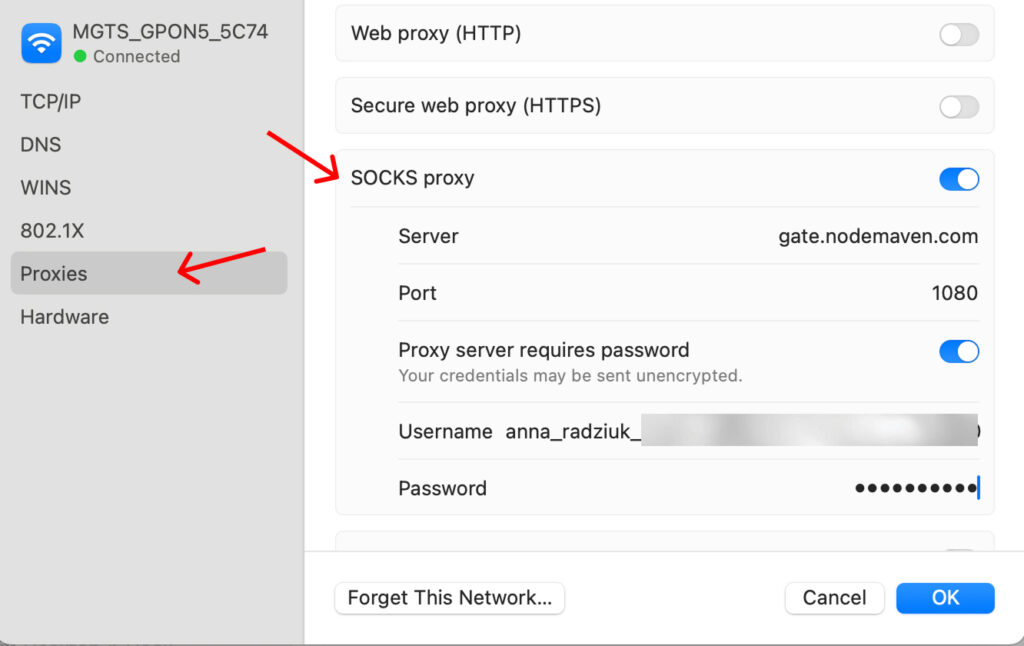
- Enable Proxy server requires password and enter your username and password from the NodeMaven dashboard.
- Click OK, then Apply.
Your Mac may briefly reconnect to the network while applying the new configuration.
Once saved, the SOCKS5 proxy on macOS will route supported traffic through the proxy server. To confirm the setup, open an IP checker and verify that the displayed IP address matches your proxy location.
How to Set Up a SOCKS5 Proxy on Linux
On Linux, a common way to use a SOCKS5 proxy server is through command-line tools such as ProxyChains. This method allows applications to route their traffic through a Linux SOCKS5 proxy without changing system-wide network settings.
- Install ProxyChains using your package manager. For example:
sudo apt install proxychains - Open the ProxyChains configuration file:
/etc/proxychains.conf - Scroll to the bottom of the file and add your SOCKS5 proxy details in the following format:
socks5 proxy_ip port
If you are using NodeMaven, you can use the gateway address and port from your dashboard. - Save the configuration file.
- Launch applications through the proxy using ProxyChains. For example:
proxychains firefox
This setup allows the selected application to connect through the SOCKS5 proxy on Linux. Tools like ProxyChains are commonly used for browsers, automation scripts, and other software that need to route traffic through a proxy server.
How to Use a SOCKS5 Proxy on Android
You can configure an Android SOCKS5 proxy directly in your Wi-Fi network settings. This allows your device to route supported traffic through the proxy server while connected to that network.
- Open Settings on your Android device.
- Go to Wi-Fi and find connected network.
- Tap and hold the network name, then select Modify network.
- Open Advanced options.
- Change Proxy from None to Manual.
- Enter the proxy details:
• Proxy hostname, for example gate.nodemaven.com
• Proxy port, 1080 for a SOCKS5 connection - Save the settings.
After saving, your device will use the configured SOCKS5 proxy on Android for supported connections. If your proxy requires authentication, your browser or app may prompt you to enter the username and password provided in the dashboard.
How to Use a SOCKS5 Proxy on iPhone
You can configure a SOCKS5 proxy on iPhone through the Wi-Fi network settings.
- Open Settings on your iPhone.
- Tap Wi-Fi and select your network.
- Tap the information icon (i) next to the network name.
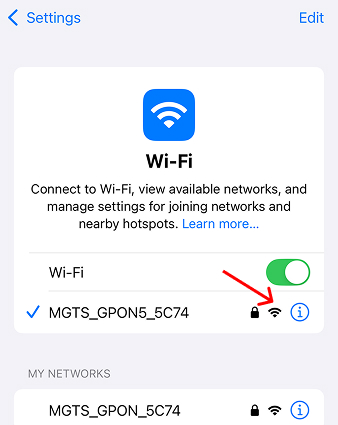
- Scroll down to HTTP Proxy.
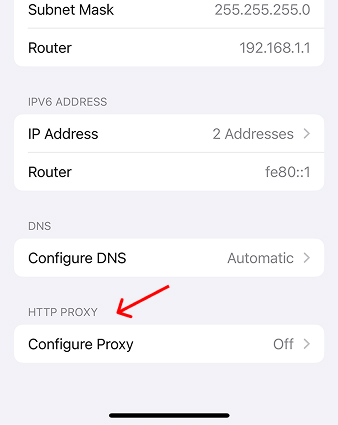
- Select Manual.
- Enter the SOCKS5 proxy details:
• Server, for example gate.nodemaven.com
• Port, 1080 for a SOCKS5 connection
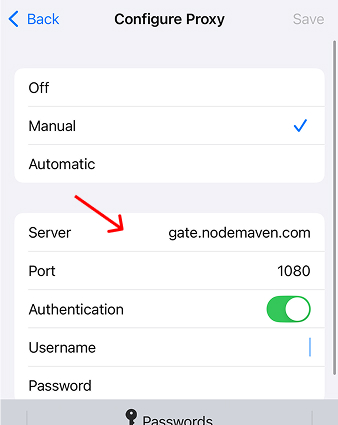
- If required, enable Authentication and enter your username and password.
After saving the settings, your device will start using the configured proxy. This is one of the simplest ways to use SOCKS5 on iPhone, especially when connecting to a trusted proxy provider such as NodeMaven.
Tip: Check our guide on how to use proxies with Shadowrocket for IOS and Android.
How to Configure a SOCKS5 Proxy in Google Chrome
Google Chrome does not manage proxies directly inside the browser, so a Chrome SOCKS5 proxy is usually configured through the system network settings or by using a proxy extension. Extensions are often the easiest option because they allow you to switch proxies without changing system settings.
To configure a SOCKS5 proxy in Chrome, you can use a SOCKS5 proxy extension for Chrome, such as Simple Proxy Switcher or other proxy management tools available in the Chrome Web Store.
- Open the Chrome Web Store.
- Search for a SOCKS5 proxy extension Chrome users commonly use (for example, Simple Proxy Switcher).
- Click Add to Chrome and install the extension.
- Open the extension settings and create a new proxy profile.
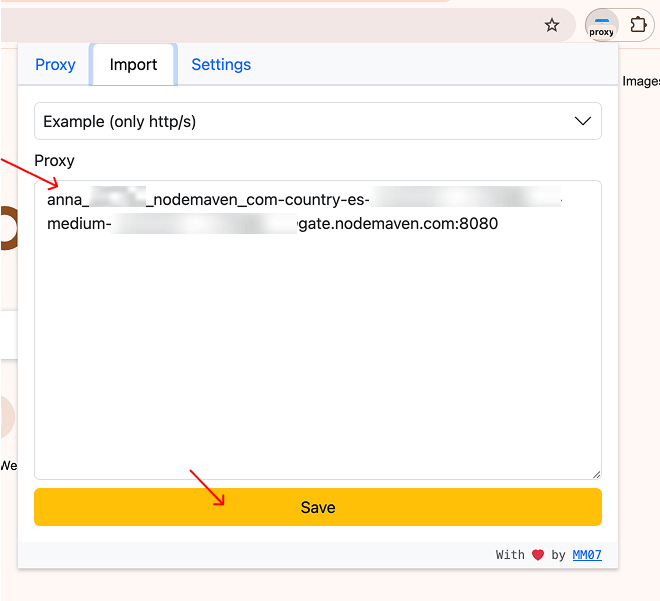
- Enter the proxy string from the NodeMaven dashboard:
• Proxy server address
• Port (1080 for SOCKS5)
• Username and password for authentication. - Save the profile and enable the proxy.
Once enabled, the Chrome SOCKS5 proxy will route browser traffic through the proxy server.
How to Configure a SOCKS5 Proxy in Mozilla Firefox
Firefox allows proxy configuration through extensions, which makes it easier to switch between different proxy profiles without changing system settings.
One simple option is using Simple Proxy Switcher.
- Install the Simple Proxy Switcher extension for Firefox.
- Open the extension and go to the Import Proxy tab.
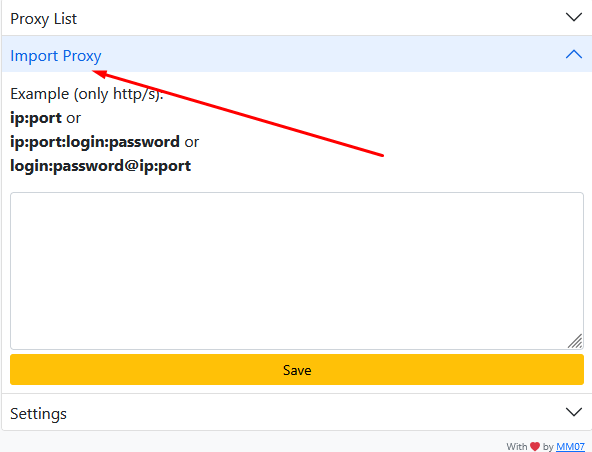
- Generate your proxy credentials in the NodeMaven dashboard and copy the proxy string.
- Paste the proxy string into the extension and click Save.
- Open the Proxy List tab and enable the proxy you just added.
- For Sign In browser prompt, enter username and password from your NodeMaven dashboard.
Once activated, Firefox will start routing its traffic through the configured SOCKS5 proxy. To confirm that the connection is working, open an IP checker and verify that your IP address matches the proxy location.
How to Configure a SOCKS5 Proxy in Microsoft Edge
Microsoft Edge uses the system proxy settings of your operating system. This means that once a proxy is configured in Windows, Edge will automatically use the same connection.
To configure a SOCKS5 proxy in Microsoft Edge:
- Open Windows Settings.
- Go to Network & Internet.
- Click Proxy in the sidebar.
- Under Manual proxy setup, enable Use a proxy server.
- Enter the proxy details:
• Proxy server address (for example gate.nodemaven.com)
• Port 1080 for a SOCKS5 connection. - Click Save.
After saving the settings, Microsoft Edge will route browser traffic through the configured SOCKS5 proxy server. For authentication, your browser will prompt you to enter the username and password from your NodeMaven dashboard..
How to Use a SOCKS5 Proxy in Safari
Safari uses the macOS system proxy settings, so a SOCKS5 proxy must be configured in your network settings first. Once the proxy is enabled at the system level, Safari will automatically route its traffic through it.
- Click the Apple menu sign and open System Settings.
- Select Wi-Fi and choose your network.
- Click Details… (or Advanced… on older macOS versions).
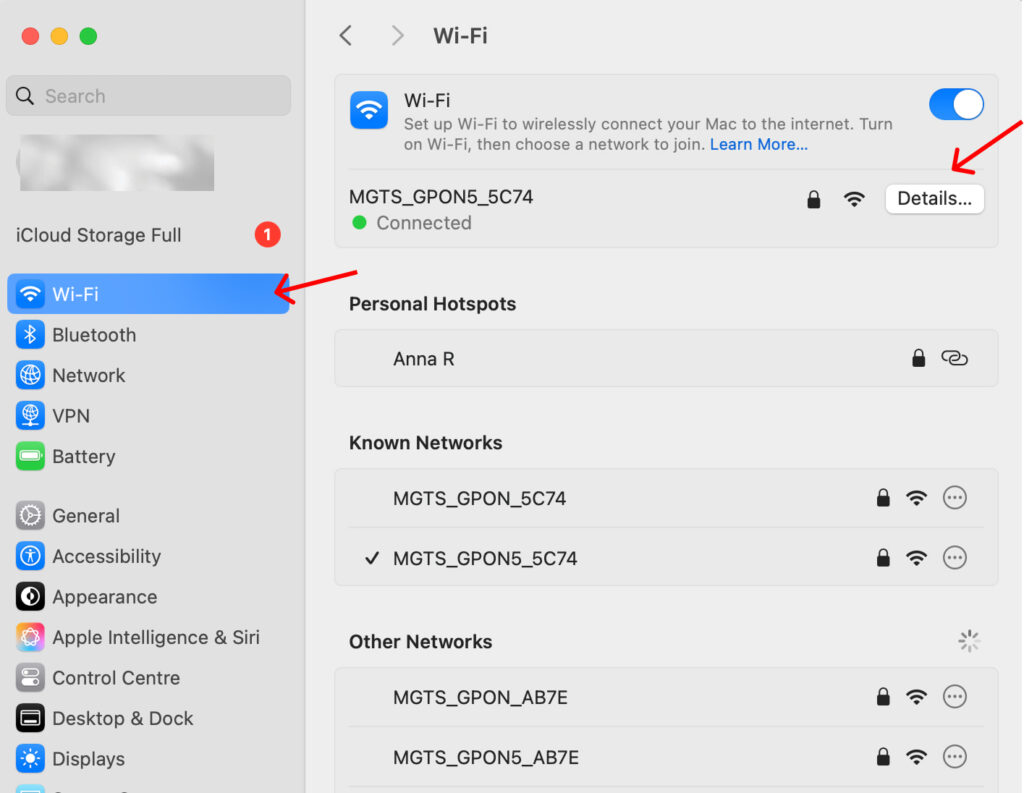
- Open the Proxies tab.
- Enable SOCKS Proxy.
- Enter the proxy details:
• Server (Host), for example gate.nodemaven.com
• Port, 1080 for SOCKS5.
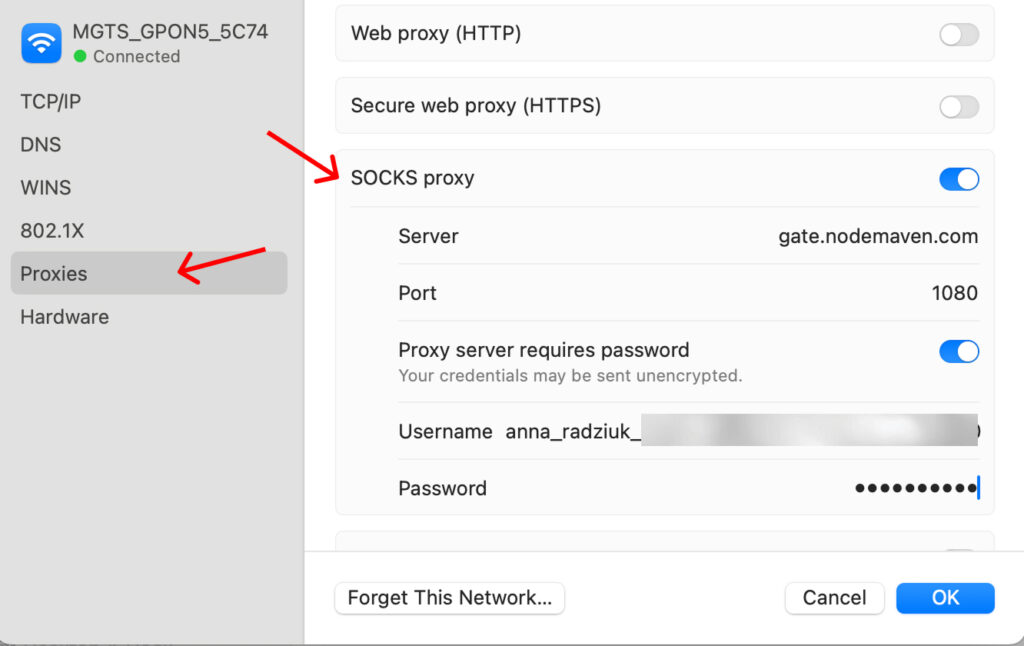
- If required, enable authentication and enter your username and password from the NodeMaven dashboard.
- Click OK, then Apply.
After saving the configuration, Safari will use the configured SOCKS5 proxy for supported connections. You can confirm that the proxy is working by visiting an IP checker and verifying that the displayed IP address matches your proxy location.
Free SOCKS5 Proxies vs Premium SOCKS5 Proxy Servers
Many users first try free SOCKS5 proxies, but these proxy lists often create problems for real workflows.
Common issues include:
• Blacklisted IPs are already flagged by websites
• Unstable connections that frequently drop or slow down
• Security risks because free proxies may log or expose traffic
For tasks that require stable connections, many users choose to buy SOCKS5 proxies from trusted providers. Premium proxy networks maintain larger IP pools and better infrastructure, which helps keep connections consistent.
Providers such as NodeMaven offer SOCKS5 proxy servers across residential, mobile, and ISP networks. NodeMaven also filters IPs through its IP Quality Filter, helping reduce the chances of connecting through flagged or unreliable addresses.
Why Many Businesses Choose NodeMaven SOCKS5 Proxies
When using SOCKS5 proxies for automation, testing, or data workflows, the quality of the proxy network matters as much as the protocol itself. Many teams choose NodeMaven because the infrastructure provides stable connections and reliable IP addresses.
Clean IP Filtering
NodeMaven uses an IP Quality Filter to screen proxy IPs before assigning to users. This helps avoid low quality or previously flagged addresses, which reduces the chance of connection problems during SOCKS5 sessions.
Residential, Mobile, and ISP SOCKS5 Proxies
NodeMaven supports SOCKS5 proxies across several proxy types. Users can run workflows with residential proxies, mobile proxies, or static residential ISP proxies, depending on the level of stability and identity persistence required.
Precise Geo-Targeting
NodeMaven proxies allow geo targeting across 150 plus countries and many cities worldwide. This makes it easier to test websites from different locations, collect localized data, or run regional campaigns.
Sticky Sessions for Long Connections
For workflows that require a consistent identity, NodeMaven provides sticky sessions that can keep the same proxy IP active for extended periods. This is useful for automation tools and applications that require stable long running connections.
24/7 Expert Support
NodeMaven also offers 24/7 expert support. Users can reach the team through live chat, Telegram, Slack, or email to get help with setup, proxy configuration, or troubleshooting SOCKS5 connections.
Frequently Asked Questions About SOCKS5 Proxies
What is a SOCKS5 proxy server?
A SOCKS5 proxy server routes internet traffic through another IP address before it reaches the destination website or service. Instead of connecting directly, your request passes through the proxy, which hides your original IP. The SOCKS protocol works with many types of traffic, which is why SOCKS5 proxies are commonly used for automation, browsing, and data collection. Providers such as NodeMaven support SOCKS5 across residential, mobile, and ISP proxy networks.
How to configure a SOCKS5 proxy?
The SOCKS5 configuration process usually requires a proxy IP address, port, and authentication credentials. These details are entered in your browser, operating system, or proxy management tool. Many providers simplify the process through a dashboard. For example, NodeMaven allows users to generate proxy credentials and choose the SOCKS5 protocol directly when creating residential, mobile, or ISP proxies.
What port does a SOCKS5 proxy use?
The most common port for a SOCKS5 proxy server is 1080, which is the standard port used by the SOCKS protocol. Some providers may also offer additional ports depending on the proxy setup. When using NodeMaven SOCKS5 proxies, the correct port is displayed together with the proxy IP and login credentials in the dashboard.
Are SOCKS5 proxies faster than HTTP proxies?
In many cases, SOCKS5 proxies can be faster than HTTP proxies because they forward traffic without inspecting or modifying the data. This allows applications to communicate more directly with the destination server. However, performance also depends on the proxy network itself. High-quality providers such as NodeMaven maintain stable infrastructure and filtered IP pools, which helps keep SOCKS5 proxy connections consistent.
Can SOCKS5 proxies be detected?
Any proxy type, including SOCKS5 proxies, can sometimes be detected if the IP address has been previously flagged or heavily reused. This is why proxy quality is important. Services such as NodeMaven reduce this risk by filtering IP addresses and maintaining large proxy pools designed for stable sessions.
Are free SOCKS5 proxies safe?
Many free socks 5 proxies are unreliable and may expose users to security risks. Free proxy lists often contain unstable servers, shared IP addresses, or proxies that log traffic. For workflows that require stability and security, users often prefer premium proxy networks. Providers like NodeMaven offer SOCKS5 proxies with controlled infrastructure and filtered IP pools.
Where can I buy reliable SOCKS5 proxies?
You can buy SOCKS5 proxies from providers that maintain their own proxy infrastructure and IP networks. Reliable services usually offer authentication, geo-targeting, and stable sessions. NodeMaven provides SOCKS5 proxy support across residential, mobile, and ISP proxies, allowing users to configure proxies across browsers, operating systems, and automation tools.